
SharePoint 2013 App Model Succinctly®

CHAPTER 11
App Deployment
Introduction
Once we create our SharePoint apps, we need to decide how to publish them to make them available for installation.
We have two options, depending on whether or not we want to make our app public. We can use a private store called the App Catalog, or use one created by Microsoft called the Office Store—which all users of SharePoint can access via the Internet.
In either case, we need to generate the file .app through the publishing process that Visual Studio provides.
Publishing
The first thing to do is to generate the app through the publishing process that Visual Studio provides in the project, as shown in Figure 43.
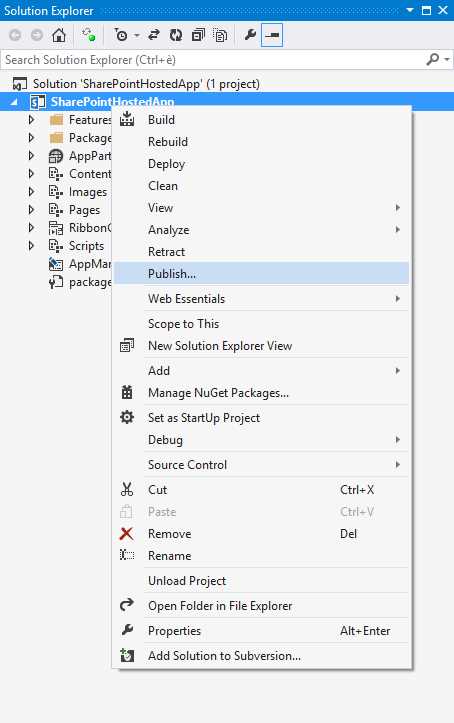
- App publishing
Depending on the type of app that we've created, different information will be requested.
SharePoint-hosted
In this case, the publishing process requires that we only build the app package.

- Publish SharePoint-hosted app
Provider-hosted
In this case, the process involves creating a new profile part for publishing, where we will be asked for information concerning the ClientId and client secrets that will be used as the app identifiers in SharePoint:

- Publish SharePoint-hosted 1
Once we have created the profile, we can both publish to the web and generate the app:

- Publish SharePoint-hosted 2
App Catalog
The App Catalog is, as was previously mentioned, one private app store within SharePoint.
Technically, it is a site collection that contains two main libraries:
- Apps for SharePoint: SharePoint apps
- Apps for Office: Office apps for 2013
Each library contains a number of columns whose purpose is to describe the app itself so that the infrastructure of the app may allow the installation of same. It shows the user’s information, such as title, description, etc.
To create an App Catalog, we can access the Central Administration in an on-premises environment or in the SharePoint administration portal on Office365 as shown in Figure 47.

- Apps settings
In this case, we create a new App Catalog, and set the settings to create the Site Collection that matches it:

- Create new App Catalog settings
Once we have completed this, we also have a new site where we can manage a catalog of all the apps we make available in SharePoint:

- SharePoint App Catalog
By clicking "Distribute apps for SharePoint," we can access the library that will contain the apps:

- Apps for SharePoint library
Once this is done, the deployed apps will be available for installation by users.
Office Store
By releasing an app in the Office Store, we make our app available to the world.
The first thing to do in order to publish an app is to create an account in the Seller Dashboard. Just go to the Microsoft Seller Dashboard and enter all the required information.
You can create two types of accounts:
- Private: For creating an account not tied to a company.
- Company: To create an account linked to a company.
Once the account is created, you will be able to publish the app.
Before it is made available to the public, the app will be subject to an approval process that validates a set of rules that must be respected and that are identified in the portal itself.
If validation is successful, the app will be released. If not, the address will be delivered to your account with a report that details the validation failure.
Summary
In this chapter, we learned how to publish apps for SharePoint, as well as create a private store that’s useful when we want to publish an app within our company or publish on Microsoft’s public store.


- 1800+ high-performance UI components.
- Includes popular controls such as Grid, Chart, Scheduler, and more.
- 24x5 unlimited support by developers.