
Roslyn Succinctly®

CHAPTER 8
Workspaces, Code Generation, Emit
The .NET Compiler Platform is not just about analyzers and refactorings. In Chapter 3, you were introduced to the Workspaces APIs and the compiler pipeline, which includes the emit phase. This chapter provides a short introduction to the Workspaces APIs, and how you can implement code generation and emit an assembly.
Getting Started with Workspaces
The Workspaces APIs allow you to interact with everything that makes up an MSBuild solution, including projects, code files, and metadata, with objects exposed by the .NET Compiler Platform. Most of the necessary types are defined inside the Microsoft.CodeAnalysis.Workspaces.dll assembly, plus libraries that are tailored for a specific language, such as Microsoft.CodeAnalysis.CSharp.Workspaces.dll and Microsoft.CodeAnalysis.VisualBasic.Workspaces.dll.
In this chapter, you’ll create a sample project that opens a solution (.sln file) and lists all the projects in that solution, plus all the code files (documents) and references of each project. For an easier starting point, you can take advantage of a project template called Stand-Alone Code Analysis Tool, which generates a console application with all the necessary references to the Roslyn APIs. Of course, you can manually add a reference to the Microsoft.CodeAnalysis.dll library in any project. This project template is located in the Extensibility node under the language of your choice, as shown in Figure 56.
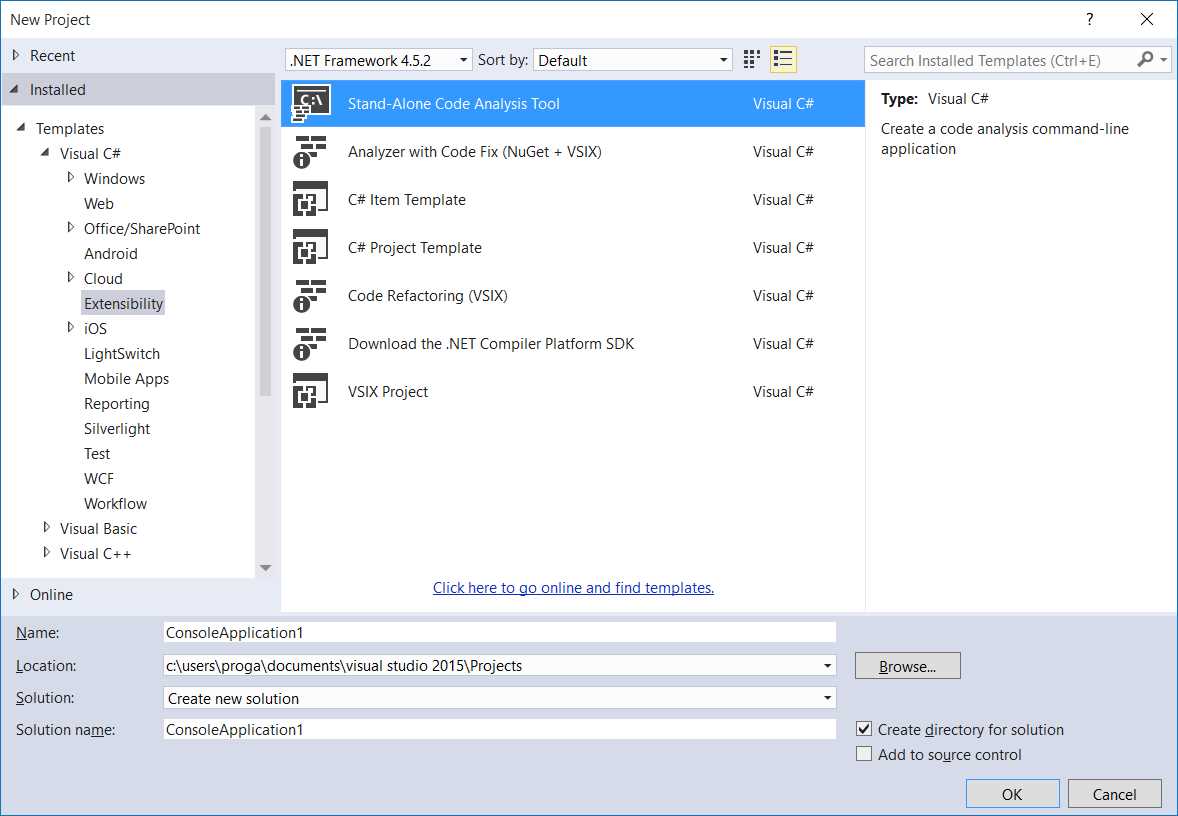
Figure 56: Creating a stand-alone code analysis application
To interact with a solution, you need to create an instance of the Microsoft.CodeAnalysis.MSBuild.MSBuildWorkspace class, which represents a workspace that can be populated with MSBuild solutions and projects. This class exposes a method called Create, which generates the workspace, and a number of methods to interact with solutions and projects, such as OpenSolutionAsync and OpenProjectAsync.
Tip: Using IntelliSense to discover the full list of available methods is almost always the best approach. The method names are self-explanatory, so understanding the purpose of each one will not be difficult.
Code Listing 19 demonstrates how to open an existing solution on disk, but remember to change the solution path to one existing on your machine.
Code Listing 19 (C#)
static void Main(string[] args) { // Path to an existing solution string solutionPath = "C:\\temp\\RoslynSolution\\RoslynSolution.sln"; // Create a workspace var ws = Microsoft.CodeAnalysis. MSBuild.MSBuildWorkspace. Create(); // Open a solution var solution = ws.OpenSolutionAsync(solutionPath).Result; // Invoke code to iterate items // in the solution // using a program-defined method IterateSolution(solution, solutionPath); } |
Code Listing 19 (VB)
Sub Main() 'Path to an existing solution Dim solutionPath = "C:\temp\RoslynSolution\RoslynSolution.sln" 'Create a workspace Dim ws = MSBuild. MSBuildWorkspace.Create() 'Open a solution Dim solution = ws.OpenSolutionAsync( solutionPath).Result 'Invoke code to iterate 'items in the solution 'using a program-defined method IterateSolution( solution, solutionPath) End Sub |
The invocation to OpenSolutionAsync returns an object of type Solution, which represents an MSBuild solution. Similarly, invoking OpenProjectAsync would result in an object of type Project. Solution exposes a property called Result, of the same type, which returns the actual instance of the solution. The next step is iterating the list of projects in the solution and the list of documents and references for each project. To understand what the next piece of code will do, first take a look at Figure 57, which shows the result based on a sample C# WPF application.
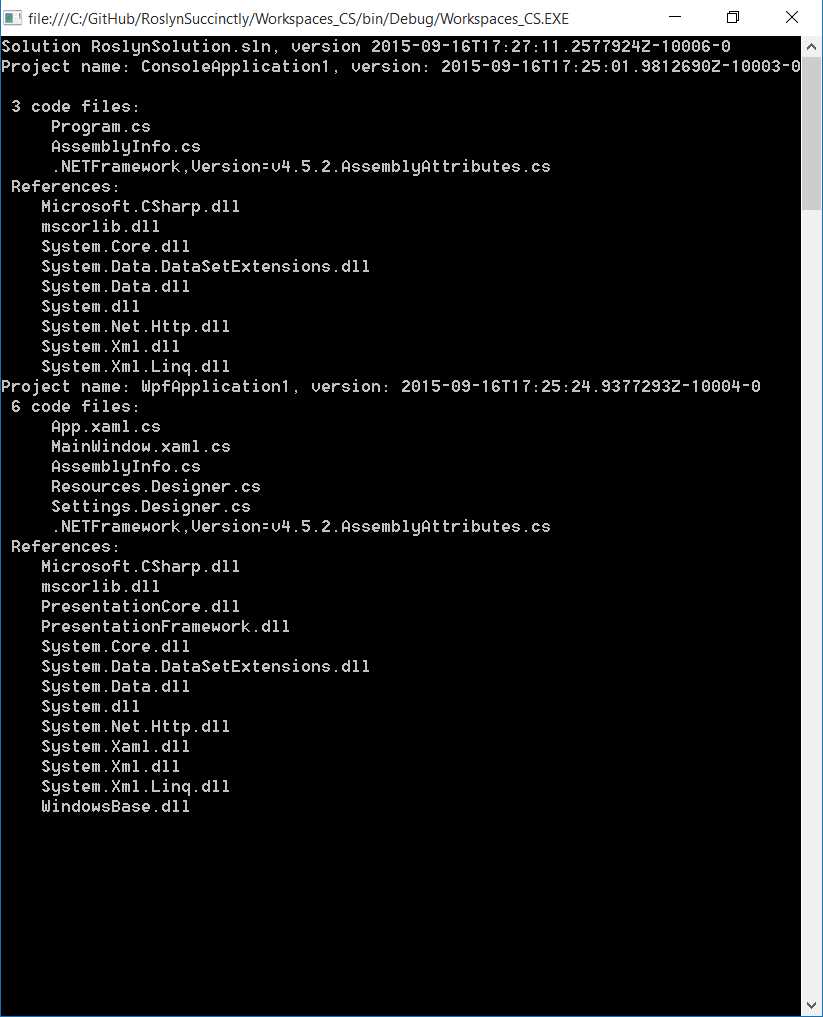
Figure 57: Iterating properties of an MSBuild solution
As you can see, you need some code that displays information about the solution, the list of projects, and the code files and references of each project. The code required to perform this is shown in Code Listing 20.
Code Listing 20 (C#)
static void IterateSolution(Solution solution, string solutionPath) { // Print solution's path and version Console.WriteLine( $"Solution {System.IO.Path.GetFileName(solutionPath)}, version {solution.Version.ToString()}"); // For each project... foreach (var prj in solution.Projects) { // Print the name and version Console.WriteLine( $"Project name: {prj.Name}, version: {prj.Version.ToString()}"); // Then print the number of code files Console.WriteLine( $" {prj.Documents.Count()} code files:"); // For each code file, print the file name foreach (var codeFile in prj.Documents) { Console. WriteLine($" {codeFile.Name}"); } Console.WriteLine(" References:"); // For each reference in the project // Print the name foreach (var reference in prj.MetadataReferences) { Console.WriteLine( $" {System.IO.Path.GetFileName(reference.Display)}"); } } Console.ReadLine(); } |
Code Listing 20 (VB)
Private Sub IterateSolution( solution As Solution, solutionPath As String) 'Print solution's path and version Console.WriteLine( $"Solution {IO.Path. GetFileName(solutionPath)}, version {solution.Version.ToString}") 'For each project... For Each prj In solution.Projects 'Print the name and version Console. WriteLine( $"Project name: {prj.Name}, version: {prj.Version.ToString}") 'Then print the number of code files Console. WriteLine($" {prj.Documents.Count} code files:") 'For each code file, print the file name For Each codeFile In prj.Documents Console. WriteLine($" {codeFile.Name}") Next Console. WriteLine(" References:") 'For each reference in the project 'Print the name For Each ref In prj.MetadataReferences Console. WriteLine($" {IO.Path.GetFileName(ref.Display)}") Next Console.WriteLine("") Next Console.ReadLine() End Sub |
Among others, the Solution class exposes the Version property, which represents the solution’s file version number. It also exposes the Projects property, which is a collection of Project objects, each representing a project in the solution. The Project class exposes a property called Documents, a collection of Document objects, each representing a code file in the project. Project also exposes the MetadataReferences property, which represents a collection of assembly references, including CLR libraries.
Each reference is represented by an object of type MetadataReference, whose Display property contains the assembly name. This example just shows the surface of the power of the Workspaces APIs, but it gives you an idea of how you can work with solutions, projects, and documents in a .NET way. You might also want to consider the AdHocWorkspace class, which also offers members to create projects, documents, and code files, and add them to a solution.
Code Generation and Emit
Note: This section requires you to have knowledge of reflection in .NET. For the code blocks that use reflection, only the Roslyn-related snippets will be discussed in detail.
With the Roslyn APIs, you can take source code, compile it, and emit an assembly. Source code can be pure-text parsed to a syntax tree or an existing syntax tree. Then you can use the Compilation class to perform an invocation to the compiler.
In this chapter, you will see how to generate a syntax tree from pure source text, and then how to use the Compilation class to invoke the compiler for emitting an assembly. More specifically, you will write source code that checks if a text file exists, printing its content to the Console window. You will also see how to interact with diagnostics by causing intentional errors.
Before you start, create a new console application based on the Stand-alone Code Analysis Tool project template (see Figure 56) in the language of your choice. Actually, Compilation is an abstract class and the base type for the VisualBasicCompilation and CSharpCompilation classes, which are tailored for VB and C#. As you know, the Microsoft.CodeAnalysis namespace exposes the VisualBasic and CSharp classes, which offer members that are tailored to a language’s specifications. Both offer an option to represent a source document under the form of a syntax tree via the VisualBasicSyntaxTree and CSharpSyntaxTree objects. Both classes expose a method called ParseText that you invoke to generate a syntax tree from pure source text. Code Listing 21 shows how to parse source text and generate a syntax tree.
Code Listing 21 (C#)
private static void GenerateCode() { SyntaxTree syntaxTree = CSharpSyntaxTree.ParseText(@" using System; using System.IO; namespace RoslynSuccinctly { public class Helper { public void PrintTextFromFile(string fileName) { if (File.Exists(fileName) == false) { Console.WriteLine(""File does not exist""); return; } using (StreamReader str = new StreamReader(fileName)) { Console.WriteLine(str.ReadToEnd()); } } } }"); // more code goes here... } //end GenerateCode() |
Code Listing 21 (VB)
'Generate a syntax tree 'from source text Private Sub GenerateCode() Dim tree = VisualBasicSyntaxTree.ParseText(" Imports System Imports System.IO Namespace RoslynSuccinctly Public Class Helper Public Sub PrintTextFromFile(fileName As String) If File.Exists(fileName) = False Then Console.WriteLine(""File does not exist"") Exit Sub End If Using str As New StreamReader(fileName) Console.WriteLine(str.ReadToEnd()) End Using End Sub End Class End Namespace") |
The next step is preparing the assembly’s metadata. This requires getting an assembly name, which is accomplished via the System.IO.Path.GetRandomFileName method for demonstration purposes, and creating a list of references that the assembly will rely on. The list of references must be an array of MetadataReference objects. MetadataReference exposes a method called CreateFromFile. If you pass a type to this method, it will be able to determine the assembly files that contain the corresponding namespace definitions, and get a reference. In this case, the sample code uses objects from the System and System.IO namespaces, so to get a reference to the containing assemblies, you can pass Object and File to each MetadataReference in the array. This is demonstrated in Code Listing 22.
Code Listing 22 (C#)
//Get a random file name for //the output assembly string outputAssemblyName = System.IO.Path.GetRandomFileName(); //Add a list of references from assemblies //By a type name, get the assembly ref MetadataReference[] referenceList = new MetadataReference[] { MetadataReference. CreateFromFile(typeof(object). Assembly.Location), MetadataReference. CreateFromFile(typeof(File). Assembly.Location) }; |
Code Listing 22 (VB)
'Get a random file name for 'the output assembly Dim outputAssemblyName As String = Path.GetRandomFileName() 'Add a list of references from assemblies 'By a type name, get the assembly ref Dim referenceList As MetadataReference() = New MetadataReference() _ {MetadataReference. CreateFromFile(GetType(Object). Assembly.Location), MetadataReference. CreateFromFile(GetType(File). Assembly.Location)} |
The next step is creating a new compilation. You invoke the Create method to invoke the compiler, passing as arguments the new assembly name, an array of syntax trees, an array of references, and compilation options. This is demonstrated in Code Listing 23.
Code Listing 23 (C#)
//Single invocation to the compiler //Create an assembly with the specified //syntax trees, references, and options CSharpCompilation compilation = CSharpCompilation.Create( outputAssemblyName, syntaxTrees: new[] { syntaxTree }, references: referenceList, options: new CSharpCompilationOptions( OutputKind.DynamicallyLinkedLibrary)); |
Code Listing 23 (VB)
'Single invocation to the compiler 'Create an assembly with the specified 'syntax trees, references, and options Dim compilation As VisualBasicCompilation = VisualBasicCompilation. Create(outputAssemblyName, syntaxTrees:=New SyntaxTree() {tree}, references:=referenceList, options:=New VisualBasicCompilationOptions( OutputKind.DynamicallyLinkedLibrary)) |
You can incrementally add new syntax trees or references via the AddSyntaxTrees and AddReferences methods. Notice how the CSharpCompilationOptions and VisualBasicCompilationOptions types allow specifying, among others, the output type for the assembly.
The next step is emitting the IL code, which is accomplished by invoking the Emit method over the Compilation instance. If the emit phase fails, the code will iterate a list of diagnostics and print their messages. The EmitResult type, which is the type returned by Emit, exposes an ImmutableArray<Diagnostic>, which contains a list of diagnostics that exist in the code. Code Listing 24 demonstrates this.
Code Listing 24 (C#)
//Create a stream using (var ms = new MemoryStream()) { //Emit the IL code into the stream EmitResult result = compilation.Emit(ms); //If emit fails, if (!result.Success) { //Query the list of diagnostics //in the source code IEnumerable<Diagnostic> diagnostics = result.Diagnostics.Where(diagnostic => diagnostic.IsWarningAsError || diagnostic.Severity == DiagnosticSeverity.Error); //Write ID and message for each diagnostic foreach (Diagnostic diagnostic in diagnostics) { Console.Error. WriteLine("{0}: {1}", diagnostic.Id, diagnostic. GetMessage()); } } else { //If emit succeeds, move to //the beginning of the assembly ms.Seek(0, SeekOrigin.Begin); //Load the generated assembly //into memory Assembly inputAssembly = Assembly.Load(ms.ToArray()); //Get a reference to the type //defined in the syntax tree Type typeInstance = inputAssembly. GetType("RoslynSuccinctly.Helper"); //Create an instance of the type object obj = Activator.CreateInstance(typeInstance); //Invoke the method. Replace MyFile.txt with an //existing file name typeInstance. InvokeMember("PrintTextFromFile", BindingFlags.Default | BindingFlags.InvokeMethod, null, obj, new object[] { "C:\\MyFile.txt" }); } } } //end GenerateCode() |
Code Listing 24 (VB)
'Create a stream Using ms As New MemoryStream() 'Emit the IL code into the 'stream Dim result As EmitResult = compilation.Emit(ms) 'If emit fails, If Not result.Success Then 'Query the list of diagnostics in the source code Dim diagnostics As _ IEnumerable(Of Diagnostic) = result.Diagnostics.Where(Function(diagnostic) _ diagnostic.IsWarningAsError _ OrElse diagnostic.Severity = DiagnosticSeverity.[Error]) 'Write ID and message for each diagnostic For Each diagnostic As _ Diagnostic In diagnostics Console.Error.WriteLine("{0}: {1}", diagnostic.Id, diagnostic.GetMessage()) Next Else 'If emit succeeds, move to 'the beginning of the assembly ms.Seek(0, SeekOrigin.Begin) 'Load the generated assembly 'into memory Dim inputAssembly As Assembly = Assembly.Load(ms.ToArray()) 'Get a reference to the type 'defined in the syntax tree Dim typeInstance As Type = inputAssembly. GetType("RoslynSuccinctly.Helper") 'Create an instance of the type Dim obj As Object = Activator. CreateInstance(typeInstance) 'Invoke the method. Replace MyFile.txt with an existing 'file name typeInstance. InvokeMember("PrintTextFromFile", BindingFlags.Default Or BindingFlags.InvokeMethod, Nothing, obj, New Object() _ {"C:\MyFile.txt"}) End If End Using End Sub |
To test the code, invoke the GenerateCode method in the Main method. If you supply the name of an existing text file, you will see how its content will be printed to the Console window. This is possible because the source text you wrote is parsed into a syntax tree and compiled into a .dll assembly. Other than testing how the code properly works against an existing text file, you can try causing intentional errors in the source text and then run the code. Because the compiler’s job is not only generating IL code but also performing code analysis, at that point it will report the proper diagnostics; these can be analyzed and utilized as required. For example, you can change Writeline to Witeline and StreamReader to SreamReader. Figure 58 shows the result of the code analysis.
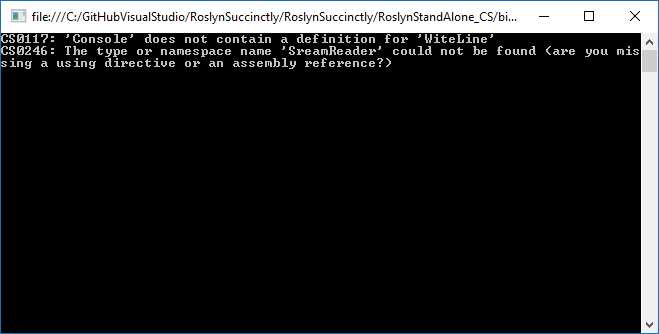
Figure 58: The result of code analysis over Roslyn-generated source code
In summary, the Roslyn APIs are very powerful and useful, not only to generate and compile code, but also for performing code analysis over the source code.
Chapter Summary
The .NET Compiler Platform is not just analyzers and code refactorings. In this chapter, you were given an overview of the Workspaces APIs and the Emit APIs. You first saw how to interact with MSBuild solutions by using workspaces and the Solution, Project, and Document objects. In the second part, you saw how you can leverage the Compilation class to generate an assembly based on a parsed syntax tree, how you can invoke types from the resulting library, and how you can investigate diagnostics in the source code.


- 1800+ high-performance UI components.
- Includes popular controls such as Grid, Chart, Scheduler, and more.
- 24x5 unlimited support by developers.