
Robotic Process Automation Succinctly®

CHAPTER 2
Accessing Files and Folders
Quick intro
Manual, repetitive processes that humans carry out with computers mostly involve gathering information from one place, validating the data gathered, and then using part of the data in other systems.
Most information is stored within files or databases. To be able to extract data to automate certain processes, we need to know how to access files and understand how to automate frequent operations with them, which include: copying, moving, reading, and writing files. This is what we will be covering throughout this chapter.
Automated backups config
As automating specific business processes requires changing data, it is always a good idea to make backups of that data before using it to automate other processes. There’s always a possibility that some of that information might be altered due to file manipulation.
Before we explore how to extract data to automate specific business processes, it’s good that we understand how we can perform specific operations with files and folders, such as reading configuration files, walking a directory tree, merging file paths, and detecting file changes.
The goal for this chapter is to understand how files and folders can be accessed. In the next chapter, we can see how to perform file and folder operations, which will later allow us to create a backup Python script that can be configured to copy, move, zip, and delete files within any folder.
The script would be configured through a .ini file that would have the following structure.
Code Listing 2-a: Python Backup Script Configuration .ini File (readcfg.ini)
C:\Projects\RPA Succinctly\Temp;.py,.ini|C:\Temp\RPASuccinctly_%%.zip|z C:\Projects\RPA Succinctly\Temp|/foo/RPASuccinctly|f C:\Projects\RPA Succinctly\Temp|C:\Temp\RPASuccinctly|c C:\Projects\RPA Succinctly\Temp|C:\Temp\RPASuccinctly|m C:\Temp\RPASuccinctly|C:\Temp\RPASuccinctly2|c C:\Temp\RPASuccinctly2||d |
Let’s explore the structure of this .ini file and the operation each line represents. Each line has three parts, and each part is separated by a pipe character (|). Let’s explore the first line within the .ini file.
The first part indicates the origin of the files: C:\Projects\RPA Succinctly\Temp;.py,.ini.
The second part indicates the destination of the files: C:\Temp\RPASuccinctly_%%.zip.
The third part indicates the type of operation that will take place between the first and second parts: z, which in this case, represents a zip (compression) operation.
So in essence, in this first line, we are instructing the Python script to zip all the files contained within the C:\Projects\RPA Succinctly\Temp folder, except for files with the .py and .ini extensions, and archive them into a file called C:\Temp\RPASuccinctly_%%.zip, where the %% chars will be replaced with the date and time the operation takes place.
On the second line, the operation taking place is an FTP upload of the files located within C:\Projects\RPA Succinctly\Temp to \foo\RPASuccinctly. This operation is represented by the f char.
The third and fourth lines indicate copy (c) and move (m) operations, respectively, from C:\Projects\RPA Succinctly\Temp to C:\Temp\RPASuccinctly.
The fifth line also indicates a copy (c) operation from C:\Temp\RPASuccinctly to C:\Temp\RPASuccinctly2.
The sixth line of the config file indicates a delete operation for the files contained within the C:\Temp\RPASuccinctly2 folder.
This configuration file may contain any number of lines. An operation may only be described in one line.
Reading the config file
Now that we have defined what the config file looks like and what operations can be configured, it’s now time to write code, read its content, and parse each line. Let’s explore that code.
Code Listing 2-b: Reading the .ini File (readcfg.py)
import os def readcfg(config): items = [] if os.path.isfile(config): cfile = open(config, 'r') for line in cfile.readlines(): items.append(parsecfgline(line)) cfile.close() return items def parsecfgline(line): option = {} if '|' in line: opts = line.split('|') if len(opts) == 3: option['origin'] = extcheck(opts[0], 0) option['exclude'] = extcheck(opts[0], 1) option['dest'] = opts[1] option['type'] = opts[2].replace('\n', '') return option def extcheck(opt, idx): res = '' if ';' in opt: opts = opt.split(';') if len(opts) == 2: res = opts[0] if idx == 0 else opts[1] elif idx == 0: res = opt return res opts = readcfg(os.path.splitext(os.path.basename(__file__))[0] + '.ini') for opt in opts: print(opt) |
This Python script starts by invoking the readcfg function, which is responsible for reading the readcfg.ini file. The name of the .ini file is retrieved by executing the following instruction.
os.path.splitext(os.path.basename(__file__))[0] + '.ini'
This instruction extracts the base name of the current file (__file__). In other words, it returns the <folder-name>\readcfg string, and by passing that value to the os.path.splitext()[0] method, it strips out the folder name from the file name. The file name is appended the .ini extension.
The configuration file name is passed to the readcfg function, which loops through each of the lines contained within the file and returns a list of the lines read.
For each line that is read, the parsecfgline function is invoked, which is responsible for parsing the origin (origin), destination (dest), what files types to exclude (exclude), and the type of operation taking place (type). This is done by splitting each line based on the occurrence of the pipe (|) character.
The parsecfgline function invokes the extcheck function, which determines if any file types should be excluded from the operation.
The results returned by the readcfg function are printed out to the console.
Let’s now execute the script from the command line or the built-in terminal within Visual Studio Code (VS Code), which is my editor of choice—but you are free to use any other editor of your choice.

Figure 2-a: Console Output – readcfg.py Execution
Notice how the script has returned the lines parsed from the .ini file, split into different sections, which we will use later to automate a backup process.
The script was executed by running the following command.
Code Listing 2-c: Command to Execute the Python Script (readcfg.py)
python3 readcfg.py |
Note: On some Python Windows installations, the name of the Python executable might be python3.exe instead of simply python.exe (which is true in my case).
If python3.exe is not available for you, simply use python.exe. In that case, the command will be as follows.
Code Listing 2-d: Alternate Command to Execute the Python Script (readcfg.py)
python readcfg.py |
For simplicity, going forward I’ll always use python instead of python3, so it’s less confusing and easier to follow along.
An important consideration is that the Python executable needs to be in your system path so you can execute it from any folder.
Normally, this process is taken care of by the installer. In any case, it’s worthwhile to check that Python is within your system path; for Windows, you can do this using these instructions.
Walking a directory tree
A fundamental aspect of extracting data from files is the ability to traverse a directory tree and find all the files we want to process. In Python, this is known as walking a directory tree.
This means that we can iterate through all the folders and subfolders of a specific directory and get a list of all the files contained within.
In most programming languages, this can only be done with a recursive function, which is one that invokes itself, but in Python this can be achieved quite easily without the need to use recursion.
Let’s explore how we can easily walk a directory tree with Python.
Code Listing 2-e: Walking a Directory Tree with Python (walkdir.py)
import os for fn, sflds, fnames in os.walk('.\\'): print('Current folder is ' + fn) for sf in sflds: print(sf + ' is a subfolder of ' + fn) for fname in fnames: print(fname + ' is a file of ' + fn) print('') |
Note: It’s common in Windows Python code for the backslash character (\) to be escaped; thus it can be written as (\\). Going forward, I’ll be using mostly Windows folder notation.
The directory we want to walk across, including all its subdirectories and files, is .\, which is the parent folder of where the script resides. You may choose any other folder.
The os.walk method returns the main folder name (fn), the subfolders (sflds), and all the files (fnames) contained within the main directory and subfolders.
Let’s now execute this script from the command line or built-in terminal within VS Code as follows.
Code Listing 2-f: Command to Execute the Python Script (walkdir.py)
python walkdir.py |
Here are the results of the execution of the script on my machine.
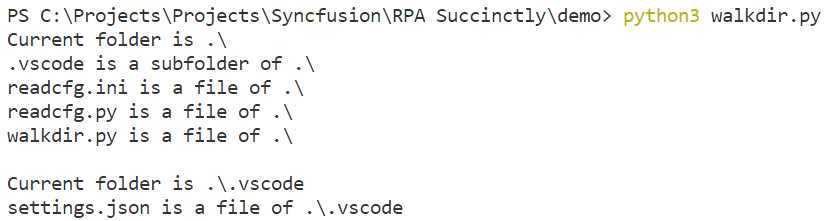
Figure 2-b: Console Output – walkdir.py Execution
Notice how the execution of this script returns all the subfolders and files contained within the folder that is passed to the os.walk method.
Depending on the number of files in that specific directory, the output will vary.
Merging paths
When we copy or move files from one folder to another, sometimes we want to preserve the original path and replicate that same file path to the new destination by recreating the same folder structure where the original files exist, or once were. This is what the concept of merging paths is all about.
Say, for instance, we have the origin path C:\Projects\Test and the destination path D:\Backup.
The merged path would be D:\Backup\Projects\Test. All the files contained with the origin would be copied or moved to the destination, but keep the same folder structure of their origin.
Merging the origin path into the destination path can be quite handy if you want to retain evidence of where the files originally existed, without having to use a database to store the original file locations.
To see how this works, let’s create a new Python script called mergepaths.py and add the following code to it.
Code Listing 2-g: Merging Paths (mergepaths.py)
import os def mergepaths(path1, path2): pieces = [] parts1, tail1 = os.path.splitdrive(path1) parts2, tail2 = os.path.splitdrive(path2) result = path2 parts1 = tail1.split('\\') if '\\' in tail1 else tail1.split('/') parts2 = tail2.split('\\') if '\\' in tail2 else tail2.split('/') for pitem in parts1: if pitem != '': if not pitem in parts2: pieces.append(pitem) for piece in pieces: result = os.path.join(result, piece) return result print(mergepaths("C:\\Projects\\Test", "C:\\Temp\\RPASuccinctly")) |
We can execute this script using the following command from the prompt or built-in terminal within VS Code.
Code Listing 2-h: Command to Execute the Python Script (mergepaths.py)
python mergepaths.py |
The execution of the script would return the following result.

Figure 2-c: Console Output – mergepaths.py Execution
Notice how the origin location C:\Projects\Test was merged with the destination path C:\Temp\RPASuccinctly into one path.
To understand how this works, let’s explore what the code of the mergepaths function does.
Both file paths, origin and destination, are split into their various subparts, which is done as follows.
parts1, tail1 = os.path.splitdrive(path1)
parts2, tail2 = os.path.splitdrive(path2)
Depending on the operating system in use, the splitting of each of the paths is done looking for the backslash (\) or forward slash (/) characters.
parts1 = tail1.split('\\') if '\\' in tail1 else tail1.split('/')
parts2 = tail2.split('\\') if '\\' in tail2 else tail2.split('/')
Then, for each subpart within the origin location (pitem)—each subpart represents a folder within the original location (parts1)—we check if that subpart is not part of the destination location (parts2). If not, we add it to a list called pieces, which contains the subparts that will be merged into the destination location.
for pitem in parts1:
if pitem != '':
if not pitem in parts2:
pieces.append(pitem)
Then, for each of the pieces (piece) contained within the list of pieces to be merged, we concatenate (by invoking the os.path.join method) each of those subparts to the destination location.
for piece in pieces:
result = os.path.join(result, piece)
The resultant merged path is assigned to the result variable that the mergepaths function returns. By using the mergepaths function, we can preserve the original file locations during a backup operation.
Tracking file changes with SQLite
Sometimes when working with files, it is important to keep track of file changes. This can be quite useful if multiple people are working with a specific set of files, and when these files change, an action could be performed on them.
Keeping track of files is not complicated, but it does require having a small database of the each of the MD5 hash values of the files that we want to monitor, and checking if the hash values stored are different than the current file hash values.
You can think of a hash value as a file’s unique signature—something that can identify the file during a specific period.
For instance, the following files, based on their file size, file name, and modified date, will each have their unique MD5 hash value.
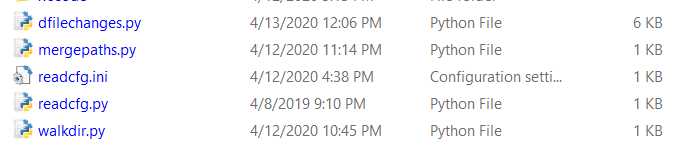
Figure 2-d: List of Files to Monitor
These hash values can be initially calculated and stored within a database, along with the file name and file path.
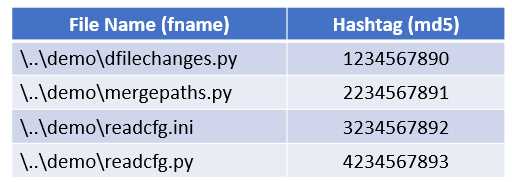
Figure 2-e: Database of Files and MD5 Hash Values
If a file is modified, the file’s hash value will change, so by keeping a database of files name, file paths, and file hash values, we can check whether a file has changed recently.
SQLite is a compact and embeddable version of a SQL database that is particularly useful and well suited for this type of scenario.
What we are going to do is to create a Python script called dfilechanges.py, which stands for “detect file changes.”
You can see the finished code for this script in Code Listing 2-i. Let’s have a look at the full code of this script and analyze each of its parts.
To make some parts of the code easier to follow, I’ve added a few helpful comments.
Code Listing 2-i: Finished dfilechanges.py Script
import os import sqlite3 import hashlib def getmoddate(fname): """Get file modified date""" try: mtime = os.path.getmtime(fname) except OSError as emsg: print(str(emsg)) mtime = 0 return mtime def md5short(fname): """Get md5 file hast tag...""" enc = fname + '|' + str(getmoddate(fname)) return hashlib.md5(enc.encode('utf-8')).hexdigest() def getbasefile(): """Name of the SQLite DB file""" return os.path.splitext(os.path.basename(__file__))[0] def connectdb(): """Connect to the SQLite DB""" try: dbfile = getbasefile() + '.db' conn = sqlite3.connect(dbfile, timeout=2) except BaseException as err: print(str(err)) conn = None return conn def corecursor(conn, query): """Opens a SQLite DB cursor""" result = False try: cursor = conn.cursor() cursor.execute(query) rows = cursor.fetchall() numrows = len(list(rows)) if numrows > 0: result = True except sqlite3.OperationalError as err: print(str(err)) cursor.close() finally: cursor.close() return result def tableexists(table): """Checks if a SQLite DB Table exists""" result = False core = "SELECT name FROM sqlite_master WHERE type='table' AND name='" try: conn = connectdb() if not conn is None: query = core + table + "'" result = corecursor(conn, query) conn.close() except sqlite3.OperationalError as err: print(str(err)) conn.close() return result def createhashtableidx(): """Creates a SQLite DB Table Index""" table = 'files' query = 'CREATE INDEX idxfile ON files (file, md5)' try: conn = connectdb() if not conn is None: if not tableexists(table): try: cursor = conn.cursor() cursor.execute(query) except sqlite3.OperationalError: cursor.close() finally: conn.commit() cursor.close() except sqlite3.OperationalError as err: print(str(err)) conn.close() finally: conn.close() def createhashtable(): """Creates a SQLite DB Table""" result = False query = "CREATE TABLE files ({file} {ft} PRIMARY KEY, {md5} {ft})"\ .format(file='file', md5='md5', ft='TEXT') try: conn = connectdb() if not conn is None: if not tableexists('files'): try: cursor = conn.cursor() cursor.execute(query) except sqlite3.OperationalError: cursor.close() finally: conn.commit() cursor.close() result = True except sqlite3.OperationalError as err: print(str(err)) conn.close() finally: conn.close() return result def runcmd(qry): """Run a specific command on the SQLite DB""" try: conn = connectdb() if not conn is None: if tableexists('files'): try: cursor = conn.cursor() cursor.execute(qry) except sqlite3.OperationalError: cursor.close() finally: conn.commit() cursor.close() except sqlite3.OperationalError as err: print(str(err)) conn.close() finally: conn.close() def updatehashtable(fname, md5): """Update the SQLite File Table""" qry = "UPDATE files SET md5='{md5}' WHERE file='{fname}'"\ .format(fname=fname, md5=md5) runcmd(qry) def inserthashtable(fname, md5): """Insert into the SQLite File Table""" qry = "INSERT INTO files (file, md5) VALUES ('{fname}', '{md5}')"\ .format(fname=fname, md5=md5) runcmd(qry) def setuphashtable(fname, md5): """Sets Up the Hash Table""" createhashtable() createhashtableidx() inserthashtable(fname, md5) def md5indb(fname): """Checks if md5 hash tag exists in the SQLite DB""" items = [] qry = "SELECT md5 FROM files WHERE file = '" + fname + "'" try: conn = connectdb() if not conn is None: if tableexists('files'): try: cursor = conn.cursor() cursor.execute(qry) for row in cursor: items.append(row[0]) except sqlite3.OperationalError as err: print(str(err)) cursor.close() finally: cursor.close() except sqlite3.OperationalError as err: print(str(err)) conn.close() finally: conn.close() return items def haschanged(fname, md5): """Checks if a file has changed""" result = False oldmd5 = md5indb(fname) numits = len(oldmd5) if numits > 0: if oldmd5[0] != md5: result = True updatehashtable(fname, md5) else: setuphashtable(fname, md5) return result def getfileext(fname): """Get the file name extension""" return os.path.splitext(fname)[1] def checkfilechanges(folder, exclude): """Checks for files changes""" for subdir, dirs, files in os.walk(folder): for fname in files: origin = os.path.join(subdir, fname) if os.path.isfile(origin): fext = getfileext(origin) if not fext in exclude: md5 = md5short(origin) if haschanged(origin, md5): print(origin + ' has changed...') else: print(origin + ' has NOT changed...') checkfilechanges("./", ['.db']) |
Before we run the code, let’s analyze what is going on and understand each of its parts and functions.
First, we import the following built-in Python libraries, which will allow us to work with SQLite and MD5 hash values, respectively.
import sqlite3
import hashlib
Then, we have the getmoddate function, which is used for retrieving the last modified date of a specific file.
def getmoddate(fname):
"""Get file modified date"""
try:
mtime = os.path.getmtime(fname)
except OSError as emsg:
print(str(emsg))
mtime = 0
return mtime
Next, we have the md5short function, which is used for calculating the MD5 hash values of a specific file.
def md5short(fname):
"""Get md5 file hash value..."""
enc = fname + '|' + str(getmoddate(fname))
return hashlib.md5(enc.encode('utf-8')).hexdigest()
As you can see, the MD5 hash value is generated as a combination of the encoded UTF-8 file name and the last modified date of the file.
Next we have the getbasefile function, which is responsible for determining the name of the SQLite database that will be used to store the MD4 hash values of the files we want to monitor for changes.
def getbasefile():
"""Name of the SQLite DB file"""
return os.path.splitext(os.path.basename(__file__))[0]
The name of this database file will be the same as the Python script, but with the .db file extension, which we can see as follows.

Figure 2-f: The Database File (dfilechanges.db) and Python Script (dfilechanges.py)
The database file gets automatically created by the script—within the same folder the script resides—the first time the script is executed.
Next, we have the connectdb function, which is responsible for establishing the connection to the database.
def connectdb():
"""Connect to the SQLite DB"""
try:
dbfile = getbasefile() + '.db'
conn = sqlite3.connect(dbfile, timeout=2)
except BaseException as err:
print(str(err))
conn = None
return conn
As you can see, this function simply invokes the sqlite3.connect method so a connection can be established to the database.
Next, we have the corecursor function, which creates a SQL cursor on the database. A cursor helps with the retrieval of the records stored in the database.
def corecursor(conn, query):
"""Opens a SQLite DB cursor"""
result = False
try:
cursor = conn.cursor()
cursor.execute(query)
rows = cursor.fetchall()
numrows = len(list(rows))
if numrows > 0:
result = True
except sqlite3.OperationalError as err:
print(str(err))
cursor.close()
finally:
cursor.close()
return result
This function provides the script with a simple and fast way to access all the records that exist in the database by prefetching all the records stored. This function is also useful when checking whether a particular table exists within the database, or whether one has any records.
In our case, we are using an SQLite database with one table only. However, if our database has multiple tables, then using this function would be a good way to know whether an existing table has any records.
Next, we have the tableexists function, which queries the SQLite master database to check if the table to be used actually exists in the database.
def tableexists(table):
"""Checks if a SQLite DB Table exists"""
result = False
core = "SELECT name FROM sqlite_master WHERE type='table' AND name='"
try:
conn = connectdb()
if not conn is None:
query = core + table + "'"
result = corecursor(conn, query)
conn.close()
except sqlite3.OperationalError as err:
print(str(err))
conn.close()
return result
This is a failsafe function that is used for verifying that we don’t execute operations on a table that doesn’t exist within our database file.
Next, we have the createhashtableidx function, which is responsible for creating a database index on the files table, which is used to keep the hash values of the files we are interested in monitoring.
def createhashtableidx():
"""Creates a SQLite DB Table Index"""
table = 'files'
query = 'CREATE INDEX idxfile ON files (file, md5)'
try:
conn = connectdb()
if not conn is None:
if not tableexists(table):
try:
cursor = conn.cursor()
cursor.execute(query)
except sqlite3.OperationalError:
cursor.close()
finally:
conn.commit()
cursor.close()
except sqlite3.OperationalError as err:
print(str(err))
conn.close()
finally:
conn.close()
From a database development perspective, it’s usually a good idea to have indexes, as this helps to speed up and improve the retrieval and querying of records, especially when the number of records on a table grows.
Next, we have the createhashtable function, which creates the files table within the database. This table is used for storing the file names and MD5 hash values of the files we want to monitor for changes.
def createhashtable():
"""Creates a SQLite DB Table"""
result = False
query = "CREATE TABLE files ({file} {ft} PRIMARY KEY, {md5} {ft})"\
.format(file='file', md5='md5', ft='TEXT')
try:
conn = connectdb()
if not conn is None:
if not tableexists('files'):
try:
cursor = conn.cursor()
cursor.execute(query)
except sqlite3.OperationalError:
cursor.close()
finally:
conn.commit()
cursor.close()
result = True
except sqlite3.OperationalError as err:
print(str(err))
conn.close()
finally:
conn.close()
return result
Both the createhashtable and createhashtableidx functions only get executed when the files table does not exist yet in the database. This means that the createhashtable and createhashtableidx functions are only used the first time the script runs, or when the script executes, but the database file does not yet exist.
Next, we have the runcmd function, which, as its name implies, is used for running a specific command against the database if the files table exists.
def runcmd(qry):
"""Run a specific command on the SQLite DB"""
try:
conn = connectdb()
if not conn is None:
if tableexists('files'):
try:
cursor = conn.cursor()
cursor.execute(qry)
except sqlite3.OperationalError:
cursor.close()
finally:
conn.commit()
cursor.close()
except sqlite3.OperationalError as err:
print(str(err))
conn.close()
finally:
conn.close()
These commands can be: inserting a new record, updating an existing record, deleting a record, or querying the files table to retrieve one or more specific records.
As we will see shortly, the runcmd function is one of the pillars of this script, and it used by most of the other functions within this Python script.
The updatehashtable function is responsible for updating specific records on the files table.
def updatehashtable(fname, md5):
"""Update the SQLite File Table"""
qry = "UPDATE files SET md5='{md5}' WHERE file='{fname}'"\
.format(fname=fname, md5=md5)
runcmd(qry)
As you can see, it simply invokes the runcmd function by passing a SQL UPDATE statement as a parameter, which updates a specific record on the table.
The inserthashtable function is responsible for inserting new records into the files table.
def inserthashtable(fname, md5):
"""Insert into the SQLite File Table"""
qry = "INSERT INTO files (file, md5) VALUES ('{fname}', '{md5}')"\
.format(fname=fname, md5=md5)
runcmd(qry)
As you can see, it simply invokes the runcmd function by passing a SQL INSERT statement as a parameter, which inserts a new record into the table.
Next, we have the setuphashtable function, which is invoked the first time the script runs, or when the script executes, but the database file does not yet exist.
def setuphashtable(fname, md5):
"""Sets Up the Hash Table"""
createhashtable()
createhashtableidx()
inserthashtable(fname, md5)
This function is responsible for creating the files table (createhashtable), creating the index on the files table (createhashtableidx), and inserting the first record into the files table for the first time (inserthashtable).
Next, we have the md5indb function, which checks whether a specific MD5 hash value exists within the files table in the database.
def md5indb(fname):
"""Checks if md5 hash value exists in the SQLite DB"""
items = []
qry = "SELECT md5 FROM files WHERE file = '" + fname + "'"
try:
conn = connectdb()
if not conn is None:
if tableexists('files'):
try:
cursor = conn.cursor()
cursor.execute(qry)
for row in cursor:
items.append(row[0])
except sqlite3.OperationalError as err:
print(str(err))
cursor.close()
finally:
cursor.close()
except sqlite3.OperationalError as err:
print(str(err))
conn.close()
finally:
conn.close()
return items
This function is used for checking and determining whether a specific file record in the database needs to be updated, if the file has changed.
Then, the haschanged function checks whether a file has changed and invokes the md5indb function to see whether the database record corresponding to the changed file needs to be updated in the database with the file’s new MD5 hash value.
def haschanged(fname, md5):
"""Checks if a file has changed"""
result = False
oldmd5 = md5indb(fname)
numits = len(oldmd5)
if numits > 0:
if oldmd5[0] != md5:
result = True
updatehashtable(fname, md5)
else:
setuphashtable(fname, md5)
return result
When a file has been updated or changed, its MD5 hash value will change. Therefore, it will differ from the MD5 hash value originally stored within the files table in the database. In that case, the existing record in the database table would have to be updated with the new MD5 hash value.
Next, we have the getfileext function, which is used for getting the file extension of a specific file.
def getfileext(fname):
"""Get the file name extension"""
return os.path.splitext(fname)[1]
This function is useful when there are files with specific extensions that we are not interested in monitoring for changes, such as the database file itself.
Next, we have the checkfilechanges function, which is the script’s main function.
def checkfilechanges(folder, exclude):
"""Checks for files changes"""
for subdir, dirs, files in os.walk(folder):
for fname in files:
origin = os.path.join(subdir, fname)
if os.path.isfile(origin):
fext = getfileext(origin)
if not fext in exclude:
md5 = md5short(origin)
if haschanged(origin, md5):
print(origin + ' has changed...')
else:
print(origin + ' has NOT changed...')
This function walks through the directory tree indicated by the folder parameter, and retrieves all the files contained within that folder.
The function checks that each file within the directory does not have an extension that is to be excluded from monitoring. If so, then the file’s current MD5 hash value is calculated by calling the md5short function. That hash value is checked against the hash value stored in the database table. Whether the file has changed or not, this information is displayed and printed out to the console.
The checkfilechanges function is invoked with two parameters. The first is the folder to inspect, and the second is an array of file extensions to exclude—files types that we are not interested in monitoring. In this particular example, we are interested in monitoring the folder where the Python script resides, and checking for all file changes, except for the database file itself.
checkfilechanges("./", ['.db'])
Let’s now run this script through the command prompt or built-in terminal within VS Code by using the following command.
Code Listing 2-j: Command to Execute the Python Script (dfilechanges.py)
python dfilechanges.py |
In my case, I see the following results.
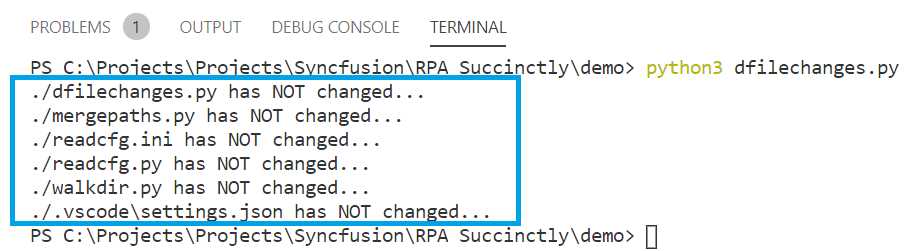
Figure 2-g: The Execution of the dfilechanges.py Script
Let’s now make a small change to the dfilechanges.py file, which we can see in the following code as an empty comment (#).
checkfilechanges("./", ['.db']) #
If we run the script again, we should see the following result.
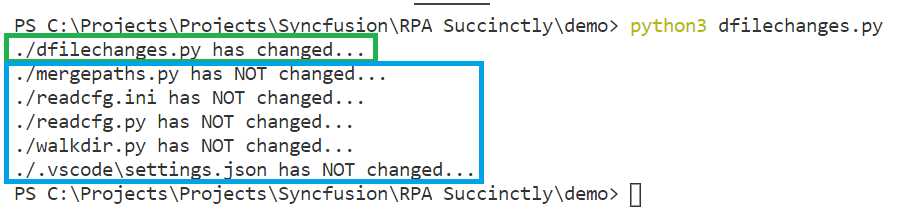
Figure 2-h: The Execution of the dfilechanges.py Script (File Change Detected)
Notice how the script was able to detect that the dfilechanges.py file (which is the script itself) has changed, following that small change made.
Summary
Awesome—we have now explored the foundations of how to perform specific file- and folder-accessing operations, such as reading config files, walking a directory tree, merging file paths, and detecting file changes.
With these scripts and notions acquired, we are now in a good position to explore how to perform more specific file and folder operations, such as copying, moving, deleting, and zipping files and folders, which we will later use to create a configurable backup script.
You’ll be able to use that script to automate real-world file backup scenarios for yourself, your organization, and your customers.


- 1800+ high-performance UI components.
- Includes popular controls such as Grid, Chart, Scheduler, and more.
- 24x5 unlimited support by developers.