
Rider Succinctly®

CHAPTER 5
Coding Assistance
Editing assistance
The Rider IDE is not just a plain-text editor. There are plenty of fairly low-level (very granular) ways in which the IDE tries to improve the flow of writing code.
Consider brace completion, for example. When you type the opening curly brace {, the closing brace } is added automatically. Same goes for round and square brackets. When you’ve entered whatever you needed in between the brackets or braces, typing the closing brace when there’s already one there will trigger overtype support—Rider detects that you are typing an identical symbol and prevents spurious duplication.
Rider also supports matching brace highlighting, so when you position the cursor over the opening or closing brace, it will highlight the corresponding brace automatically. This is very useful when you’re trying to make sense of deeply nested code.
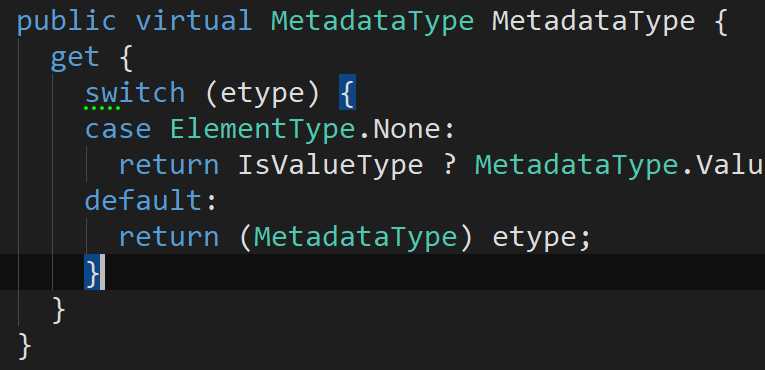
Figure 53
Finally, one very useful shortcut (Ctrl+D in all layouts) just duplicates the current line (or the current selection, if you have selected something). This might seem like a trivial thing, but it’s super useful.
Code completion
When Visual Studio came out all those years ago, it had one killer feature that took the world by storm: IntelliSense. The non-Microsoft term for IntelliSense is code completion, and it is a simple idea of showing a dropdown list of available options in a given context—for example, showing members of a class:
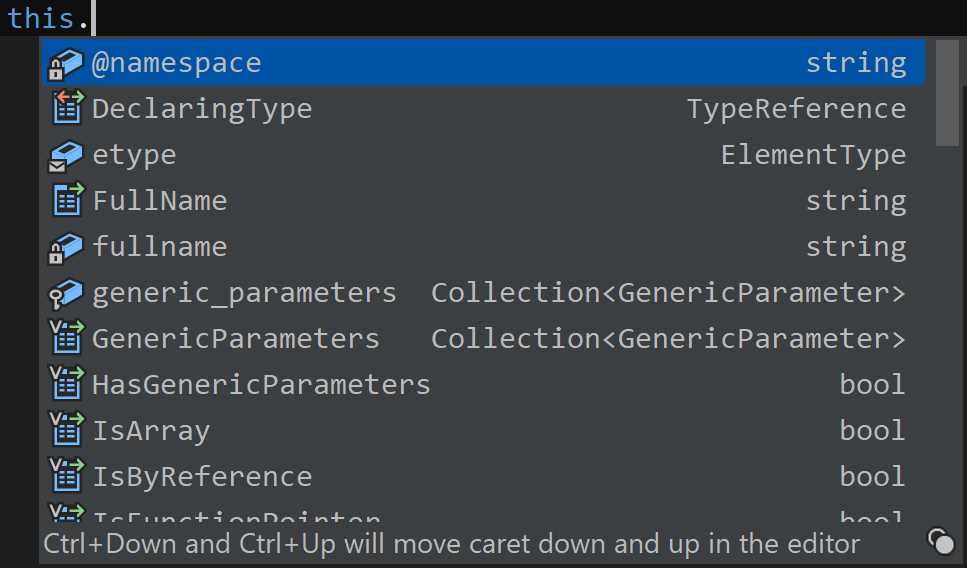
Figure 54
Rider comes with several different code completion mechanisms that are more powerful than anything Visual Studio has to offer.
Automatic completion
Code completion options that are shown in response to you typing things are called automatic completion, and extend way beyond just searching for members. For example, you get naming suggestions when you’re about to declare a variable:

Figure 55
Automatic completion will produce the following suggestions:
- Suggestions for names of variables based on types, as seen in Figure 54. These incorporate the knowledge about your preferred coding style.
- Suggestions for members of the class.
- Suggestions for completing visible types, meaning types already available in the current scope. If the type is not available (for example, a using statement is missing), you will need to type it out fully and press Alt+Enter to automatically import it.
- Keyword suggestions complete simple things like visibility modifiers, true/false literals, and any other predefined C# keyword.
- Suggestions of this literal inside a static method’s parameter list, just in case you’re making an extension method.
- Completion for enumeration members.
- Completion for unresolved symbols. For example, suppose you’re using some member of a type, but that type doesn’t have that member! Even though the code is invalid, once Rider learns about your usage of it, it will offer that element in code completion in the hope that you fix the issue later on.
- Completion for argument names in method calls.
- Completion for suggested members of a dynamic type. This works in a similar fashion to the way Rider handles unresolved symbols.
In Rider, code completion is statistical—Rider is tracking the frequency of calls and offers you the most frequently used options first. Also, just like navigation, code completion uses CamelHumps: if you are after a symbol called HasGenericParameters, you can simply type hgp and the complete the required symbol.
Smart completion
Smart completion is a mechanism that uses advanced algorithms to give you just the elements that are applicable at a particular point in time. You need a special shortcut (Ctrl+Alt+Space in VS layout) to invoke it, but once you do, your extensive completion list will shrink substantially.
Here are some examples. Say you’re in a bool-returning method and you’ve got a couple of bool parameters, some local Boolean variables and, let’s not forget, various Boolean literals. Invoking smart completion in a return statement will narrow it down to just the things that yield a bool:
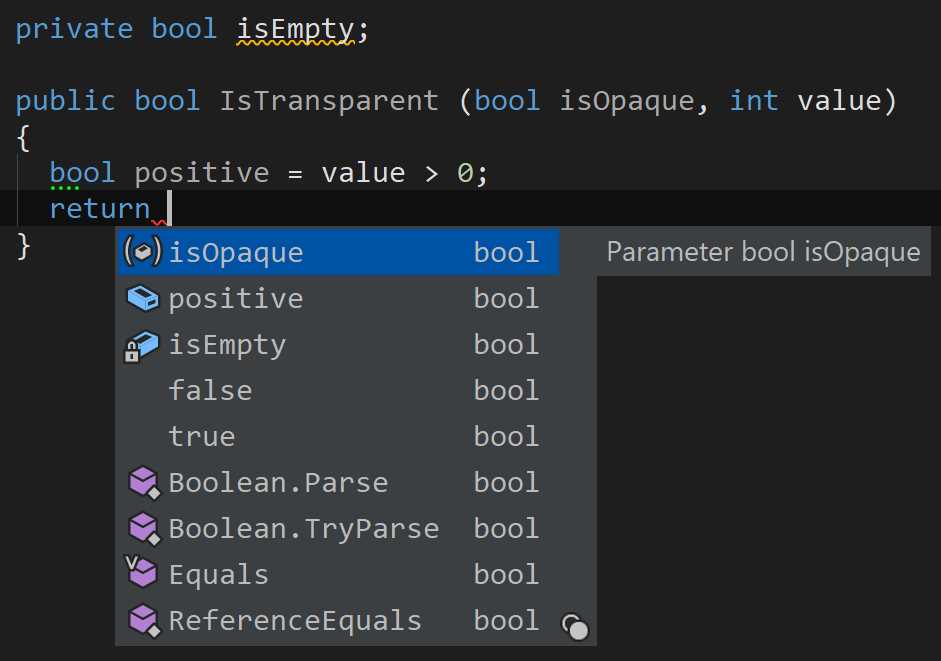
Figure 56
Similarly, if you’re in an assignment statement, smart completion will take into account the type of the variable you’re assigning things to when showing a completion list:
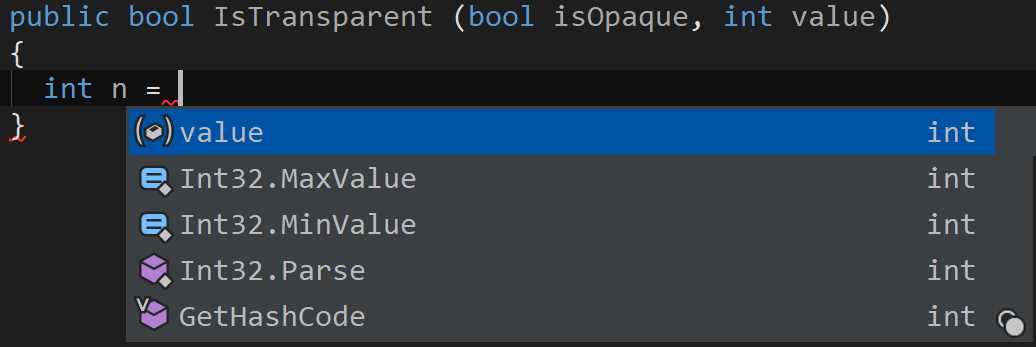
Figure 57
Some other instances where smart completion is likely to help include:
- Cast expressions on the right-hand side of an assignment (since it’s pretty obvious what you want to cast to)
- Object initializers: Smart completion filters the set of properties to those that have not yet been assigned in this initializer
- Lambda expressions: Smart completion generates lambda-expression syntax here
- Creation of local variables from out parameters is also handled by smart completion
CamelHumps also work with smart completion.
Import symbol completion
This form of completion (invoked with Shift+Alt+Space) allows you to complete a symbol for which there is no appropriate import. The set of symbols is taken not just from the current project’s set of referenced assemblies, but also from nearby projects and their references.

Figure 58
As you can see, not only does import completion work with ordinary members, but it also works with extension methods. And, naturally, CamelHumps are also supported.
Usings and references
Rider makes quick work of using statements and references. Let’s deal with the former first. Whenever you use a type that doesn’t have a corresponding using, you’ll first encounter it in code completion, where the option to include the appropriate reference is kind of automatic:

Figure 59
Invoking code completion here will not only complete the ArrayList name, but will also add a using System.Collections; to the set of using statements on top of the file.
Okay, that was easy, what if you forego this option (say you just paste a chunk of code)? In this case, you’ll see the following:

Figure 60
This is something of a bulk action: you can import several references at once. This is useful if, for example, you paste a chunk of code from the Internet—all you have to do is press Alt+Enter and Rider will try to fill in the gaps. Of course, it’s not always possible to import all types unambiguously, and Rider will warn you about it.
Code analysis
As soon as you open up a solution, Rider starts to continuously analyze your code and show you hints and suggests regarding the code in the currently open files. The hints Rider gives you are based on inspections, which are simply rules that it uses to check whether or not the code is okay.
The simplest inspection is one that checks for unused code, such as unused using statements, unused classes, unused parameters, and anything else that nobody is using and that can be safely deleted:
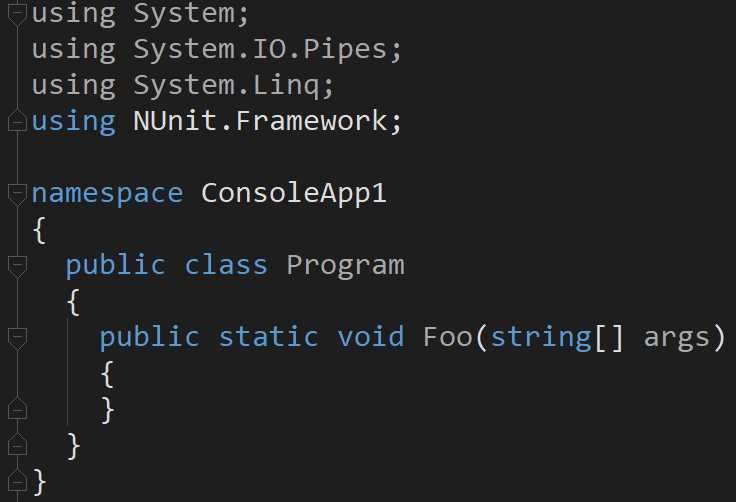
Figure 61
As you can see, such elements are grayed out. If you move the cursor over one of them (say, the unused using directives) and press Alt+Enter, you will be presented with the following menu:
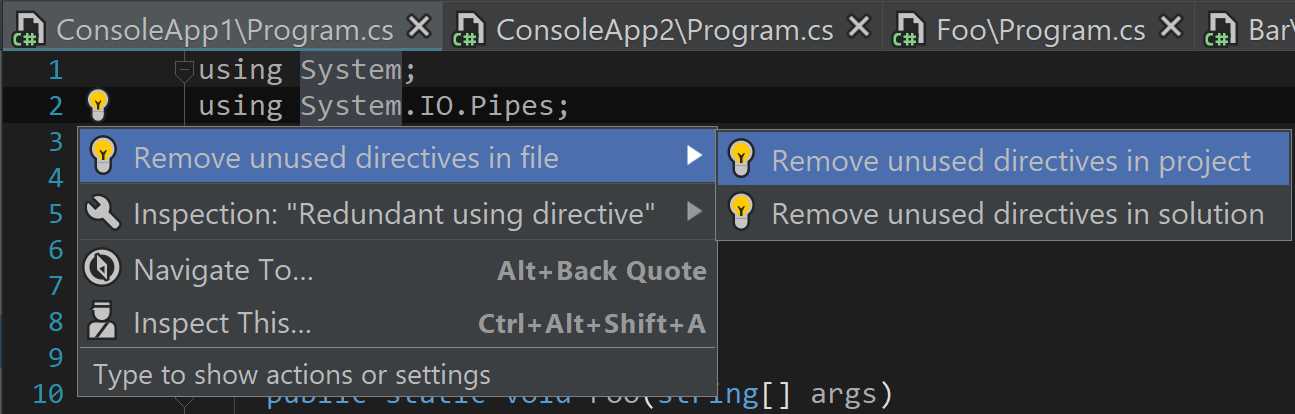
Figure 62
The first option shown, Remove unused directives in file, operates on just the current file. However, since this particular action can be relevant to more than one file, you can also run it on a folder, project, or entire solution, as can be seen in the expanded menu. This mechanic is called Fix in Scope: it’s not available on all actions that Rider supports, just some of them.
Context actions
A context action is some action that Rider can perform, given the code under the cursor. These actions are typically non-destructive and are, in most cases, very simple ways of manipulating code. They are not offered in response to possible issues in code; rather, they are opportunities to do things differently.
Consider the following scenario:
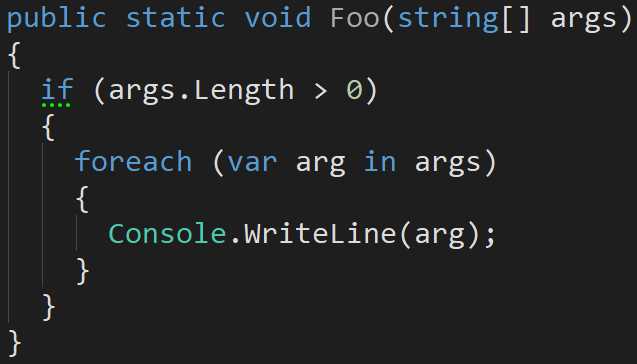
Figure 63
If you move the caret over foreach and press Alt+Enter, your top option (shown as a hammer) is a context action that lets you change a foreach loop to a for loop:
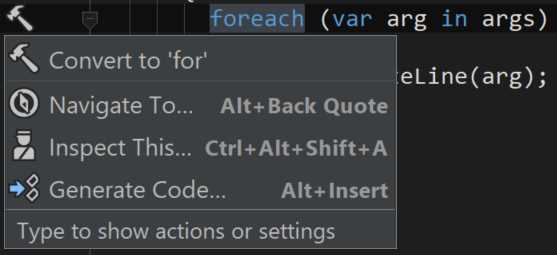
Figure 64
When you invoke this context action, Rider will rewrite the entire loop to use for instead of foreach:
Code Listing 2
for (var index = 0; index < args.Length; index++) { var arg = args[index]; Console.WriteLine(arg); } |
Rider comes with a large number of context actions, each of which is individually configurable via the settings under Inspection Settings > Context Actions:
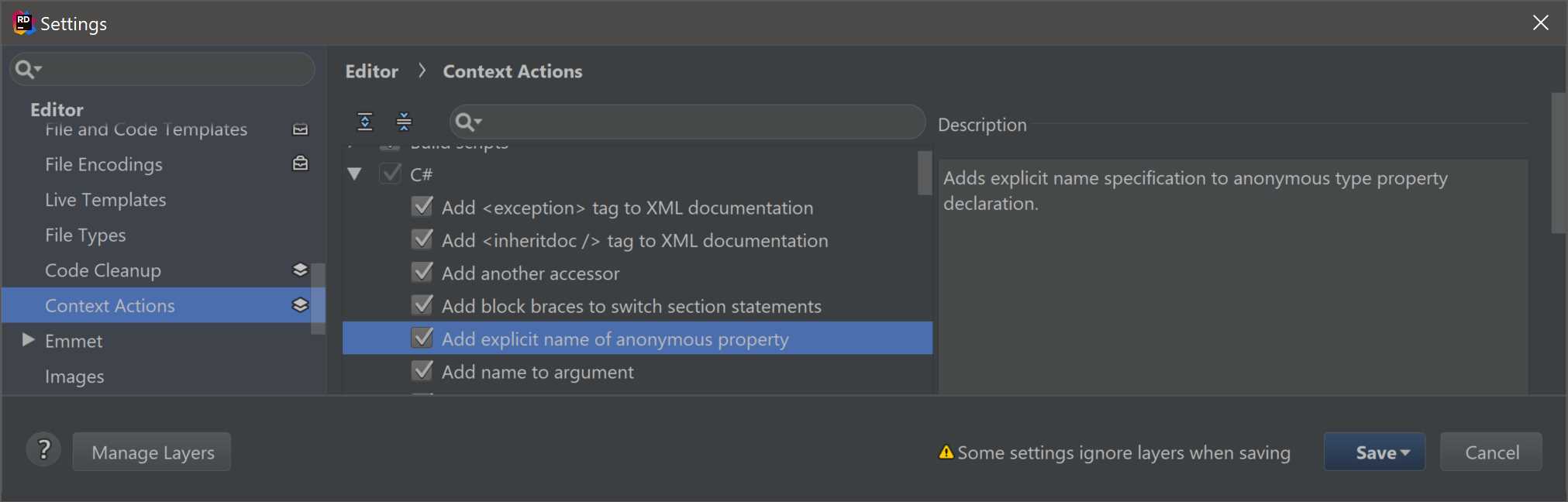
As you can see, context actions are grouped by language; for each selected context action, you get a checkmark to decide whether or not you want the action available. A description pane on the right tells you what the action actually does.
Inspections
We have already talked about inspections, but let’s recap once again. Inspections are different from context actions because, even though they are also rules that we check source code against, these rules are not opportunistic: they are, at the very least, good ideas that can improve your code. The general taxonomy is:
- Hints are just that—hints that something neat can be done here. The highlighting used for a hint is a dotted green line at the very start of the code element that can be improved.
- Suggestions are stronger forms of hints. The entire block of code that can be improved is underlined in a wavy underline; furthermore, the marker bar has a green marker for each suggestion displayed. Suggestions are harder to ignore.
- Warnings are places where, according to Rider, things can go seriously wrong. For example, you may end up with an exception that causes a program to crash, or you’re performing a cast that has no chance of succeeding. Warnings underline code in wavy orange and have a corresponding orange marker on the marker bar.
- Errors are pieces of code that won’t even compile. They are either underlined in red or, in the case of unrecognized symbols, the code itself is red, too. You also get a red marker on the marker bar. You have no choice but to fix all of these.
Just having inspections is not enough, of course: many static analysis tools perform an analysis of source code, but Rider goes beyond that. What it gives you is the ability to correct the problem automatically.
Quick-fixes
A quick-fix is a way of acting on an inspection. When Rider comes up with a hint or a suggestion, you can press Alt+Enter on the relevant code element, and you’ll be presented with one or more items with a yellow light bulb:
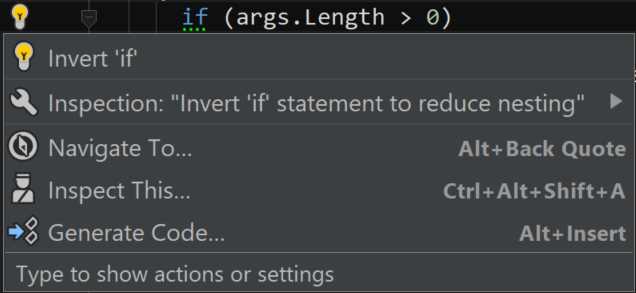
Figure 65
Similarly, if you have a warning or a suggestion (say, the type you’re returning doesn’t match the method signature), Rider will offer you quick-fixes to quickly correct the situation:
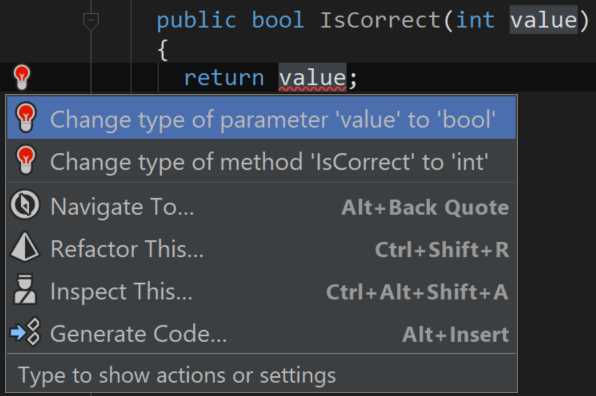
Figure 66
Inspections are configured in a different way to context actions, as we have already discussed when we talked about settings.
Solution-Wide Analysis (SWA)
By default, Rider analyzes the files you have currently open. SWA instead proceeds to analyze every single file in the entire solution, and can give you a listing of all the issues it found.
To enable or disable SWA, you need to click the red circle with horizontal bar icon in the status bar. It will present the following menu:
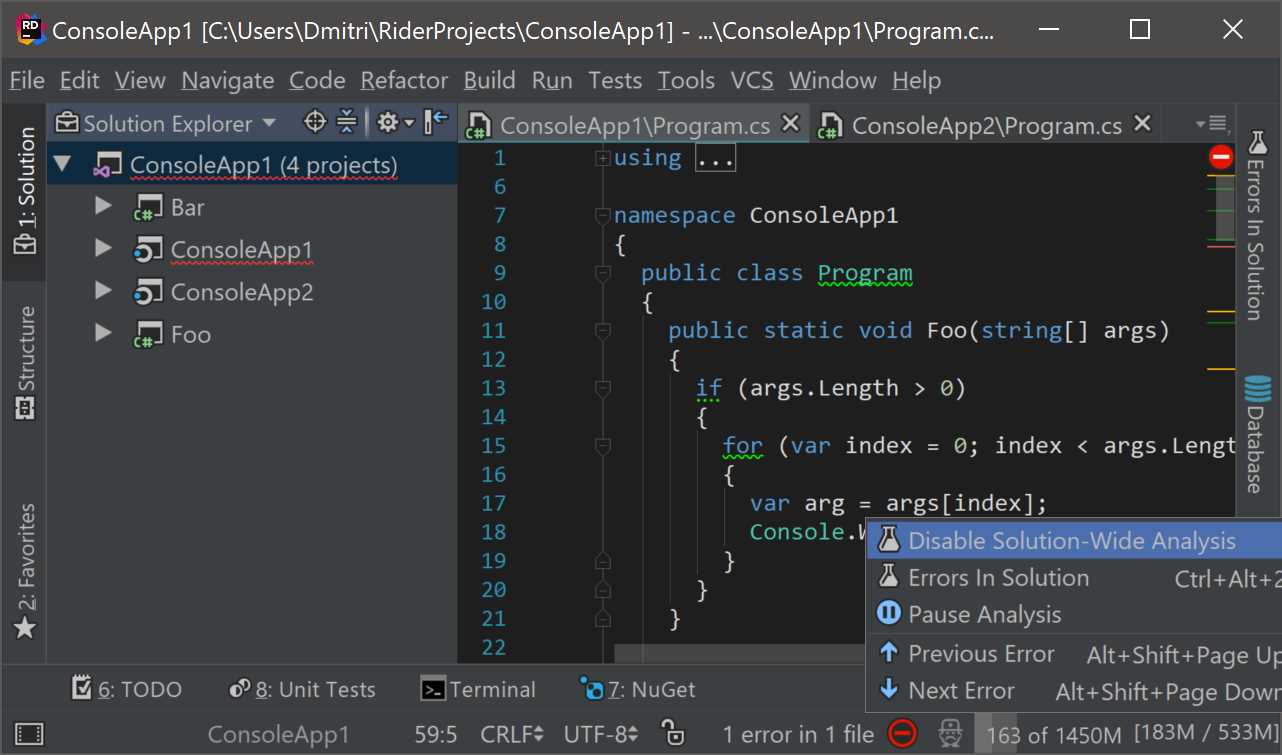
Figure 67
Why is SWA configurable? Because Solution-Wide Analysis on large solutions can be very computationally expensive. While Rider has capabilities for disabling inspection on individual files (for example, on generated code), SWA on a large enough solution will still be very taxing.
If you pay the price, however, you get plenty of benefits. First, as you can see in Figure 67, you get appropriate shortcuts for going from one error to another. Also, there is the Errors in Solution window, which is a separate tool window that gives you a listing of all the problem places in your code:
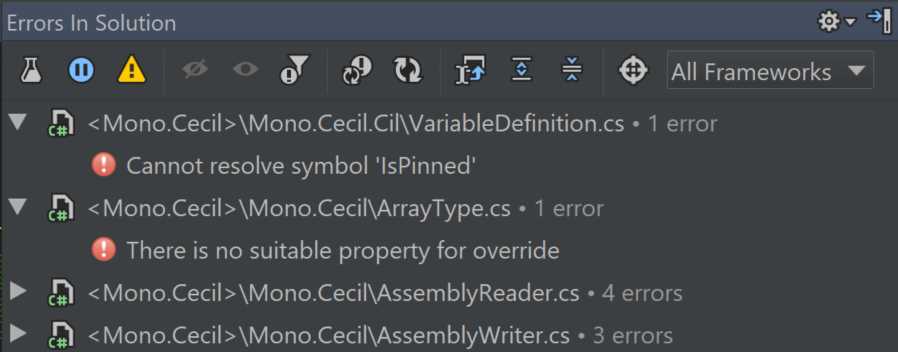
Figure 68
Even though, SWA generally shows the errors, you can enable it to show warnings, too. Double-clicking on each element takes you to the offending location, and you can also turn on Autoscroll to Source for Rider to do it for you whenever you select an error in the list.


- 1800+ high-performance UI components.
- Includes popular controls such as Grid, Chart, Scheduler, and more.
- 24x5 unlimited support by developers.