
Real-World Xamarin.Forms Succinctly®

CHAPTER 10
Managing the Screen on New iPhones
The most recent iPhone devices, such as the iPhone X, XS, XR, and 11, don't have the system button anymore, and provide a larger screen area. When you build apps for these devices, you must consider this larger screen area to ensure your contents properly fit into the page. The area of the screen where your contents should be placed is called the safe area, and this chapter explains simple ways to handle it.
Introducing the safe area
The most recent iPhones have larger screens and, consequently, a larger area that app developers can leverage to build even more beautiful user interfaces. The Apple layout guidelines divide the screen area on the new iPhones in two parts. The first part is the full-screen area as a whole. The second part is called the safe area, and it is made of a rectangle that represents the same screen area available on older iPhones. Figure 33, which is credited to Apple and taken from the Adaptivity and Layout documentation page, provides a clean representation of how the screen area is organized.
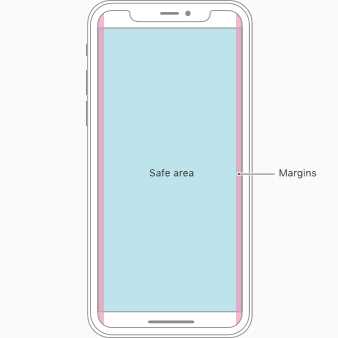
Figure 33: The safe area on iPhone devices. Source: Apple, Inc.
When you work with Xamarin.iOS and Xamarin.Forms, your app will automatically fill the entire screen area. However, there might be exceptions and reasons to avoid filling the entire screen and use only the safe area. For example:
- You want to make sure your app runs properly on older iPhones.
- You build for both Android and iOS, and you don’t want to write additional platform-specific code for your UI.
- Your app adheres to a design that is thought to be cross-platform, or that is built upon older iPhone devices and cannot be changed.
By default your app will fill the entire screen when running on iOS, so if you want it to run only inside the safe area, you have to take responsibility to handle this scenario in code. Luckily, with Xamarin.Forms it’s very quick and simple to make your apps use the safe area only. This is discussed in the next section.
Handling the safe area in Xamarin.Forms
In order to make your app use the safe area, the first thing you need to know is what device model the app is running on. This information is returned by the Model property of the Xamarin.Essentials.DeviceInfo class. Once you have this information, you can invoke the SetUseSafeArea extension method that is injected to the Page object by the Xamarin.Forms.PlatformConfiguration.iOSSpecifc namespace. Because these steps should be repeated for every page in your application, it’s a good idea to create an extension method that does the job.
Create a new Xamarin.Forms blank project and add a new code file called Extensions.cs. Code Listing 23 contains the code for the extension method implementation, including the necessary using directives.
Code Listing 23
using Xamarin.Essentials; using Xamarin.Forms; using Xamarin.Forms.PlatformConfiguration; using Xamarin.Forms.PlatformConfiguration.iOSSpecific; namespace SafeArea { public static class Extensions { public static void SetIPhoneSafeArea(this ContentPage page) { string phoneModel = DeviceInfo.Model; //DeviceInfo.Model => Real device Model //iPhone7,1 => iPhone 6+ //iPhone7,2 => iPhone 6 //iPhone8,1 => iPhone 6S //iPhone8,2 => iPhone 6S+ //iPhone8,4 => iPhone SE //iPhone9,1 => iPhone 7 //iPhone9,2 => iPhone 7+ //iPhone9,3 => iPhone 7 //iPhone9,4 => iPhone 7+ //iPhone10,1 => iPhone 8 //iPhone10,2 => iPhone 8+ //iPhone10,3 => iPhone X //iPhone11,2 => iPhone XS //iPhone11,4 => iPhone XS Max //iPhone11,8 => iPhone XR //iPhone12,1 => iPhone 11 //iPhone12,3 => iPhone 11 Pro //iPhone12,5 => iPhone 11 Pro Max //iPhone12,8 => iPhone SE (2nd generation) if (phoneModel.ToLower().Contains("iphone11") || phoneModel.ToLower() == "iphone10,3" || phoneModel.ToLower().Contains("iphone12")) page.On<iOS>().SetUseSafeArea(true); } } } |
For your convenience, the comments in the code list the majority of the iPhone models so that you can decide which devices to include or exclude from using the safe area.
Tip: The DeviceInfo.Model property will return x86_64 when the app is running inside the iOS Simulator.
In this particular case, the code simply applies to use the safe area on iPhone X and later devices. As you can see, the SetIPhoneSafeArea method is extending ContentPage objects. It’s not possible to extend the Page class, which is an abstract class—you need to work on derived types. At this point, you only need to add the following line of code after the invocation to InitializeComponent in the constructor of your pages:
this.SetIPhoneSafeArea();
You do not need to check if the code is running on Android, because this will simply be ignored since the implementation is based on iOS-platform specifics. Figure 34, which is based on the iPhone 11 simulator, shows the difference between handling the safe area or not (in which case you will need to take care in padding and margins more precisely).
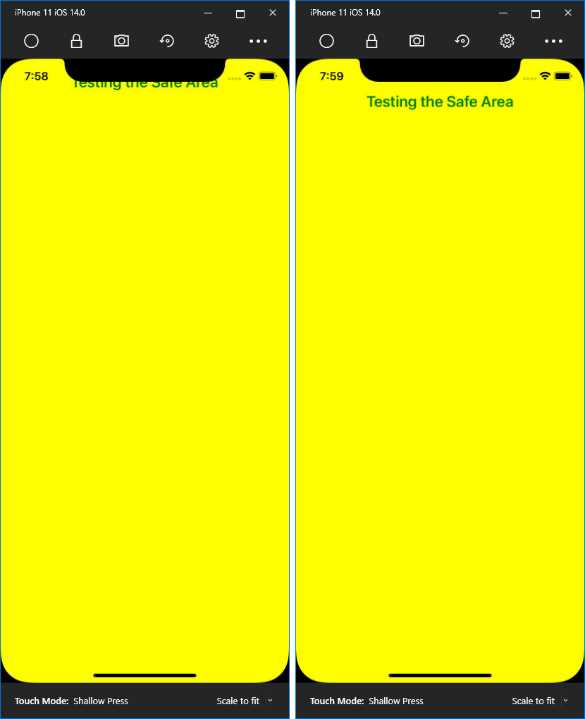
Figure 34: The app running inside the Safe Area
In my daily job, I had to implement this solution for a combination of all three reasons to avoid the full screen that I mentioned previously.
Chapter summary
The most recent iPhones have a larger screen area that is available by default to Xamarin projects. However, there might be reasons not to use it, and make the app run inside the safe area. If this is the case for you, the Xamarin.Forms code base has iOS-platform specifics that make this possible with one method invocation.


- 155+ high-performance Xamarin controls, including DataGrid, Charts, and ListView.
- Elegant XAML layouts for common scenarios.
- Layouts optimized for mobile and desktop.