
Real-World .NET MAUI Succinctly®

CHAPTER 4
Implementing Biometric Authentication
Biometric authentication is the option to log in to an application using a fingerprint sensor or face recognition feature, also known as face ID. This helps you avoid typing a username and password every time. This option is very common and popular in modern applications that require authentication, and you will likely need to implement it yourself in your apps. There are several reasons for doing this.
The first reason is simplifying the user experience by leveraging sensors on devices. The second reason, which is connected to the first one, is that typing credentials every time on a small keyboard might be annoying. Therefore, the user might quickly become tired of using your app—even if it is the best app on the market. This assertion might seem strange, but it’s not. It actually comes from research on analytics and on user experience. With the incredible number of apps available, you might build a killer app on a certain topic, but if it’s not easy, fast, and fun to use, people will move to another app on the same topic.
Login features are the users’ first contact with an app, and entering into the app must be as simple, fast, and smooth as possible. You will agree that using the fingerprint or face ID is much faster than typing a username and password every time. This chapter explains how to implement biometric authentication in .NET MAUI, adding some steps for local password storage, with some logic that you will be able to reuse against web services, custom APIs, or even Azure.
Setting up libraries for biometric authentication
.NET MAUI does not include a built-in API that allows for implementing biometric authentication in a cross-platform way, so in theory you should write platform-specific code. However, within the increasing ecosystem of third-party libraries, you can use the Biometric/Fingerprint plugin for Xamarin, an open-source project by Sven-Michael Stübe, which is now also supporting .NET MAUI. It is free, easy to use, and offers a cross-platform approach to leveraging all the biometric authentication features on even the most recent devices.
With this in mind, create a new .NET MAUI project. When ready, open the NuGet Package Manager user interface, then locate the Plugin.Fingerprint package. At the time of this writing, you need to enable the Include prerelease flag and select version 3.0.0-beta 1 (see Figure 8).
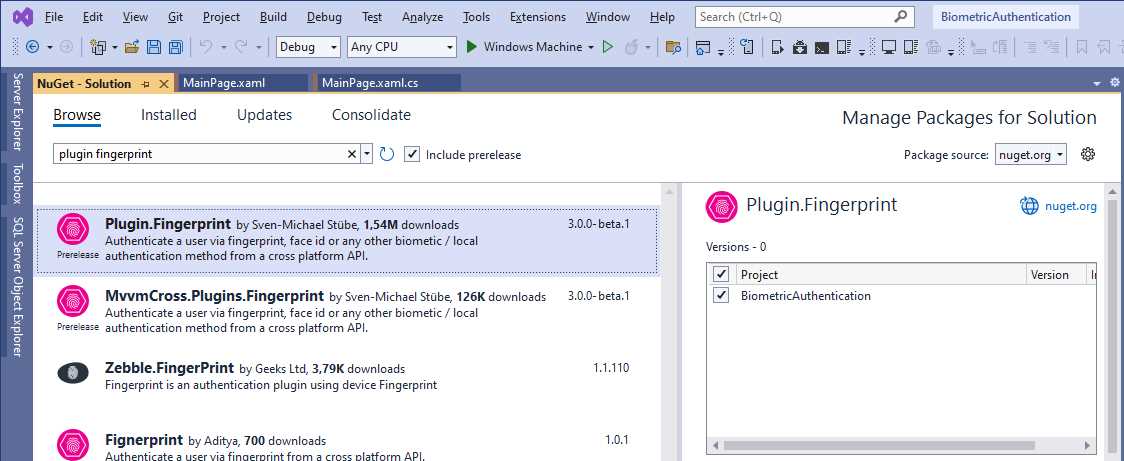
Figure 8: Adding the Plugin.Fingerprint library to the solution
When you’re ready, click Install to complete the installation of the library.
Additional setup for iOS
You explicitly need to enable biometric authentication on iOS devices by adding the following key to the Info.plist file:
<key>NSFaceIDUsageDescription</key>
<string>Biometric authentication</string>
The fastest way is by opening the Info.plist file with Visual Studio’s XML editor. To accomplish this, right-click the file, select Open With, and then XML Editor. You can replace the text for the previous string node with a custom one.
Additional setup for Android
The Android API has supported biometric authentication since Level 23 (which corresponds to Android 6.0) It requires explicit user permission. So, open the project properties and select the Manifest tab located under the Android node (see Figure 9). Make sure the Minimum Android Version is set to at least Android 6.0 (API Level 23—Marshmallow), as shown in Figure 9. Obviously, later versions are okay, but earlier versions do not support biometric authentication.
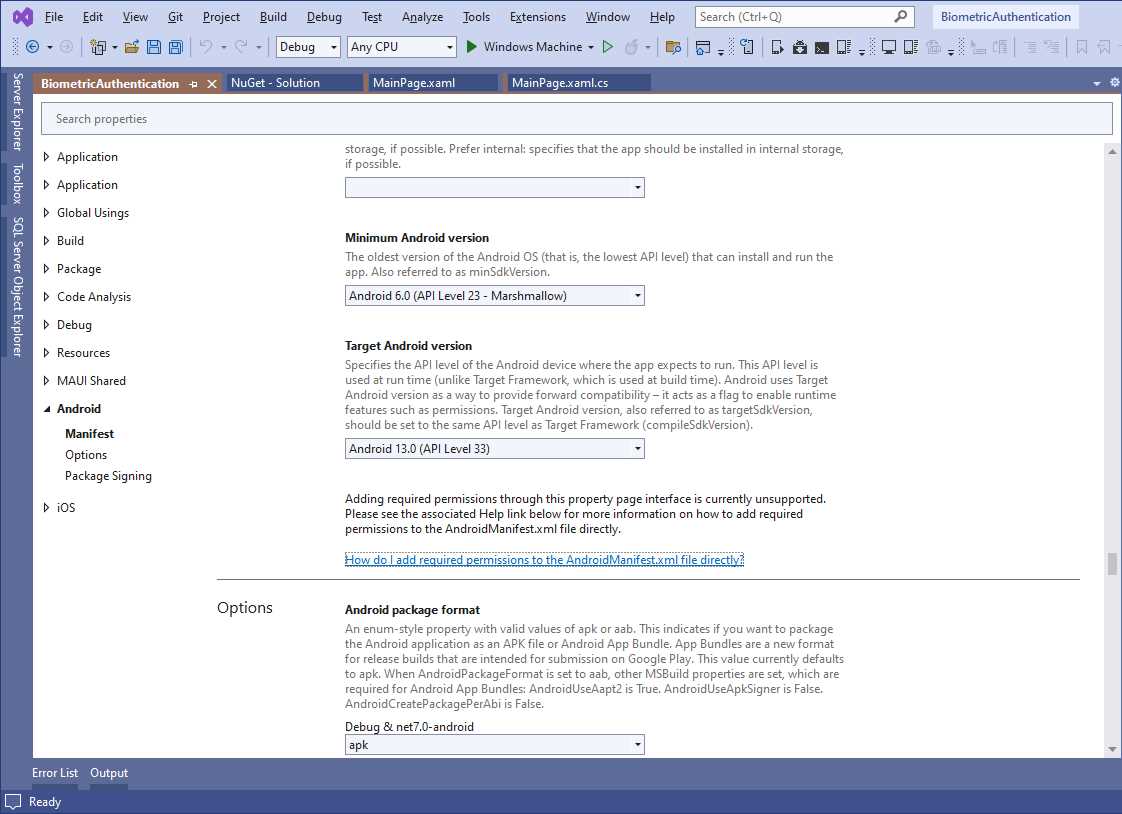
Figure 9: Setting Android requirements
In addition, the USE_FINGERPRINT permission is required. Double-click the AndroidManifest.xml file in Solution Explorer (located under Platforms\Android) and add the following key:
<uses-permission android:name="android.permission.USE_FINGERPRINT" />
The last step for Android is initializing the plugin. This is accomplished by adding the following invocation inside the OnCreated method of the MainActivity.cs file:
// Requires a using Plugin.Fingerprint; directive
protected override void OnCreate(Bundle savedInstanceState)
{
base.OnCreate(savedInstanceState);
CrossFingerprint.SetCurrentActivityResolver(() => this);
}
The SetCurrentActivityResolver method will initialize the plugin, and the this qualifier represents the current activity as the object that is initializing the plugin itself.
The logic of the sample project
The biometric authentication APIs in each system tell developers whether a user is recognized by the device based on the fingerprint or face ID. Being recognized by the device does not mean being recognized, authenticated, and authorized by your application or your web services.
In real-world development, the flow would be the following:
- The user registers, providing a username and a password. These credentials are usually validated against a web service and stored inside a database, on-premises or in-cloud, and are passed by the app every time it needs to access secured information.
- The credentials supplied at registration are also usually encrypted and stored locally on the device.
- When the user wants to manually log in, after registration, the app looks for a secured password on the device. If not found, the user is not registered. If found, the app makes a first match between the password typed at login with the secured, local one. If they match, the password is included in the calls to APIs, web services, or any remote service and undergoes a server-side validation before getting the information.
- With biometric authentication, the app looks for a secured password on the device. If not found, the user is not registered. If found, it means the user is registered, so the biometric authentication user interface is shown. If the device recognizes the user, the local, secure password is sent to any API call, web services, or remote service and undergoes a server-side validation before getting the information.
There are an infinite number of scenarios and web services, APIs, and cloud services you might be using in your daily development, so the perfect server-side example does not exist and would be out of the scope of this book. For this reason, the sample application will simulate the inclusion of the password to be sent to a service, but will still show the entire flow of registration, login, and biometric authentication with password management.
Creating a sample user interface
Based on the considerations of the previous paragraph, the user interface of the sample applications consists of three pages, more specifically:
· The auto-generated main page will serve as the welcome page and will offer two buttons: one for registration and one for login.
· One page for registration, where the user will be able to supply and save a password. For the sake of simplicity, no username will be required.
· One page for the login part, with options to log in by typing the password manually and with biometric authentication.
Now, let’s add two ContentPage items to the project: one called RegisterPage.xaml and one called LoginPage.xaml. In addition, remove all the UI code generated by Visual Studio in the MainPage.xaml file, and the OnCounterClicked event handler in the MainPage.xaml.cs file.
Note: As you will see in the following code snippets and listing, this example is focusing on features, not on the beauty of the user interface. A professional designer will provide you with specific icons for biometric authentication features, which you can use instead of a regular button.
For the MainPage.xaml file, the code is the following:
<?xml version="1.0" encoding="utf-8" ?>
<ContentPage xmlns="http://schemas.microsoft.com/dotnet/2021/maui"
xmlns:x="http://schemas.microsoft.com/winfx/2009/xaml"
x:Class="BiometricAuthentication.MainPage">
<StackLayout>
<Button Text="Register" x:Name="RegisterButton"
Clicked="RegisterButton_Clicked"/>
<Button Text="Login" x:Name="LoginButton"
Clicked="LoginButton_Clicked"/>
</StackLayout>
</ContentPage>
The event handlers for the two buttons are extremely simple:
private async void RegisterButton_Clicked(object sender, EventArgs e)
{
await Navigation.PushAsync(new RegisterPage());
}
private async void LoginButton_Clicked(object sender, EventArgs e)
{
await Navigation.PushAsync(new LoginPage());
}
Then, inside the constructor of the App class, replace the assignment of the MainPage property with a NavigationPage, as follows:
MainPage = new NavigationPage(new MainPage());
In the RegisterPage.xaml file, replace the content of the VerticalStackLayout with the following:
<Label Text="Set your password:" Margin="10"/>
<Entry IsPassword="True" x:Name="PasswordEntry" Margin="10"/>
<Button Text="Save password" x:Name="SavePasswordButton"
Clicked="SavePasswordButton_Clicked" Margin="10"/>
In the LoginPage.xaml file, replace the content of the VerticalStackLayout with the following:
<Label Text="Enter your password:" Margin="10"/>
<Entry x:Name="PasswordEntry" IsPassword="True" Margin="10"/>
<Button x:Name="PasswordLoginButton"
Text="Login with password"
Clicked="PasswordLoginButton_Clicked" Margin="10"/>
<Button x:Name="BiometricLoginButton"
Text="Login with biometric authentication"
Clicked="BiometricLoginButton_Clicked" Margin="10"/>
There is really nothing complex in the XAML for both pages, and you are totally free to re-arrange their position and layout inside the page. The C# event handlers for both pages are discussed in the next sections, as part of the implementation logic.
Enforcing requirements for biometric authentication
As I mentioned previously, biometric authentication is useful for understanding whether the device recognizes the user but does not guarantee that the user is also registered or authenticated on an application. Therefore, it’s a good idea to enforce the requirements for the user to be able to use biometric authentication. To accomplish this, when the user registers with an app, the credentials can be stored inside the device’s secure storage. As you learned in Chapter 2, the secure storage provides a high level of encryption and security, but nothing prevents you from encrypting the password with an algorithm and storing the resulting string in the secure storage (which is not done in this chapter).
Note: Because the logic relies on the secure storage, if you work with an iOS simulator, remember to set up the Keychain entitlement, as you learned in Chapter 2.
You might argue that saving a password in the local secure storage is not a good idea. Most of the apps that require authentication and that also offer biometric authentication options do this, and the reason is simple: if the user does not enter credentials manually, but these are required by API calls or web services, the app needs to take these from somewhere, even for the very first call.
With this in mind, let’s open the RegistrationPage.xaml.cs file and add the following event handler for the SavePasswordButton object:
private async void SavePasswordButton_Clicked(object sender, EventArgs e)
{
// Add more validation logic here...
if (!string.IsNullOrEmpty(PasswordEntry.Text))
{
await SecureStorage.SetAsync("P", PasswordEntry.Text);
await DisplayAlert("Success", "Password saved", "OK");
await Navigation.PopAsync();
}
}
You can perform your own validation logic on the entered password, such as length and minimum-security requirements. It is saved inside the secure storage with a key that is not very readable, and this is intentional. We trust the secure storage, but some more security is never enough, so calling the key P instead of Password can be a good idea. When done, an alert is shown, and the code navigates back to the welcome page. This was the easy part. Now, let’s go into more complex logic.
Implementing biometric authentication
It is not possible to provide only biometric authentication options, and this makes sense. Older devices might not have sensors, or the user might not have configured the hardware. If the sensor gets broken, for example, or if the user wears gloves (in the case of fingerprints), they must have an option to log in manually. This example will show how to work with both manual login and biometric login.
Open the LoginPage.xaml.cs. There is some code common to both scenarios. For example, the following code detects whether a password was securely stored previously, which means the user had registered:
private async Task<bool> IsPasswordSetAsync()
{
string result = await SecureStorage.GetAsync("P");
return result != null;
}
This will be invoked in the next specific paragraphs.
Authentication with password
In the case of a login scenario where the users type their credentials manually, you will need to validate the entered password and then send it to a web API or web service. In the LoginPage.xaml.cs, add the following method:
private async Task<bool> IsLocalPasswordValidationPassing(string password)
{
string localPassword = await SecureStorage.GetAsync("P");
return localPassword == password;
}
Given the specified password, the method checks if it matches the password stored in the secure storage and returns the result of the comparison.
Note: A password, as well as regular data, should be validated on the frontend, on the backend, and in the data store. It’s something that is not possible to demonstrate here but certainly keep it in mind.
This method is invoked by the event handler for the PasswordLoginButton object, whose code is the following:
private async void PasswordLoginButton_Clicked(object sender, EventArgs e)
{
bool isPasswordSet = await IsPasswordSetAsync();
if (!isPasswordSet)
{
await DisplayAlert("Error", "Password not set, register first",
"OK");
await Navigation.PopAsync();
return;
}
if (!string.IsNullOrEmpty(PasswordEntry.Text))
{
bool localValidation =
await IsLocalPasswordValidationPassing(PasswordEntry.Text);
if (localValidation)
{
await DisplayAlert("Success", "Authenticated!", "OK");
// Do login here...
}
}
}
If the password is not set, as per the IsPasswordSetAsync method explained in the previous section, it means the user is not registered, so the code returns to the main page. Otherwise, if a formal validation of the password passes, IsLocalPasswordValidationPassing checks if the entered password matches the one stored in the secure storage. If they match, the password is accepted and sent to a real login service.
Authentication with fingerprint and face ID
For biometric authentication, the CrossFingerprint singleton class, through its Current property, provides methods and types that make it very easy to work with the biometric hardware. The first thing to do is check if this is available on the device. Availability depends on several factors, such as hardware sensors available on the device, sensors enabled and configured, and API support. This is accomplished via a method called GetAvailabilityAsync, which returns an object of type FingerprintAvailability.
The following method uses both to detect when biometric authentication is available:
// Requires a using Plugin.Fingerprint.Abstractions; directive
private async Task<bool> CheckIfBiometricAuthIsAvailableAsync()
{
FingerprintAvailability isBiometricAuthAvailable =
await CrossFingerprint.Current.GetAvailabilityAsync();
return isBiometricAuthAvailable == FingerprintAvailability.Available;
}
Tip: The FingerprintAvailability enumeration also allows you to understand if face ID is available, not just fingerprint. Do not get confused by its name.
GetAvailabilityAsync checks if the operating system’s API supports biometric authentication, if the user has given permissions, if the device has sensors, and finally, if the user has enabled and configured the sensor. Table 4 lists values from the FingerprintAvailability enumeration.
Table 4: FingerprintAvailability enumeration
FingerprintAvailability enumeration | |
|---|---|
Available | Biometric authentication can be used. |
NoImplementation | The plugin has no implementation for the current platform. |
NoApi | The operating system’s API does not support biometric authentication. |
NoPermission | The app is not allowed to access biometric hardware. |
NoSensor | The device has no biometric hardware. |
NoFingerprint | Biometric authentication has not been set up. |
NoFallback | The fallback user interface has not been set up. |
Unknown | An error occurred and could not be mapped to any of the other values. |
Denied | The user has denied the usage of the biometric authentication. |
The next step is writing the code for the BiometricLoginButton object, which is the following:
private async void BiometricLoginButton_Clicked(object sender, EventArgs e)
{
bool isPasswordSet = await IsPasswordSetAsync();
if (!isPasswordSet)
{
await DisplayAlert("Error", "Password not set, register first",
"OK");
await Navigation.PopAsync();
return;
}
bool biometricAuthAvailability = await
CheckIfBiometricAuthIsAvailableAsync();
if (!biometricAuthAvailability)
{
await DisplayAlert("Error",
"Biometric authentication is not available.", "OK");
return;
}
await BiometricAuthenticationAsync();
}
Like for the manual login button, first a check is made to see whether the user is registered; if not, the app goes back to the main page. If the user is registered, the code checks if biometric authentication is available by invoking the CheckIfBiometricAuthIsAvailableAsync method explained previously. If it’s available, a new method called BiometricAuthenticationAsync is invoked. The following is the code for this method:
private async Task BiometricAuthenticationAsync()
{
var authRequest = new AuthenticationRequestConfiguration
("Biometric authentication", "Login with fingerprint or face ID");
FingerprintAuthenticationResult result =
await CrossFingerprint.Current.AuthenticateAsync(authRequest);
if (result.Authenticated)
{
await DisplayAlert("Success", "Authenticated!", "OK");
// Do login here...
}
else
await DisplayAlert("Error", $"Reason: {result.ErrorMessage}", "OK");
}
The CrossFingerprint.AuthenticateAsync method is invoked to prompt the user with the system user interface for biometric authentication. Depending on the hardware installed on your device, the API will know which sensor to invoke. This method takes an object of type AuthenticationRequestConfiguration, whose constructor needs you to specify the title and text to be displayed in the user interface, where supported. This object allows for further authentication configuration, but most of the time you will not need to do this.
AuthenticateAsync returns the result of the biometric authentication with an object of type FingerprintAuthenticationResullt. The Authenticated property, of type bool, is true if the user was recognized. If not, you can get a description of the error through the ErrorMessage property, of type string, and the reason behind the error via a property called Status, of type FingerprintAuthenticationResultStatus. Values might be Failed, Canceled, TooManyAttempts, or Denied. Status is set with Succeeded when Authenticated is true.
Detecting the available hardware
If you need to understand what kind of hardware is supported on the device, you can invoke the GetAuthenticationTypeAsync method as follows:
AuthenticationType authTypes =
await CrossFingerprint.Current.GetAuthenticationTypeAsync();
It returns an object of type AuthenticationType, an enumeration whose values can be None, Fingerprint, and Face.
Running the sample app
After much work, you can run the sample app and see how it looks. First of all, you will need to set and save a password in the registration page. Otherwise, an error message will be displayed. Next, if you try to log in with biometric authentication, you will see the operating user interface for this feature. Figure 10 shows an example based on fingerprint on an Android device.
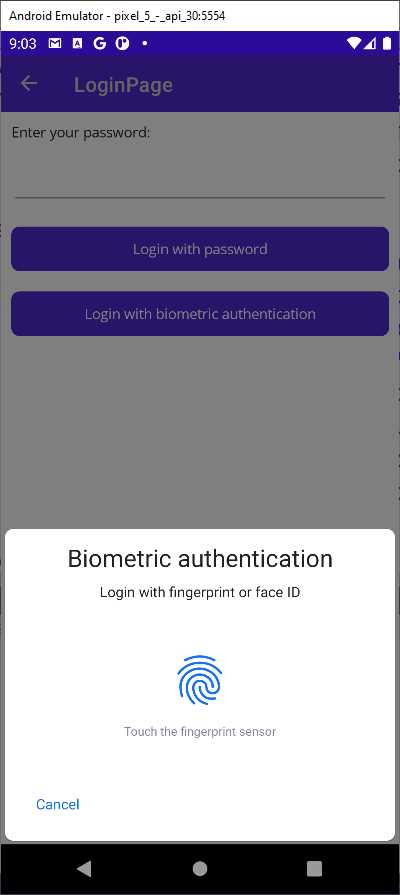
Figure 10: Biometric authentication on Android
Remember that the biometric authentication user interface can vary depending on your operating system version and system theme, especially on Android.
Chapter summary
Biometric authentication improves the user experience by leveraging the device hardware and avoiding the need to type user credentials manually every time. With the Plugin.Fingerprint library, it’s easy to implement biometric authentication using the CrossFingerprint class and its methods, such as GetAvailabilityAsync and AuthenticateAsync. The complexity of the logic depends on your specific scenario, but now you know how to cover a topic that .NET MAUI does not natively.
The secure storage, widely used in this chapter, is not the only secure place where you can store passwords and data in general. In the next chapter, you will learn how to work with secured SQLite local databases.


- An ever-growing .NET MAUI control suite with rich feature sets.
- DataGrid, Charts, ListView, Scheduler, and more.
- Active community and dedicated support.
- Phone, tablet, and desktop support.