
Real-World .NET MAUI Succinctly®

CHAPTER 10
Displaying and Sharing Documents
Mobile apps offer the great benefit of bringing our documents everywhere with us, no matter whether they are stored locally on the device or on a cloud service. This opens the door to many possibilities, because you might need to receive, send, or share documents with other people even when you are not at your desk working on a computer. Obviously the most popular file format for sharing documents is PDF, so the focus of this chapter is going to be on this file format, but at least for the sharing part, you will be able to reuse the described techniques with any format.
In terms of mobile app development with .NET MAUI, there is no built-in view that allows for displaying PDF documents, but luckily there are third-party controls that make this easy. Sharing files is instead provided by the .NET MAUI code base, which simplifies development with yet another scenario. In the next paragraphs you will learn how to display PDF documents in your mobile apps using the Syncfusion® PDF Viewer and how to share PDF documents leveraging the MAUI API.
Note: A valid subscription for Syncfusion® Essential Studio® for .NET MAUI is required. Actually, you can use a trial version of the libraries described in this chapter by simply downloading the NuGet packages, and the app will show a message about the trial status. If you are an individual developer or work for a small business, you can also consider the Community License. Make sure you read the related page to understand if you are eligible.
Chapter focus and sample project setup
The goal of this chapter is to explain how to display PDF documents in your apps built with .NET MAUI, and how to share them using the operating system’s built-in sharing mechanism. In order to provide you with an example that is working locally, I have included a sample PDF document as an embedded resource of the companion project. In your real project, you will be free to choose from where the documents will be opened, and you will be able to use the techniques described in the “Working with files” section of Chapter 1.
Now, create a new, blank project. Displaying PDF documents is achieved using the SfPdfViewer control by Syncfusion®, which is part of the Essential Studio® for .NET MAUI suite available as a NuGet package. When you’re ready, browse NuGet for the Syncfusion.Maui.SfPdfViewer package (see Figure 29) and install it in all the projects in the solution.
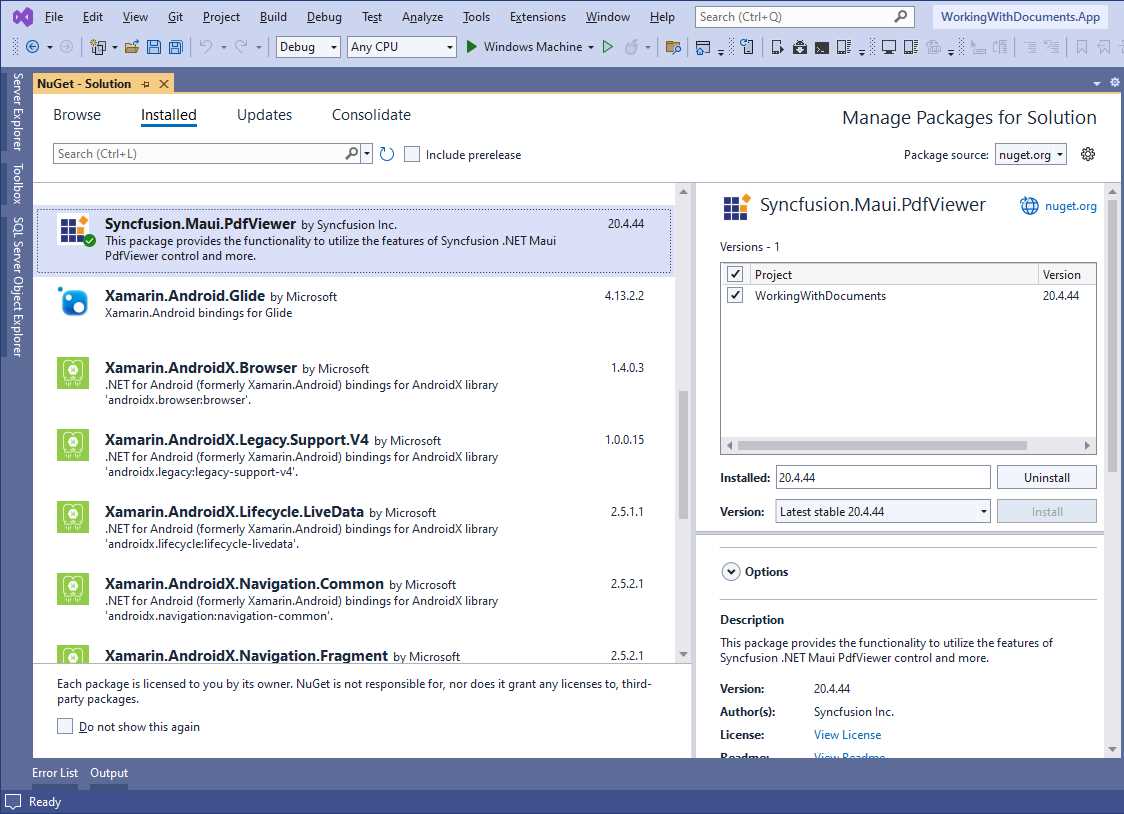
Figure 29: Installing the Syncfusion.Maui.PdfViewer NuGet package
When the package has been installed, you need an additional step. In the MauiProgram.cs file, you need to initialize the PDF Viewer with the following line that must precede the return statement of the CreateMauiApp method:
//Requires a using Syncfusion.Maui.Core.Hosting; directive
builder.ConfigureSyncfusionCore();
The user interface for the main page is very simple. It includes the PDF Viewer and two buttons: one for loading a document and one for sharing the document. Code Listing 21 contains the XAML code for this.
Code Listing 21
<?xml version="1.0" encoding="utf-8" ?> <ContentPage xmlns="http://schemas.microsoft.com/dotnet/2021/maui" xmlns:x="http://schemas.microsoft.com/winfx/2009/xaml" xmlns:syncfusion="http://schemas.syncfusion.com/maui" x:Class="WorkingWithDocuments.MainPage"> <Grid x:Name="PdfViewGrid"> <Grid.RowDefinitions> <RowDefinition /> <RowDefinition Height="40" /> </Grid.RowDefinitions> <syncfusion:SfPdfViewer x:Name="PdfViewerControl" />
<StackLayout Grid.Row="1" Orientation="Horizontal"> <Button x:Name="OpenButton" Text="Open" Clicked="OpenButton_Clicked" /> <Button x:Name="ShareButton" Text="Share" Clicked="ShareButton_Clicked" /> </StackLayout> </Grid> </ContentPage> |
For now, only focus on the XML namespace added to use the SfPdfViewer control. Specific considerations are coming in the next section, together with the C# code that enables the two buttons. As I mentioned previously, I added a sample PDF document in the companion solution, but if you are working on a brand new one, add a PDF file to the root folder of the project and set its Build Action as EmbeddedResource.
The last step for setup is specifying the Syncfusion license key, which you specify by adding the following line of code in the constructor of the App.Xaml.cs file, before the assignment of the MainPage property:
Syncfusion.Licensing.SyncfusionLicenseProvider.
RegisterLicense("YOUR-LICENSE-KEY-GOES-HERE");
If you don’t add the license key, libraries will work in trial mode (which is fine for the current example, but not for production purposes). In trial mode, the SfPdfViewer control will add a watermark to the view, saying that the document is being displayed with a trial version of the library.
Introducing the SfPdfViewer control
The Syncfusion® SfPdfViewer is a very powerful and versatile control that can be used to display, annotate, and edit PDF documents. In Code Listing 21, it is declared as follows:
<syncfusion:SfPdfViewer x:Name="PdfViewerControl" />
You load PDF documents into the SfPdfViewer via its LoadDocument method, which receives the file to open as a Stream object. You can also invoke the LoadDocumentAsync method for asynchronous loading. Both methods can optionally receive a string argument representing the document password, if the PDF is protected. With this in mind, the event handler for the OpenButton will look like the following:
private void OpenButton_Clicked(object sender, EventArgs e)
{
var fileStream = typeof(App).GetTypeInfo().Assembly.
GetManifestResourceStream("WorkingWithDocuments.SampleDoc.pdf");
PdfViewerControl.LoadDocument(fileStream);
}
The first line of code reads a file from the embedded resources and returns a Stream, and the name has the following structure: ProjectName.FileName.FileExtension. If the file was placed in a project subfolder, the structure would be ProjectName.FolderName.FileName.FileExtension. In this case, the project is called WorkingWithDocuments. The second line loads the stream into the SfPdfViewer control. If you run the app as it is, you will see the result shown in Figure 30.
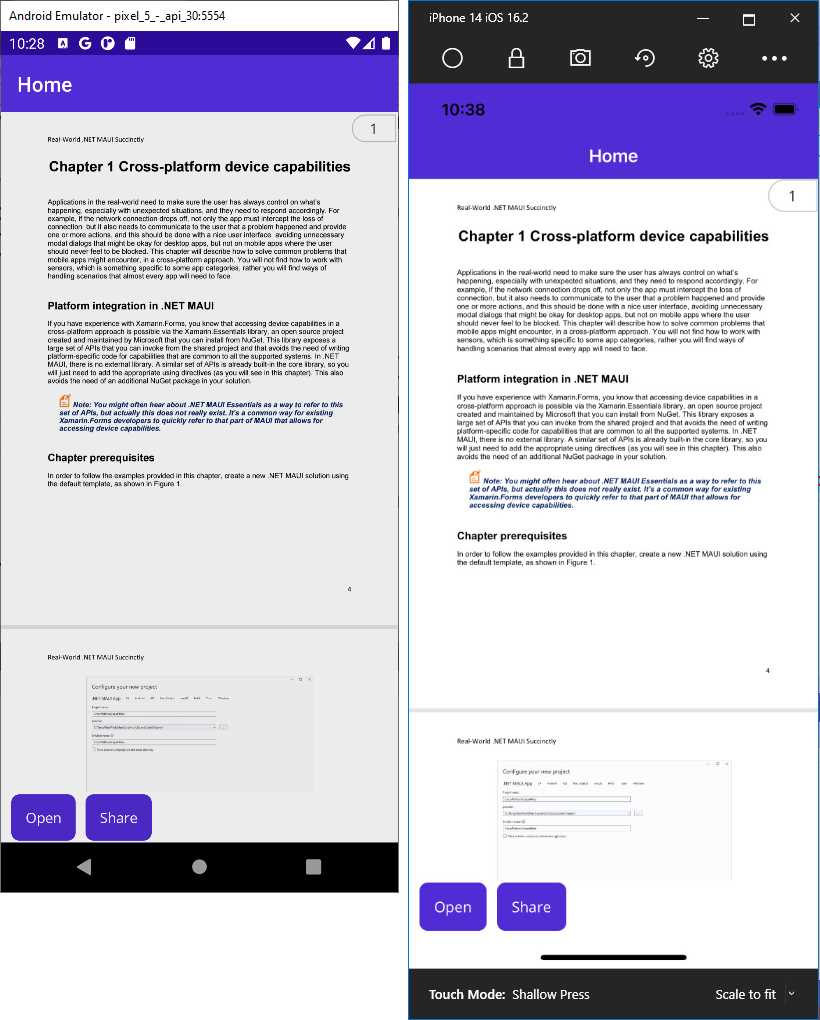
Figure 30: Displaying a PDF document in .NET MAUI
As you can see, the PDF document is shown in the user interface in a convenient way.
Note: At the time of writing this chapter, the SfPdfViewer control is not feature complete yet. This means that it is reasonable to expect updates with new built-in tools, especially to achieve parity with the old Xamarin.Forms viewer.
The user interface of the SfPdfViewer is designed to be simple and easy to access, but powerful at the same time, and these features are those you would expect from a PDF viewer on a mobile app. Make sure you visit the official documentation for further information on the control’s customization, localization, and other features.
Sharing files and documents
Sharing contents in mobile apps is one of the most important features in terms of app usability and goes beyond the concept of sharing on social media. For example, if you receive a PDF document via email and you want to open it inside a PDF viewer app like Adobe Reader, you are actually sharing the document from the mail client with the PDF viewer. Similarly, you can share files on your device, such as pictures and videos, in a Whatsapp chat. What you are doing is asking the operating system to open another app that is capable of receiving contents from other apps.
In a mobile app that works with data, a common scenario is to receive a document via Web API, display the document in-app, and have the option to send it via email to some recipients. So at a higher level, by sharing, we generally mean sharing contents with another app.
Sharing contents in .NET MAUI is made easy by the Share class. This class exposes a static method called RequestAsync, which receives an argument that can be of the following types:
· string, for sharing plain text.
· ShareTextRequest, for sharing URIs or text.
· ShareFileRequest, for sharing files.
Working with the first two is not covered in this chapter; we will focus on the third one. The ShareFileRequest class points to the local pathname of a file. In the current example, the PDF document is stored as an embedded resource, so an additional step is required to get the file from the resources, copying it into the app’s directory and then pointing to the obtained pathname. This is accomplished by the following method called ShareAsync:
private async Task ShareAsync()
{
var fileStream = typeof(App).GetTypeInfo().Assembly.
GetManifestResourceStream("WorkingWithDocuments.SampleDoc.pdf");
var cacheFile = Path.Combine(FileSystem.CacheDirectory,
"SampleDoc.pdf");
using (var file = new FileStream(cacheFile, FileMode.Create,
FileAccess.Write))
{
fileStream.CopyTo(file);
}
var request = new ShareFileRequest();
request.Title = "Share document";
request.File = new ShareFile(cacheFile);
await Share.RequestAsync(request);
}
Like in the first example about loading the document, the first line gets the file stored inside the embedded resources as a Stream. The cacheFile variable combines the path for the app’s cache directory with the file name into one pathname. The using block creates an instance of the FileStream class pointing to the original file’s stream, creating a copy in the target directory. The using block ensures the stream resources are disposed of after usage. The ShareFileRequest object can point to the local pathname via the File property. The Title property allows for specifying the title for the sharing user interface, if supported by the OS.
The ShareAsync method is invoked by the Clicked event handler for the ShareButton as follows:
private async void ShareButton_Clicked(object sender, EventArgs e)
{
await ShareAsync();
}
If you now run the app and click the Share button after opening the document, you will get a result similar to Figure 31.
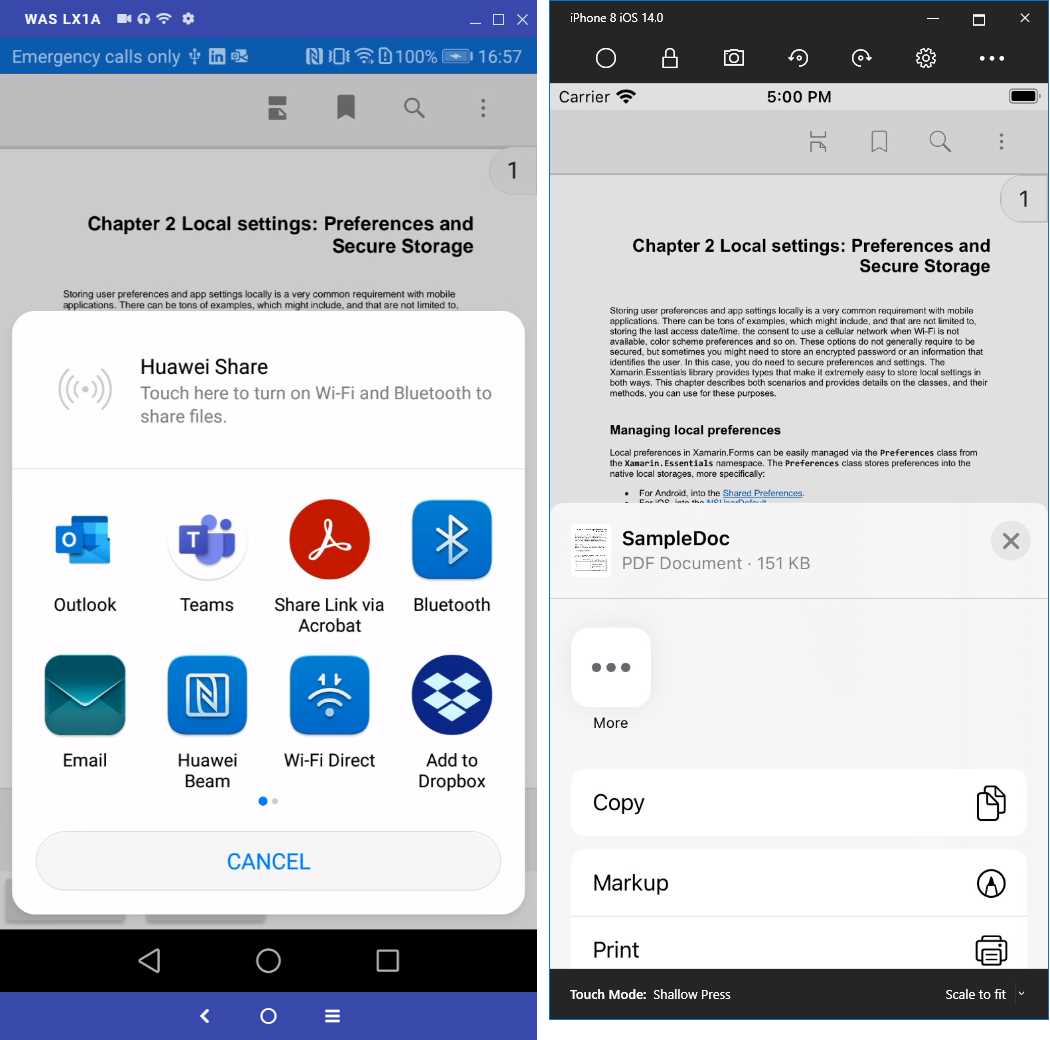
Figure 31: Sharing a document
The result will almost certainly vary on your device, because it depends on how many and which apps you have installed to support PDF documents (in this case, for iOS, Figure 31 is based on the simulator, which has no PDF apps installed, and therefore, it only shows device options).
You will just need to select an app enabled to receive PDF documents and the file will be shared, using the system interface and without the need for writing platform-specific code, which is an incredible benefit. The app that receives the document will then know how to handle it. For example, if you select an email client for sharing, the document will be automatically added as an attachment to a new email message.
Chapter summary
Applications might need to work with PDF documents for several reasons, such as for displaying reports, forms, or simply documentation. .NET MAUI does not have a built-in control to display PDF documents, but Syncfusion® provides the SfPdfViewer view, which is simple to use and includes a toolbar with all the commands and tools required to annotate, comment, and sign documents. When it comes to sharing, the Share class from the .NET MAUI library makes it easy to send files to other apps by simply invoking the RequestAsync method.


- An ever-growing .NET MAUI control suite with rich feature sets.
- DataGrid, Charts, ListView, Scheduler, and more.
- Active community and dedicated support.
- Phone, tablet, and desktop support.