
Prism 4 Succinctly®

CHAPTER 9
Prism 4 Modules
Think of Prism 4 modules as the workhorse of any Prism 4 solution. Modules are where the bulk of the work is done in your Prism 4 solutions.
A Prism 4 module is a Visual Studio project that contains a class that implements the IModule interface. In more general terms, a module is a block of program functionally that can encompass UI, business rules, data and coordination functionally between the UI and business entities.
Prism 4 modules are, as a rule, designed to be atomic. What is meant by this, is that modules should be independent entities that have very little or no dependences on other modules. This helps to enforce loose coupling and separation of concerns.
The IModule interface consists of a single method named Initialize. The Initialize method is used to configure the module's classes when the module is first loaded.
Listing 33: The MATH_MODULE Module Class:
[Module( ModuleName = "MATH_MODULE", OnDemand = false)] public class MATH_MODULE : IModule { private IRegionManager RegionManager { get; set; } private AddTwoView AddTwoView; private SubtractView SubtractView; //Constructor: public MATH_MODULE( IRegionManager RegionManager, AddTwoView AddTwoView, SubtractView SubtractView) { if (RegionManager != null) { this.RegionManager = RegionManager; } if (AddTwoView != null) { this.AddTwoView = AddTwoView; }
if (SubtractView != null) { this.SubtractView = SubtractView; } } //Add the Module Views to the Regions here: public void Initialize() { ///Add the user controls to the region here: IRegion MathRegion = RegionManager.Regions["MathRegion"];
MathRegion.Add(this.AddTwoView, "AddTwoView"); MathRegion.Add(SubtractView, "SubtractView"); } } |
The Module Class's Data Annotation:
The data annotation that proceeds the class definition in Listing 33, can be used to set properties for the class. In this case the class name is added and the OnDemand property is set to false.
The OnDemand property determines if the module is loaded at solution startup or if it should be loaded later with program interaction.
Note: This property does not work with this solution because we are using the configuration file to load the modules. If you use the directory scan method to load modules, it works. This code is added because in most of my Prism 4 solutions I use directory scan to load modules and I left it in to show how to either load modules at startup or on demand if this method of module loading is used.
Configuration files use the startupLoaded property to determine when a module loads. We'll look at the configuration file in chapter 13.
Using Constructor Injection in the Module to Instantiate Objects:
The Math Module class in Listing 33 has three class level members, Region Manager, AddTwoView and SubtractView. These members are Instantiated by passing three arguments to the class constructor, Region Manager, AddTwoView and SubtractView. Guard clauses are used for each of the passed arguments in the constructor and if the objects are not null each is assigned to its associated local class member.
You'll recall that we created a MathRegion in both of the Main project's shell forms. In the Listing 33 Initialize method the IRegion interface is used to Instantiate a region object called MathRegion. This region is used as an injection mechanism for views.
When we spoke about Prism 4 regions earlier, we didn't address the issue of how views are injected into regions. There are two methods that can be used to inject views.
- View Discovery.
- View Injection.
View discovery is used to automatically load views when the solution starts. The view or views are registered with the region manager's RegisterViewWithRegion method. The method takes two arguments, a string that corresponds to the name of the region and the Type of the view that will be loaded into the region.
View discovery is used in situations where it is not necessary to change the view once it is loaded.
Note: Technically view discovery could have been used to load both of the shell form logo views. Neither of these views change once loaded. I tend to use view injection for all of my views. This makes things easier if it becomes necessary to change the view as the solution changes.
Listing 34: An Example of Prism 4 View Discovery:
regionManager.RegisterViewWithRegion("MathRegion", typeof(AddTwoView)); |
View injection programmatically adds views to regions either automatically, though program control or user interaction. Using view injection increases the amount of control that is available when creating and injecting views. This method of view creation is used in the Virtual Calculator solution.
The two views (AddTwoView and SubtractView), are added to the math region in the Initialize method of Listing 35.
Listing 35: Prism 4 View Injection:
Public void Initialize() { ... MathRegion.Add(this.AddTwoView, "AddTwoView"); MathRegion.Add(SubtractView, "SubtractView"); } |
This code creates the object and also activates it in the region.
In order to use modules in Prism 4 solutions, they must be loaded. Module loading takes place when the solution starts in most cases. There are four methods that can be used to load Prism 4 modules.
- With Code.
- With a Configuration File.
- With a XAML file.
- With Directory Scan.
Loading Prism 4 Modules With Code:
Loading a module in code is the fastest and least complicated solution to module loading with Prism 4. The AddModule method of the ModuleCatalog is used to add modules to the module catalog's collection.
This method of loading modules is easiest, but also has drawbacks. Because it is necessary to reference the solution's modules in the Main project, this type of loading introduces tight coupling in the solution. This of course defeats the purpose of using modules in the first place. Because of this tight coupling I advise that one of the other three loading strategies be used.
Listing 36: Loading Prism 4 Modules With Code:
protected override void ConfigureModuleCatalog() { Type MathModule = typeof(MATH_MODULE); ModuleCatalog.AddModule ( New ModuleInfo() { ModuleName = MathModule.Name, ModuleType = MathModule.AssemblyQualifiedName, } ); } |
Loading Prism 4 Modules With a Configuration File:
Using a configuration file has a number of advantages and drawbacks. First configuration files allow for late binding. This of course means that if changes are needed to the module loading strategy, they can be introduced without recompiling the solution. Also all loading strategies are in a known location, making them easy to find.
Listing 37 shows an example of the bootstrapper's CreateModuleCatalog method.
Listing 37: Loading Prism 4 Modules With a Configuration File:
protected override IModuleCatalog CreateModuleCatalog() { ConfigurationModuleCatalog configurationCatalog = new ConfigurationModuleCatalog(); return configurationCatalog; } |
The main drawback to adding loading strategies to the configuration file is insuring that the markup is correct can become difficult with complex strategies. It also becomes progressively more difficult to insure that the markup is valid as the number of modules increase.
The Virtual Calculator solution uses this loading strategy. We will take a detailed look at the app.config file markup in chapter 13.
Loading Prism 4 Modules With a XAML File:
XAML files have many of the same good points and drawbacks as using a configuration file. The main point being that if large numbers of modules are used in the solution, that the markup can become difficult to validate and maintain.
Listing 38 shows an example of the markup needed to load a module in a XAML file.
Listing 38: Loading Prism 4 Modules With a XAML File:
<Modularity:ModuleInfo Ref="PRISM4.MATH_MODULE.xap" ModuleName="MathModule" ModuleType="PRISM4.MATH_MODULE, MATH_MODULE, Version=1.0.0.0, Culture=neutral, PublicKeyToken=null" /> |
Loading Prism 4 Modules With Directory Scan:
Loading modules with directory scan is my preferred method of loading Prism 4 modules. Once the solution is setup for this kind of module loading, it's fairly simple to use the system. It is also a very decoupled strategy for loading modules.
I'm not going to go into detail about loading strategies in this chapter, but will talk about module loading with configuration files in chapter 13.
Listing 39: Loading Prism 4 Modules With a Directory Scan:
protected override IModuleCatalog CreateModuleCatalog() { return new DirectoryModuleCatalog() {ModulePath = @".\Modules"}; } |
Prism 4 module dependencies are probably not what you think. When we think of dependencies between modules, setting references come to mind. When we speak of Prism 4 module dependencies, we are talking about the order in which modules are loaded.
If module A depends on module C then module C must load before module A. Prism 4 exposes mechanisms that allow for module dependency configuration.
Listing 39: Setting a Prism 4 Module Dependency:
[Module( ModuleName = "MATH_MODULE", OnDemand = false), ModuleDependency("PRISM4.COMPANY_LOGO_MODULE")] public class MATH_MODULE : IModule { ... |
This code will load the COMPANY_LOGO_MODULE module before the MATH_MODULE module.
How MVVM Integrates with Prism 4 Module Projects:
Prism 4 modules are where most of the MVVM design patterns will reside in our solutions. I use a standard folder structure in my modules.
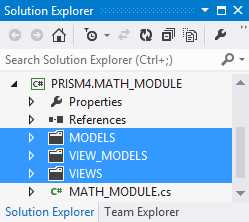
- The Math Module MVVM Folder Layout
In this chapter we learned that Prism 4 modules are Visual Studio projects that contain classes that implement the IModule interface. We learned that this interface has a single method Initialize. We saw how the method can be used to add views to regions.
We also looked at different methods of loading Prism 4 modules. And we talked about how dependencies can be resolved between modules.
In the next chapter we're going to look at communications in Prism 4 solutions. Commanding is one of a number of methods that is used to communicate in Prism 4 solutions.


- 1800+ high-performance UI components.
- Includes popular controls such as Grid, Chart, Scheduler, and more.
- 24x5 unlimited support by developers.