
PowerShell Succinctly®

CHAPTER 7
SQL Server and PowerShell
Using databases is a regular activity for most of today’s developers, which means that modern programming languages must be able to connect to a wide variety of databases to be successful, and PowerShell is no exception. Although database connection and querying is always available out of the box thanks to the .NET framework, it is limited to its providers.
Even if you feel familiar with .NET, you should consider other options such as PowerShell modules, which bring much better solutions to optimize your interaction with SQL Server. In this chapter, you will learn to work with SQLPS, Microsoft´s PowerShell SQL Server official module. I use this module every day and it has proven to be very stable and efficient. To start using it, you need to install SQL Server or install some requested features.
Install SQLPS
If you have SQL Server installed on your machine, then the SQLPS module is installed along with that installation. However, you can simply install three stand-alone packages from the Microsoft SQL Server 2012 feature pack. Click here to download these packages, and click on Install Instructions to open a drop-down list of all the features available. Download and install the following in this order:
- Microsoft System CLR Types for Microsoft SQL Server 2012 (SQLSysClrTypes.msi)
- Microsoft SQL Server 2012 Shared Management Objects (SharedManagementObjects.msi)
- Microsoft Windows PowerShell Extensions for Microsoft SQL Server 2012 (PowerShellTools.msi)
After you finish installing these packages, you will be able to load the SQLPS module and start working with your SQL Databases directly in PowerShell. An important notice is to select the correct version of the install package according to your processor architecture. In Figure 47, you see an example of the choices you will have for each feature to install.
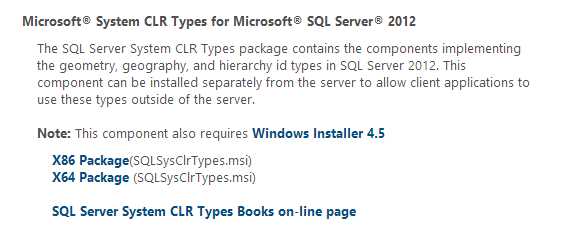
Install SQLPS feature
Add SQL Snap-in
To add the SQLPS module to a script, you just need to invoke the Import-Module command, which will add the module to the current session. Note that the modules you import must be installed on the local computer or a remote computer if you wish to run these scripts on it.
#Import the SQLPS module Import-Module “sqlps” |
After importing the SQLPS module to your script, some new commands should be available in PowerShell. As you can see in Figure 48, you now have the ability to execute a SQL command, invoke a process on a cube, or even process a dimension on a cube from Analysis Services.
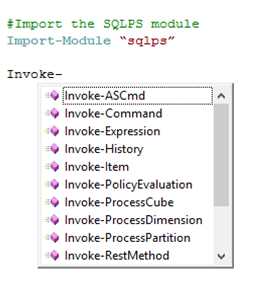
New SQL commands
Invoke SQL Query
#Import the SQLPS module only if it is not already loaded. if(-not (Get-Module "sqlps")){ Import-Module “sqlps” } #Set the database. $database="rmBlog" #Set the server and instance. $server = ".\PRI01" #read the post name from the interactive shell. "Please enter a post to seach`n" $post = Read-Host #Set the query. $query = "SELECT p.PostTitle, p.PostText, p.PostDate FROM Post p WHERE PostTitle like '%$post%'" $query #Invoke the command providing as parameters all that are necessary. Invoke-Sqlcmd -ServerInstance $server -Database $database -Query $query |
Invoking this script will return a dataset of results directly from SQL Server that you can use in the rest of your script. Imagine you want the result as an XML file. Several possible solutions might come to mind that would be acceptable, but if you are using SQL Server, why not use it to retrieve our result as an XML file? You just need to change the query in order to convert the result and export it to a XML file.
#...(Some code omitted) #Set the query. $query = “SELECT p.PostTitle, p.PostText, p.PostDate FROM Post p WHERE PostTitle like ‘%$post%’ FOR XML AUTO, ROOT(‘MyPosts’)” #Invoke the command providing as parameters all that are necessary. $result = Invoke-Sqlcmd –ServerInstance $server –Database $database –Query $query #Load the result as XML. $xmlDoc = new-object System.Xml.XmlDocument $xmlDoc.LoadXml($result[0]) #Export as XML. $xmlDoc.InnerXml | Out-File “c:\temp\testeSQL.xml” |
After you invoke this script, you will have an XML file with the full DOM object available for you to work with. The following code block shows you the result of running this script.
<MyPosts> <p PostTitle="Snnipet Creator C#" PostText="My First Post" PostDate="2013-06-18T20:29:18.857" /> </MyPosts> |
One final important warning about using this SQL module. When you run the script to invoke a call to a SQL database, you might face the following error:
Invoke-Sqlcmd : A network-related or instance-specific error occurred while establishing a connection to SQL Server. The server was not found or was not accessible. Verify that the instance name is correct and that SQL Server is configured to allow remote connections. (provider: SQL Network Interfaces, error: 26 - Error Locating Server/Instance Specified) |
If all server and database parameters are correct, this might be related to the SQL Server configuration, which you need to change in order to allow remote connections for that server. You can use SQL Server Management Studio as you can see in Figure 49.
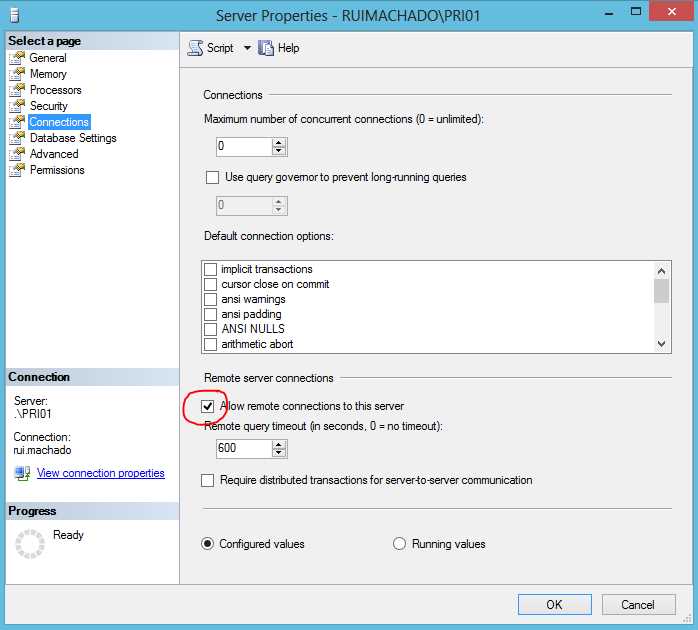
Allow remote connections


- Shared infrastructure for efficient resource management
- Self-service analytics for easy data exploration
- Enhanced security with row-level security and SSO
- Customizable dashboards to meet your specific needs