
PowerShell Succinctly®

CHAPTER 5
Remote PowerShell
Using Remote PowerShell
Remotely accessing a local machine or running scripts on remote machines is a feature that Microsoft was reluctant to support, and until the first version of PowerShell there was no way to do it. Since PowerShell 2.0, things have changed and Microsoft has made a big effort to implement the Windows Management Foundation, which combines PowerShell with Windows Remote Management, offering tools for system administrators who can now manage all machines on one or more domains.
One thing that is important to note is that not all PowerShell commands allow remote access to computers. However, there are many ways to run scripts remotely, either by executing them on the remote computer or running them from your own computer.
Another important point before we move on to the practical cases is that some commands require that PowerShell be installed on both machines, while others may be run on machines without PowerShell installed.
In order to use PowerShell remotely on a computer, it must be active in that computer. To do so, use the Enable-PsRemoting command.
Enable-PsRemoting |
Make sure you run the PowerShell console in administrator mode, otherwise you will see the error shown in Figure 42.

Enable-PSRemoting Error
Another error you might face is a network connection type. In order to activate remote PowerShell, all of your network connections types must be either private or domain. The error is shown in Figure 43.
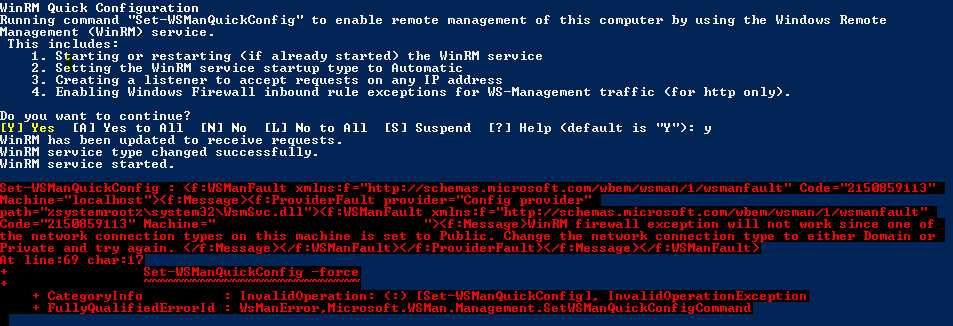
Enable-PSRemoting Network Connection Type
The solution to this problem is to change the connection type as previously mentioned, to either public or domain. To do so, you must invoke the following function, which will change the network type to the one specified by the type parameter. You can invoke this script for just one network, or activate the flag (Boolean parameter “All”) to change it for all of your networks.
function ChangeNetworkConType{ param( [ValidateSet("Domain","Public","Private")] [string][Parameter(Mandatory=$true)]$Type, [string][Parameter(Mandatory=$false)]$NetworkName, [bool][Parameter(Mandatory=$true)]$ChangeAll ) #Instantiate a network manager object using its CLSID (CLSID is a com object ID). [Activator]::CreateInstance([Type]::GetTypeFromCLSID([Guid]"{DCB00C01-570F-4A9B-8D69-199FDBA5723B}")) | %{
#Get all connections. $allConns = @() if($ChangeAll -eq $true){ $_.GetNetworkConnections() | %{ $allConns+= $_.GetNetwork()} }else{ $_.GetNetworkConnections() | ?{$_.GetNetwork().GetName() -like "*$NetworkName*"} | %{$allConns+=$_.GetNetwork()} }
$allConns | %{ <# Network Connection Types Available Public - 0 Private - 1 Domain - 2 //Won´t cover it in this script #> #Because we will change the context of execution to a switch, we must save the network connection to a variable. $networkConnection = $_
switch($Type){ "Public" { $networkConnection.SetCategory(0); break; } "Private" { $networkConnection.SetCategory(1); break; } default {"Only Private or Public type is implemented."} } } } } |
To invoke the command, just run the following code block:
ChangeNetworkConType -Type "Private" -ChangeAll $true |
After you overcome all of these obstacles, enabling PowerShell remote shouldn´t give you any more problems, but you may need to authorize several changes to your machine.
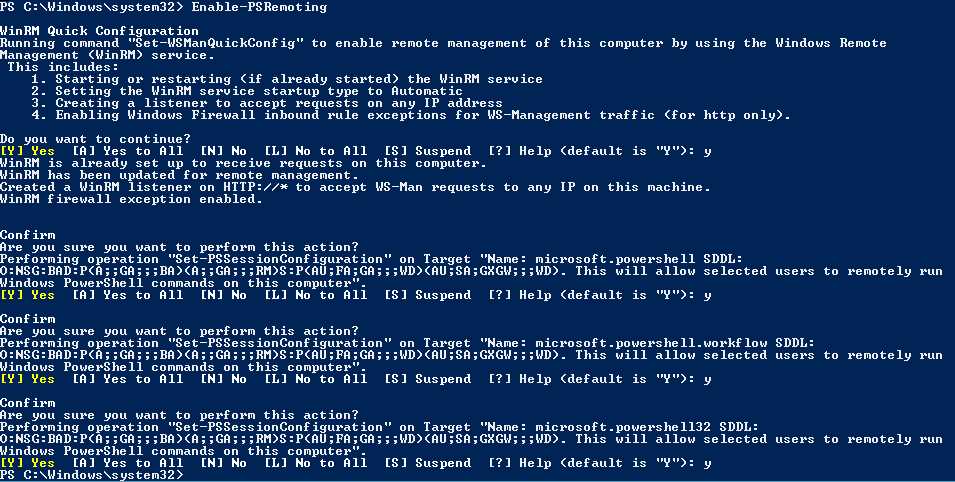
Enable-PSRemoting run with no errors
Identify Remote PowerShell Compatible Commands
While working with remote PowerShell commands, you might face two types of context application: one in which you have a remote compatible command and you invoke it remotely, and another case in which you don´t have a remote compatible command. In this situation, you need to invoke the script or command directly on the other machine through a remote session. To evaluate which of these two scenarios are available for you, you need to check if a certain command is compatible with remote PowerShell.
To evaluate a command’s compatibility in this context, you can simply check if it has a computer name parameter, which means that you can get a full compatible list just by using the Get-Command command. This will return a list of all commands available in PowerShell and then filter that list to show only those that contain a computer name parameter.
#Get all commands. Get-Command -CommandType Cmdlet | %{ #Filter the list to show those that contain computer name parameter. if(($_.Parameters -ne $null) ` -and ($_.Parameters["ComputerName"] -ne $null)){ #Return the command name. $_.Name } } |
Note: To invoke a command on a remote machine, it might need to have PowerShell installed; however, there is a common technique used to overcome that problem, which is to establish a remote desktop session.
Test a Remote Connection
Testing the connectivity between two computers is allowed in PowerShell through its Test-Connection command, which works like the old ping command. It sends Internet Control Message Protocol (ICMP) echo request packets (pings) to one or more remote computers and returns the echo response replies.
#Test connection between this computer and another Test-Connection -ComputerName "WIN-FI6G73MN5BB" |
This command is easy to call in its most basic form; just call it with the target computer name parameter and that’s it. The result of this call is shown in Figure 45, which in this case is a success.

Test connection
After you check that the connection is established, you are ready to start invoking commands and scripts on that machine.
Invoke Scripts in Remote Machines
Although the remote connection connects to a single computer, the host application can run the Invoke-Command to run commands on other computers. With this concept, you are able to use the Invoke-Command command, which runs commands on a local or remote computer and returns all output from the commands, including errors, just by specifying the computer name as a parameter. A temporary connection is automatically created between your computer and the target machine.
#Invoke the command with the target computer and the script block Invoke-Command –ComputerName “WIN-FI6G73MN5BB” –ScriptBlock {Get-Process} |
When invoking this command, you might be faced with the following error, which can be caused by several situations. I will give you the solution to most common one.
[WIN-FI6G73MN5BB] Connecting to remote server WIN-FI6G73MN5BB failed with the following error message : WinRM cannot process the request. The following error with errorcode 0x80090311 occurred while using Kerberos authentication: There are currently no logon servers available to service the logon request. Possible causes are: -The user name or password specified are invalid. -Kerberos is used when no authentication method and no user name are specified. -Kerberos accepts domain user names, but not local user names. -The Service Principal Name (SPN) for the remote computer name and port does not exist. -The client and remote computers are in different domains and there is no trust between the two domains. After checking for the above issues, try the following: -Check the Event Viewer for events related to authentication. -Change the authentication method; add the destination computer to the WinRM TrustedHosts configuration setting or use HTTPS transport. Note that computers in the TrustedHosts list might not be authenticated. |
To solve this problem, assuming that you have already enabled remote PowerShell on both machines using the Enable-PsRemoting command, you can establish a trust relation when using WinRM between both machines by using the following code. You must run this with administrator rights on both the destination and target machines.
Set-Item wsman:\localhost\client\trustedhosts “DestinationMachineName” |

Set Trusted Hosts
Note: Remote connection between machines in PowerShell is managed by a security and authentication mechanism named Kerberos. This mechanism prevents the remote computer you are connected to from using your account to connect to additional computers.


- Shared infrastructure for efficient resource management
- Self-service analytics for easy data exploration
- Enhanced security with row-level security and SSO
- Customizable dashboards to meet your specific needs