
PowerPivot Succinctly®

CHAPTER 4
Sharing your PowerPivot Model
Often once a useful PowerPivot model has been created, it needs to move off the desktop and to places where it can be accessed by other people so they can also draw value from it. Below we will explore the means for doing so.
Standalone workbook
A PowerPivot workbook is a standalone, complete data model. All the data from the sources has been stored in the workbook. You can simply share it by putting on a file share, OneDrive or emailing it – any option you have for passing a file around.
The only constraint is that if there is a need to refresh the data, the recipient may not be able to do so if they do not have valid credentials for the data source.
SharePoint workbook
Uploading a PowerPivot model into SharePoint can open up some interesting sharing options if PowerPivot for SharePoint features have been enabled[26].
Enabling these features allows PowerPivot workbooks to be loaded into the SharePoint environment to automatically add the following features:
- The workbook data model becomes an accessible data source
- Excel services integration for providing visualisation in SharePoint pages
- Automated data refresh
- Access control
- Workbook monitoring
Let’s dig into these features a little more.
First, uploading the workbook into a suitable enabled SharePoint environment allows some behind the scenes wizardry to occur with Analysis Services. The workbooks data model becomes accessible as a data source in its own right. This works (at a very simplified level) by pushing the data model in the workbook back to a set of specially configured Analysis Services servers which are part of the SharePoint farm. This then enables it to operate as a standalone data model with the servers supporting requests for data, also enabling scalability. Subsequently PowerView, Reporting services and Excel services can then build reports on the uploaded data model.
Second, as just alluded to, Excel Services integration allows the embedding of Excel content such as charts and Pivot Tables into SharePoint web pages – and Excel Services will be able to use the PowerPivot data model as a source. This means if you have created a set of useful dashboards and reports as part of building the PowerPivot workbook you can now share them broadly as part of a SharePoint site.
As these data models would be of limited use if the data had to be manually refreshed, SharePoint enables the scheduled refresh of the data in the model[27]. This is limited to a once per day refresh (as of SharePoint 2013).
Next – though we will cover this a little deeper in the Security considerations section – putting the workbook in SharePoint enables the usual level of access control that you get for any document managed in that environment.
Finally for the IT Administrators, there is the ability to monitor[28] which workbooks are being accessed, whether data refreshes are failing and how server resources are being utilised. This can be useful for identifying candidates for models that could be turned into fully supported BI solutions (as well as any unloved models that are draining resources and could be removed).
In summary, if you are in an enterprise environment that leverages data heavily, these features greatly enable the ideals of self-service BI. That is users can create their own reporting and content, can be flexible about the data sources they include and yet still have access to the horsepower provided by a full BI solution. The IT Administrators have a window to keep an eye on things to manage the self service capabilities without making users be subject to normal deployment and release restrictions. That does not set aside some of the other risks of self-service models, such as poor quality data or bad formulas, but it at least gets the heavily used solutions under watch.
Tabular Model
If the model needs any of the following:
- more frequent or managed refreshing
- more granular security
- capacity to handle larger amounts of data
- very wide distribution
- centralised management
then it may be beneficial to consider upgrading the model from a workbook to a full business intelligence solution as part of SQL Server Analysis Services.
The migration path is very simple – in SQL Server Data Tools[29] (part of Visual Studio), from the File menu choose New Project, and in the Analysis Services templates is the “Import from PowerPivot” template:
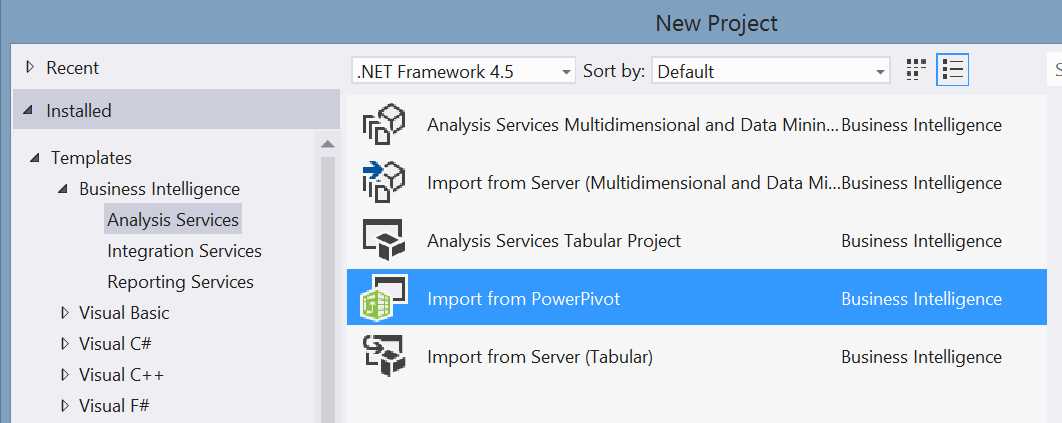
- Importing a PowerPivot workbook into Visual Studio
Choosing this template will create a new Analysis Services Tabular project. As part of the creation process it will ask for a PowerPivot workbook to import. Once you select it the project will create from your workbook a complete Tabular Model. It will have all the tables, relationships, calculations and other settings from the workbook. The design surfaces are very similar – there is the grid view and the Diagram view to choose from – and the same formula language, DAX is still used. Some work may be required to ensure all the data connections will work when the model is deployed to a server, but the model is otherwise good to go. This adds the following capabilities:
- More frequent or managed refreshing
- Scheduled refreshes through SQL Agent and / or SSIS
- Scheduled data feeds from SSIS
- More granular security
- Security roles restrict access at a row level, allowing different users to see different aspects of the data model
- Capacity to handle larger amounts of data
- The sky is effectively the limit – the 2GB limit is gone – the largest model I have heard of in production was 2TB in size!
- Very wide distribution
- Being part of an Enterprise server infrastructure gives the performance and scalability a workbook simply cant
- Centralised management
- Again, being part of Enterprise infrastructure gives access to skilled IT resources to keep the model up and running.
The ease with which you can leap from workbook to fully capable BI solution is to me one of the greatest features. It enables BI professionals to rough out proofs of concept very quickly in Excel before taking the leap and industrialising – and users get what they saw in the POC, just more robust.
Security considerations
PowerPivot models created in Excel have a very basic security model which is worth bearing in mind if you share workbooks, as it is very easy to share sensitive data this way.
Standalone PowerPivot models in an Excel workbook are fully readable by anyone you give the file to. That means if you build a customer analytics model and share it round the organisation, if you embedded customer personal data in that model then anyone with the workbook can see it. Once the data has been imported from the source system using your credentials into PowerPivot, it is no longer secured through any form of authentication. The only constraint is that (unless you embedded your credentials in the workbook) the recipient will not be able to refresh the data.
PowerPivot models uploaded into SharePoint are similarly insecure. The situation is slightly better in that Authorisation to access SharePoint is required to get to the file, but once it is there if someone with access downloads and shares the workbook the data is exposed again. In terms of accessing it as a data source, SharePoint authentication does provide some protection.
As a broad rule if you are concerned about the sensitivity of the data in your workbook, then focus on sharing the results of your analysis but not your analysis itself.
However, if your data is very sensitive and you do require proper access control then moving your model into a SQL Server Tabular model is the most secure way to do so. SQL Server security will control data model access and also can extend security to rows of data – so for example you can secure whole departments data to just their employees given a suitable filter.


- 1800+ high-performance UI components.
- Includes popular controls such as Grid, Chart, Scheduler, and more.
- 24x5 unlimited support by developers.