
PowerPivot Succinctly®

CHAPTER 6
Deep Dive: The xVelocity engine
At the heart of PowerPivot’s amazing capabilities is the xVelocity engine. This is the powerful technology that enables PowerPivot workbooks to compress data by such an impressive margin allowing huge data sets to be stored in relatively small amounts of memory. Understanding what data compresses well and why will help you understand how your workbook is using up memory.
Understanding Compression
The xVelocity engine in PowerPivot achieves compression primarily through a feature called Dictionary Encoding. This works by creating an integer index to represent your data values, creating a dictionary to store the index / value relationships, and only storing the index in the data.
To spell this out in simpler terms, consider a collection of names in our data:
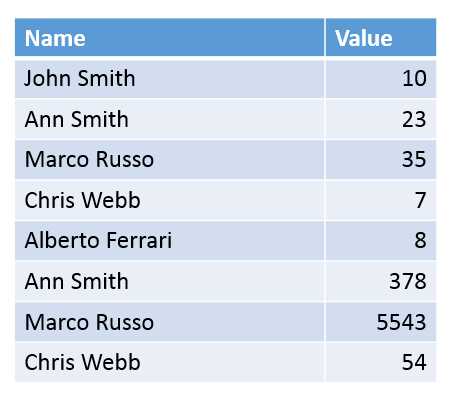
- Sample Data for Understanding Compression
We can see several of these names are repeated, so there is some storage overhead in repeating data. PowerPivot will create a dictionary of these with an index:
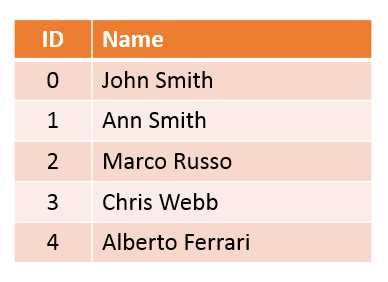
- Dictionary for the Name column
Then, this gets stored in the workbook as:
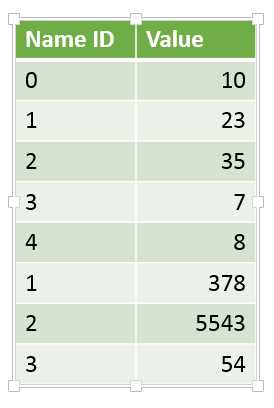
- Data stored with the Dictionary Index
This allows for a significant amount of data compression. Even the shortest name on our list – “Ann Smith” – consumes 9 bytes of data. In the small dictionary we described we need 1 byte to store up to 10 entries in the list. Even if we had 10,000 names in the list, we could get away with a 5 byte number to store it.
In practical terms, this means that data that is repeated more frequently in your dataset will get compressed more effectively. For example, product codes that are repeated across sales transactions will compress very well. In the reverse, some data will not compress well at all – for example the sales transaction amounts – which will vary from line to line with very little repeatability.
Managing very large workbooks
If your workbook is getting too big, there are a couple of tricks to bring it back down in size, both of which require only a little knowledge of how compression works.
The first technique is simply to get rid of some columns. Data not stored in your workbook will obviously take up less space! Understanding compression helps you understand which you can get rid of for most impact. Removing columns with lots of repeating data – such as product and transaction codes – even if the codes themselves are very long – won’t save you much space. However non—repeating columns – such as timestamps, currency amounts and so on – can make a big difference.
The second technique requires a little bit of thinking. If you are stuck with non-repeating data, such as a timestamp, currency amount – or even people’s names – you could try breaking those columns up into chunks that do repeat more often, and only combining them when you do calculations.
Consider transaction amounts, which are commonly rounded to 2 decimal places:
Amount |
7.99 |
8.99 |
10.95 |
12.95 |
7.49 |
10.49 |
15.49 |
7.75 |
- Sample Transaction Amounts
This list currently has 8 unique values. If we split out the decimal portion from the main number, then the repeatability changes:
Amount | Dollars | Cents |
7.99 | 7 | 99 |
8.99 | 8 | 99 |
10.95 | 10 | 95 |
12.95 | 12 | 95 |
7.49 | 7 | 49 |
10.49 | 10 | 49 |
15.49 | 15 | 49 |
7.75 | 7 | 75 |
- Sample transaction amounts split out
Now we have 5 unique dollar amounts and 4 unique cents amounts. At this tiny scale this would increase the space needed – but consider the effect over thousands of transactions. The cents portion will only ever have 100 permutations – which can be stored in just 2 bytes. Depending on how variable your dollar amounts are, this could save quite a lot of space. Dates with timestamps, and even First and Last names can be looked at in this way.


- 1800+ high-performance UI components.
- Includes popular controls such as Grid, Chart, Scheduler, and more.
- 24x5 unlimited support by developers.