
Power BI Succinctly®

CHAPTER 4
Mobile Apps
Power BI is available in apps for the following operating systems: Windows 8, Windows 10, Windows Phone, iPhone, and Android. The app versions allow us to connect to the Power BI service and explore the dashboards and reports available.
Windows 8 and Windows 10
Look for Microsoft Power BI in the Windows store.
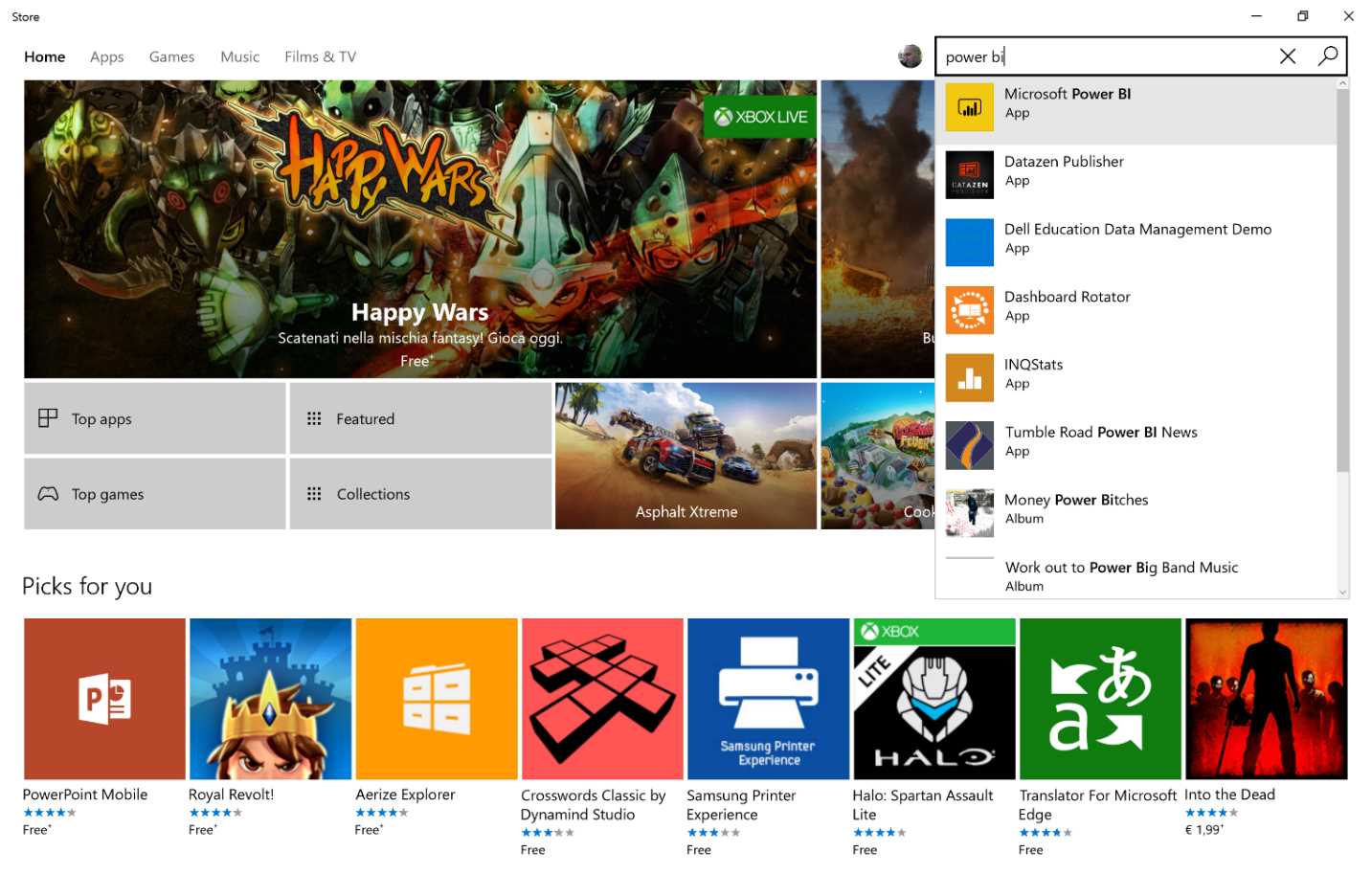
Figure 98: Windows Store
Install the app by clicking Install.
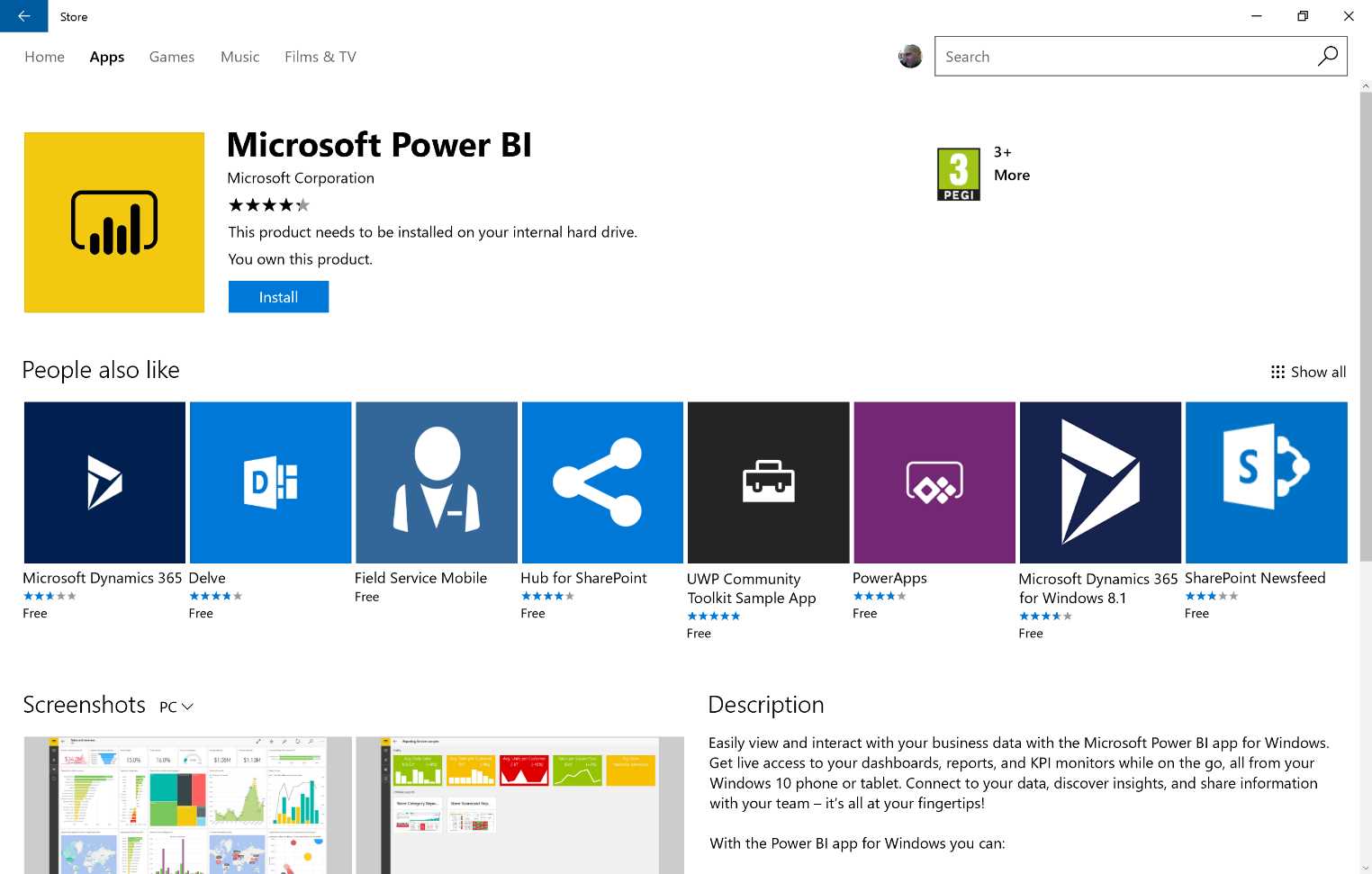
Figure 99: Power BI App Manifest
Run the application and click Get Started.
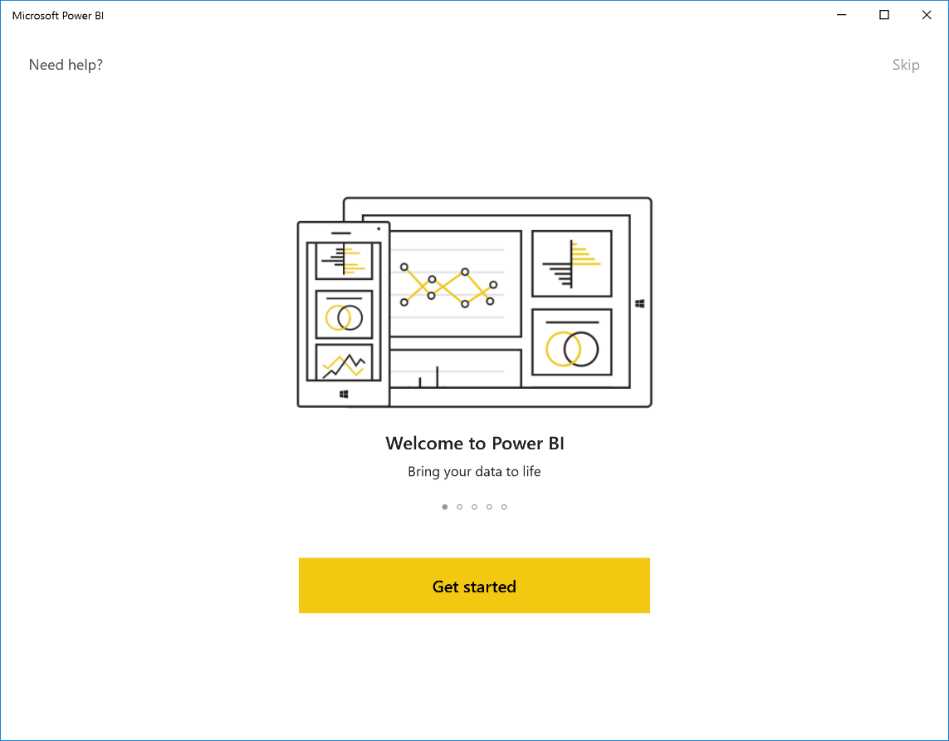
Figure 100: Power BI App
The first section leads to a selection of samples, as shown in Figure 101.
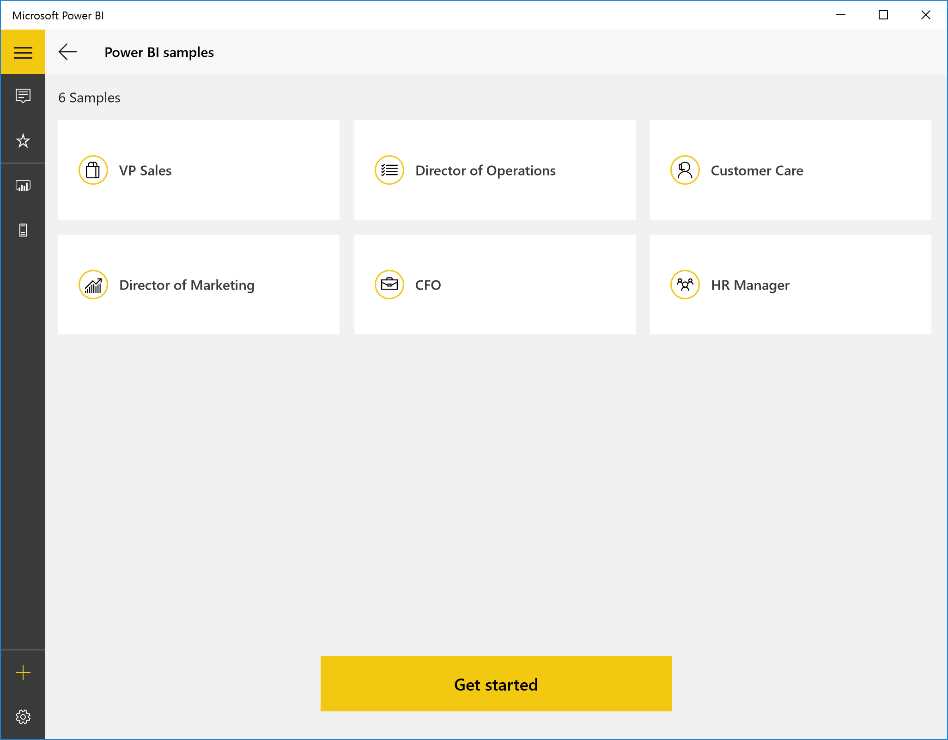
Figure 101: Power BI App
By proceeding with Get Started, we access the connection request. You can connect to the Power BI service or to a reporting sevice of SQL Server 2016. In our example, we will connect to the Power BI service.
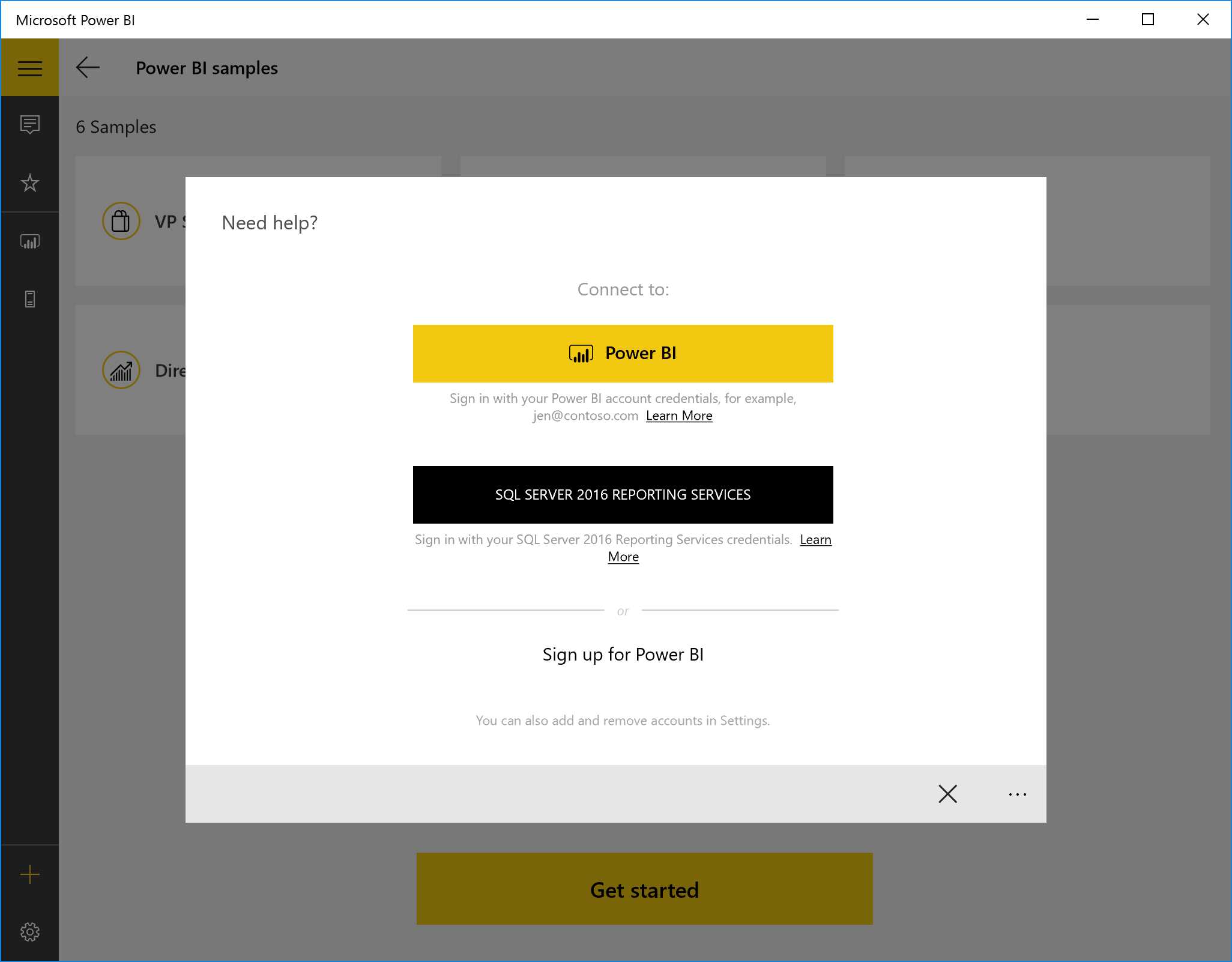
Figure 102: Power BI App
Supply the access credentials to the Power BI service, as shown in Figure 103.
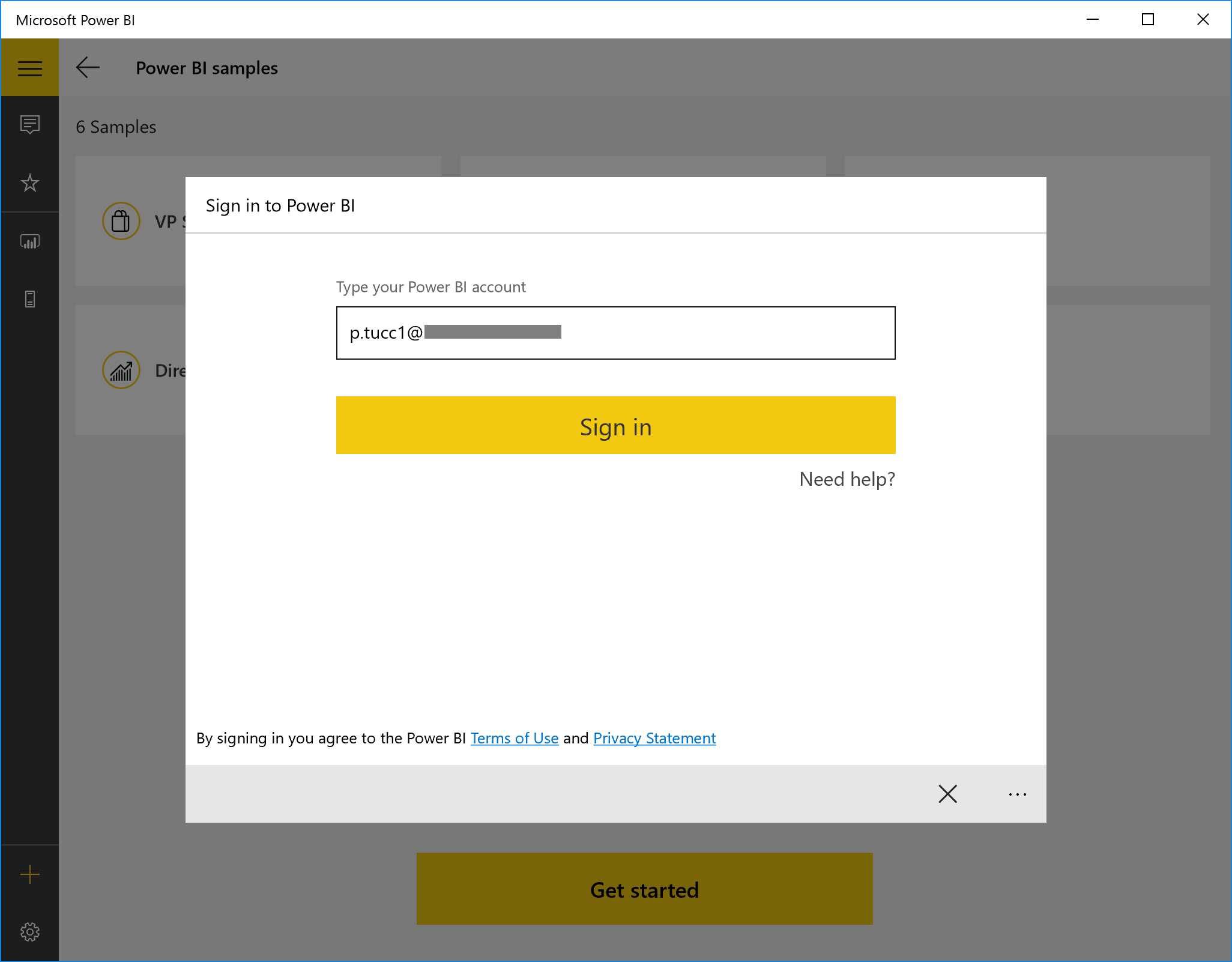
Figure 103: Power BI App
At this point, you will be redirected.
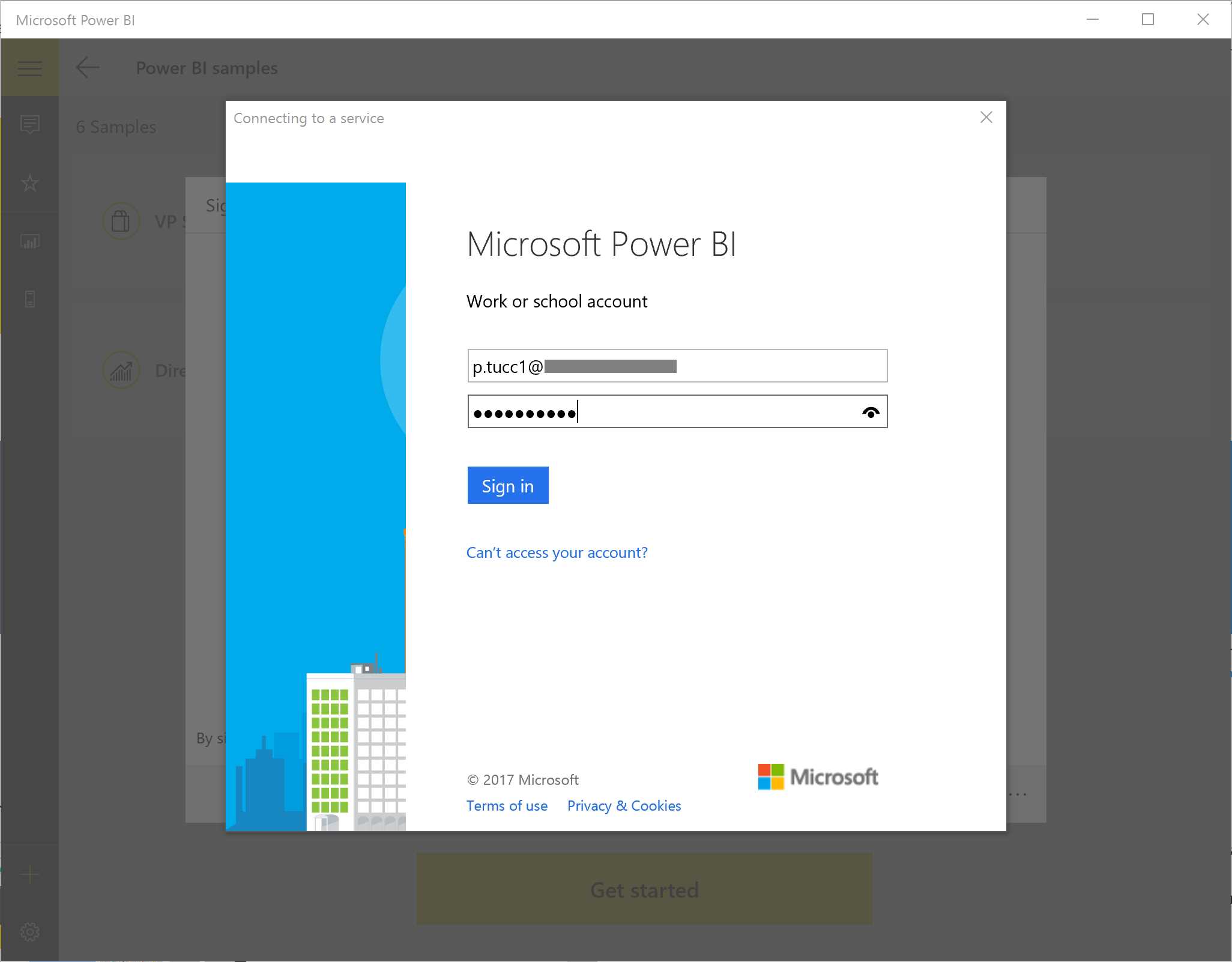
Figure 104: Power BI App
Figure 105 shows us that the authentication has been successful.
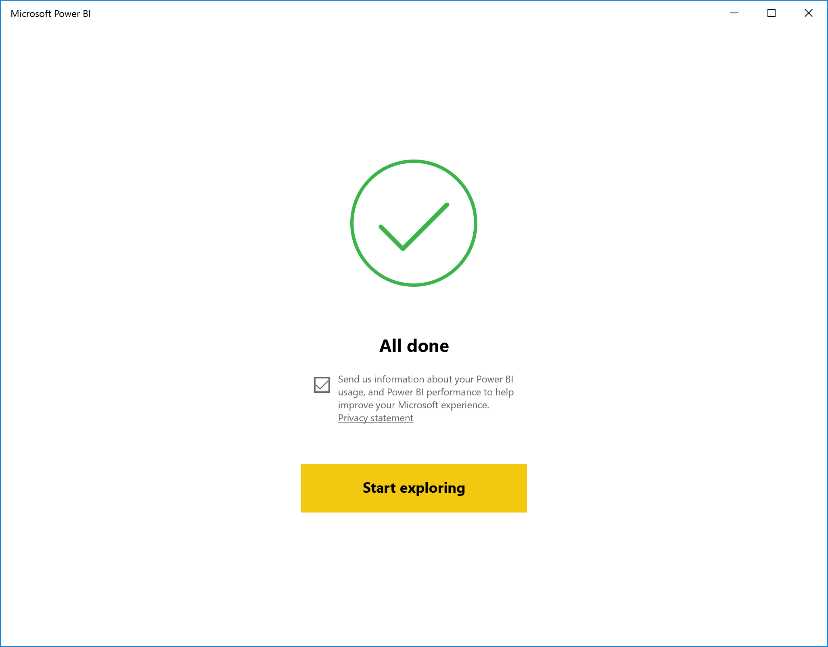
Figure 105: Power BI App
Figure 106 shows that we can explore the reports and dashboards present in our Power BI service.
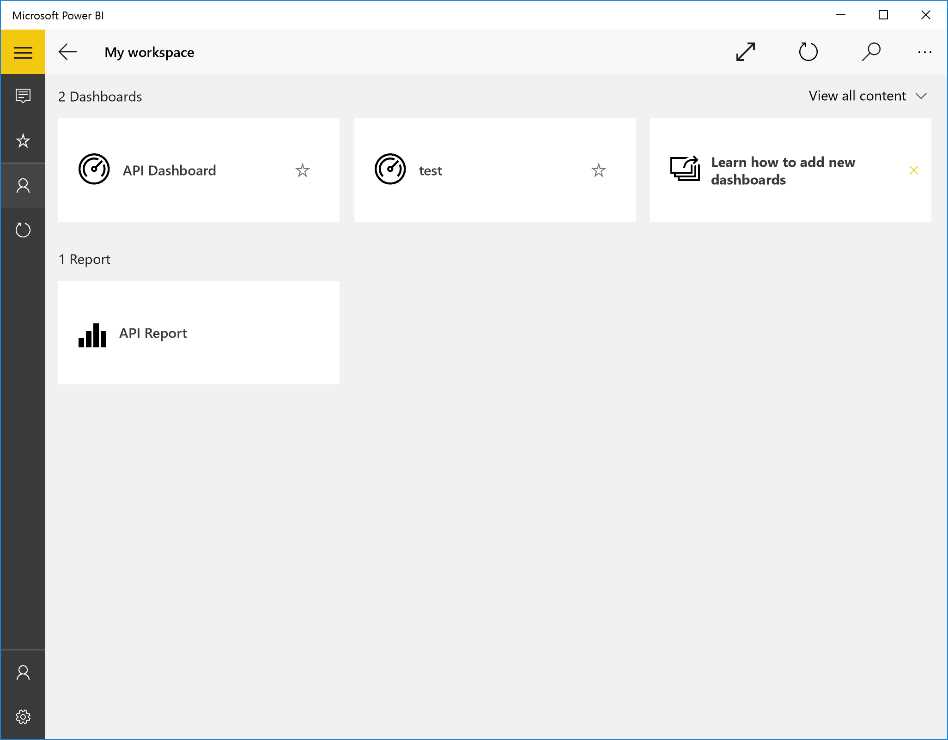
Figure 106: Power BI App
By selecting a dashboard, we can activate the contextual menu to invite people and share our dashboard, add it to the favorite dashboard list, or insert the dashboard into the start panel.
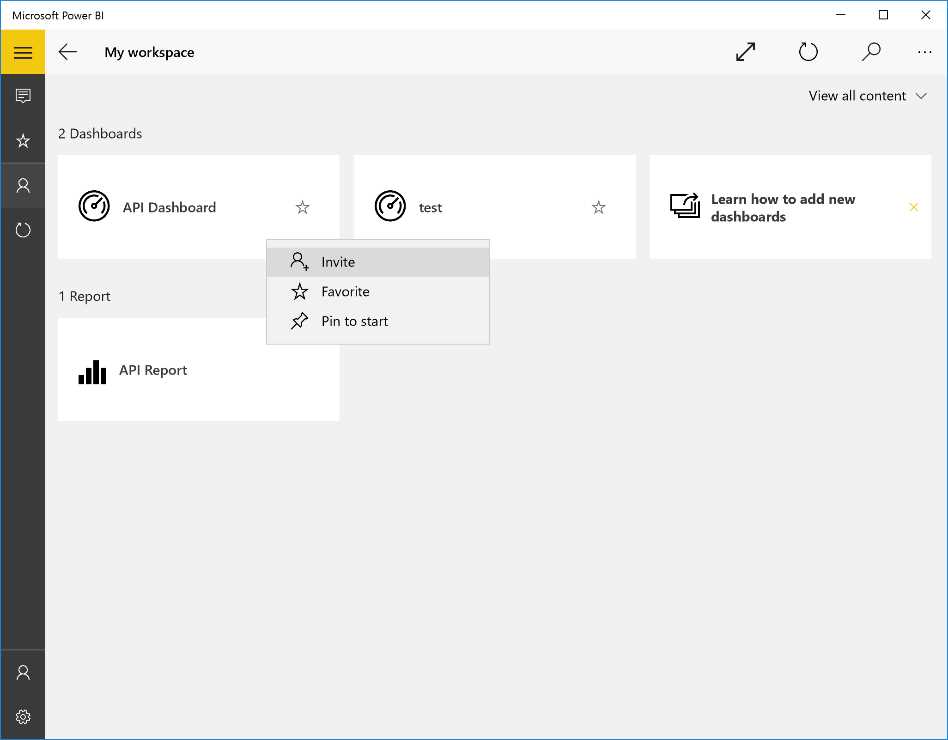
Figure 107: Power BI App
When we invite users who are external to the visualization of our dashboard, a context window appears in which we must specify the user or users with whom we want to share the dashboard. We must insert a contextual message while sending the invitation and specify if the recipient will be able, in turn, to share the dashboard with other users.
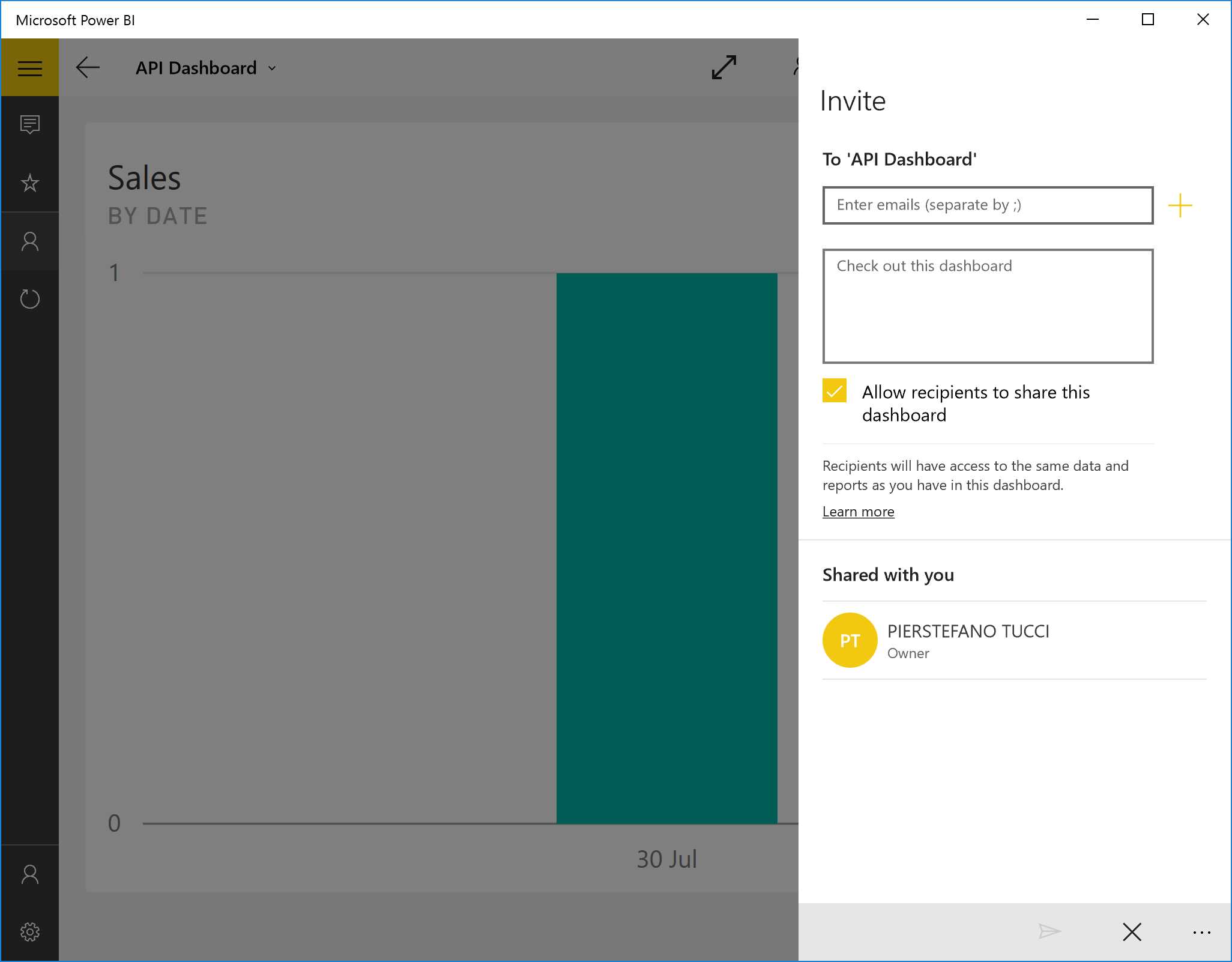
Figure 108: Power BI App—invite options
If you select a dashboard or a report, a series of icons will appear on the right side that will allow you to enlarge the chart/information you are consulting. You are now able to:
- Invite people.
- Add the dashboard or report to the favorites list.
- Insert the dashboard into the start panel.
- Update the dashboard or report you are displaying.
- Search for the dashboard or report in your Power BI service.
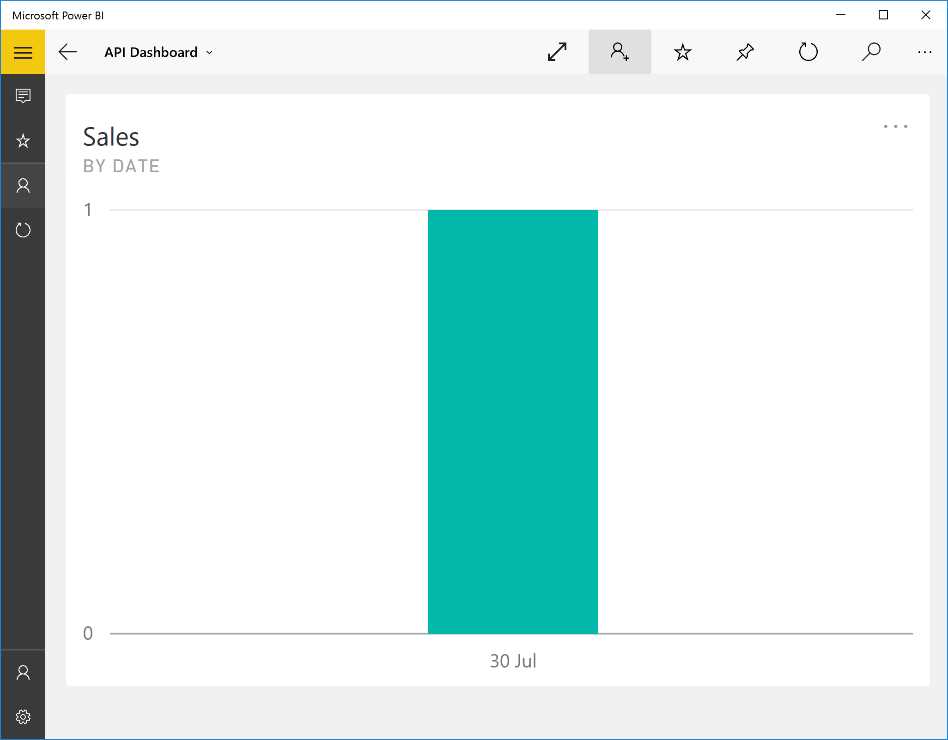
Figure 109: Power BI App
Figure 110 shows a research sample.
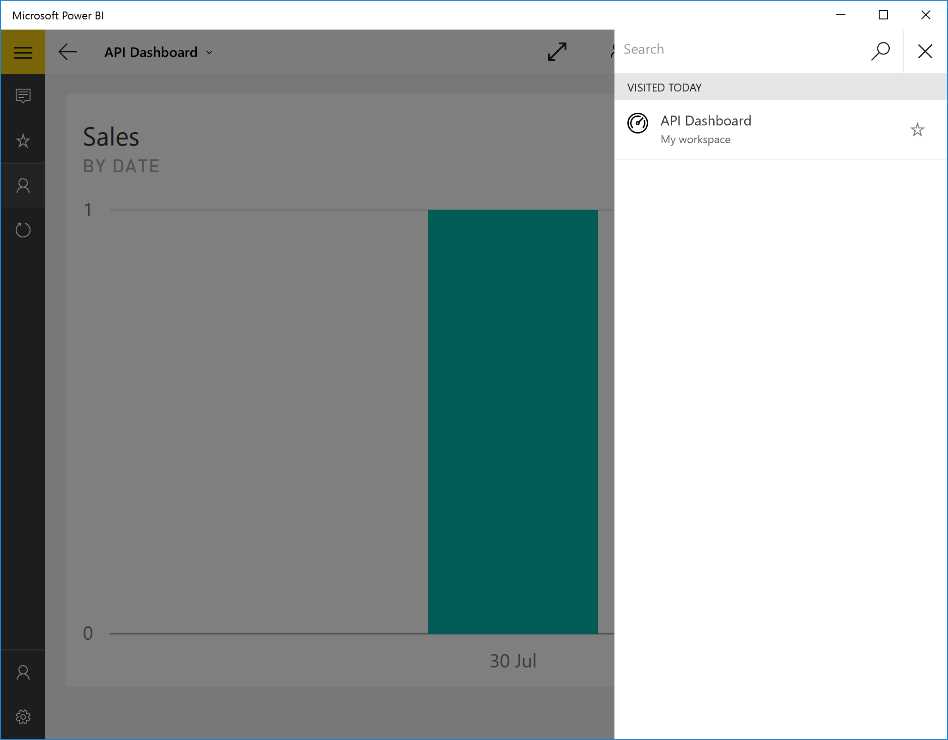
Figure 110: Power BI App
Next, go back to your dashboard and click the chart. The menu on the top right will change to a new set of icons. Enlarge to full screen, open Report, Share, Search.
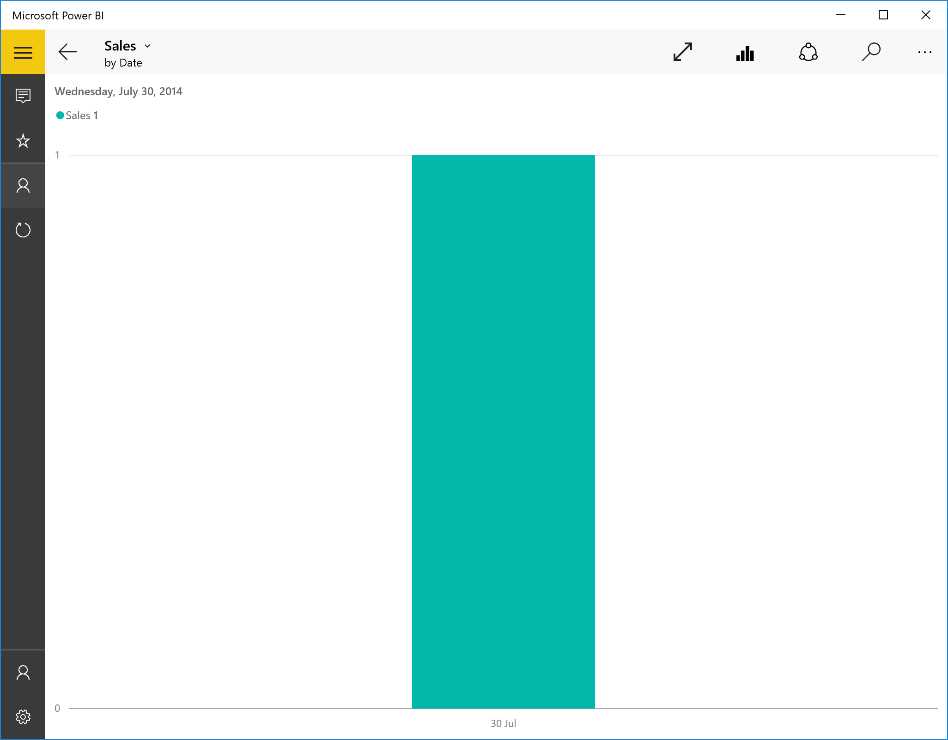
Figure 111: Power BI App
If you click Open Report, you can also base the selection of your data on filters, set up customized filters, and obtain new results.
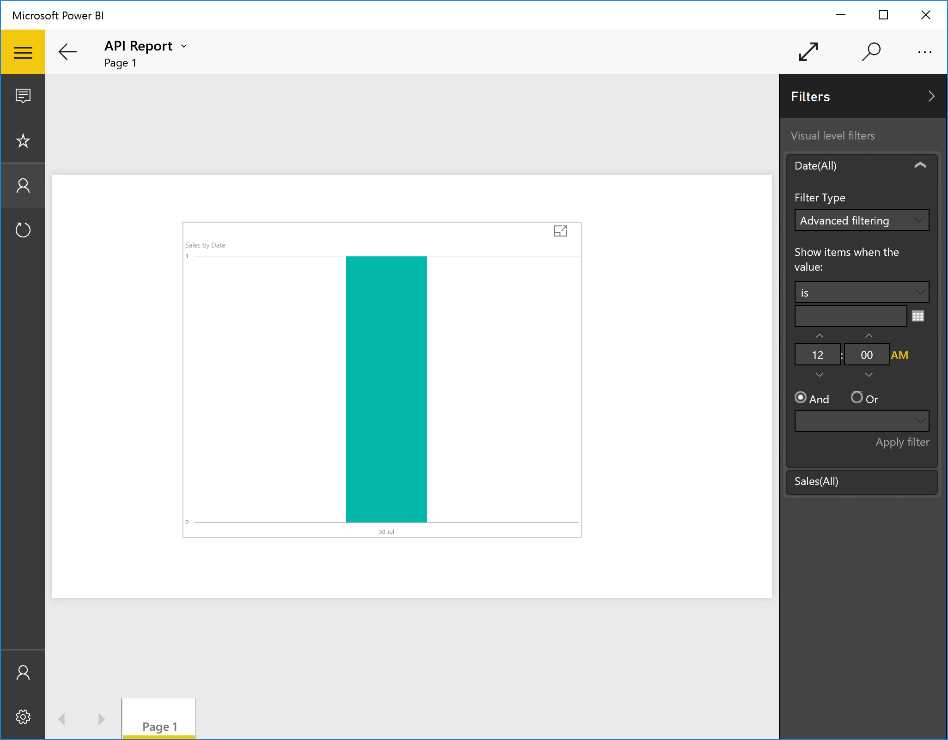
Figure 112: Power BI App
App for Android
From Google Play, you can install the application, authenticate to Power BI, and begin using the contents right away.
On the top right of the menu, you can add notes or explore the report.
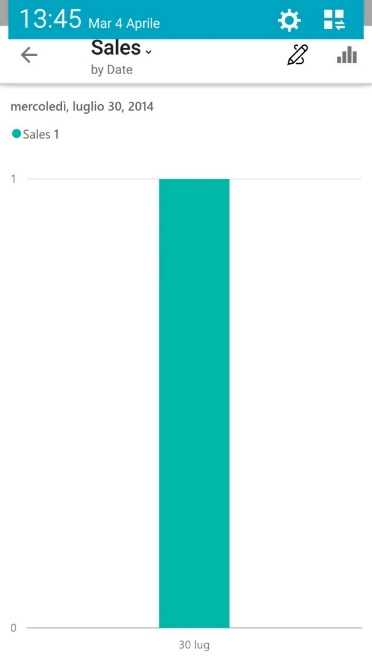
Figure 113: Power BI Android App
If you want to edit and add some notes, underneath the report you’ll see the panel where you can insert your text, draw on the report, add emoticons, delete your notes, or share everything with other users.
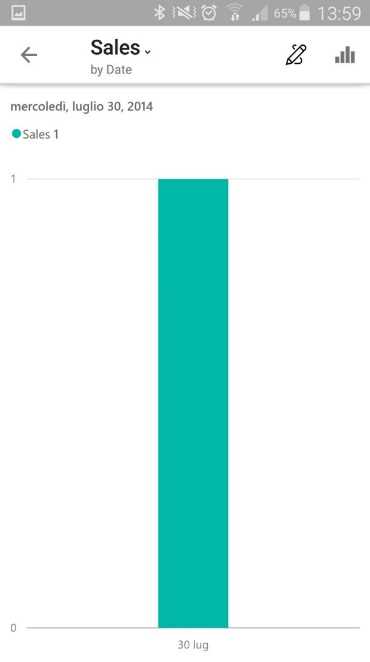
Figure 114: Power BI Android App
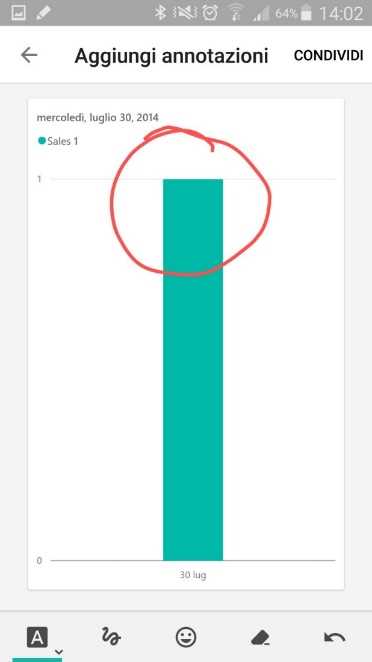
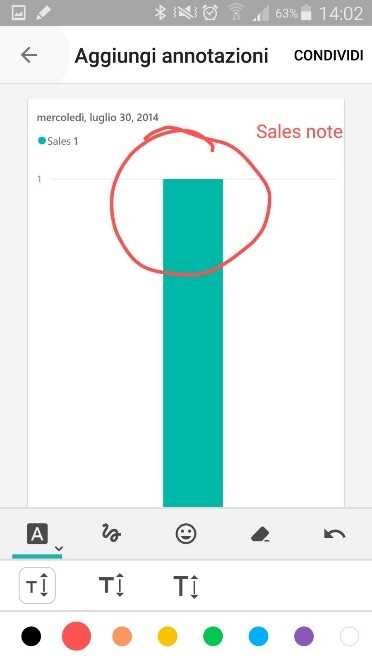
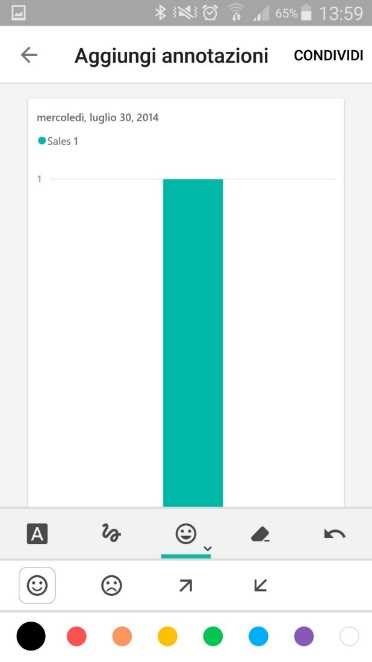
Figure 115: Power BI Android App—sequence
App for iPhone
From the store, install the application, authenticate to Power BI, and begin using the contents right away.
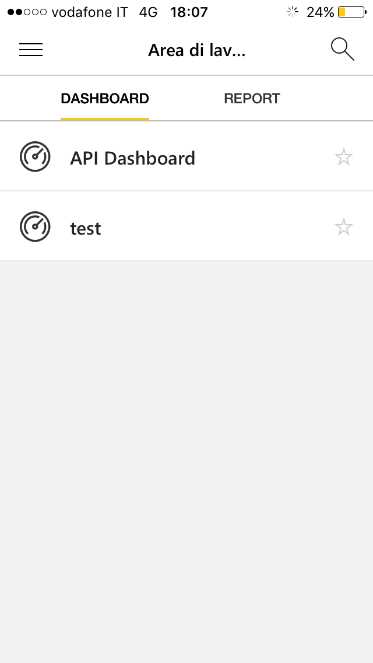
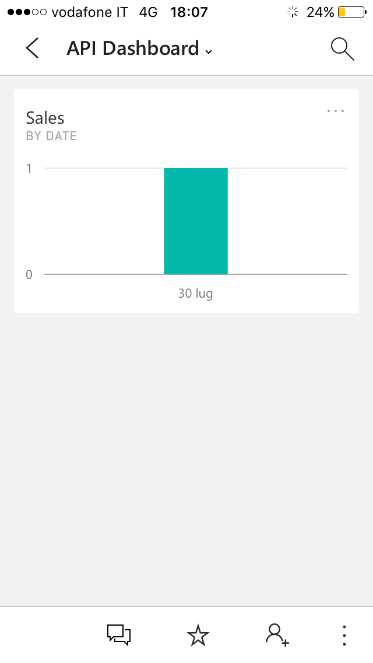
Figure 116: Power BI iPhone App—sequence
The procedure for the iPhone is the same as for the Android. If you go to edit the report and you want to add notes, you can insert text underneath the report where the panel is displayed. You can also draw on the report, add emoticons, delete your notes, or share everything with other users.

Figure 117: Power BI Android app
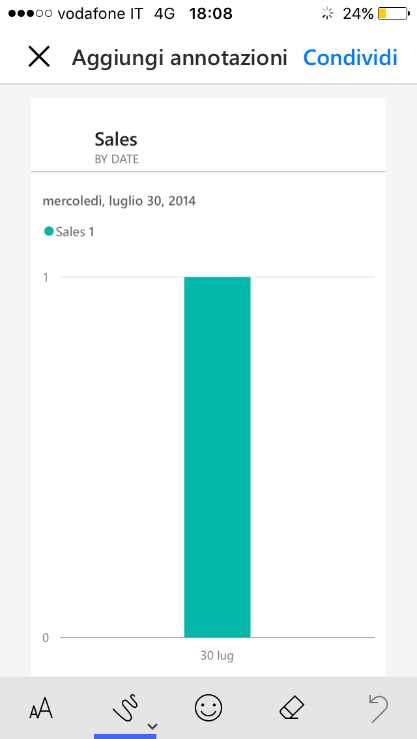
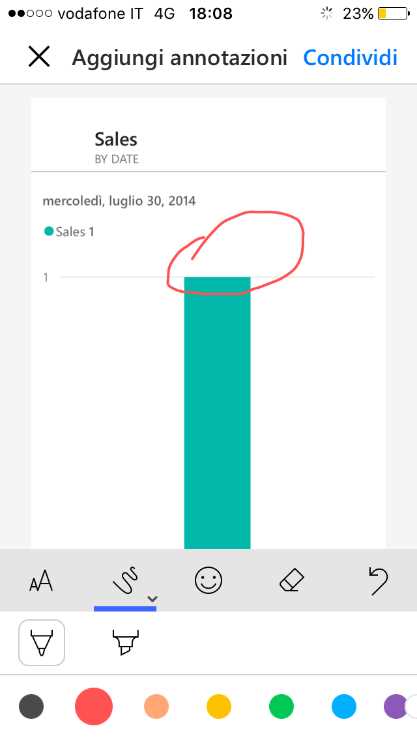
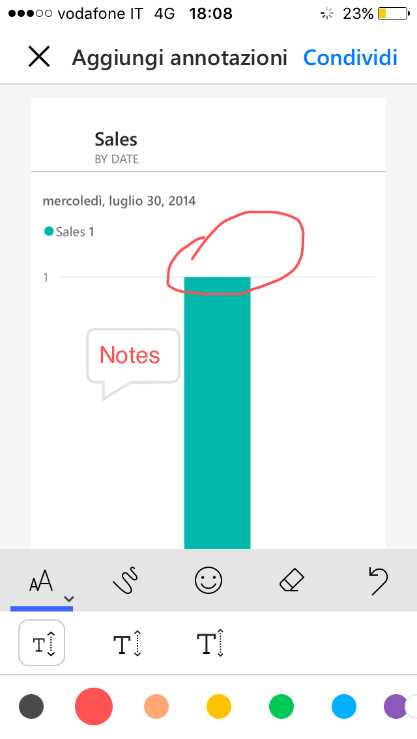
Figure 118: Power BI iPhone App—sequence
App for Windows Phone
From the store, install the application.
Figure 119: Power BI Windows 10 Mobile
Next, click Get Started, as in Figure 120.
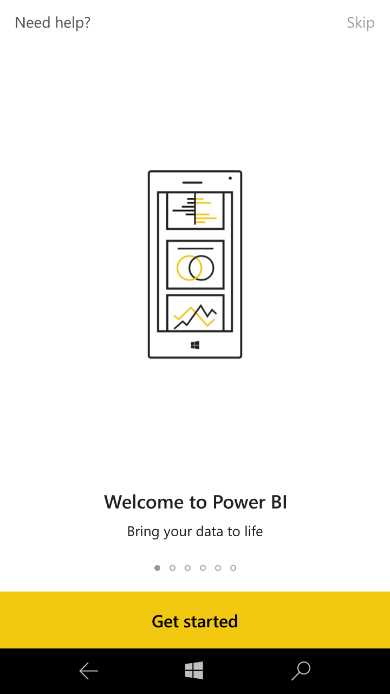
Figure 120: Power BI Windows 10 Mobile
Next, the connection type is requested. You can connect to the Power BI service or to a Reporting Sevice of SQL Server 2016. In our example, we will connect to the Power BI service, as in Figure 121.
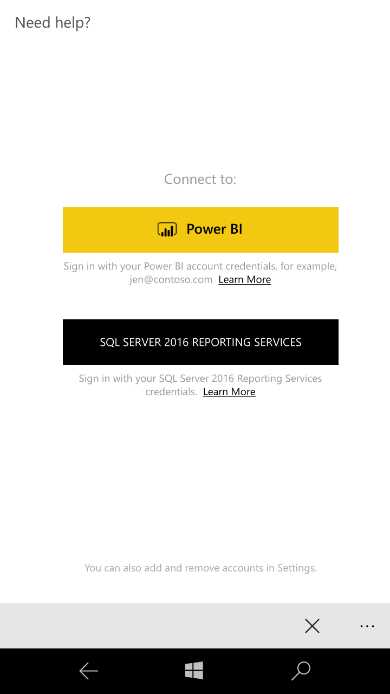
Figure 121: Power BI Windows 10 Mobile
Note that you will be asked to supply credentials in order to access the Power BI service.
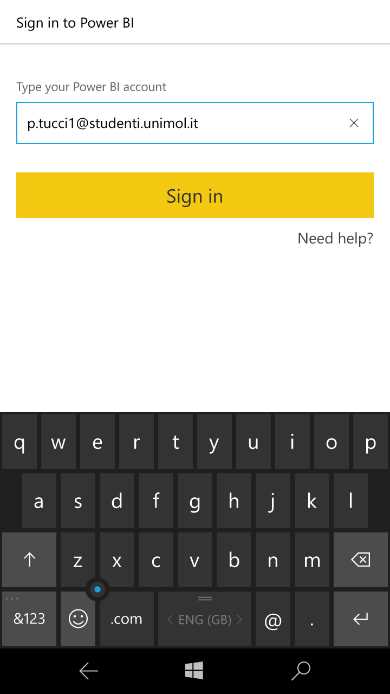
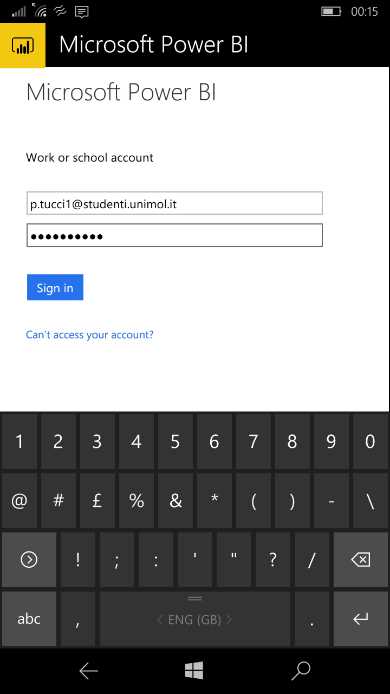
Figure 122: Power BI Windows 10 Mobile Sign In—sequence
At this point, the authentication has been successful and you can click the “Start exploring” bar.
If you prefer, you can also accept the boxed offer that reads: “Send us information about your Power BI usage and Power BI performance to help improve your Microsoft experience.”
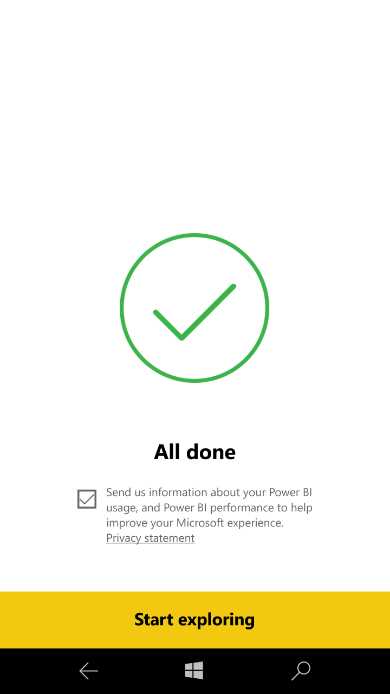
Figure 123: Power BI Windows 10 Mobile
Now you can begin using the dashboards or reports present on your service.
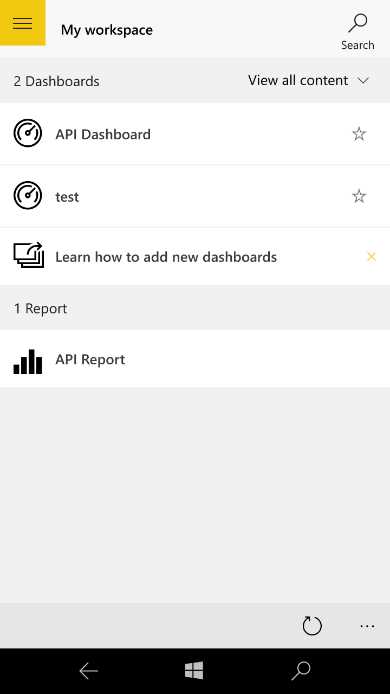
Figure 124: Power BI Windows 10 Mobile
On the top right, you’ll see the search icon, which allows us to research dashboards and reports present on the service we are connected to.
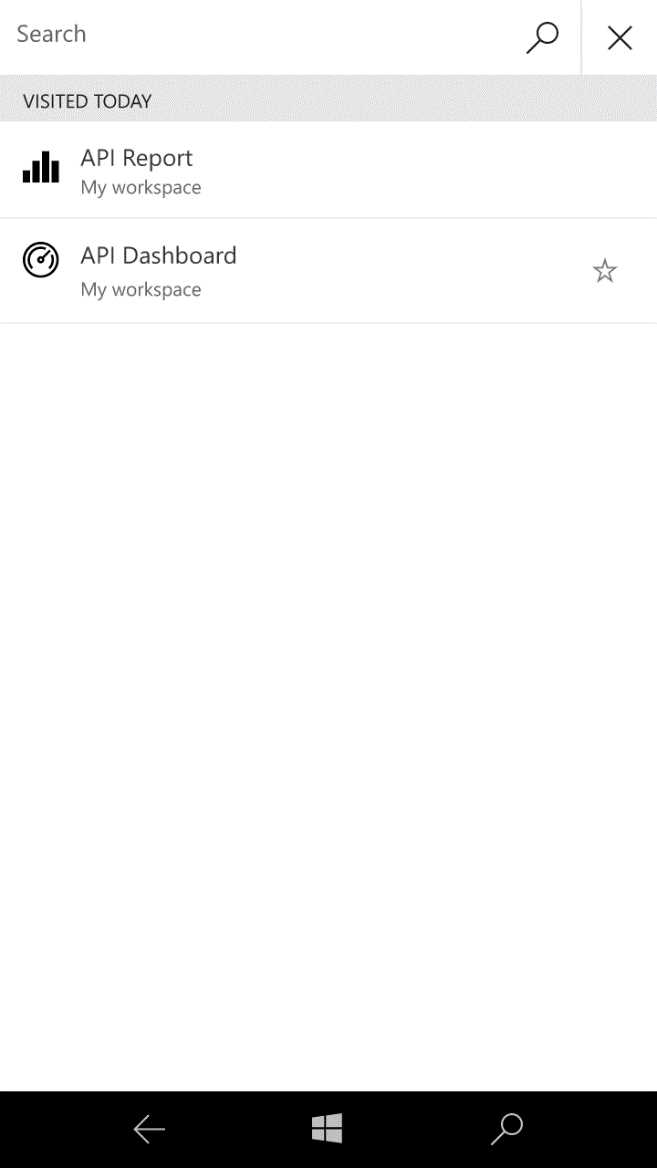
Figure 125: Power BI Windows 10 Mobile
If you select a dashboard, you can invite other users to use the content, add the report to the favorites list, insert the dashboard into the start panel, or update the report.
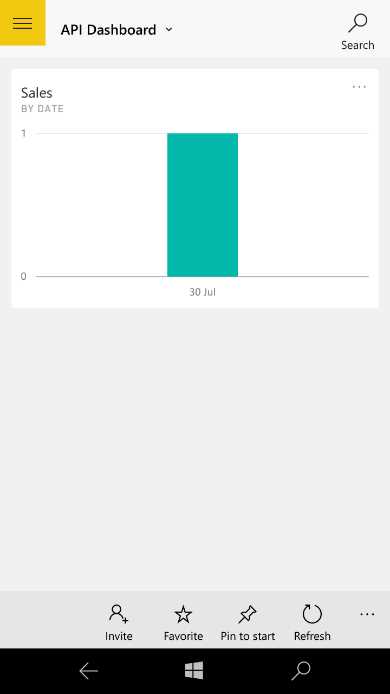
Figure 126: Power BI Windows 10 Mobile
If you invite other users to use the dashboard, you’ll need to insert the email addresses of the users you want to include.
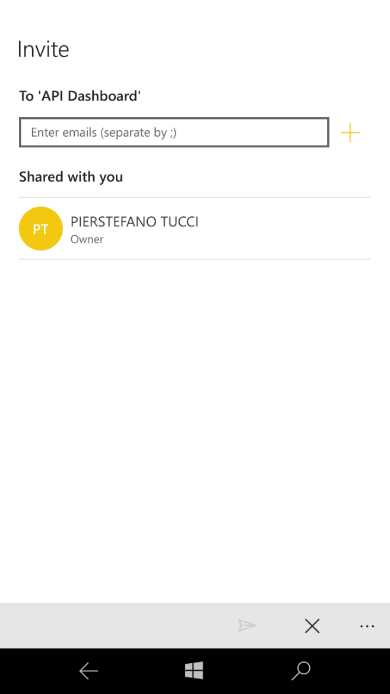
Figure 127: Power BI Windows 10 Mobile—invite users
If you select a report, you can share it or open it.
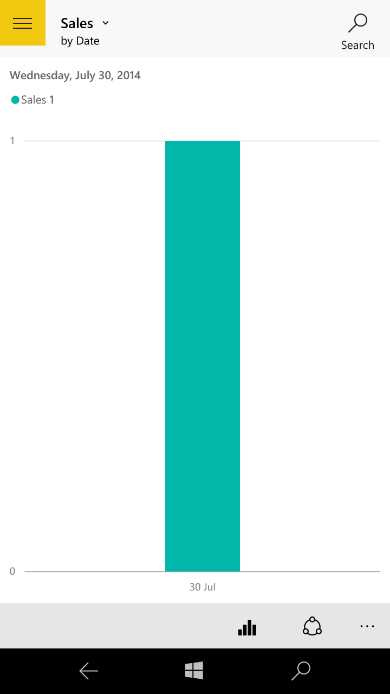
Figure 128: Power BI Windows 10 Mobile
In addition to the social profiles connected to the phone, the sharing option also offers the applications suitable to accept that information.
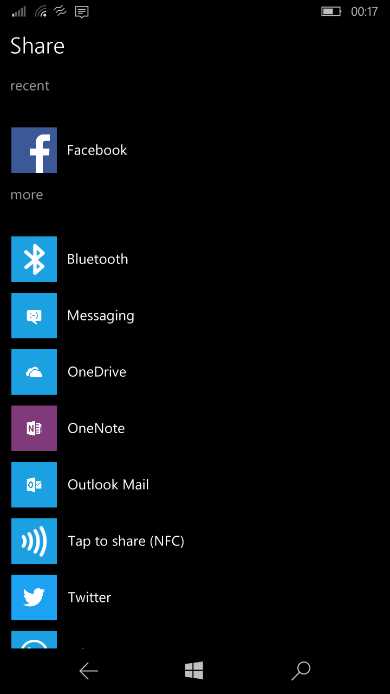
Figure 129: Power BI Windows 10 Mobile—Share
In our sample, we have chosen to share the report via email. The attachment inserted into the email by default is nothing but the snapshot image of the report we decided to share.
|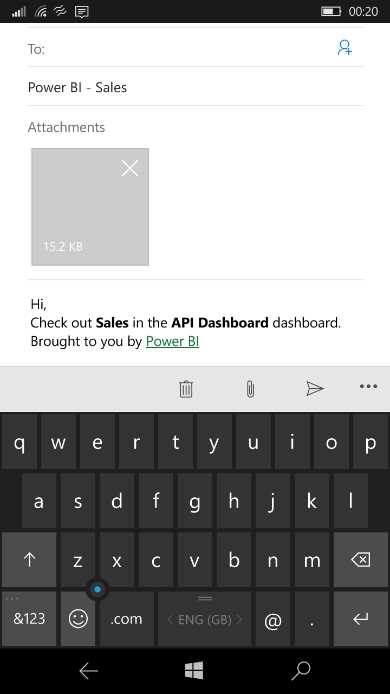
Figure 130: Power BI Windows 10 Mobile—share with email


- 1800+ high-performance UI components.
- Includes popular controls such as Grid, Chart, Scheduler, and more.
- 24x5 unlimited support by developers.