
Power Automate Desktop Succinctly®

CHAPTER 5
PDF Data Extraction
Quick intro
One helpful technique is extracting data from a PDF and using that data elsewhere. PDFs are incredibly common everywhere, and there’s a wealth of business data in PDFs, so extracting data from them is crucial for business operations, such as invoice processing.
In this chapter, I will show you a flow that I use to extract total amounts from PDF invoices and add those amounts together.
As we have gone through the steps of creating a step-by-step flow in the previous chapter, rather than creating a flow from scratch in this chapter, let’s review the steps for a PDF processing flow I already have. It reads total amounts from invoices, adds these values, and saves the total amount to an Excel file.
Flow overview
Let’s look at the PDF flow to understand what activities it includes.
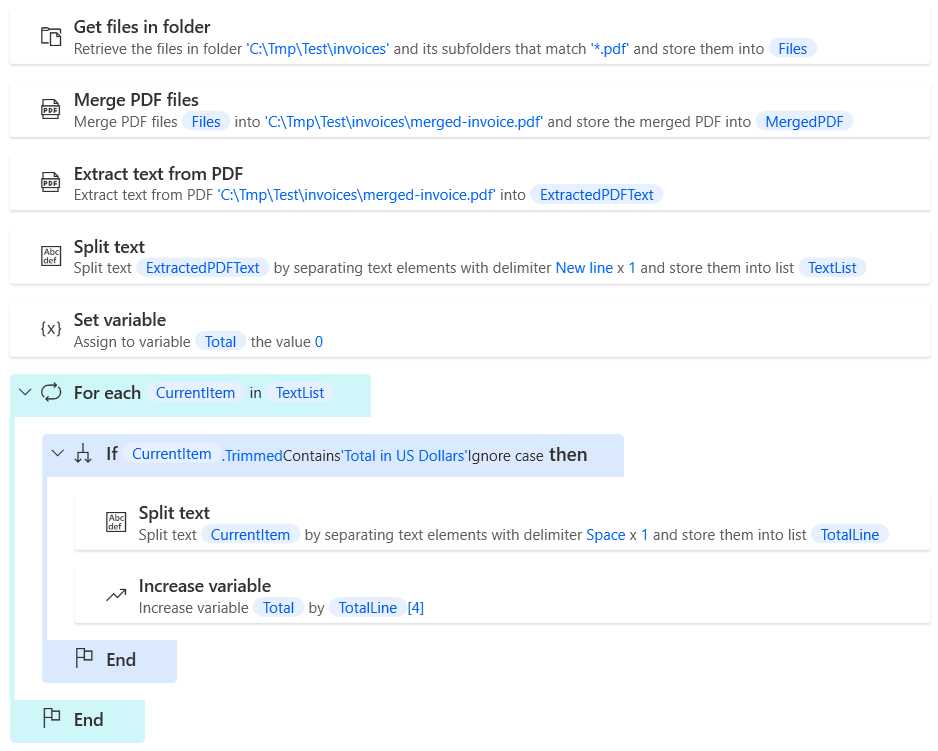
Figure 4-a: The PDF Flow (Part 1)
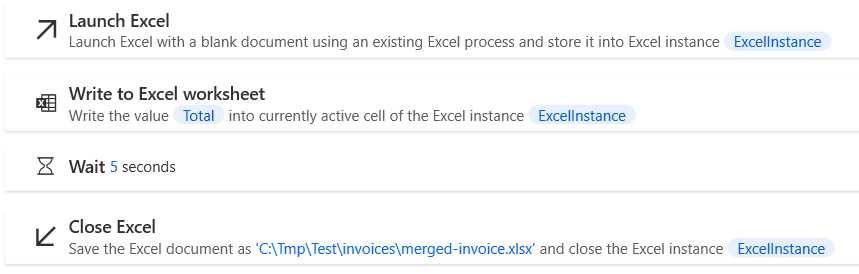
Figure 4-b: The PDF Flow (Part 2)
Let’s break this flow down into its parts. The flow begins with the Get files in folder action, and this action retrieves all the PDF files within the origin folder, as we can see in the following figure.
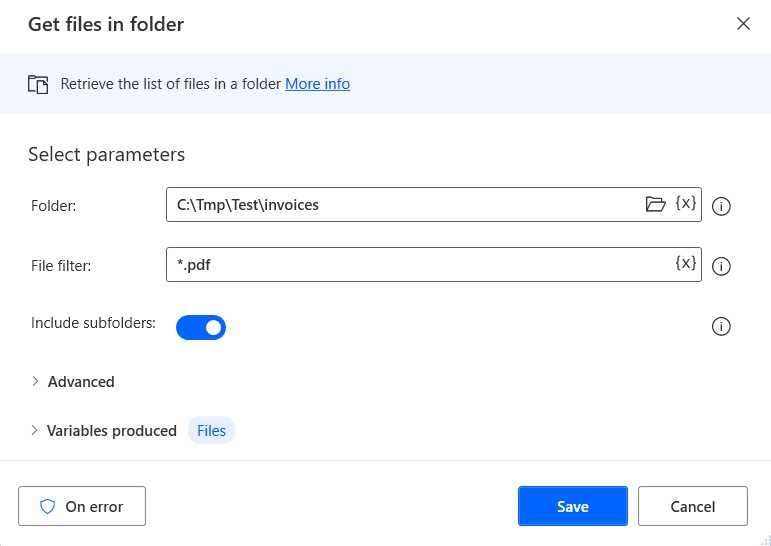
Figure 4-c: The Get files in folder Action
Once we have gathered and read all the PDF files from the origin folder, the flow then merges the PDF files into a single PDF—which is what the Merge PDF files action does. Let’s have a look at this action.
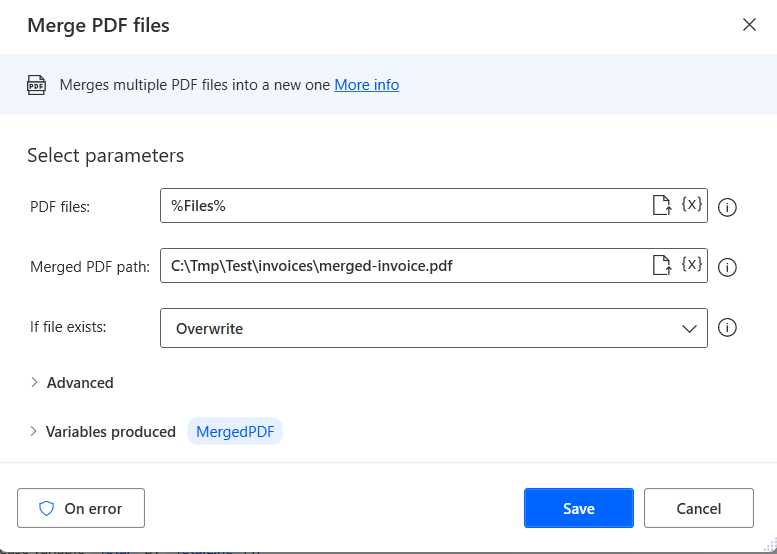
Figure 4-d: The Merge PDF files Action
We can see that the Merge PDF files action loops through all the PDF files read by the previous action (%Files%), and it merges those files into a single file called merged-invoice.pdf. If the merged file exists, the Merge PDF files action will overwrite that file.
Next, the flow extracts the text from the merged PDF file to find the total of each invoice.
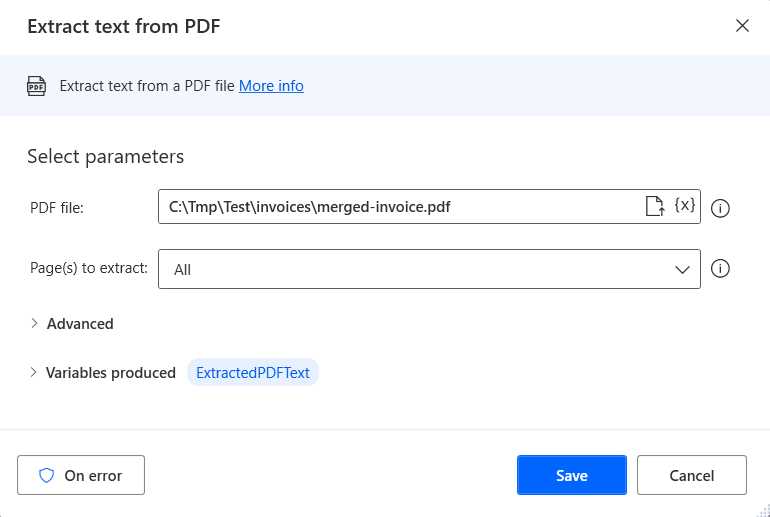
Figure 4-e: The Extract text from PDF Action
The action reads all the pages of the merged PDF file and returns all the text read as the ExtractedPDFText variable.
Now that we have read all the text from the merged file, we need to split the text read into lines to analyze each line and find those lines that contain each invoice’s total—this is what the Split text action does.
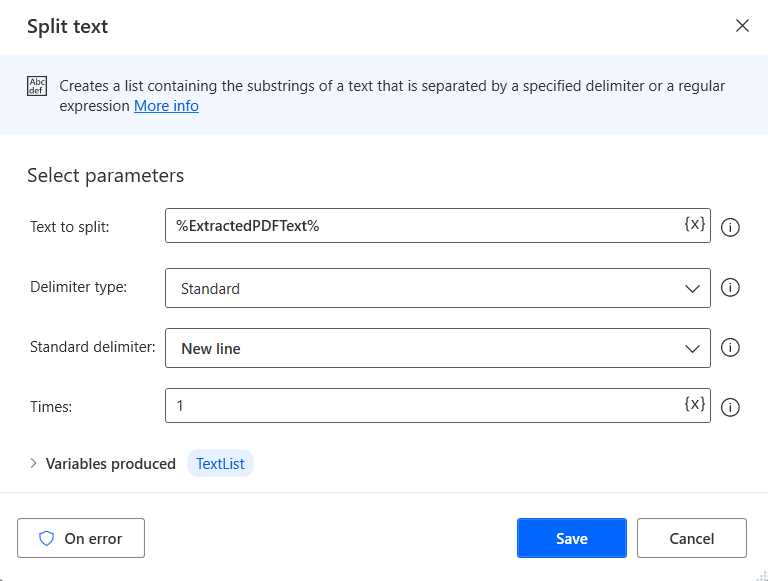
Figure 4-f: The Split text Action (For All the Text Lines)
So, the Split text action receives an input, the text to split, which is the value of the ExtractedPDFText variable. Then, the text is divided into lines when a new line is found. By doing this, we’ll get lines of text—which is the variable produced by this action (%TextList%).
With the lines of text, the flow loops through each line, and then it only considers the lines with the Total in US Dollars substring.

Figure 4-g: The For each and If Actions
Then, the line text is split for each line with the Total in US Dollars substring. In this case, the text line is divided when a space is found.
Once the Split text action is executed, a line containing the Total in US Dollars substring would look as follows.
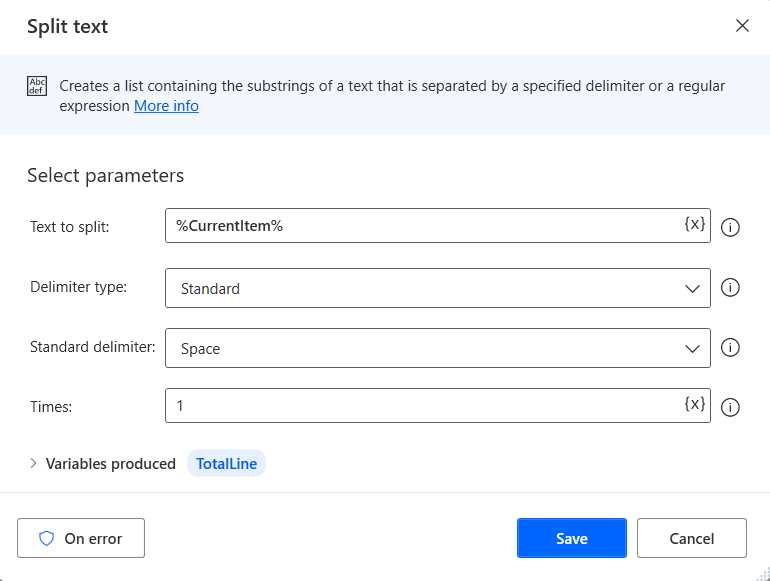
Figure 4-h: The Split text Action (For Each Line)
To understand this better, let’s look at one of the PDF invoices we are merging.
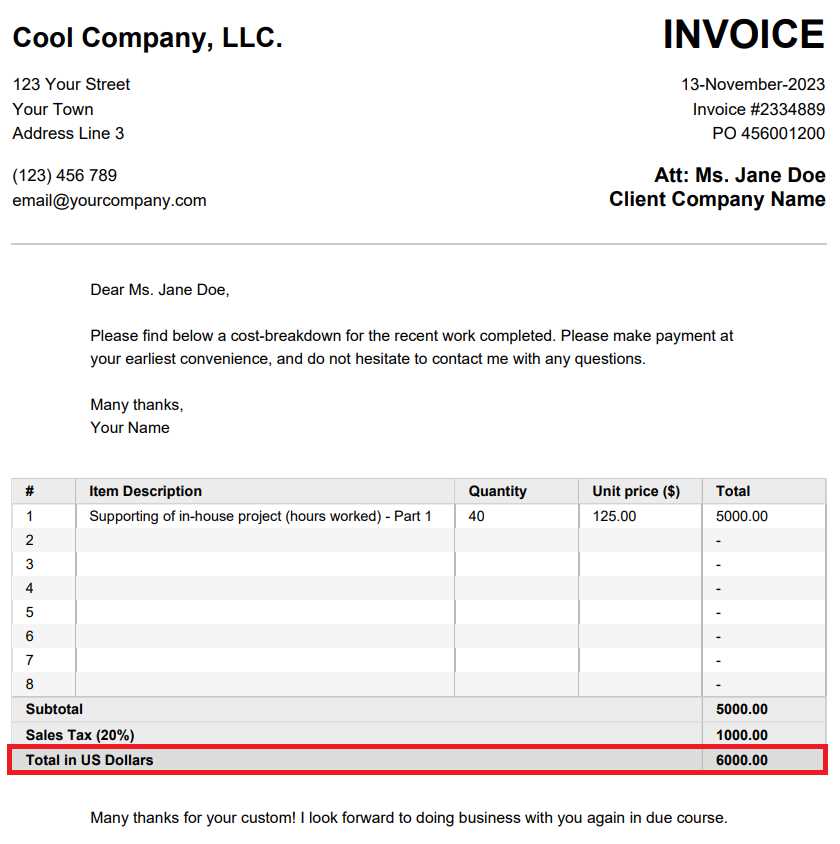
Figure 4-i: PDF Invoice
For each invoice, we are interested in extracting the total amount from the Total is US Dollars line, which is why the line is split.
The merged file (of all the invoices) has various lines with total amounts (as we can see in the following figure), which is why we do this within the For each action to access each line.




Figure 4-j: Merged PDF Invoices (Total Amount Lines)
For each of these total lines, the split is done to extract the total amount value. The split occurs when a space is found within the line. The total line contains four spaces (Total_in_US_Dollars_4650.00), which would be split as follows.
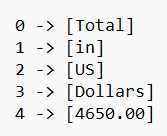
Figure 4-k: Total Line Split
Therefore, the total amount can be found within the fourth (4) position of the parts after splitting the line.
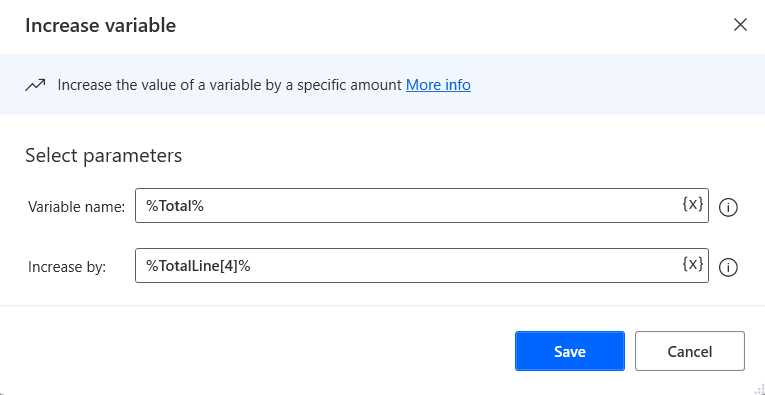
Figure 4-l: The Increase variable Action
By using the Increase variable action, we are adding the total value for each line. We achieve this by increasing the value of the Total (%Total%) variable by the value of the TotalLine[4] (%TotalLine[4]%) variable.
Once the total amounts have been added, the loop is finalized, and the flow runs the Launch Excel action, opening a blank Excel document.
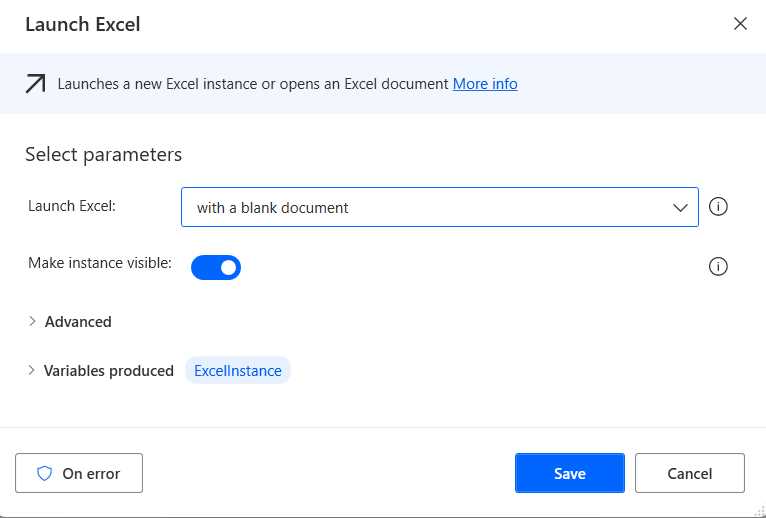
Figure 4-m: The Launch Excel Action
Immediately after, the Write to Excel worksheet action is executed, which is responsible for writing the total amount value of all the invoices (%Total%) to the Excel worksheet.
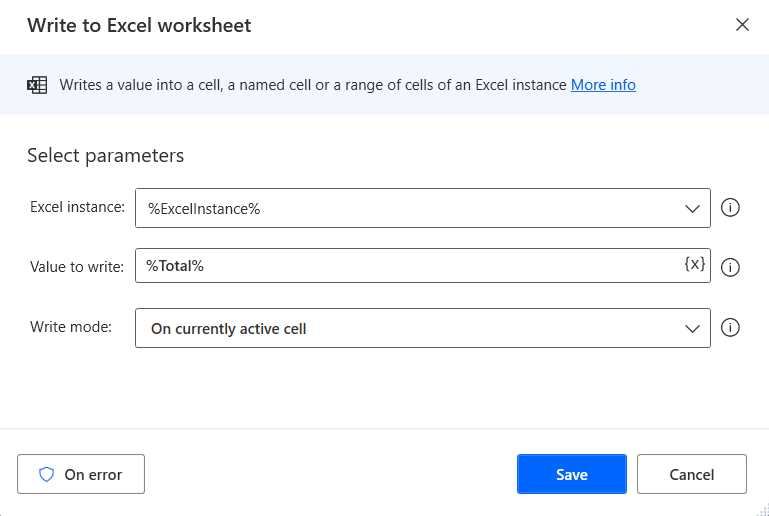
Figure 4-n: The Write to Excel worksheet Action
Finally, the flow waits for five seconds, the Excel instance is closed, and the total amount result is saved to the merged-invoice.xlsx file.
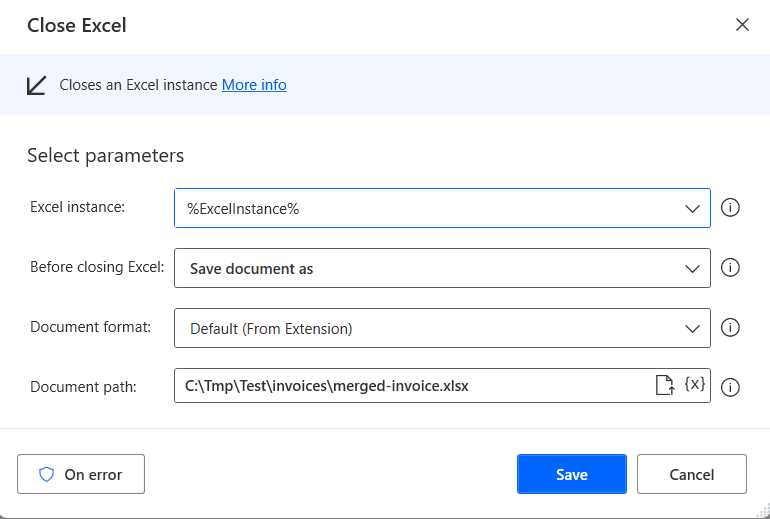
Figure 4-o: The Close Excel Action
Before running the flow
To run the flow successfully, you must have the invoice PDF files in the C:\Tmp\Test\invoices folder. The flow will then create the C:\Tmp\Test\invoices\merged-invoice.pdf file and then extract the text from this file to add the total amounts and generate the C:\Tmp\Test\invoices\merged-invoice.xlsx file.
You can change the folder path from C:\Tmp\Test\invoices to something else; ensure consistency and change it everywhere, where applicable, within the flow.
Running the flow
Place the invoice PDF files within the C:\Tmp\Test\invoices folder (if that’s the folder you’re using), and after clicking the Run button, you’ll see that the merged-invoice.pdf will be created, and shortly after, the merged-invoice.xlsx file, with the total value of all the invoices.
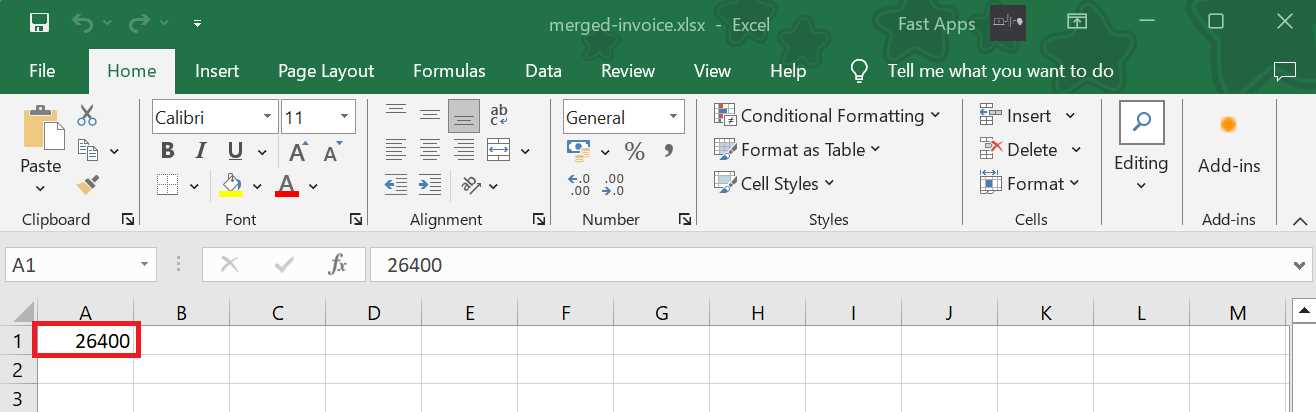
Figure 4-p: The merged-invoice.xlsx File
Code Listing 4-a: Pseudo-code Representation of the Flow
Folder.GetFiles Folder: $'''C:\\Tmp\\Test\\invoices''' FileFilter: $'''*.pdf''' IncludeSubfolders: True FailOnAccessDenied: True SortBy1: Folder.SortBy.NoSort SortDescending1: False SortBy2: Folder.SortBy.NoSort SortDescending2: False SortBy3: Folder.SortBy.NoSort SortDescending3: False Files=> Files Pdf.MergeFiles PDFFiles: Files MergedPDFPath: $'''C:\\Tmp\\Test\\invoices\\merged-invoice.pdf''' IfFileExists: Pdf.IfFileExists.Overwrite PasswordDelimiter: $''',''' MergedPDF=> MergedPDF Pdf.ExtractTextFromPDF.ExtractText PDFFile: $'''C:\\Tmp\\Test\\invoices\\merged-invoice.pdf''' DetectLayout: False ExtractedText=> ExtractedPDFText Text.SplitText.Split Text: ExtractedPDFText StandardDelimiter: Text.StandardDelimiter.NewLine DelimiterTimes: 1 Result=> TextList SET Total TO 0 LOOP FOREACH CurrentItem IN TextList IF Contains(CurrentItem.Trimmed, $'''Total in US Dollars''', True) THEN Text.SplitText.Split Text: CurrentItem StandardDelimiter: Text.StandardDelimiter.Space DelimiterTimes: 1 Result=> TotalLine Variables.IncreaseVariable Value: Total IncrementValue: TotalLine[4] END END Excel.LaunchExcel.LaunchUnderExistingProcess Visible: True Instance=> ExcelInstance Excel.WriteToExcel.Write Instance: ExcelInstance Value: Total WAIT 5 Excel.CloseExcel.CloseAndSaveAs Instance: ExcelInstance DocumentFormat: Excel.ExcelFormat.FromExtension DocumentPath: $'''C:\\Tmp\\Test\\invoices\\merged-invoice.xlsx''' |
Final thoughts
Well done for making it so far! We’ve just explored how to combine multiple PDF invoices into a single (merged) PDF and extract the total invoice values into an Excel file.
Similar challenges are present in everyday business operations, and this flow provides the necessary foundations to tackle similar scenarios of extracting data from PDFs, which you can adapt to your work processes or business requirements.
As you have seen, working with Power Automate Desktop is not that difficult. It requires some basic understanding of how logical workflows work, a bit of imagination, and experimenting with the different types of available actions.
Although it’s impossible to cover within an ebook as short as this one all the actions that Power Automate Desktop includes out of the box, most of the actions that you’ll need have been covered throughout these chapters, such as working with variables, conditionals, loops, Excel, PDFs, or web browsers.
I’ve also included an appendix with ready-to-use flow examples, which you can copy and paste into your existing Power Automate Desktop application on your system.
Power Automate Desktop is a fantastic tool that empowers anyone to automate mundane and everyday repetitive processes quickly and easily. I hope you have enjoyed some of the tips in the book and can leverage this tool to make your work life more productive.


- 1800+ high-performance UI components.
- Includes popular controls such as Grid, Chart, Scheduler, and more.
- 24x5 unlimited support by developers.