
Postgres Succinctly®

CHAPTER 4
Installing Postgres
Now that you've been introduced to Postgres and what it's capable of, it's time to actually install and play with it. Since I'm writing this book on a Windows-based machine, the instructions and illustrations will reflect that.
I will make comments as I go along with regard to installing the system on other operating systems, but unfortunately there is simply not enough space in this book to describe the installation process in detail for every platform available.
Obtaining the software
You can download everything you need from http://www.postgresql.org/download/.
You will find links for the various platforms, and also features such as live CD distributions so you can try applications before you install them.
Note that all Linux and Unix distributions that use a package manager such as apt-get or Yum also have their own distribution-specific Postgres packages available in their own repository. When possible, you should aim to use these rather than the generic versions available from the download page.
Distro-specific versions are usually tailored for the specific platform they run on, and often will take advantage of extra functionality not available on other platforms.
From the download page there is also a link to pgFoundry. I highly recommend exploring this in great depth, as there is a wealth of software available, from simple extensions to full packages like PostGIS. All of it is presented in a simple-to-use, web-based browser that feels very much like an ordinary file system browser with extended information.
You can also get every version of the software ever produced, going all the way back to v7.0.3, as a pre-compiled binary, or v1.08 as a source tree. At the time of writing this book, the most up-to-date version is v9.2.4.
Installing the server
For my purposes, and since I've already got production copies of Postgres installed on the PC I'm working on, I'll be installing this into a virtual machine running Windows 7 under VMware desktop.
The steps I'll describe are identical for other editions too. While we are on the subject of operating systems, I personally have not tried to see if Postgres will install on Windows 8, nor have I come across any information related to it. My personal view is that it's likely to work, as Windows 8 still has a classic desktop and command line available. I cannot, however, confirm whether it will cause any problems; all of my installs including the one for this book are on Windows 7, 64-bit.
Once you download the installer executable, double-click on it, just as you would any other installer. Please note that for the demos here I am using the 32-bit installation of Postgres. While there's no difference between the 32-bit and 64-bit installers, just be aware as with any app available as 32-bit and 64-bit, default path names and other choices may be different.
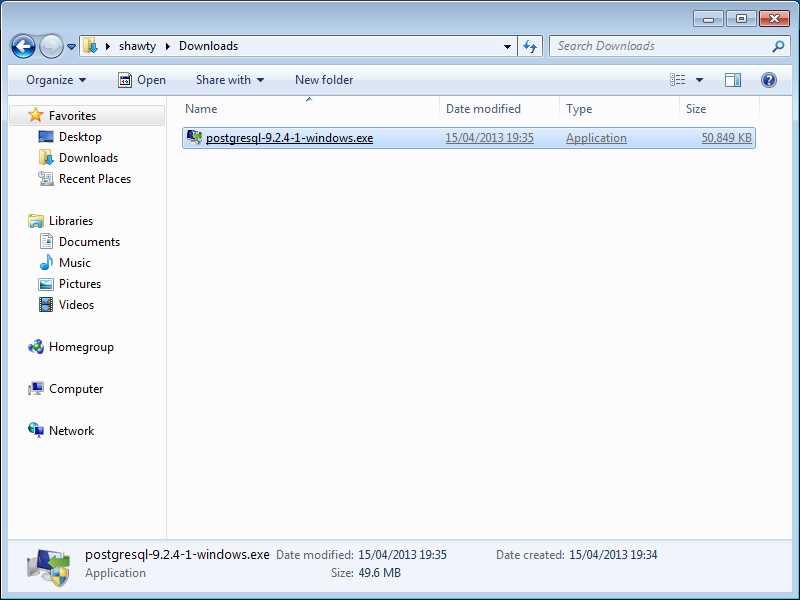
Postgres installer
First, you should see the normal User Access Control confirmation if you have it configured. Because Postgres is installed as a Windows service, it must be run with administrator permissions or the installation will not succeed.
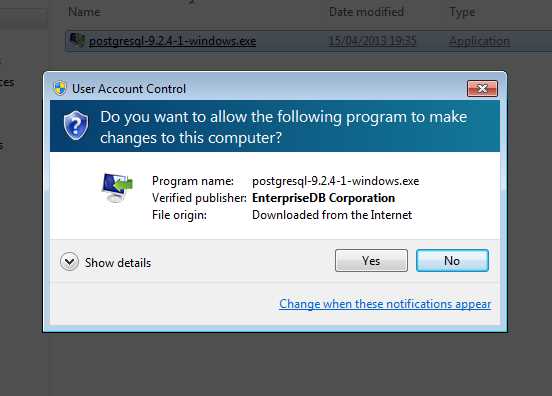
User Account Control window
Like with any normal application installer, click Yes to run an installation wizard that should be familiar to most Windows users.
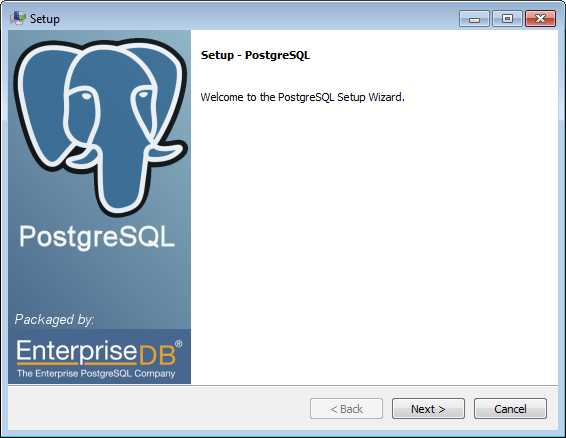
Postgres Setup wizard
Click Next, and you'll be asked for the location to install the server.
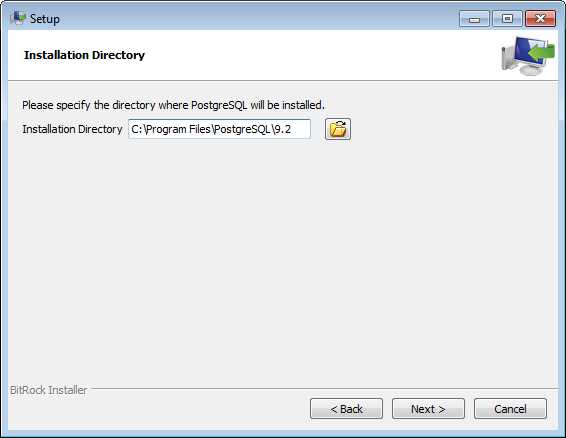
Installation Directory setup
You can click on the small folder button to graphically browse to a new location, or type one in the text box provided. Generally it's better to choose the defaults, as this will install it in the usual Program Files directory where other applications go.
The next page will ask for a path where you want Postgres to store its data files. These will be the physical files where Postgres stores the actual data, so you need to make sure these are located somewhere where there is enough disk space for your intended usage. It's wise to ensure these are stored in an entirely separate location from the application, but for the book’s purposes I'll keep these two folders the same.
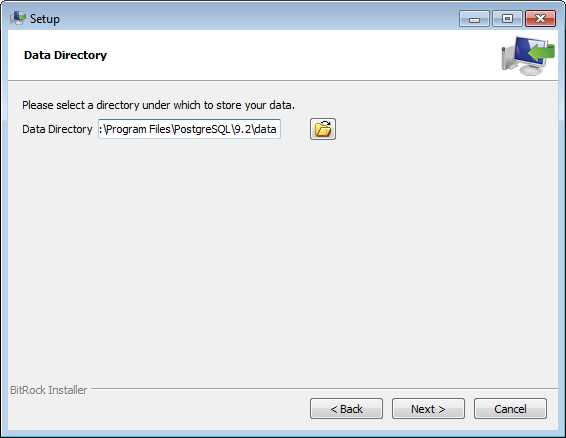
Data Directory setup
The next page you should see is the Password screen.
For readers familiar with SQL Server, the postgres account serves the same purpose as the su account. For readers more familiar with MySQL, this is the equivalent of the Root account.
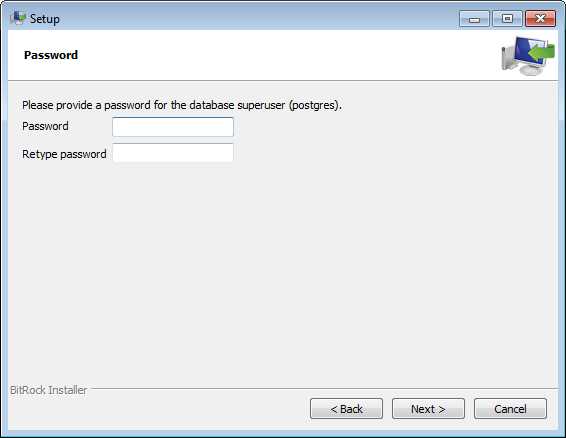
Password setup
You must keep this password safe since it allows access to all accounts on the server once it is up and running. It will be the only active account on the system until you add others.
Next you will be asked for the port number you wish the server to listen on. Unless you have special reasons for changing it, it's best to leave it as the default. The main reason this option exists is because Postgres allows you to run several different copies of the same server on the same machine, completely independent of each other and each other's data.
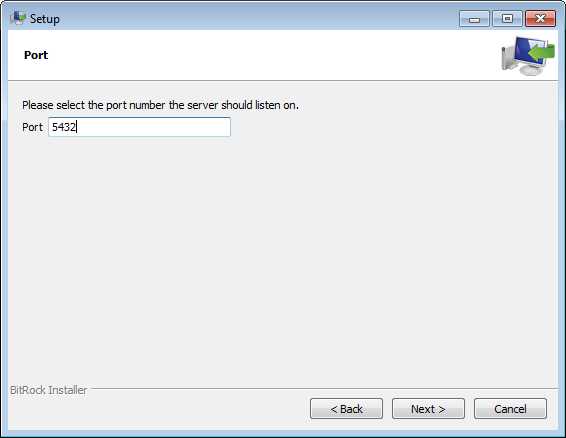
Port setup
The next page allows you to set a location-specific character set, or port number. It’s best to leave this at the default location, which the installer will try to determine from your OS install language. Changing the port number is one of the biggest causes of failed Postgres installations. In such cases, the server is set up and running, populated with data, and then fails as soon as a script in a different location tries to access that data from a web server. Using the default port prevents this scenario from arising.
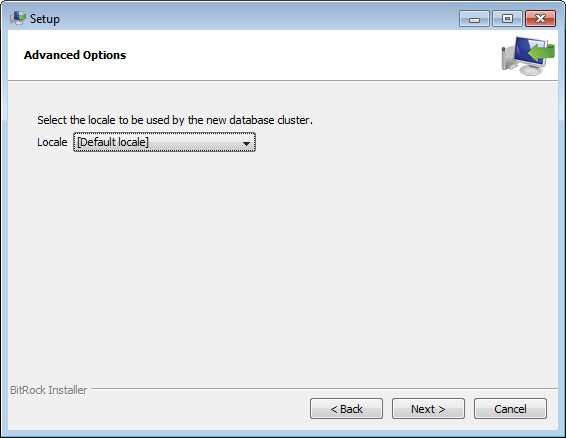
Advanced Options setup
The next page should be the confirmation that Postgres is ready to be installed. Click Next and wait a few minutes while things are set up.
If everything has gone according to plan, the final dialog box you see will ask if you want to run Stack Builder and invite you to click Finish to complete the installation. Ensure that the box to run Stack Builder is selected, and then click Finish.
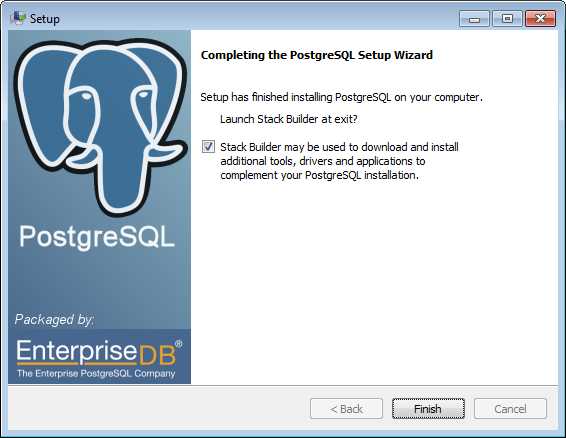
Completing the Setup Wizard
What is Stack Builder?
Stack Builder is a Windows-only component that allows you to install some of the many add-ons available for Postgres quickly and easily. You can use it to install access libraries for your programming projects, and complete toolkits to help manage your server.
Once you click Finish in the main installer you will be see the following:
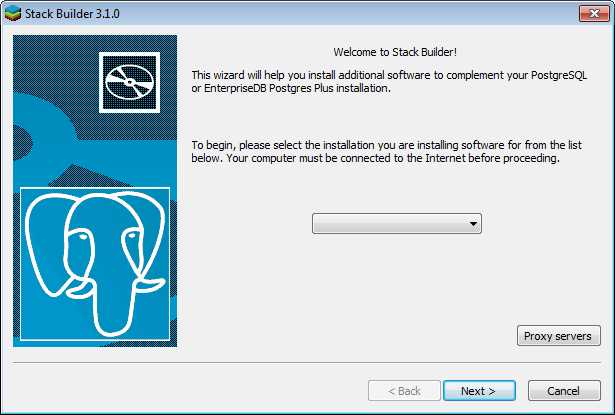
Stack Builder wizard
The first thing you need to do is select the Postgres server you've just installed using the drop-down menu in the middle of the page.
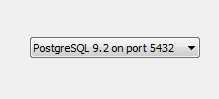
Server drop-down menu
If you need to, you can also use the Proxy servers button to set up any external access proxy information you may need. Since Stack Builder needs to access outside servers to download the software you choose, you may need to specify some options in there.
We don't need any proxy information, so once we select our running server, click Next to continue.
Stack Builder will access the pgFoundry servers and download an application list, which it will then present on screen, allowing you to choose the software you wish to install. I encourage you to become familiar with all the items available on this list.
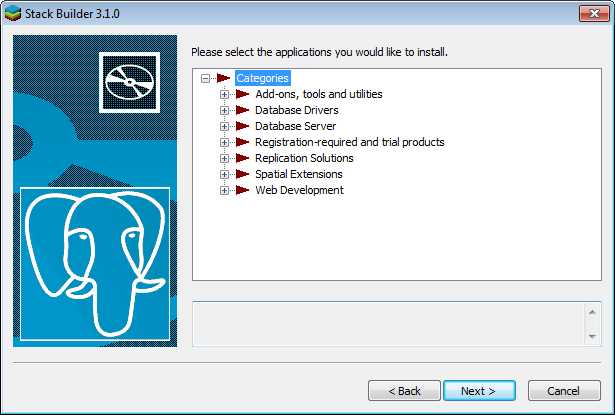
Stack Builder applications list
Since we'll be taking a look at PostGIS later in the book, and since we'll also be writing some sample .NET code to access the server, we'll select the PostGIS spatial extensions and the open source Npgsql .NET ADO interface library (which, for those using Visual Studio, is also available on NuGet).
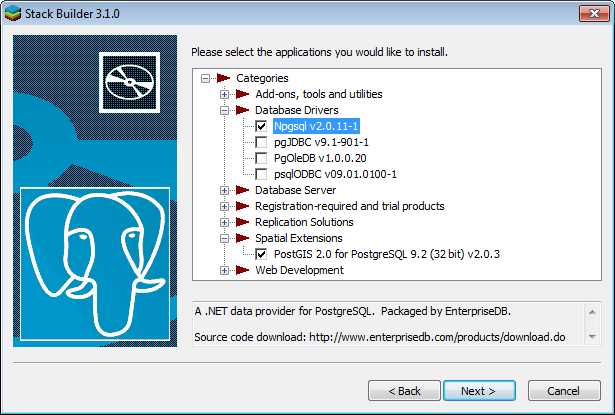
Stack Builder detailed applications list
Once you've finished selecting the additional products you want to install, click Next to continue.
The next page will ask you where you want to download the installers. Since these will be automatically run, you can just accept the defaults.
You will likely want to make a note of the location however, in case you want to back up the installers or run them again later on.
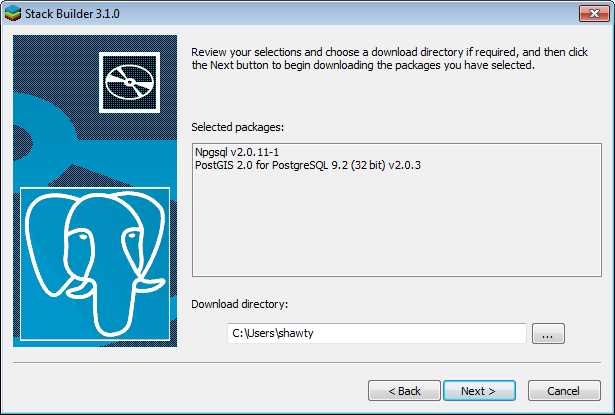
Stack Builder download directory
Click Next to begin downloading your selected products.
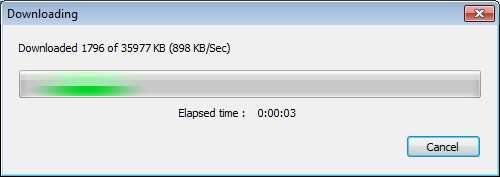
Stack Builder downloading applications
Once everything you selected has finished downloading, you should see the following:
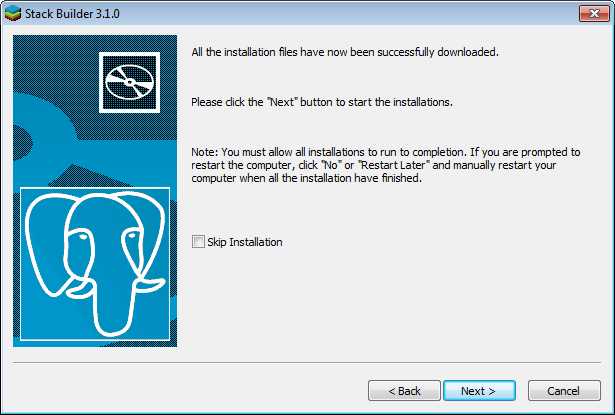
Stack Builder application installation
If you select the Skip Installation check box, Stack Builder will finish and leave the downloaded extensions in your chosen download folder. If you don’t select it, the installers will run and present their own standard Windows installation processes, allowing you to set them up.
As I mentioned previously, we'll be taking a closer look at these a little later, so allow the installers to run.
The installers you do see should, like the Postgres installer, be familiar, with the usual installation choices.
Note that when you install PostGIS on one of the first screens shown, you will be asked if you would like to create a spatial database. You should answer yes to this question, as we will be using it later. PostGIS will ask you for the admin password you created previously, since the Post GIS installer will need to make changes to core database settings. Do not skip this step or use the incorrect password, as this will cause you problems later on, and may even require reinstallation.


- Seamless integration with PostgreSQL databases
- Real-time data visualization for actionable insights
- Customizable dashboards to meet your specific needs
- Leverage PostgreSQL's scalability and performance