
OpenAI Succinctly®

CHAPTER 4
Function Calling
If you are a developer who wants to use the Chat OpenAI API to create natural language applications, you might wonder how to use the output of GPT models to interact with other services or applications. For example, how can you use the output to send an email, book a flight, or create a chart? The solution is function calling.
Function calling is a feature of the Chat OpenAI API that lets you tell the model what functions you want to use and have it return a JSON object with the arguments for those functions. This way, you can easily connect the model’s output with external tools and APIs and get more consistent and structured data from the model.
This is an overview of how it works:
· Step 1: Define the functions you want to use and let the model know how to invoke them and pass parameters to them.
· Step 2: Use the JSON object from the model’s output to make a request to your third-party API.
· Step 3: Send the response from your third-party API back to the model and have it generate a natural language response.
The sample application
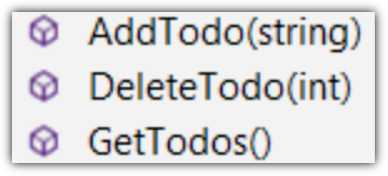
Figure 32: TODO Methods
To demonstrate function calling, we will create an application that allows a user to manage a list of TODO items. As with the Blazor Chat application from the previous chapter, this sample will chat with you and remember what you talked about, so you don’t need to say things again.
However, this application will have three functions defined:
· AddTodo: Allows an item to be added to the list.
· DeleteTodo: Allows an item to be deleted from the list.
· GetTodos: Retrieves the items in the list.
The user can instruct the app to keep track of the list by using normal human conversation. The model decides when to use the functions.
The model can manage a list without using functions, but since it has a limited memory capacity, it would start to forget items. This method will effectively provide it with unlimited memory.
Build the sample
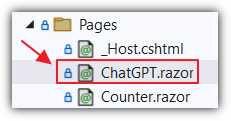
Figure 33: Start with ChatGPT.razor
Start with the code in the ChatGPT.razor control, created in the previous chapter.
Add the following using statements that will allow us to use the JsonObject classes to programmatically define the functions.
Code Listing 15: Add Using Statements
@using System.Text.Json.Nodes; @using System.Text.Json.Serialization; @using System.Text.Json; |
In the @code section, add #nullable disable.
Code Listing 16: Disable Nullable
@code { #nullable disable |
Inside the code block, add the following classes to allow the TODO items to be maintained.
Code Listing 17: TODO Objects
public class ToDoAddRequest { public Todorequest TodoRequest { get; set; } } public class Todorequest { public string todo { get; set; } } public class ToDoRemoveRequest { public Todoindexrequest TodoIndexRequest { get; set; } } public class Todoindexrequest { public int todoIdx { get; set; } } |
Next, add the following code that will provide the operations to add, retrieve, and delete the TODO items (stored in the _TODOS collection).
Code Listing 18: Manage the TODO Items
private static readonly List<string> _TODOS = new List<string>(); public string AddTodo(string NewToDO) { _TODOS.Add(NewToDO); return $"{NewToDO} added"; } public string GetTodos() { return JsonSerializer.Serialize<List<string>>(_TODOS); } public string DeleteTodo(int TodoIdxInt) { if (TodoIdxInt >= 0 && TodoIdxInt < _TODOS.Count) { _TODOS.RemoveAt(TodoIdxInt); return $"TODO {TodoIdxInt} deleted"; } else { return "TODO not found"; } } |
Call ChatGPT
Replace the existing CallChatGPT method with the following code
Code Listing 19: CallChatGPT Method
async Task CallChatGPT() { try { // Set Processing to true to indicate that the method is processing. Processing = true; // Call StateHasChanged to refresh the UI. StateHasChanged(); // Clear any previous error messages. ErrorMessage = ""; // Create a new OpenAIClient object // with the provided API key and organization. var api = new OpenAIClient(new OpenAIAuthentication(ApiKey, Organization)); // Add the new message to chatMessages. chatMessages.Add(new Message(Role.User, prompt)); // *** Add new code here ***
} catch (Exception ex) { // Set ErrorMessage to the exception // message if an error occurs. ErrorMessage = ex.Message; } finally { // Clear the prompt variable. prompt = ""; // Set Processing to false to indicate // that the method is done processing. Processing = false; // Call StateHasChanged to refresh the UI. StateHasChanged(); } } |
This matches the code from the previous chapter.
To define the functions, add the following code under *** Add new code here ***:
Code Listing 20: Define the Functions
// *** FUNCTIONS *** var DefinedFunctions = new List<Function> { new Function( "Todos_POST", @"Creates a new TODO item. Use this function to add a new TODO item to the list.".Trim(), new JsonObject { ["type"] = "object", ["properties"] = new JsonObject { ["TodoRequest"] = new JsonObject { ["type"] = "object", ["properties"] = new JsonObject { ["todo"] = new JsonObject { ["type"] = "string", ["description"] = @"The TODO item to be added." } }, ["required"] = new JsonArray { "todo" } } }, ["required"] = new JsonArray { "TodoRequest" } }), new Function( "Todos_GET", @"Retrieves the TODO list. Use this function to view the TODO list.".Trim(), new JsonObject { ["type"] = "object", ["properties"] = new JsonObject {} }), new Function( "Todos_DELETE", @"Deletes a specific TODO item from the list. Use this function to remove a TODO item from the list.".Trim(), new JsonObject { ["type"] = "object", ["properties"] = new JsonObject { ["TodoIndexRequest"] = new JsonObject { ["type"] = "object", ["properties"] = new JsonObject { ["todoIdx"] = new JsonObject { ["type"] = "integer", ["description"] = @"The index of the TODO item to be deleted." } }, ["required"] = new JsonArray { "todoIdx" } } }, ["required"] = new JsonArray { "TodoIndexRequest" } }) }; |
Next, add the following code to call the Azure OpenAI API.
Note that it passes the DefinedFunctions to the functions property. Also, the functionCall property is set to “auto”. This means the model can choose to call a function or not. This can also be set to instruct the model to call a specific defined function, or not to call any functions at all.
Code Listing 21: Call the Model
// Call ChatGPT // Create a new ChatRequest object with the chat prompts and pass // it to the API's GetCompletionAsync method. // *** FUNCTIONS *** var chatRequest = new ChatRequest( chatMessages, functions: DefinedFunctions, functionCall: "auto", model: "gpt-3.5-turbo-0613", // Must use this model or higher. temperature: 0.0, topP: 1, frequencyPenalty: 0, presencePenalty: 0); var result = await api.ChatEndpoint.GetCompletionAsync(chatRequest); |
To complete the method, add the code shown in Code Listing 22. This code handles the result from the model.
If the model needs to call a function, we will call ExecuteFunction method (we will implement this later).
We use a while loop because the model may need to make multiple function calls. For example, to add multiple items, it will call the Todos_POST function several times.
Code Listing 22: While Loop
// *** FUNCTIONS *** // See if ChatGPT wants to call a function as a response. if (result.FirstChoice.FinishReason == "function_call") { // Chat GPT wants to call a function. // To allow ChatGPT to call multiple functions // We need to start a While loop. bool FunctionCallingComplete = false; while (!FunctionCallingComplete) { // Call the function. chatMessages = ExecuteFunction(result, chatMessages); // Get a response from ChatGPT // (now that it has the results of the function). chatRequest = new ChatRequest( chatMessages, functions: DefinedFunctions, functionCall: "auto", model: "gpt-3.5-turbo", // Must use this model or higher. temperature: 0.0, topP: 1, frequencyPenalty: 0, presencePenalty: 0); result = await api.ChatEndpoint.GetCompletionAsync(chatRequest); var FunctionResult = result.Choices.FirstOrDefault(); if (FunctionResult.FinishReason == "function_call") { // Keep looping. FunctionCallingComplete = false; } else { // Break out of the loop. FunctionCallingComplete = true; } } } // Add the response to chatMessages. var choice = result.Choices.FirstOrDefault(); if (choice.Message != null) { chatMessages.Add(choice.Message); } |
Finally, add the following code to implement the ExecuteFunction method.
Code Listing 23: ExecuteFunction Method
private List<Message> ExecuteFunction( ChatResponse ChatResponseResult, List<Message> ParamChatPrompts) { // Get the arguments. var functionArgs = ChatResponseResult.FirstChoice.Message.Function.Arguments.ToString(); // Get the function name. var functionName = ChatResponseResult.FirstChoice.Message.Function.Name; // Variable to hold the function result. string functionResult = ""; // Use select case to call the function. switch (functionName) { case "Todos_POST": var NewTODO = JsonSerializer.Deserialize<ToDoAddRequest>(functionArgs); if (NewTODO != null) { functionResult = AddTodo(NewTODO.TodoRequest.todo); } break; case "Todos_GET": functionResult = GetTodos(); break; case "Todos_DELETE": var DeleteTODO = JsonSerializer.Deserialize<ToDoRemoveRequest>(functionArgs); if (DeleteTODO != null) { functionResult = DeleteTodo(DeleteTODO.TodoIndexRequest.todoIdx); } break; default: break; } // Call ChatGPT again with the results of the function. ParamChatPrompts.Add( new Message(Role.Function, functionResult, functionName) ); return ParamChatPrompts; } |
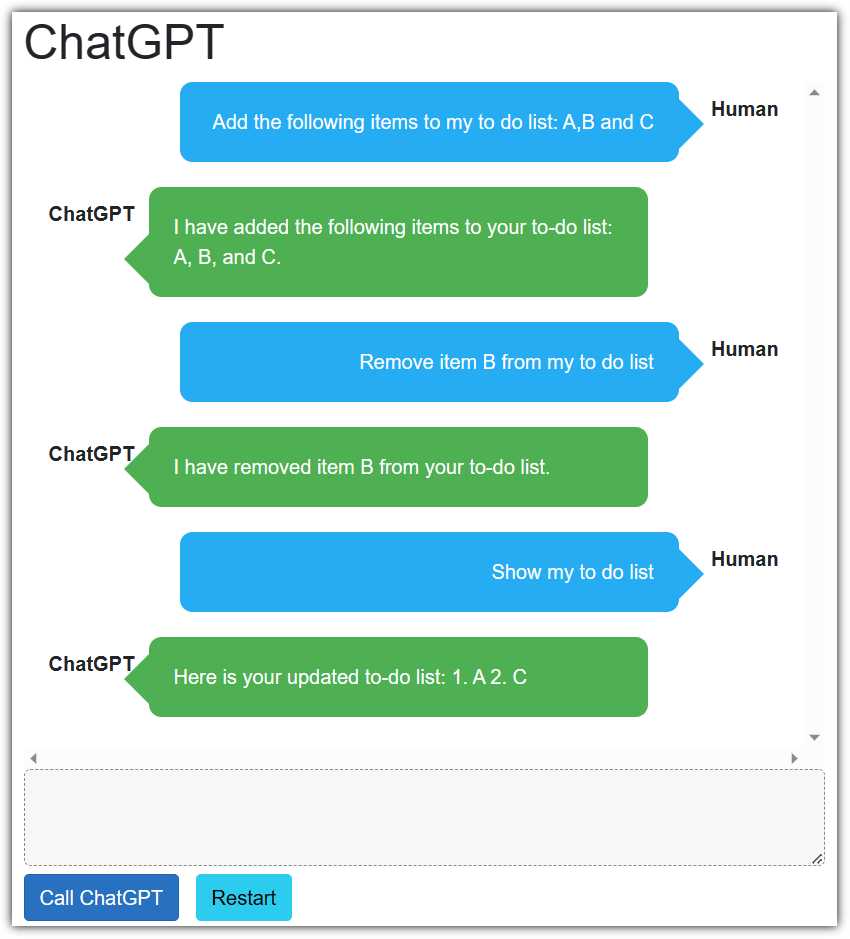
Figure 34: Manage TODO Items
Run the application. You can now manage items on your to-do list using natural language.


- 1800+ high-performance UI components.
- Includes popular controls such as Grid, Chart, Scheduler, and more.
- 24x5 unlimited support by developers.