
OpenAI Succinctly®

CHAPTER 5
DALL-E
OpenAI has developed a popular product called DALL-E, which can create original pictures based on written descriptions. It uses algorithms to understand a text prompt and creates images that match it. For example, if you describe a landscape, the program can create a picture of that landscape even though it doesn’t actually exist.
Note: DALL-E was named after the artist Salvador Dali and the character EVE from the movie WALL-E.
While DALL-E incorporates some of the same fundamental concepts as GPT, it is a distinct and separate program with a different focus and functionality. It is used for creating images, editing images, and creating variations of images.
Using DALL-E
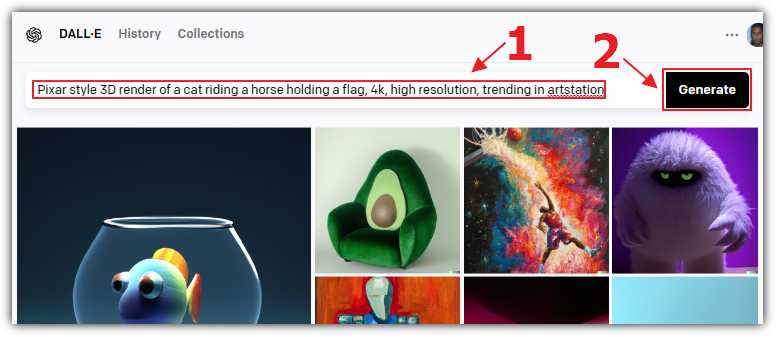
Figure 35: Using DALL-E
To use DALL-E, navigate to the website and log in with your OpenAI account. Input your textual prompt in the text box and press Generate.
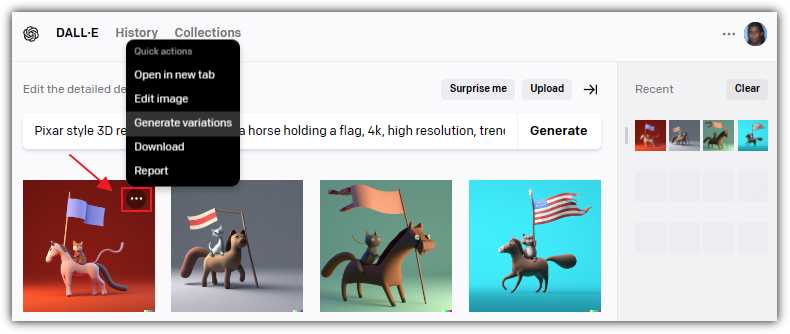
Figure 36: DALL-E Results
The DALL-E model will then generate images based on your prompt, which you can view and download. You can select an image to edit it or create more variations based on that image.
Create a Dall-E application using Blazor
We will now cover the steps to call the DALL-E API endpoint and generate pictures in our Blazor application.
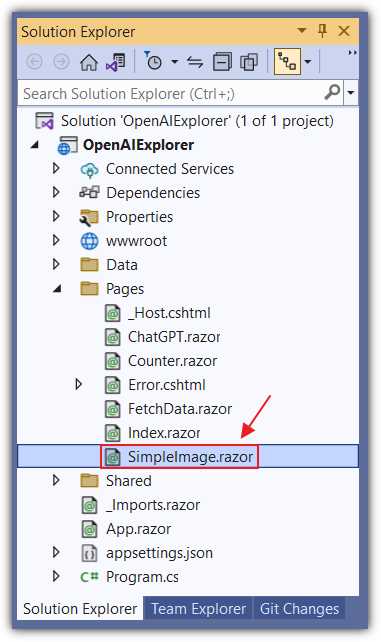
Figure 37: Add SimpleImage.razor
In Visual Studio, in the OpenAIExplorer project, add a new Razor control called SimpleImage.razor.
Replace all the code with the following code.
Code Listing 24
@page "/simpleimage" @using OpenAI; @using OpenAI.Images; @using OpenAI.Models; @inject IConfiguration _configuration <PageTitle>Simple Image</PageTitle> <h1>Describe the desired image</h1> <input class="form-control" type="text" @bind="prompt" /> <br /> <button class="btn btn-primary" @onclick="CallService"> Call The Service </button> <br /> <br /> <h4>Response:</h4> <br /> <p>@response</p> <p>@((MarkupString)ImageResponse)</p> |
This code displays an input field that is bound to a prompt variable. Users can enter text in this field to describe the image they want to generate.
Below the input field is a button labeled Call the Service. When the user clicks this button, the CallService method is called, which uses the OpenAI DALL-E API to generate an image based on the user's input.
While the images are being generated, the page displays a response message indicating the status. This message is stored in a variable that is displayed in a paragraph element.
The generated images are stored in an ImageResponse variable and displayed in a paragraph element using a MarkupString object, which allows HTML code to be rendered as actual HTML on the page. The generated image will be displayed as an HTML <img> tag containing the image source URL.
Next, add the following code.
Code Listing 25
@code { string Organization = ""; string ApiKey = ""; string prompt = ""; string response = ""; string ImageResponse = ""; protected override void OnInitialized() { Organization = _configuration["OpenAIServiceOptions:Organization"] ?? ""; ApiKey = _configuration["OpenAIServiceOptions:ApiKey"] ?? ""; prompt = "Pixar style 3D render of a cat "; prompt = prompt + "riding a horse holding a flag, 4k, "; prompt = prompt + "high resolution, trending in artstation"; } } |
This code sets up the necessary variables and retrieves the Organization and ApiKey. It also constructs a default prompt to request a picture of a cat. The end user will have the ability to change this prompt.
Finally, add the following code to the @code section, which will implement the method that calls the DALL-E API when the Call the Service button is clicked.
Code Listing 26
// This code defines an asynchronous method, CallService, // which calls the OpenAI DALL-E API to generate images based on a given prompt. async Task CallService() { // Set initial response message. response = "Calling service..."; // Create a new instance of the OpenAIClient, // passing in an API key and organization to authenticate the client. var api = new OpenAIClient(new OpenAIAuthentication(ApiKey, Organization)); // Call the GenerateImageAsync method of the ImagesEndPoint object // of the OpenAIClient to generate images based on the given prompt. // The method is called asynchronously and the results are stored in the // 'results' variable. The method is called with two arguments, // 'prompt' and '2', specifying the text prompt and the number of images // to generate, respectively. The 'ImageSize.Small' argument specifies that // the generated images should be small in size. var results = await api.ImagesEndPoint.GenerateImageAsync(prompt, 2, ImageSize.Small); if (results.Count > 0) { response = ""; // Iterate through each generated image and append the HTML code // for displaying the image to the 'ImageResponse' variable. foreach (var image in results) { ImageResponse += $@"<img src=""{image}"" /> "; } } else // If there are no generated images. { // Set response message to indicate error. response = "Unknown Error"; } } |
Add a link to the control in the NavMenu.razor control and hit F5 to run the application. Navigate to the Razor page, enter a prompt, and click Call The Service.
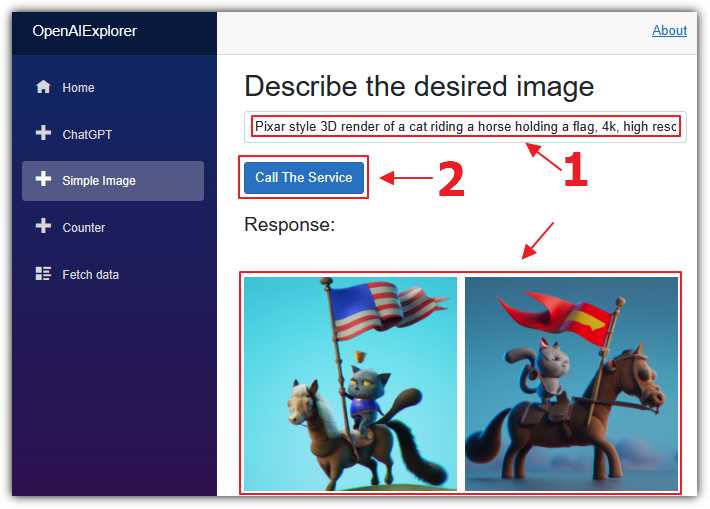
Figure 38: Calling the DALL-E API
The DALL-E API will return two images, and the application will display them.
You can find the documentation for the Images API here.


- 1800+ high-performance UI components.
- Includes popular controls such as Grid, Chart, Scheduler, and more.
- 24x5 unlimited support by developers.