
Nuxt.js Succinctly®

CHAPTER 6
Server Logic
Overview
We are ready to write the server-side logic of our application that will retrieve the data from the Cloud Firestore database.
Server logic
To begin, let’s use the EXPLORER panel of VS Code to create a new folder called ‘server’ and a subfolder called ‘api,’ and within the api folder, create a new file called books.js.

Figure 6-a: The server and api Folders with books.js (EXPLORER—VS Code)
Then, copy the following code and paste it into the books.js file.
Code Listing 6-a: books.js
import { initializeApp, getApps, cert } from 'firebase-admin/app'; import { getFirestore } from 'firebase-admin/firestore'; const fb_apps = getApps(); if (fb_apps.length <= 0) { initializeApp({ credential: cert( './booksfavlist-firebase-adminsdk-eel0o-0a9b2da302.json'), }); } const func = async(rq, rs) => { const fs_db = getFirestore(); const snapshot = await fs_db.collection('favbooks').get(); const books = snapshot.docs.map(doc => { return { uuid: doc.id, name: doc.data().name, description: doc.data().description, author: doc.data().author, url: doc.data().url, picUrl: doc.data().picUrl } }); return books; } export default func; |
Before we go over this code, let's run the app by executing the npm run dev command from the built-in terminal within VS Code.
Once the app is running, open the browser and navigate to http://localhost:3000/api/books.
Note: Normally, Nuxt.js uses port 3000 by default. If it uses another port in your case, make sure to replace 3000 with the port number Nuxt.js is using on your machine. The api part of the URL corresponds to the api folder, and the books part of the URL corresponds to the books.js file.
After navigating to that URL, you should see the following results returned by the application.
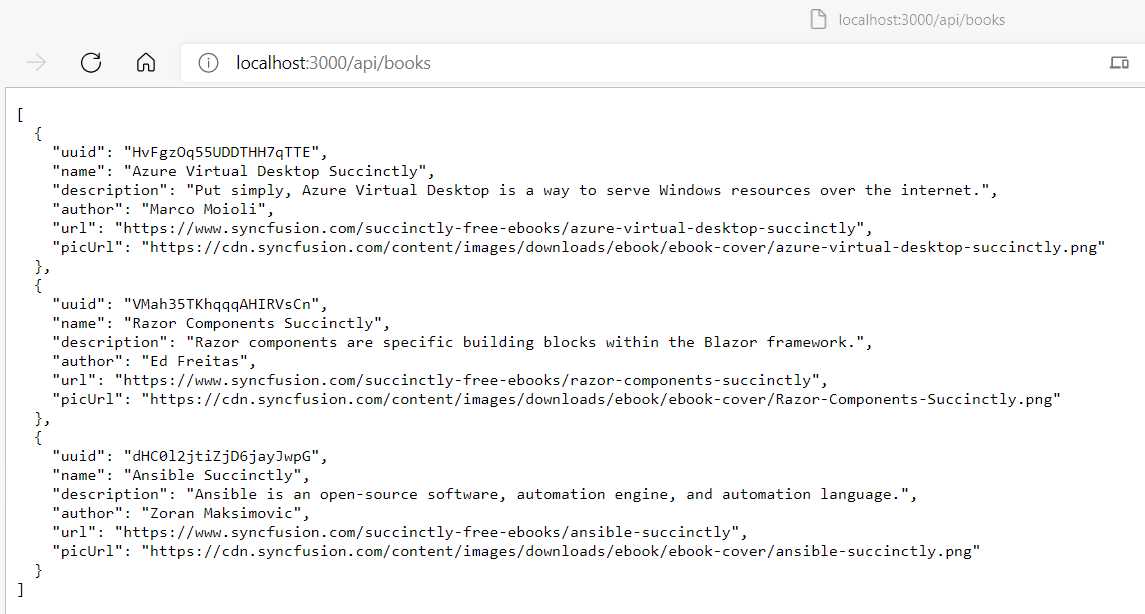
Figure 6-b: The Results from Firebase
Essentially, we have created an API that can fetch data from the Cloud Firestore database using the Firebase Admin SDK.
Understanding the server logic
Let's go over the server code that we've written to understand what has been done. First, we began with the necessary imports.
import { initializeApp, getApps, cert } from 'firebase-admin/app';
import { getFirestore } from 'firebase-admin/firestore';
From the firebase-admin/app module, we imported the initializeApp, getApps, and cert methods.
Then, from the firebase-admin/firestore module, we imported the getFirestore method. All these methods are required to initialize the connection to Firebase, get the reference to the default application, and establish the connection to the database.
The next instruction within the server code is const fb_apps = getApps();. This method retrieves a list of all the initialized applications that exist within your Firebase account.
So, suppose there aren't any Firebase initialized applications (when the following condition fb_apps.length <= 0 is true). In that case, we can initialize the connection to the Firebase application we created, which is done with the execution of the initializeApp method.
To make sure we initialize the correct Firebase application, we have to pass as a parameter the credentials we retrieved from Firebase (available within the generated key file)—this is done with the following instruction.
initializeApp({
credential:
cert(
'./booksfavlist-firebase-adminsdk-eel0o-0a9b2da302.json'),
});
In this context, credential is the parameter's name, whereas the result returned by the cert method is the value assigned to the credential parameter.
What the cert method does in this context is read the contents of the generated key values contained within the booksfavlist-firebase-adminsdk-eel0o-0a9b2da302.json file.
Once we have initialized our Firebase application, we declare an asynchronous function called func, to which we pass request (rq) and response (rs) parameters.
The func function is responsible for retrieving the data from the Cloud Firestore database. To do that, we first get the connection to the Cloud Firestore database using the getFirestore method—this connection is assigned to the constant fs_db.
const fs_db = getFirestore();
Then, we invoke the collection method from the fs_db instance and pass in the name of the books collection within Firebase, which, as you might remember, we called favbooks.
const snapshot = await fs_db.collection('favbooks').get();
What the get method does is retrieve a snapshot of the data stored within the collection rather than the value of the collection itself. The reference to this snapshot is assigned to the constant with the same name: snapshot.
Then, the data is obtained by invoking the docs method from the snapshot instance. Given that the result obtained from the docs method is an array, we need to iterate through that array, which is why we use the map function.
snapshot.docs.map(...)
Within the map function, we use a doc variable that represents each item of the array returned by the docs method.
For each item within the array, we return an object that includes all the document properties stored in the Cloud Firestore database.
return {
uuid: doc.id,
name: doc.data().name,
description: doc.data().description,
author: doc.data().author,
url: doc.data().url,
picUrl: doc.data().picUrl
}
Notice that, except for the uuid value, all the document properties stored in the Cloud Firestore database are available through the data property of the doc instance—and this can be further optimized, as we'll see shortly.
Finally, once we've gone through all the items in the array, we can return the list of results assigned to the books variable.
return books;
Optimizing the server logic
As explained previously, except for the uuid value, all the document properties stored in the Cloud Firestore database are available through the data property of the doc instance.
So, instead of explicitly mentioning each of the properties:
name: doc.data().name,
description: doc.data().description,
author: doc.data().author,
url: doc.data().url,
picUrl: doc.data().picUrl
We can use the JavaScript spread operator (…) to include all the properties accessible through the data method.
...doc.data()
So, the modified and optimized code would look as follows (with the change emphasized in bold).
Code Listing 6-b: books.js (Optimized)
import { initializeApp, getApps, cert } from 'firebase-admin/app'; import { getFirestore } from 'firebase-admin/firestore'; const fb_apps= getApps(); if (fb_apps.length <= 0) { initializeApp({ credential: cert( './booksfavlist-firebase-adminsdk-eel0o-0a9b2da302.json'), }); } const func = async(rq, rs) => { const fs_db = getFirestore(); const snapshot = await fs_db.collection('favbooks').get(); const books = snapshot.docs.map(doc => { return { ...doc.data(), uuid: doc.id } }); return books; } export default func; |
If you rerun the application (npm run dev) from the built-in terminal within VS Code and navigate to http://localhost:3000/api/books, you will see the same results.
The only difference this time might be that the order of the books is not the same, and the uuid field will appear as the last property for each item.

Figure 6-c: The Results from Firebase
Retrieving data from Firebase
Now that we can retrieve the data from the Cloud Firestore database, we must remove the hardcoded data within the index.vue file and load the data dynamically.
So, open the index.vue file and remove the items in the books property (returned by the data method). The changes to the updated code are emphasized in bold in the following code.
Code Listing 6-c: index.vue (Updated)
<template> <div class="container"> <FavList ref="favlist"/> <br /> <div class="row"> <div v-for="(book, index) in books" :key="book.uuid + '_' + index" class="col-md-4" > <div class="card-mb-3"> <a target="_blank" :href="book.url"> <img :src="book.picUrl" class="card-img-top"> </a> <div class="card-body"> <h5 class="card-title"> {{ book.name }} </h5> <p class="card-text"> {{ book.description }} </p> <p class="card-text"> {{ book.author }} </p> <div class="d-grid"> <button @click="addToFavs(book)" class="btn btn-outline-primary"> Add to Favorites </button> </div> </div> </div> </div> </div> </div> </template> <style scoped> .img { width: 80%; height: auto; } .center { display: block; margin-left: auto; margin-right: auto; width: 100%; } </style> <script> import FavList from '../components/FavList'; export default { components: { FavList }, data() { return { books: [] } }, methods: { addToFavs(book) { let inFavs = false; const favs = this.$refs.favlist; for (const fav of favs.favorites) { if (fav.uuid === book.uuid) { inFavs = true; break; } } if (!inFavs) { favs.favorites.push({...book}); } } } } </script> |
Next, we need to add extra code to the index.vue file, allowing us to retrieve the data from the Cloud Firestore database—which we can do as follows.
<script setup>
const { data: books } =
await useAsyncData('books', () => $fetch('/api/books'));
</script>
This uses the useAsyncData function from Nuxt.js 3 to perform data fetching. So, within the setup of index.vue, the useAsyncData function is invoked.
The useAsyncData function uses the browser's Fetch API ($fetch) to which the server URL is passed as a parameter, retrieving the list of books.
The result of the execution of the useAsyncData function is a data object that we give the name: books.
By doing this, we no longer need to return the books array from the data method and can remove the data method altogether. The updated index.vue code is now as follows.
Code Listing 6-d: index.vue (Updated)
<script setup> const { data: books } = await useAsyncData('books', () => $fetch('/api/books')); </script> <template> <div class="container"> <FavList ref="favlist"/> <br /> <div class="row"> <div v-for="(book, index) in books" :key="book.uuid + '_' + index" class="col-md-4" > <div class="card-mb-3"> <a target="_blank" :href="book.url"> <img :src="book.picUrl" class="card-img-top"> </a> <div class="card-body"> <h5 class="card-title"> {{ book.name }} </h5> <p class="card-text"> {{ book.description }} </p> <p class="card-text"> {{ book.author }} </p> <div class="d-grid"> <button @click="addToFavs(book)" class="btn btn-outline-primary"> Add to Favorites </button> </div> </div> </div> </div> </div> </div> </template> <style scoped> .img { width: 80%; height: auto; } .center { display: block; margin-left: auto; margin-right: auto; width: 100%; } </style> <script> import FavList from '../components/FavList'; export default { components: { FavList }, methods: { addToFavs(book) { let inFavs = false; const favs = this.$refs.favlist; for (const fav of favs.favorites) { if (fav.uuid === book.uuid) { inFavs = true; break; } } if (!inFavs) { favs.favorites.push({...book}); } } } } </script> |
If you rerun the application (npm run dev) from the built-in terminal within VS Code, you should see that it works, and this time the list of books is retrieved from the Cloud Firestore database instead of being loaded locally.
You might have noticed (also depending on how fast your internet connection is) that because the list of books is being retrieved from Firebase, the application takes slightly longer to load.
In other words, the UI takes slightly longer to render, and this is because the UI is only generated after the data has been retrieved.
Lazy loading
For our example, we have hardly any data; however, in a real-world (production-ready) case, we might have much more data to retrieve, and as such, it wouldn't be recommended to have the UI blocked (without being rendered) while the data loads.
We can achieve this by using a technique known as lazy loading, for which Nuxt.js 3 provides a couple of functions for this purpose.
Let's refactor the index.vue code a bit further to accommodate lazy loading. The changes are emphasized in bold in the following code.
Code Listing 6-e: index.vue (Updated—with Lazy Loading)
<script setup> const { pending, data: books } = await useLazyFetch('/api/books'); </script> <template> <div v-if="pending"> Loading ... </div> <div v-else class="container"> <FavList ref="favlist"/> <br /> <div class="row"> <div v-for="(book, index) in books" :key="book.uuid + '_' + index" class="col-md-4" > <div class="card-mb-3"> <a target="_blank" :href="book.url"> <img :src="book.picUrl" class="card-img-top"> </a> <div class="card-body"> <h5 class="card-title"> {{ book.name }} </h5> <p class="card-text"> {{ book.description }} </p> <p class="card-text"> {{ book.author }} </p> <div class="d-grid"> <button @click="addToFavs(book)" class="btn btn-outline-primary"> Add to Favorites </button> </div> </div> </div> </div> </div> </div> </template> <style scoped> .img { width: 80%; height: auto; } .center { display: block; margin-left: auto; margin-right: auto; width: 100%; } </style> <script> import FavList from '../components/FavList'; export default { components: { FavList }, methods: { addToFavs(book) { let inFavs = false; const favs = this.$refs.favlist; for (const fav of favs.favorites) { if (fav.uuid === book.uuid) { inFavs = true; break; } } if (!inFavs) { favs.favorites.push({...book}); } } } } </script> |
The first change is that we are using the useLazyFetch function, and as you can see, this function only requires one parameter: the URL endpoint of the data to retrieve.
const { pending, data: books } = await useLazyFetch('/api/books');
Note that this function returns a pending variable, which checks whether the data retrieval operation is still pending or has finalized.
This way, if the data retrieval operation is still taking place, we can display a loading message, which is what the following code does.
Notice how we use the v-if directive to check if the value of pending is true (which would indicate that the retrieval operation has not been finalized).
<div v-if="pending">
Loading ...
</div>
On the other hand, if the value of pending is false, it would indicate that the data retrieval operation has been finalized. Therefore, the div containing the list of books can be shown—which is why we've added a v-else directive.
<div v-else class="container">
...
</div>
Building and generating
We are now done with our application, so well done if you've been following along all this time! Now it's time to generate our server-side rendered application.
We can execute the following command from the built-in terminal within VS Code.
Code Listing 6-f: Building and Generating the App
npm run build |
Once this command has been executed, you should see an output similar to the following one within your terminal.

Figure 6-d: Building and Generating Output
Note that Nuxt.js has created an .output folder that contains the production-ready (minified and optimized) server-side rendered application code, which can be executed by running the following command.
Code Listing 6-g: Executing the Production-Ready App
npm run start |
Once the application has started, if you right-click within your browser and click the option View page source, you’ll see that the code has been minified and optimized for production. Here is an example from my machine.

Figure 6-e: Production-Ready Code
Deployment
Nuxt.js offers the option to deploy your application to a myriad of the most popular hosting services available on the market today. You can find detailed instructions on deploying your application to any of these services on the official Nuxt.js documentation. I invite you to explore this resource in your spare time and check which hosting solutions work best for you.
Complete app code
The listings that follow contain all the finished code for each file that is part of the application we’ve built throughout this book.
Code Listing 6-h: Finished App (components\FavList.vue)
<template> <div> <div class="offcanvas offcanvas-start" data-bs-scroll="true" tabindex="-1" id="offcanvasWithBothOptions" aria-labelledby="offcanvasWithBothOptionsLabel"> <div class="offcanvas-header"> <h5 class="offcanvas-title" id="offcanvasWithBothOptionsLabel"> Favorite Books </h5> <button type="button" class="btn-close text-reset" data-bs-dismiss="offcanvas" aria-label="Close"> </button> </div> <div class="offcanvas-body"> <div v-for="(fav, index) in favorites" :key="fav.uuid + '_' + index" class="card-mb-3"> <div class="row"> <div class="col-md-4"> <img :src="fav.picUrl" class="img-fluid rounded-start"> </div> <div class="col-md-8"> <div class="card-body"> <h5 class="card-title"> {{ fav.name }} </h5> <p class="card-title"> {{ fav.author }} </p> <div class="d-grid"> <button @click="delFav(fav)" class="btn btn-outline-secondary"> Remove from list </button> </div> </div> </div> </div> </div> </div> </div> </div> </template> <script> export default { name: 'FavList', data() { return { favorites: [] } }, methods: { delFav(fav) { const favs = this.favorites; const idx = favs.findIndex(item => item.uuid === fav.uuid); if (idx >= 0) { favs.splice(idx, 1); } } } } </script> |
Code Listing 6-i: Finished App (components\NavBar.vue)
<template> <div> <nav class="navbar navbar-expand-lg navbar-light" style="background-color: #e3f2fd;"> <div class="container-fluid"> <a class="navbar-brand" href="#">Books List</a> <NuxtLink to="/about">About</NuxtLink> <div class="d-flex input-group w-auto"> <button class="btn btn-outline-primary" type="button" data-mdb-ripple-color="dark" data-bs-toggle="offcanvas" data-bs-target="#offcanvasWithBothOptions" aria-controls="offcanvasWithBothOptions" > Favorites </button> </div> </div> </nav> </div> </template> |
Code Listing 6-j: Finished App (pages\index.vue)
<script setup> const { pending, data: books } = await useLazyFetch('/api/books'); </script> <template> <div v-if="pending"> Loading ... </div> <div v-else class="container"> <FavList ref="favlist"/> <br /> <div class="row"> <div v-for="(book, index) in books" :key="book.uuid + '_' + index" class="col-md-4" > <div class="card-mb-3"> <a target="_blank" :href="book.url"> <img :src="book.picUrl" class="card-img-top"> </a> <div class="card-body"> <h5 class="card-title"> {{ book.name }} </h5> <p class="card-text"> {{ book.description }} </p> <p class="card-text"> {{ book.author }} </p> <div class="d-grid"> <button @click="addToFavs(book)" class="btn btn-outline-primary"> Add to Favorites </button> </div> </div> </div> </div> </div> </div> </template> <style scoped> .img { width: 80%; height: auto; } .center { display: block; margin-left: auto; margin-right: auto; width: 100%; } </style> <script> import FavList from '../components/FavList'; export default { components: { FavList }, methods: { addToFavs(book) { let inFavs = false; const favs = this.$refs.favlist; for (const fav of favs.favorites) { if (fav.uuid === book.uuid) { inFavs = true; break; } } if (!inFavs) { favs.favorites.push({...book}); } } } } </script> |
Code Listing 6-k: Finished App (server\api\books.js)
import { initializeApp, getApps, cert } from 'firebase-admin/app'; import { getFirestore } from 'firebase-admin/firestore'; const fb_apps= getApps(); if (fb_apps.length <= 0) { initializeApp({ credential: cert(' ./booksfavlist-firebase-adminsdk-eel0o-0a9b2da302.json'), }); } const func = async(rq, rs) => { const fs_db = getFirestore(); const snapshot = await fs_db.collection('favbooks').get(); const books = snapshot.docs.map(doc => { return { ...doc.data(), uuid: doc.id } }); return books; } export default func; |
Note: Keep in mind that your generated key file (in my case: booksfavlist-firebase-adminsdk-eel0o-0a9b2da302.json) may not have the same name as mine.
Code Listing 6-l: Finished App (.gitignore—root folder)
node_modules *.log .nuxt nuxt.d.ts .output .env booksfavlist-firebase-adminsdk-eel0o-0a9b2da302.json |
Note: Bear in mind that your generated key file (in my case: booksfavlist-firebase-adminsdk-eel0o-0a9b2da302.json) may not have the same name as mine.
Code Listing 6-m: Finished App (app.vue—root folder)
<template> <div class="container-fluid"> <NavBar /> <NuxtPage /> </div> </template> |
Code Listing 6-n: Finished App (booksfavlist-firebase-adminsdk.json—root folder)
{ "type": "service_account", "project_id": "booksfavlist", "private_key_id": "0a9b2da302f6...", "private_key": "-----BEGIN PRIVATE KEY\n-----END PRIVATE KEY-----\n", "client_email": "firebase-adminsdk-eel0o@booksfavlist...", "client_id": "10896908522...", "auth_uri": "https://accounts.google.com/o/oauth2/auth", "token_uri": "https://oauth2.googleapis.com/token", "auth_provider_x509_cert_url": "https://www.googleapis.com/oauth2/v1/certs", "client_x509_cert_url": "https://www.googleapis.com/robot/v1/metadata/x509/..." } |
Note: For obvious security reasons, I have removed some of the Firebase details that are linked to my account. As this is the generated key file, your details will differ from mine, in any case.
Code Listing 6-o: Finished App (nuxt.config.ts—root folder)
import { defineNuxtConfig } from 'nuxt3' // https://v3.nuxtjs.org/docs/directory-structure/nuxt.config export default defineNuxtConfig({ meta: { link: [ { rel: 'stylesheet', href: 'https://cdn.jsdelivr.net/npm/[email protected]/dist/css/bootstrap.min.css' } ], script: [ { type: 'text/javascript', src: 'https://cdn.jsdelivr.net/npm/[email protected]/dist/js/bootstrap.bundle.min.js' } ] } }) |
Code Listing 6-p: Finished App (package.json—root folder)
{ "private": true, "scripts": { "dev": "nuxi dev", "build": "nuxi build", "start": "node .output/server/index.mjs" }, "devDependencies": { "nuxt3": "latest" }, "dependencies": { "@nuxt/nitro": "^0.10.0", "firebase-admin": "^10.0.2", "mdb-ui-kit": "^3.10.2" } } |
Code Listing 6-q: Finished App (README.md—root folder)
# Nuxt 3 Minimal Starter We recommend to look at the [documentation](https://v3.nuxtjs.org). ## Setup Make sure to install the dependencies ```bash yarn install ``` ## Development Start the dev server on http://localhost:3000 ```bash yarn dev ``` ## Production Build the application for production: ```bash yarn build ``` Checkout the [deployment documentation](https://v3.nuxtjs.org/docs/deployment). |
Code Listing 6-r: Finished App (tsconfig.json—root folder)
{ // https://v3.nuxtjs.org/concepts/typescript "extends": "./.nuxt/tsconfig.json" } |
Note: Remember to execute the npm install command from the root folder of your project to install any (missing) dependencies.
Next steps and final thoughts
Before closing off, I’d like to leave you with some challenges and thoughts. As some possible next steps in your Nuxt.js learning journey, two things come to mind that would be interesting for you to investigate and implement in your spare time.
The first would be to add additional pages to this application and explore the file system routing mechanism with Nuxt.js—you could add an About page, for example.
Second, and even more interesting, would be to add functionality to save the list of favorite books to the Cloud Firestore database. If you get around to implementing this feature, I’d love to hear from you.
I think Nuxt.js is a fantastic toolkit that allows Vue.js developers to code faster by worrying less about what happens under the hood and focusing more on the business aspect of the app.
If you have worked with Vue.js, I think you’ll love Nuxt.js, as it will make you more productive. I hope you have enjoyed reading this book as much as I have enjoyed writing it.
Until next time—stay strong, focused, positive, and always learning. Thank you for reading and following along. All the best.


- 80+ high-performance, modular, and responsive Vue UI components.
- Popular components like Data Grid, Charts, and Diagram.
- Incredibly lightweight and user-friendly.