
Node.js Succinctly®

CHAPTER 10
Web Application
In this chapter, we’re going to learn web programming similar to PHP but we’ll implement it using Node.js. There are a lot of web frameworks for Node.js. For our scenario, we’ll use a basic HTTP Node.js module and Express.js.
Getting Started
Node.js provides http modules to manipulate and handle the HTTP request and response. You can read this API on http://nodejs.org/api/http.html.
How to get started? Let's write this code:
var http = require('http'); var server = http.createServer(function (req, res) { res.write('Welcome to http nodejs'); res.end(); }); server.listen(8084); console.log('Server is running on port 8084'); |
Save this code into a file, for instance, web-demo1.js.
Now we start to run this application:
node web-demo1.js |
When executing this application for the Windows platform, you will get the form dialog shown in Figure 54. It’s better to check Private Network and then click Allow access.
The sample of the program output can be seen in Figure 55. Now you can open a browser and write the URL:
http://localhost:8084/ |
Then you will get a response in the browser as shown in Figure 56.
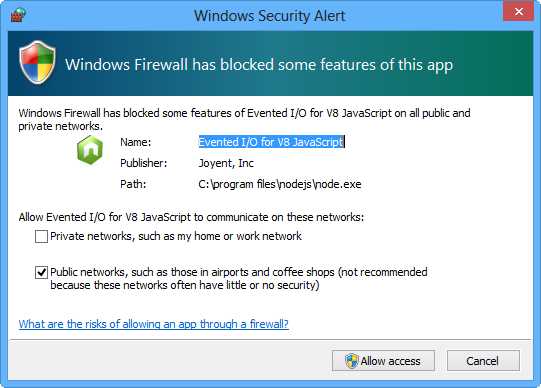
Figure 54: Confirming from Windows Firewall to open a port

Figure 55: Executing a simple web application

Figure 56: Accessing a web application using a browser
To work with web applications:
- First, load the HTTP module.
- Create a web server by calling createServer()
- We get the request and response objects (req, res)
- Handle the request and response from the client using these objects.
- Call end() to close sending the response to the client.
- We call listen() with a port parameter, for example 8084, to activate the listening process.
To stop the application, press Ctrl+C.
Manipulating an HTTP Header
We can get header information from a client request and send a response with a custom header.
We can get header information from a client request from req.headers directly. We can also set a custom header attribute by calling setHeader() from the response object (res).
Here is sample code for manipulating an HTTP header:
var http = require('http'); var server = http.createServer(function (req, res) { // print request header console.log(req.headers); // set response header res.setHeader('AppId','123456'); // send response res.write('Welcome to http nodejs'); res.end(); }); server.listen(8084); console.log('Server is running on port 8084'); |
Run this code and open the browser application. Send a request to the server, for instance http://localhost:8084/. Then look at your console application. You will get a program output as shown in Figure 57.

Figure 57: Printing information about HTTP request header
Handling Page Requests
In the previous section, we learned how to create simple web application. Now we’ll continue to explore the HTTP module.
We can handle page requests from the client, for example:
- page /
- page /customer
- page /admin
To handle these page requests, we can check them through a request object and call the url attribute. If it matches with your expectations, then you can do something in your code.
if(req.url=='/'){ res.write('Welcome to http nodejs'); res.end(); }else{//some code here} |
Let’s write a complete simple application. Here is the sample code:
var http = require('http'); var server = http.createServer(function (req, res) { console.log(req.url); if(req.url=='/'){ res.write('Welcome to http nodejs'); res.end(); }else if(req.url=='/customer'){ res.write('Welcome to Customer page'); res.end(); }else if(req.url=='/admin'){ res.write('Welcome to Admin page'); res.end(); }else { res.write('Page not found'); res.end(); } }); server.listen(8084); console.log('Server is running on port 8084'); |
Run this code and open browser application. Try to request the server, for example http://localhost:8084/customer/. We will get the response shown in Figure 58.

Figure 58: A page responding to Node.js
Working with HTTPS
In this section, we’ll work with HTTPS for Node.js. First, we should have an SSL Certificate. You can buy it or create a self-signed certificate.
I would like to share how to create a self-signed certificate using openssl. Download openssl for your platform on http://www.openssl.org. For the Windows platform, you can download the setup file on http://slproweb.com/products/Win32OpenSSL.html.
After installed, try to open CMD and type the following:
openssl |
You will get the prompt > in your console.
If you got a warning message as follows:
WARNING: can't open config file: c:/openssl/ssl/openssl.cnf |
Then try to type this in your console:
set OPENSSL_CONF=C:\OpenSSL-Win32\bin\openssl.cfg |
Change the path of the file openssl.cfg. You can put it on the Environment Variables in the Windows OS. You can see this in Figure 59.

Figure 59: Setting OPENSSL_CONF
First, we generate a private key with 1024 length and store it to a file called myserver.key.
Open your console CMD and be sure you are running it as the administrator. Type this script:
openssl genrsa -des3 -out myserver.key 1024 |
If you still failed, you should run your CMD with administrator privileges. If successful, you will get a response as shown in Figure 60. Entry your pass phrase for the SSL key.

Figure 60: Creating an SSL key
Furthermore, we create a certificate file, called myserver.csr. Type this script:
openssl req -new -key myserver.key -out myserver.csr |
Enter all fields. The sample response can be seen in Figure 61.
Now we need to sign our certificate. This means we are creating a self-signed certificate. Type the following commands:
openssl x509 -req -days 365 -in myserver.csr -signkey myserver.ke y -out myserver.crt |
Enter the pass phrase. You can see a sample of the console output in Figure 62.

Figure 61: Creating a certificate file

Figure 62: Signing a certificate file
Now we can integrate our previous code (HTTP) with a certificate file to apply HTTPS.
Add certificate information on options objects such as key file, certificate file, and pass phrase. Here is the sample code:
var https = require('https'); var fs = require('fs'); var options = { key: fs.readFileSync('e:/ssl/myserver.key'), cert: fs.readFileSync('e:/ssl/myserver.crt'), passphrase: '1234' }; var server = https.createServer(options,function (req, res) { res.write('Welcome to http nodejs'); res.end(); }); server.listen(8084); console.log('Server is running on port 8084'); |
Run this code. Then open your browser and write https://localhost:8084/.
Because we used a self-signed certificate, we get a warning message from our browser as shown in Figure 63.
Click Continue to this website and then you will get a response from the Node.js application, shown in Figure 64.

Figure 63: Warning message for self-signed certificate usage

Figure 64: Web application with HTTPS
Express.js
In the previous section, we used an HTTP module that is a part of the Node.js standard modules. We can use the Express.js library web framework. You get further information about Express.js from the official website, http://expressjs.com/. Here is a list of features:
- Robust routing
- Redirection helpers
- Dynamic view helpers
- Application level view options
- Content negotiation
- Application mounting
- Focus on high performance
- View rendering and partials support
- Environment based configuration
- Session-based flash notifications
- Built on Connect middleware
- Executable for generating applications quickly
- High test coverage
These features could help you to accelerate web development and save development time.
Installation
The simple way to install Express.js is by using your npm manager. Before executing, your computer has already connected with the internet.
Type this command in your CMD:
npm install express |
You also can install it globally.
npm install express -g |
If it is successful, you will see the response as shown in Figure 65.

Figure 65: Installing Expressjs
Now we’re ready to write code using Express.js.
Getting Started
We start to write a simple program using Express.js. We will create a web application.
Let’s write this code:
var express = require('express'); var app = express(); app.get('/', function(req, res){ res.send('Hello World Expressjs'); }); app.listen(8084); console.log('Server is running on port 8084'); |
First, we include the Express.js module by calling require(‘express’). After that, we create the server object by instantiating the server object.
Furthermore, we create a response handler.
app.get('/', function(req, res){ res.send('Hello World Expressjs'); }); |
At the end of code, we run a code listener on port 8084.
Now run it and open the browser. Write the URL http://localhost:8084/. You will get a response from the app as shown in Figure 66.

Figure 66: Getting a response from an Express.js app in browser
Handling Page Requests
To handle page requests in Express.js, you can call get() with the URL path as the parameter.
app.get('/', function(req, res){ res.send('Hello World Expressjs'); }); |
We can add multiple request handlers in our code, for instance, ‘/customer’ and ‘/admin’ requests. You can write this sample code as follows:
var express = require('express'); var app = express(); app.get('/', function(req, res){ res.send('Hello World Expressjs'); }); app.get('/customer', function(req, res){ res.send('customer page'); }); app.get('/admin', function(req, res){ res.send('admin page'); }); app.listen(8084); console.log('Server is running on port 8084'); |
Run this code and open your browser with writing URL http://localhost:8084/customer/. You will get a response from the customer page handling of the Node.js app, shown in Figure 67.

Figure 67: Response to /customer request from Expressjs app
Express.js with HTTPS
We can implement HTTPS in Express.js. It uses the HTTP Node.js standard module so you can handle it the same way as the HTTPS server.
var fs = require('fs'); var options = { key: fs.readFileSync('E:/ssl/myserver.key'), cert: fs.readFileSync('E:/ssl/myserver.crt'), passphrase: '1234' }; var https = require('https'); var express = require('express'); var app = express(); app.get('/', function(req, res){ res.send('Hello World Expressjs'); }); var server = https.createServer(options, app); server.listen(8084); console.log('Server is running on port 8084'); |
Run this code. You get the same response, show in Figure 68.

Figure 68: Express.js app with HTTPS


- 1800+ high-performance UI components.
- Includes popular controls such as Grid, Chart, Scheduler, and more.
- 24x5 unlimited support by developers.