
Node.js Succinctly®

CHAPTER 4
JSON
JSON (JavaScript Object Notation) is a lightweight data-interchange format. Node.js supports JSON objects for data communication. For further information about JSON, you can visit the official JSON website, http://www.json.org .
Creating a JSON Object
A JSON object in Node.js uses {} syntax to declare the JSON data type. For instance, we have a JSON object called customer. This object has the attributes name, email, age and registeredDate. The following is an illustration code to declare the customer variable as JSON data.
var customer = { name: 'Michael Z', email: '[email protected]', age: 35, registeredDate: new Date() } |
You can see that the JSON object consists of a list of the key-value pair.
You probably define a nested JSON object. The following is a sample script:
var customer = { name: 'Michael Z', email: '[email protected]', age: 35, registeredDate: new Date(), address: { city: 'Berlin', country: 'Berlin' } } |
Displaying Data
After you have created the JSON object, you use console.log() to see your object.
console.log(customer); |
It will show a native JSON object in the console.
Figure 20 shows a sample of the JSON object.

Figure 20: Display JSON object
Accessing Data
As you know, console.log() can display all JSON attributes. If you want to get a specific attribute of a JSON object, then you can call the attribute name directly.
For instance, we use the customer object and display name, email, age, and registeredDate. Write this script:
console.log('Name:' + customer.name); console.log('Email:' + customer.email); console.log('Age:' + customer.age); console.log('Registered Date:' + customer.registeredDate); |
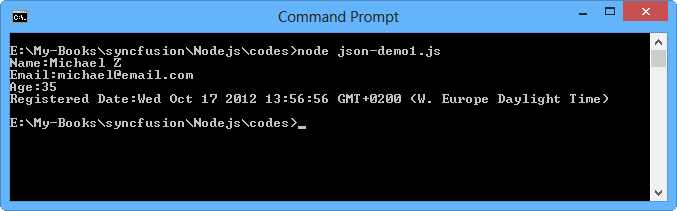
Figure 21: Display a specific attribute of JSON object
If you call an unknown attribute of a JSON object, you will get undefined value. For instance, if you call country attribute in the following script:
console.log('Name:' + customer.name); console.log('Email:' + customer.email); console.log('Age:' + customer.age); console.log('Registered Date:' + customer.registeredDate); console.log('Country:' + customer.country); |
You will get the response shown in Figure 22.
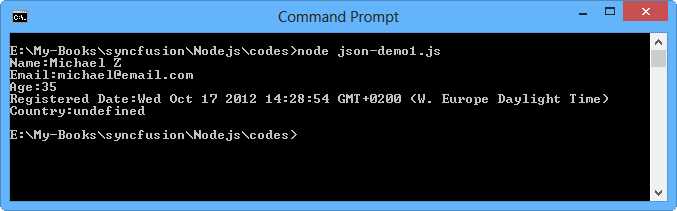
Figure 22: Accessing an unknown attribute of a JSON object
You may have questioned how we know our JSON object attributes. You can use an iteration operation to get our JSON object attributes.
Let’s write our script as follows:
var myjson = { id: 2, name: 'jackson', email: '[email protected]' }; for(var att in myjson){ console.log(att); } |
You can see a list of object attributes in Figure 23.

Figure 23: Displaying JSON object attribute names
Imagine you want to check if the attribute name exists in our JSON object. To perform it, you can use the hasOwnProperty() function.
The following is a sample script.
var myjson = { id: 2, name: 'jackson', email: '[email protected]' }; // check attribute console.log(myjson.hasOwnProperty('id')); console.log(myjson.hasOwnProperty('name')); console.log(myjson.hasOwnProperty('email')); console.log(myjson.hasOwnProperty('home')); |
If you run it, you will get the program output shown in Figure 24.
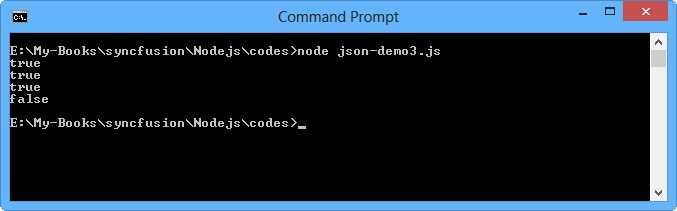
Figure 24: Checking the existence of JSON object attribute
Editing Data
Editing JSON data can be performed by assigning new values to the object's attribute. For instance, we want to edit the customer JSON object. You can see a sample in the following code table:
customer.email = '[email protected]'; customer.age = 33; console.log(customer); |
Another solution is to use [] with the attribute name to edit value data.
var myjson = { id: 2, name: 'jackson', email: '[email protected]' }; console.log(myjson); myjson['country'] = 'germany'; console.log(myjson); |
A sample of the program output is shown in Figure 23.

Figure 25: Display edited JSON data
JSON Array
We have already learned Node.js collection. Now we want to combine JSON and collection. It means we create a collection of JSON objects.
To illustrate the JSON array, we create a productTransaction object. It consists of transaction information and a list of purchased products.
var now = new Date(); var productTransaction = { id : 2, user: 'agusk', transactionDate: now, details:[ { code: 'p01', name: 'ipad 3', price: 600 }, { code: 'p02', name: 'galaxy tab', price: 500 }, { code: 'p03', name: 'kindle', price: 120 } ] } |
You can see that the details attribute consists of an array object.
If you display it in the console, you will get the JSON object shown in Figure 26.
console.log(productTransaction); |
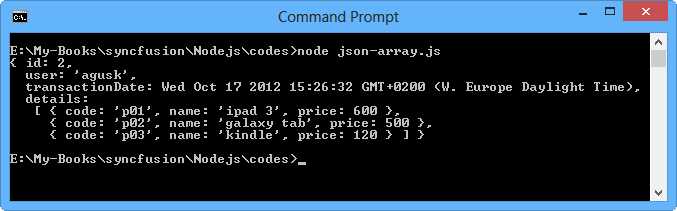
Figure 26: Display JSON array object
We can get JSON data through its attributes, for instance, id and call productTransaction.id:
console.log('Id:' + productTransaction.id); console.log('User:' + productTransaction.user); console.log('Transaction date:' + productTransaction.transactionDate); console.log('Details:' + productTransaction.details); |
If you want to access a JSON array, for instance, using the details attribute, you can pass the index parameter to get a single JSON object.
for(var i=0;i<productTransaction.details.length;i++){ console.log('Code:' + productTransaction.details[i].code); console.log('Name:' + productTransaction.details[i].name); console.log('Price:' + productTransaction.details[i].price); } |
The sample of program output from this script can be seen in Figure 27.
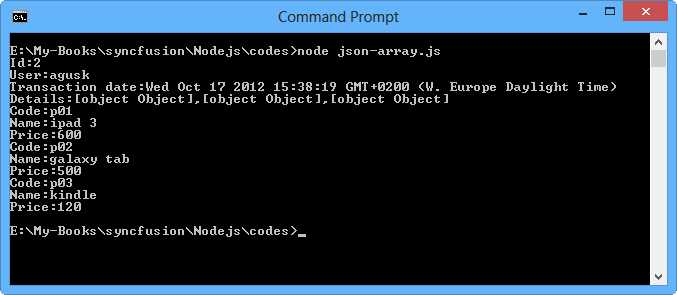
Figure 27: Accessing JSON array object
You can see when we call this script:
console.log('Details:' + productTransaction.details); |
You get the array object as shown in the following code sample:
Details:[object Object],[object Object],[object Object] |
You should call each attribute to get the attribute value.
How do we edit our JSON array object?
You can edit JSON through its attributes. For a JSON array, you must pass index parameter on collection attribute, for instance, details[index].
productTransaction.user = 'zahra'; productTransaction.details[0]['price'] = 250; console.log(productTransaction); |
In the previous section, we learned how to check if the attribute name exists or not. We can do this for a JSON array, too.
Here is a sample script.
console.log(productTransaction['id']== undefined? false:true); console.log(productTransaction['name']== undefined? false:true); console.log(productTransaction.details[0]['code']== undefined? false:true); console.log(productTransaction.details[0]['approved']== undefined? false:true); |
You can see details[0]. It means we want to use the array object with index 0.

Figure 28: Checking if the attribute name exists or not in a JSON array object


- 1800+ high-performance UI components.
- Includes popular controls such as Grid, Chart, Scheduler, and more.
- 24x5 unlimited support by developers.