
MSIX Succinctly®

CHAPTER 3
Modification Packages
In Chapter 1, we learned that one of the goals of MSIX is to help enterprises be more agile by decoupling applications from customization from OS updates. One of the key features to achieve this goal is the modification package. Modification packages are special MSIX packages that don’t contain a full application, but only files and registry keys. A modification package can’t be installed on its own, it must target another application that is already installed on the system and deployed using MSIX.
When a modification package is installed, Windows will see its content as part of the same container that hosts the main application. This means every registry key and every file included inside the modification package will be treated like it’s part of the main application.
Thanks to this approach, instead of having to customize the original MSI by creating a new installer from scratch, an IT pro can build a dedicated modification package with all the customizations. For example, it can include a configuration file, which the application can read to change its default settings; or a registry key, which is used to control a specific behavior. Because it’s a separated package, the IT pro doesn’t have to repeat the packaging process when the developer delivers a new update of the main application. The IT pro will just have to deploy the updated MSIX package, which won’t affect the modification packages that are already applied.
Let’s take a look at the manifest of a modification package.
Code Listing 6
<?xml version="1.0" encoding="utf-8"?> <Package xmlns="http://schemas.microsoft.com/appx/manifest/foundation/windows10" xmlns:uap="http://schemas.microsoft.com/appx/manifest/uap/windows10" xmlns:uap2="http://schemas.microsoft.com/appx/manifest/uap/windows10/2" xmlns:uap3="http://schemas.microsoft.com/appx/manifest/uap/windows10/3" xmlns:uap4="http://schemas.microsoft.com/appx/manifest/uap/windows10/4" xmlns:uap6="http://schemas.microsoft.com/appx/manifest/uap/windows10/6" xmlns:uap7="http://schemas.microsoft.com/appx/manifest/uap/windows10/7" xmlns:mobile="http://schemas.microsoft.com/appx/manifest/mobile/windows10" xmlns:iot="http://schemas.microsoft.com/appx/manifest/iot/windows10" xmlns:desktop="http://schemas.microsoft.com/appx/manifest/desktop/windows10" xmlns:desktop2="http://schemas.microsoft.com/appx/manifest/desktop/windows10/2" xmlns:rescap="http://schemas.microsoft.com/appx/manifest/foundation/windows10/restrictedcapabilities" xmlns:rescap3="http://schemas.microsoft.com/appx/manifest/foundation/windows10/restrictedcapabilities/3" xmlns:rescap6="http://schemas.microsoft.com/appx/manifest/foundation/windows10/restrictedcapabilities/6" xmlns:com="http://schemas.microsoft.com/appx/manifest/com/windows10"> <Identity Name="MyEmployees-ExportPlugin" Publisher="CN=Contoso Software (FOR LAB USE ONLY), O=Contoso Corporation, C=US" Version="1.0.0.0" ProcessorArchitecture="x64" /> <Properties> <DisplayName>MyEmployees (Export Plugin)</DisplayName> <PublisherDisplayName>Contoso</PublisherDisplayName> <Description>Reserved</Description> <Logo>Assets\StoreLogo.png</Logo> <rescap6:ModificationPackage>true</rescap6:ModificationPackage> </Properties> <Resources> <Resource Language="en-us" /> </Resources> <Dependencies> <TargetDeviceFamily Name="Windows.Desktop" MinVersion="10.0.17701.0" MaxVersionTested="10.0.17763.0" /> <uap4:MainPackageDependency Name="MyEmployees" Publisher="CN=Contoso" /> </Dependencies> </Package> |
As you can see, this package has its own identity (different from the main package), but it doesn’t have an Application entry. This package can’t be installed as standalone, and it doesn’t contain any application to launch.
However, inside the Dependencies section, in addition to than the already known TargetDeviceFamily entry, we also find the MainPackageDependency entry, which supports two attributes:
- Name: the identity name of the main package we want to modify.
- Publisher: the publisher of the main package we want to modify.
The publisher doesn’t have to match the one from the main application. This is the exact purpose of modification packages: IT pros must be able to modify applications that they don’t own, or that have been built by a third-party vendor.
Another difference compared to a traditional package is the existence of the following entry inside the Properties section.
Code Listing 7
<?xml version="1.0" encoding="utf-8"?> <Package . . . xmlns:rescap6="http://schemas.microsoft.com/appx/manifest/foundation/windows10/restrictedcapabilities/6" <Properties> <rescap6:ModificationPackage>true</rescap6:ModificationPackage> </Properties> . . . </Package> |
This entry is required to support the new features added to MSIX in Windows 10 version 1903, like the ability to overwrite a file, or a registry key deployed by the main application with the same included in a modification package. This feature is useful for scenarios when the main application comes with a default configuration file and you want to override it with a custom configuration.
Using a modification package
Under the hood, modification packages leverage the same infrastructure of optional packages, which are part the Universal Windows Platform ecosystem. Optional packages provide a way to add content or native code to an existing application that is already deployed on the machine. Xbox games on the Microsoft Store heavily leverage this feature to handle add-ons.
The main difference between optional packages and modification packages is that the first mainly target developers. Once an optional package has been deployed on the machine, you must use the Windows.ApplicationModel.Package.Current.Dependencies API to iterate them, access the built-in files, or load code stored inside the package. Modification packages, instead, leverage the virtual file system we learned to use in Chapter 1. When you add a registry file or a VFS folder inside a modification package, they are merged with the content of the main application at runtime. As a consequence, you don’t have to change the application’s code in order to support them.
This means that, for example, if the main application tries to load a configuration file from the C:\Program Files folder, you can deploy this file using a modification package by storing it inside the special folder VFS\ProgramFiles. Since they share the same container, the main application will be able to pick this file as if it’s included in the VFS folder of the main package.
Another example is if the application tries to read a registry key from the HKEY_CURRENT_USER hive. In this case, you can deploy a User.dat file with the key inside the modification package. Since they share the same container, the main application will be able to read the value of this registry key as if the file is included in the main package.
Handling modification packages
Modification packages can be installed only if the main application specified by the MainPackageDependency entry in the manifest is installed. Otherwise, you will experience the following error.
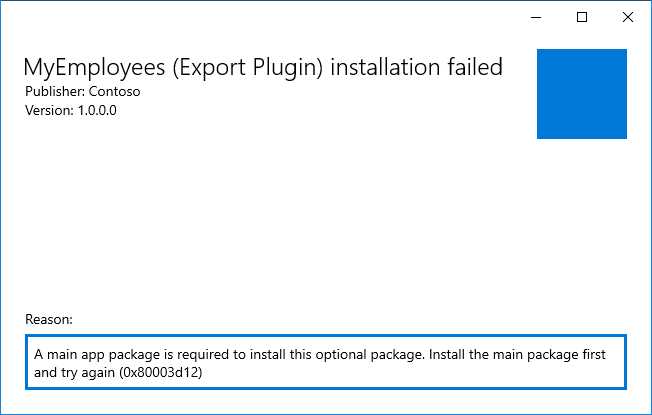
Figure 26: The error displayed when you try to install a modification package without having installed the main application that it’s targeting
Once a modification package has been installed, it can be handled by using the application’s settings in Windows. To see this section, right-click on the main application in the Start menu and choose More > App settings. You will find many options to reset the application and, at the bottom, a section titled App add-ons & downloadable content, which contains the list of installed modification packages. You will also have the opportunity to remove them.
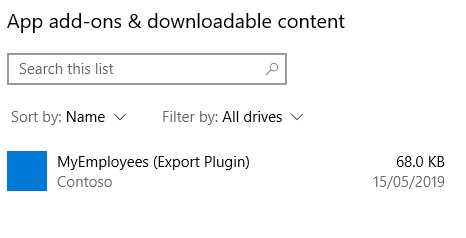
Figure 27: The list of modification packages installed for the selected application
Being separated, modification packages are completely independent from the main application. This means that, as an IT pro, you don’t have to repackage the original application and deploy it from scratch when:
- You need to update the main application with a newer version.
- You need to update the modification package with an updated customization.
- You need to remove the modification package to restore the application to the original configuration.
Create a modification package
The MSIX Packaging Tool supports the creation of modification packages. The flow is the same as creating a main application. The tool will start monitoring all the changes that happen at the file system and at the registry and will include them inside the package. In order to start the process, choose the Modification package option when you launch the tool.
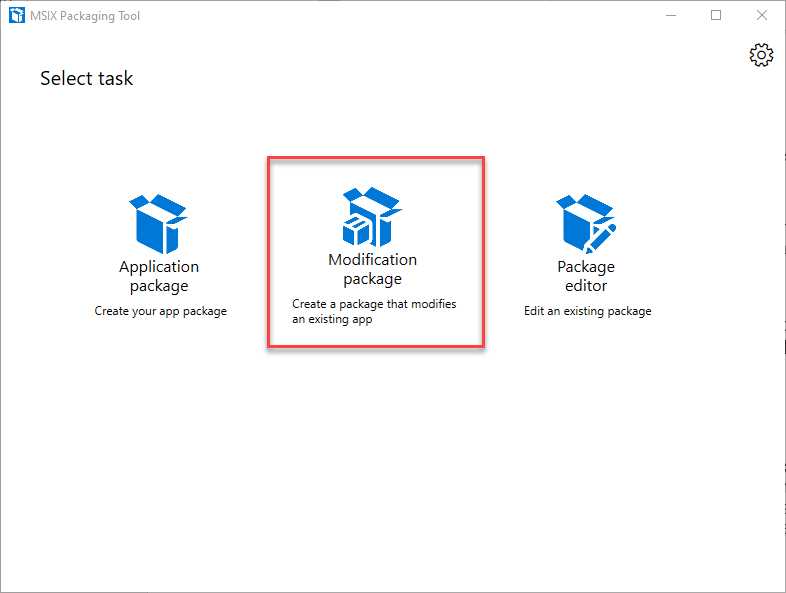
Figure 28: The option in the MSIX Packaging Tool to create a modification package
The process is the same as creating the package for a traditional application. You will be able to start from an installer that deploys the customization, or you can start the monitoring process and then create the files and the registry keys you want to include.
The only difference is in the first step, the one called Select installer.
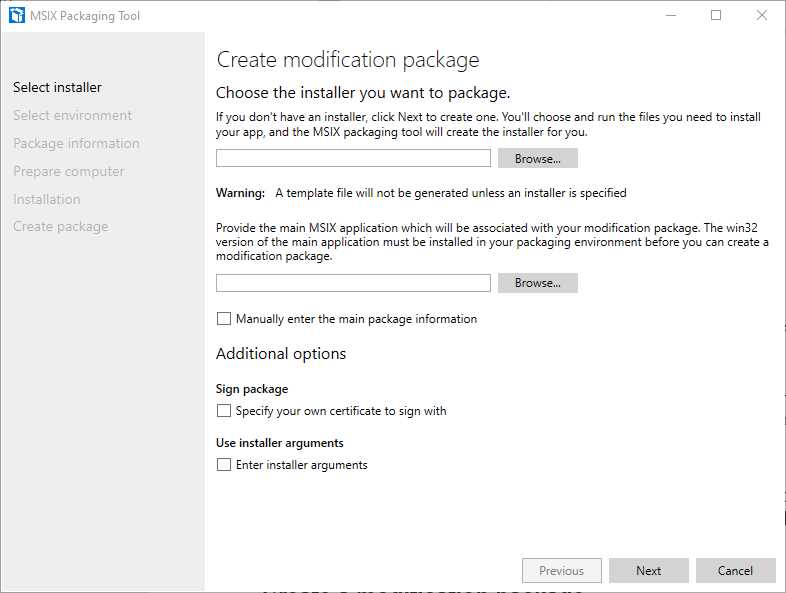
Figure 29: The starting point to create a modification package with the MSIX Packaging Tool
As you can see, unlike the process to create the package for an application, you are required to specify the main MSIX application you want to target. If you already have the MSIX package on your computer, you can click Browse and select it. The tool will automatically extract all the relevant information and add the required MainPackageDependency entry in the manifest. If you don’t have it, you can select the Manually enter the main package information check box to enable two additional fields, where you’ll be able to manually insert the name and the publisher of the package you want to target.
The rest of the process will be the same as the one you followed to create the main application’s package, except that there will be fewer steps. For example, the First launch tasks step will be missing, since a modification package doesn’t have an entry point.
A real example
Let’s see a concrete example of a modification package to better understand how it works. The starting point is an application called MyEmployees, which is a Windows Forms application to handle the employees who work in a company. As you can see from the screenshot in Figure 30, the application has an About page, which comes as a customizable solution. The default text is just a placeholder.
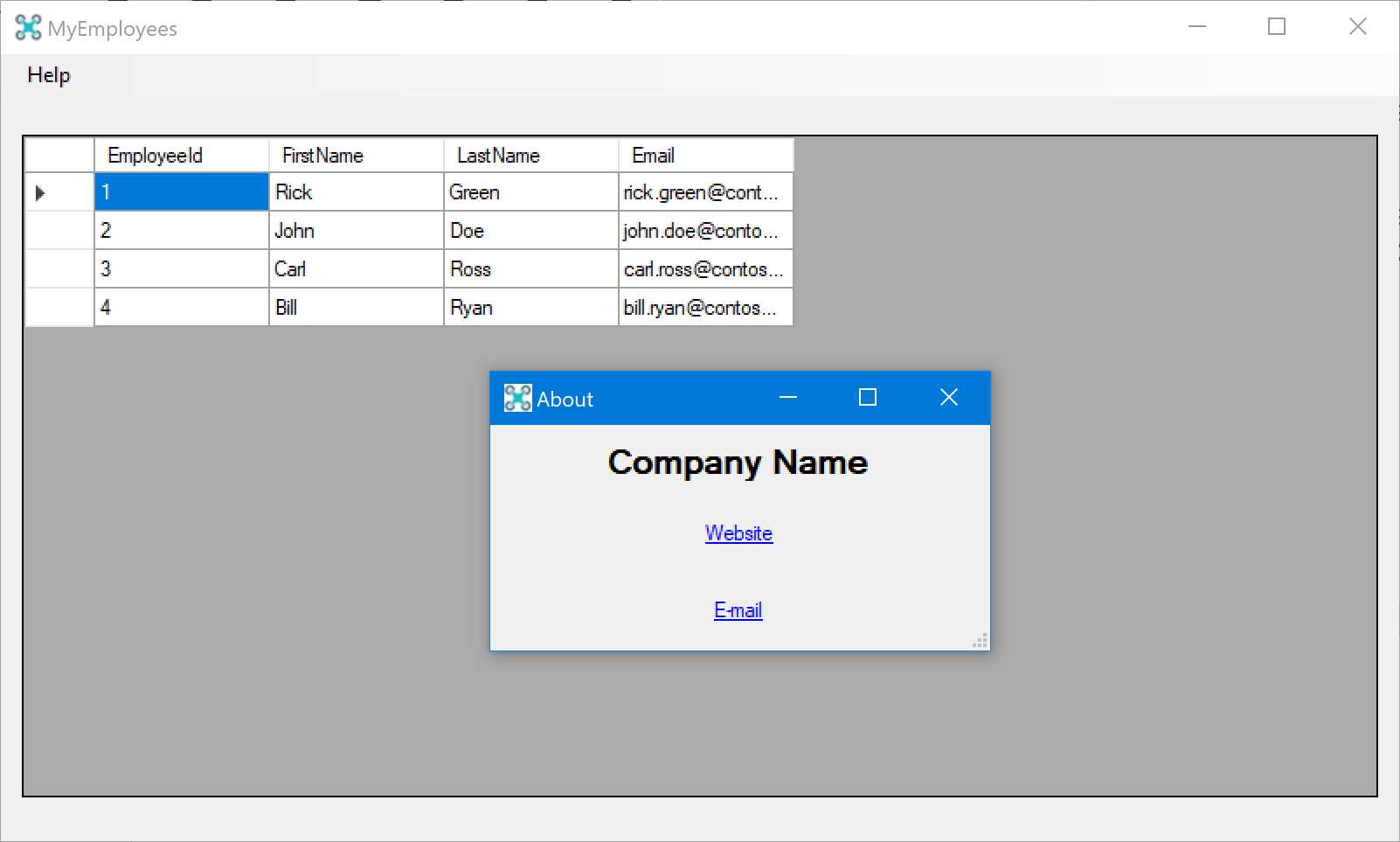
Figure 30: The MyEmployees application with an empty About page
The developer has built this application with the purpose of allowing IT pros to easily configure some settings, including the content of the About page. This is achieved by leveraging a configuration file, called config.json, which the application expects to find in the C:\Program Files (x86)\Contoso\MyEmployees folder. If the file isn’t available, the application will retain the default settings.
This application has been packaged with MSIX, and it doesn’t include a config.json file. As such, when you deploy it, you will see something like the screenshot shown in Figure 30.
The IT department has now built a modification package using the MSIX Packaging Tool, which includes a config.json file like the following one.
Code Listing 8
{ "isCheckForUpdatesEnabled": "false", "about": { "companyName": "Contoso", "supportLink": "http://www.contoso.com", "supportMail": "[email protected]" } } |
Since the main application expects this file to be in the C:\Program Files (x86)\Contoso\MyEmployees folder, the IT engineer has placed it inside the VFS\ProgramFileX86\Contoso\MyEmployees folder of the modification package.

Figure 31: The config.json file inside the VFS folder of the modification package
Once you install the modification package, Windows will treat the VFS folder inside it like it’s part of the main application. This means that the application will succeed when it tries to read the config.json file, even though it wasn’t included in the original package. As such, when you launch the app and you open the About window, you will see the following outcome.
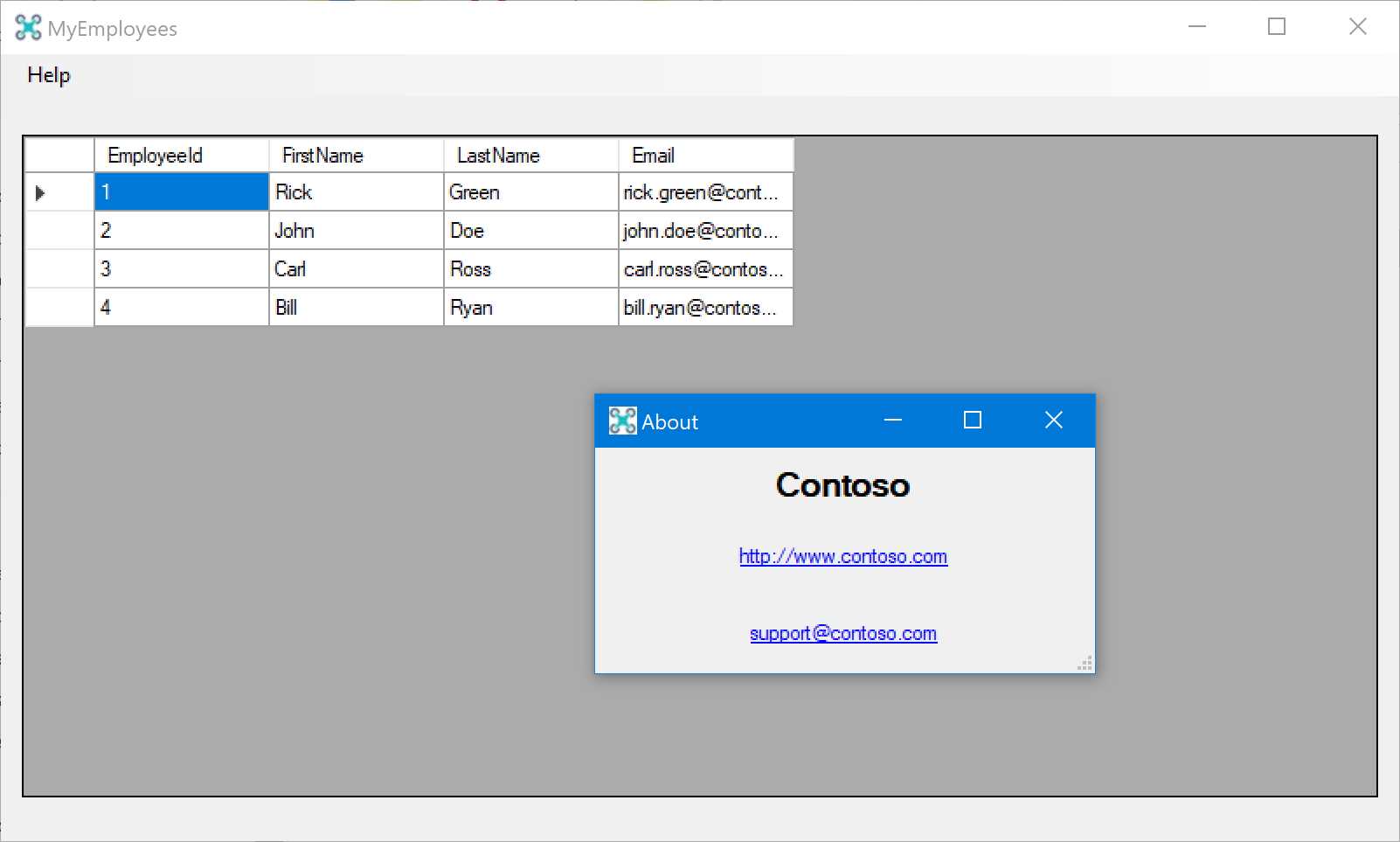
Figure 32: The MyEmployees application after the installation of the modification package
The content of the config.json file has been parsed and converted into the text displayed inside the About window.
Now let’s assume that, after some months since the first deploy, the developer of the application releases a new version that adds a set of new features. The developer shares with the IT department a new MSIX package that contains the newer version of the main application. Since the customization is stored inside the modification package, the IT department can deploy it immediately. The existing customization will be retained, so after the deployment, users will enjoy the new features of the application with the same configuration they were using in the previous version.
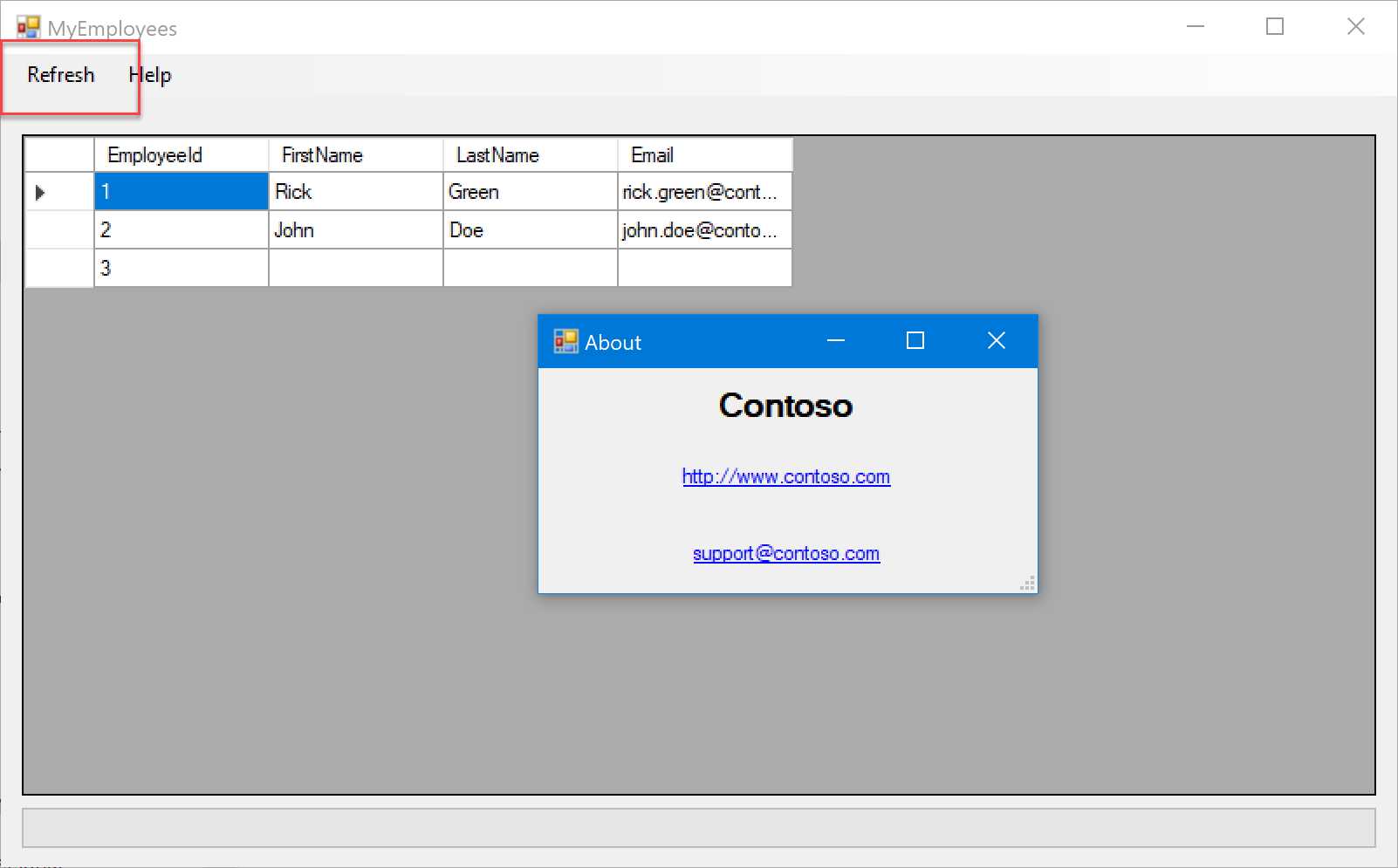
Figure 33: The updated version of the MyEmployees application, which leverages the existing modification package
As you can see in Figure 33, the application now has a new Refresh option in the menu, but the modification package that customizes the content of the About window is still applied.


- 1800+ high-performance UI components.
- Includes popular controls such as Grid, Chart, Scheduler, and more.
- 24x5 unlimited support by developers.