
MonoGame Succinctly®

CHAPTER 4
2D Graphics
The most important part of a game, usually, is what the user sees. I’m aware of only one game that has no graphics, just audio. Given this, it’s pretty important to be able to draw things to the screen. For our game, that will be limited to 2D objects, or sprites.
Since almost all graphics objects are stored as files on a hard drive, we’ll need a way to be able to load them into memory in order to draw them. The first step in this process is to compile all of our assets in such a way that they’re easier to work with than what most frameworks have to go through. Usually, different types of assets have to be loaded differently because of their format or type. While most frameworks give you a way to load an asset easily, they usually don’t offer one way to handle everything. XNA, and thus MonoGame, gave developers the ability to do this by compiling all of their assets into a format that allowed them to be loaded using one class: the ContentManager. The tool that did this was the content pipeline. XNA handled this behind the scenes when you compiled your game. MonoGame uses a separate application, the MonoGame Pipeline Tool, which is installed along with the main MonoGame bits:
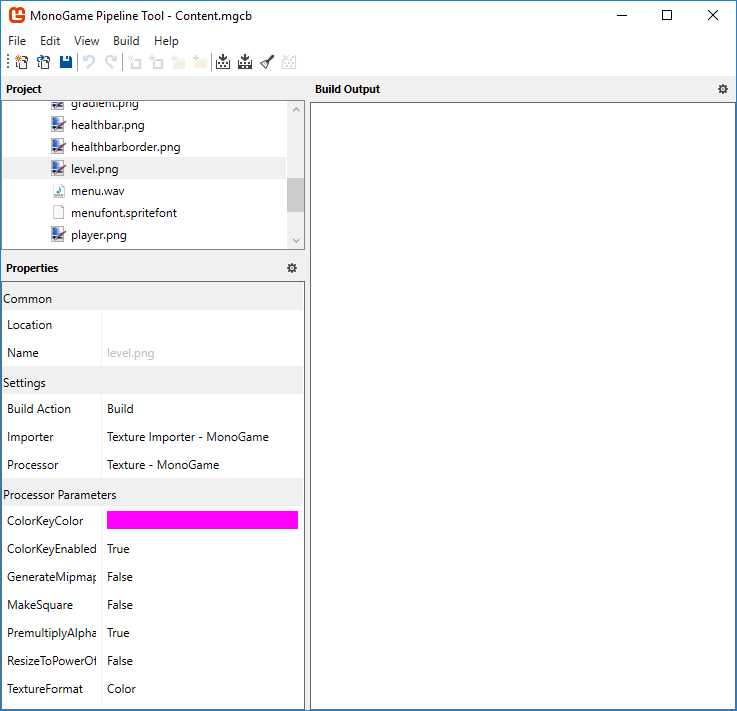
Figure 10 - Pipeline Tool Application
If you have a lot of assets, you may want to organize them into folders of like type or other grouping. Use the New Folder toolbar button or Edit > Add > New Folder menu item.
If you’re converting an XNA game to MonoGame, you can import your assets using the File > Import menu. Clicking this menu item opens a dialog box that allows you to select an XNA Content project file.
If you’re starting from scratch, use the New Item toolbar button or Edit > Add > Existing Item menu to display a dialog box to allow you to select a file to add to the content project, or just drag them into it from a File Explorer window. You can also add an entire folder of assets using the Add Existing Folder or Edit > Add > Existing Folder menu item.
Once you’ve added your assets, click the Build toolbar button or menu item. The Build Output section of the application will show the status of each item. The last item should show a successful build message. The screenshot in Figure 11 shows some of the assets in the downloadable project files for this book. You can add them to the project, and should see something similar when you build the assets.
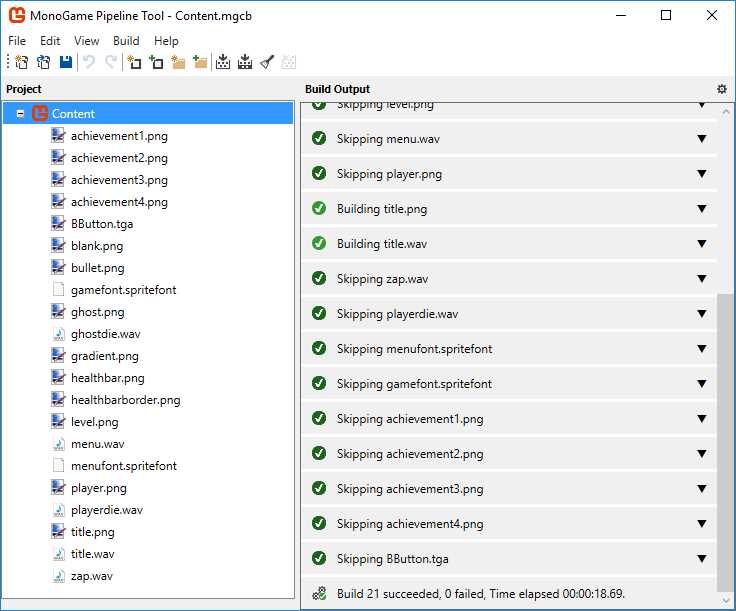
Figure 11 - Successful Build Message
Note that any assets that have already been built will be skipped unless they’re changed.
If you get an error message for any item, make sure it’s a file type that is supported by the tool. Not all graphics or audio types are supported. While you can use custom file types with the tool, it requires a good bit of work from custom importers and processors that is beyond the scope of this book. For sprites, .bmp, .tga, or .png are suggested. For audio, .wav or .mp3 for sound effects and music will work fine.
Once you have a clean build, you’re ready to start loading the assets into objects in memory to use in your game. As I’ve already mentioned, you do this using the ContentManager class.
ContentManager
The Game class comes with a ContentManager member that you use to load graphics into memory. For most simple games, you’ll only need to deal with one property, the RootDirectory, and one method, Load.
As we saw in Chapter 2, the RootDirectory property is set automatically for you in the constructor of the Game class instance if you create your project using the built-in template. This will almost always be the Content folder of the project. I’ve yet to discover a case where you would want to set it to something else.
The Load method uses a type parameter to specify what type of content is being loaded. This can be 2D or 3D graphics, audio files, or sprite fonts (for drawing text). For 2D graphics, the file is usually loaded into a Texture2D object.
You’re usually going to end up needing the ContentManager in other places than the Game class, so you’ll need to either expose the object to over code, or pass it around. I’ve found it easier and cleaner for me to just expose it through a static instance of the Game class. To do this, just add the declaration to the Game class code and a line at the end of the constructor of the Game class instance code:
public static Game1 Instance; public Game1() { ... Instance = this; } |
Code Listing 17 – Game class instance
This allows you to use the ContentManager anywhere simply by doing the following:
Texture2D _level; _level = Game1.Instance.Content.Load<Texture2D>("level"); |
Code Listing 18 – Accessing the Game class instance
Texture2D
At its simplest, a Texture2D object is what’s used to hold a sprite in memory. While the class has a number of overloaded constructors and methods, you’ll rarely need them for simple games. You will probably use three of the members: Bounds, Height, and Width.
The Bounds member is a rectangle that is useful for drawing and collision detection. One of the overloaded Draw methods of the SpriteBatch class takes a destination and source rectangle. You could use this to easily scale a sprite. If you’re not changing the location of a sprite, say UI elements, using this overloaded method could make your code a bit easier to write and read.
The Height and Width members will be used for the same things as the Bounds member. Which you use will depend somewhat on how you set up your code, and what the sprite is used for. If you’re doing a lot of movement of the sprite, you probably don’t want to have to recalculate the destination rectangle every frame, so you’ll probably use the version of the Draw method that takes an X and Y coordinate along with the Height and Width of the sprite.
GraphicsDeviceManager
The GraphicsDeviceManager class is one you’ll use mainly for allowing the player to set options pertaining to graphics. You’ll also use it for setting defaults for your game.
The template we used to create our game adds an instance of this class to the Game1 class. The default resolution is not ideal, however. We’ll add some code to change the default so it’s a little better. Add the two members to the Game1 class and the two lines of code after the creation of the GraphicsDeviceManager in the constructor of the Game1 class:
public static int ScreenWidth = 1024; public static int ScreenHeight = 768; graphics.PreferredBackBufferWidth = Game1.ScreenWidth; graphics.PreferredBackBufferHeight = Game1.ScreenHeight; |
Code Listing 19 – Changing the default window resolution
SpriteBatch
As we saw briefly in the last chapter, the SpriteBatch class is used to handle rendering graphics and text to the screen. Instead of having the developer write code to optimize drawing a lot of different objects to the screen in the most efficient manner possible, the SpriteBatch class does this for you. It does this through the Draw and DrawText methods. Each method is overloaded a number of ways to give you flexibility in how things are drawn to the screen based on the information you have to each object:
Draw(Texture2D, Nullable<Vector2>, Nullable<Rectangle>, Nullable<Rectangle>, Nullable<Vector2>, float, Nullable<Vector2>, Nullable<Color>, SpriteEffects, float) |
Draw(Texture2D, Vector2, Nullable<Rectangle>, Color, float, Vector2, Vector2, SpriteEffects, float) |
Draw(Texture2D, Vector2, Nullable<Rectangle>, Color, float, Vector2, float, SpriteEffects, float) |
Draw(Texture2D, Rectangle, Nullable<Rectangle>, Color, float, Vector2, SpriteEffects, float) |
Draw(Texture2D, Vector2, Nullable<Rectangle>, Color) |
Draw(Texture2D, Rectangle, Nullable<Rectangle>, Color) |
Draw(Texture2D, Vector2, Color) |
Draw(Texture2D, Rectangle, Color) |
DrawString(SpriteFont, string, Vector2, Color, float, Vector2, Vector2, SpriteEffects, float) |
DrawString(SpriteFont, StringBuilder, Vector2, Color, float, Vector2, Vector2, SpriteEffects, float) |
DrawString(SpriteFont, StringBuilder, Vector2, Color, float, Vector2, float, SpriteEffects, float) |
DrawString(SpriteFont, string, Vector2, Color) |
DrawString(SpriteFont, string, Vector2, Color, float, Vector2, float, SpriteEffects, float) |
DrawString(SpriteFont, StringBuilder, Vector2, Color) |
Table 2 – SpriteBatch Draw Methods
Sprite drawing
The various Draw methods handle drawing sprites. The simplest versions require a Texture2D object, a Vector2 indicating the top-left pixel of the screen to draw the sprite or rectangle indicating the region of the screen, and a color. The color will normally be white. Any other color passed will be blended with the sprite.
If you use a rectangle as the destination, the sprite will be stretched or shrunk as needed to fit the region. This could lead to less-than-ideal results, so ensure you test on multiple displays and resolutions when using this version.
Other versions of the method allow you to rotate the sprite, which we’ll be doing, and flip the sprite horizontally or vertically using the SpriteEffects enum:
public enum SpriteEffects { None = 0, FlipHorizontally = 1, FlipVertically = 2 } |
Code Listing 20 – SpriteEffects Enum
Text drawing
The DrawString method draws text. As with the Draw method, there are two simple versions and multiple advanced versions for flexibility. The simple versions take a SpriteFont, string, Vector2 or rectangle, and a Color. The Color draws the text in that color, unlike the sprite version, which blends the sprite with the color.
The DrawString method uses the SpriteEffects enum as a parameter just like the Draw method, although I’m not sure when you’d use it in normal games.
Implementing graphics
Now that we know how to get graphics and text drawn in our game, it’s time to implement this functionality.
First, we need something to draw. We’ll use a class to represent both the character and the ghosts it’ll be fighting that will contain all the information needed to allow both to move and shoot, figure out if they’re still alive, etc. Having one class for both will allow us to easily manage them using another class without knowing which is which, to some extent.
public class Entity { private static Vector2 vecMin, vecMax; private EntityType _type; private int _health; private Vector2 _location; private Direction _moveDirection; private Direction _shootDirection; private float _speed; private int _curFrame; private int _numFrames; private float _animationDelay; private float _frameUpdate; private int _textureWidth; public EntityType Type { get { return _type; } } public int Health { get { return _health; } } public Vector2 Location { get { return _location; } } public Direction MoveDirection { get { return _moveDirection; } set { _moveDirection = value; } } public Direction ShootDirection { get { return _shootDirection; } set { _shootDirection = value; } } public float Speed { get { return _speed; } set { _speed = value; } } public int CurFrame { get { return _curFrame; } set { _curFrame = value; } } public int NumFrames { get { return _numFrames; } set { _numFrames = value; } } public Entity(EntityType type, Vector2 location, Direction orientation, int numFrames, int textureWidth, Game game) { _shootDirection = orientation; _type = type; _location = location; _numFrames = numFrames; _curFrame = 0; _textureWidth = textureWidth; _frameUpdate = 0.0f; //account for the walls of the level (20) and half the sprite size (32) vecMin = new Vector2(20+32, 88+32); vecMax = new Vector2(game.Window.ClientBounds.Width - 20 - 32, game.Window.ClientBounds.Height - 20 - 32); switch (type) { case EntityType.Ghost: _health = ((Game1)game).Difficulty.GhostHealth; break; case EntityType.Player: _health = 100; break; } //ghosts start off moving if (_type == EntityType.Ghost) _speed = ((Game1)game).Difficulty.GhostSpeed; } public int CurFrameX { get { return _curFrame * (_textureWidth / _numFrames); } } public int FrameWidth { get {return _textureWidth / _numFrames;} } public void Update(GameTime gameTime, Vector2 playerLocation) { //if ghost, change move direction if necessary based on player location if (_type == EntityType.Ghost) { //figure out if our current direction is greater than 45 degrees to the player. If so, we need to turn _moveDirection = GetDirectionFromVectors(_location, playerLocation); _shootDirection = _moveDirection; } if (_speed > 0.0f) { switch (_moveDirection) { case Direction.East: _location.X += _speed; break; case Direction.North: _location.Y -= _speed; break; case Direction.NorthEast: _location.Y -= _speed; _location.X += _speed; break; case Direction.NorthWest: _location.Y -= _speed; _location.X -= _speed; break; case Direction.South: _location.Y += _speed; break; case Direction.SouthEast: _location.Y += _speed; _location.X += _speed; break; case Direction.SouthWest: _location.Y += _speed; _location.X -= _speed; break; case Direction.West: _location.X -= _speed; break; } _location = Vector2.Clamp(_location, vecMin, vecMax); } if (_type == EntityType.Ghost) { _frameUpdate += gameTime.ElapsedGameTime.Milliseconds; if (_frameUpdate >= 500.0f) { //increment frame _curFrame++; if (_curFrame > _numFrames - 1) _curFrame = 0; _frameUpdate -= 500.0f; } } } public void DrainLife(int amount) { _health -= amount; } } |
Code Listing 21 – Entity Class
We’ll enhance this class later with functionality for allowing the character to shoot and other necessary gameplay, but for now, this will allow us to get something drawn on the screen.
The first two members are used in the Update method to ensure the character is never drawn outside of the arena. The values are set in the constructor.
The _type member allows us to figure out whether we’re working with the character or ghost in parts of the class:
public enum EntityType { Player, Ghost } |
Code Listing 22 – EntityType Enum
The _location member is where the character is on screen, although not relative to the arena. We figure that out in the Update.
The two Direction members tell us where the character is moving and shooting. Since the character can be rotated, he could be moving in a direction other than forward while he’s shooting. He could also just spin around in a circle without moving. We’ll have eight different directions the character and ghost can face:
public enum Direction { North, NorthEast, East, SouthEast, South, SouthWest, West, NorthWest } |
Code Listing 23 – Direction Enum
The _speed gives us some flexibility in controlling how fast the character can move around the screen, in case a modification to the game is added, such as a quickness powerup that modifies how quickly the character moves.
The next four members are used to control which frame the character animation is to be drawn in. Our character and ghost will have four different frames to simulate movement:
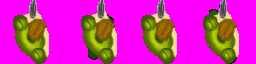
Figure 12 - Character Frames

Figure 13 - Ghost Frames
The _textureWidth member ensures we’re using the correct section of the sprite in drawing the current frame.
The next section of code, from the public accessors to the constructor, are fairly straightforward. The Update method is pretty simple at this point. If the entity is a ghost, we update the direction it’s moving based on the character’s location. We also update the shooting direction member, although it’s not being used at this point. We need to add the method we’re using to the Entity class:
public static Direction GetDirectionFromVectors(Vector2 vecFrom, Vector2 vecTo) { float x = vecTo.X - vecFrom.X; float y = vecTo.Y - vecFrom.Y; float angle = (float)(Math.Atan2(y, x) * 57.2957795); Direction dir; if (angle < 0) { if (angle > -23) dir = Direction.East; else if (angle >= -67) dir = Direction.NorthEast; else if (angle >= -112) dir = Direction.North; else if (angle >= -157) dir = Direction.NorthWest; else dir = Direction.West; } else { if (angle < 23) dir = Direction.East; else if (angle <= 67) dir = Direction.SouthEast; else if (angle <= 112) dir = Direction.South; else if (angle <= 157) dir = Direction.SouthWest; else dir = Direction.West; } return dir; } |
Code Listing 24 – GetDirectionFromVectors Method
We figure out the angle as a float value based off the difference between the two vectors, and use that float to determine the Direction value to return. There’s a lot of hard-coded values here, which isn’t usually ideal, but since this is a relatively small game, it’s not a deal-breaker.
If the entity is moving, we update its location and ensure it doesn’t move outside of the arena by calling the Clamp method.
If the entity is a ghost, we then figure out if enough time has passed to move to the next frame. We also make sure that if the last frame has been reached, we reset to the first one.
Now that we have a class to allow us to create drawable entities, we need to have some code to actually draw them. As I mentioned at the beginning of the section, we’ll use a class to manage the entities:
public class EntityManager //: DrawableGameComponent { Texture2D _ghostTexture; Texture2D _playerTexture; Color[][] _ghostData; Color[][] _playerData; List<Entity> _entities; SpriteBatch _sb; int _score; private float _ghostSpawnTimer; private Vector2[] _ghostSpawnPoints; private Direction[] _ghostSpawnDirections; private Random _rnd; private Vector2 _ghostOrigin; private Vector2 _playerOrigin; public int Score { get { return _score; } } public EntityManager() { _entities= new List<Entity>(); _score = 0; _ghostSpawnTimer = 0.0f; _ghostSpawnPoints = new Vector2[10]; _ghostSpawnDirections = new Direction[10]; _rnd = new Random(); _ghostOrigin = new Vector2(16, 16); _playerOrigin = new Vector2(32, 32); _playerData = new Color[4][]; _ghostData = new Color[4][]; } public void Initialize() { IGraphicsDeviceService graphicsservice = (IGraphicsDeviceService)Game1.Instance.Services.GetService(typeof(IGraphicsDeviceService)); _sb = new SpriteBatch(graphicsservice.GraphicsDevice); _ghostTexture = Game1.Instance.Content.Load<Texture2D>("ghost"); _playerTexture = Game1.Instance.Content.Load<Texture2D>("player"); for (int i = 0; i < 4; i++) { _playerData[i] = new Color[64 * 64]; _playerTexture.GetData(0, new Rectangle(i, 0, 64, 64), _playerData[i], 0, 64 * 64); _ghostData[i] = new Color[32 * 32]; _ghostTexture.GetData(0, new Rectangle(i, 0, 32, 32), _ghostData[i], 0, 32 * 32); } //player starts in the middle of the screen Entity entity = new Entity(EntityType.Player, new Vector2((Game1.Instance.Window.ClientBounds.Width / 2) - ((_playerTexture.Width / 4) / 2), (Game1.Instance.Window.ClientBounds.Height / 2 - _playerTexture.Height / 2) + 60), Direction.North, 4, _playerTexture.Width, Game1.Instance); _entities.Add(entity); _ghostSpawnPoints[0] = new Vector2(240, Game1.LevelTop); _ghostSpawnPoints[1] = new Vector2(496, Game1.LevelTop); _ghostSpawnPoints[2] = new Vector2(752, Game1.LevelTop); _ghostSpawnPoints[3] = new Vector2(1023,284); _ghostSpawnPoints[4] = new Vector2(1023,516); _ghostSpawnPoints[5] = new Vector2(752,776); _ghostSpawnPoints[6] = new Vector2(496,776); _ghostSpawnPoints[7] = new Vector2(240,776); _ghostSpawnPoints[8] = new Vector2(0,516); _ghostSpawnPoints[9] = new Vector2(0,284); _ghostSpawnDirections[0]=Direction.South; _ghostSpawnDirections[1]=Direction.South; _ghostSpawnDirections[2]=Direction.South; _ghostSpawnDirections[3]=Direction.West; _ghostSpawnDirections[4]=Direction.West; _ghostSpawnDirections[5]=Direction.North; _ghostSpawnDirections[6]=Direction.North; _ghostSpawnDirections[7]=Direction.North; _ghostSpawnDirections[8]=Direction.East; _ghostSpawnDirections[9]=Direction.East; //start with 4 ghosts initially for (int i = 0; i < 4; i++) SpawnGhost(); } protected void Dispose() { _entities.Clear(); } public void Update(GameTime gameTime) { //get the ScreenManager and check for paused state ScreenManager screenManager = (ScreenManager)Game1.Instance.Components[0]; if (screenManager.GetScreens()[0].IsActive) { //check for ghost spawn _ghostSpawnTimer += gameTime.ElapsedGameTime.Milliseconds; if (_ghostSpawnTimer >= 3000.0f) { //get random location SpawnGhost(); _ghostSpawnTimer -= 3000.0f; } foreach (Entity entity in _entities) entity.Update(gameTime, _entities[0].Location); for (int i = _entities.Count - 1; i > 0; i--) { if (CheckEntityCollision(_entities[i])) { //drain life _entities[0].DrainLife(Game1.Instance.Difficulty.HealthDrain); _entities.Remove(_entities[i]); if (_entities.Count == 1) break; } } for (int i = _entities.Count - 1; i > 0; i--) { if (_entities[0].CheckBulletCollision(_entities[i])) { _entities[i].DrainLife(1); if (_entities[i].State == EntityState.Dead) { _score += Game1.Instance.Difficulty.GhostScore; _entities.Remove(_entities[i]); } if (_entities.Count == 1) break; } } } } public void Draw(GameTime gameTime) { //base.Draw(gameTime); _sb.Begin(); Vector2 origin; float rot; foreach (Entity entity in _entities) { rot = (int)entity.MoveDirection * MathHelper.ToRadians(45.0f); switch (entity.Type) { case EntityType.Ghost: { origin = new Vector2(_ghostTexture.Width / entity.NumFrames / 2, _ghostTexture.Height / 2); _sb.Draw(_ghostTexture, new Rectangle((int)entity.Location.X, (int)entity.Location.Y, entity.FrameWidth, _ghostTexture.Height), new Rectangle(entity.CurFrameX, 0, entity.FrameWidth, _ghostTexture.Height), Color.White, rot, origin, SpriteEffects.None, 0.0f); break; } case EntityType.Player: { origin = new Vector2(_playerTexture.Width / entity.NumFrames / 2, _playerTexture.Height / 2); _sb.Draw(_playerTexture, new Rectangle((int)entity.Location.X, (int)entity.Location.Y, entity.FrameWidth, _playerTexture.Height), new Rectangle(entity.CurFrameX, 0, entity.FrameWidth, _playerTexture.Height), Color.White, rot, origin, SpriteEffects.None, 0.0f); entity.DrawBullets(_sb); break; } } }
_sb.End(); } public int GetPlayerHealth() { if (_entities.Count > 0) { return _entities[0].Health; } else return 0; } private void SpawnGhost() { int num = _rnd.Next(0, 10); _entities.Add(new Entity(EntityType.Ghost, _ghostSpawnPoints[num], _ghostSpawnDirections[num], 4, _ghostTexture.Width, _game)); } public bool CheckEntityCollision(Entity entity) { Rectangle playerRect; Rectangle ghostRect; Matrix matrix1, matrix2; matrix1 = Matrix.CreateTranslation(new Vector3(-_ghostOrigin, 0.0f)) * Matrix.CreateRotationZ(GetRotationFromDirection(entity.MoveDirection)) * Matrix.CreateTranslation(new Vector3(entity.Location.X, entity.Location.Y, 0.0f)); ghostRect = new Rectangle((int)entity.Location.X, (int)entity.Location.Y, 32, 32); matrix2 = Matrix.CreateTranslation(new Vector3(-_playerOrigin, 0.0f)) * Matrix.CreateRotationZ(GetRotationFromDirection(_entities[0].MoveDirection)) * Matrix.CreateTranslation(new Vector3(_entities[0].Location.X, _entities[0].Location.Y, 0.0f)); playerRect = new Rectangle((int)_entities[0].Location.X, (int)_entities[0].Location.Y, 64, 64); //check for collision using rects first since per-pixel is costly if (ghostRect.Intersects(playerRect)) { if (Intersect(matrix1, matrix2, 32, 64, 32, 64, _ghostData[entity.CurFrame], _playerData[_entities[0].CurFrame])) return true; } return false; } private float GetRotationFromDirection(Direction dir) { float ret = 0.0f; switch (dir) { case Direction.North: ret = -1.570796f; break; case Direction.NorthEast: ret = -0.785398f; break; case Direction.East: ret = 0.0f; break; case Direction.SouthEast: ret = 0.785398f; break; case Direction.South: ret = 1.570796f; break; case Direction.SouthWest: ret = 2.356194f; break; case Direction.West: ret = 3.141593f; break; case Direction.NorthWest: ret = -2.356194f; break; } return ret; } private bool Intersect(Matrix matrix1, Matrix matrix2, int spriteWidth1, int spriteWidth2, int spriteHeight1, int spriteHeight2, Color[] data1, Color[] data2) { Matrix transform = matrix1 * Matrix.Invert(matrix2); Vector2 rowX = Vector2.TransformNormal(Vector2.UnitX, transform); Vector2 rowY = Vector2.TransformNormal(Vector2.UnitY, transform); Vector2 yPos = Vector2.Transform(Vector2.Zero, transform); for (int i = 0; i < spriteHeight1; i++) { Vector2 pos = yPos; for (int j = 0; j < spriteWidth1; j++) { int i2 = (int)Math.Round(pos.X); int j2 = (int)Math.Round(pos.Y); if (0 <= i2 && i2 < spriteWidth2 && 0 <= j2 && j2 < spriteHeight2) { Color color1 = data1[i + j * spriteWidth1]; Color color2 = data2[i2 + j2 * spriteWidth2]; if (color1.A != 0 && color2.A != 0) return true; } pos += rowX; } yPos += rowY; } return false; } } |
Code Listing 25 – EntityManager Class
We have our two Texture2D objects that hold the graphics file for the character and ghost. As we’ve seen, this file has the four frames for the animation for each sprite. The two Color arrays hold the color of each pixel for each frame. This data is used in the Intersect method to determine if two sprites have collided. Since an animation frame has to be rectangular, there will be areas in the frame that aren’t part of the actual sprite. If the intersection of two sprites was simply based on the frame rectangle, an inaccurate result would happen:
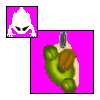
Figure 14 - Inaccurate Collision Detection
Figure 14 shows the ghost frame intersecting with the player frame, but you can see that the actual sprites aren’t touching. This would be very noticeable in the game and lead the player to think the game was slightly broken. Using the color array data, we can see if two non-magenta colors are overlapping, meaning a valid collision has occurred.
In the _entities list, the player character will always be the first object, as you’ll notice in the Initialize method. Since that entity is handled a bit differently, we need to know where it is.
The next four members are used in spawning ghosts, as you can tell by their names. The _ghostSpawnTimer value varies by the difficulty level. The _ghostSpawnPoints are the doorway areas in the arena graphic:
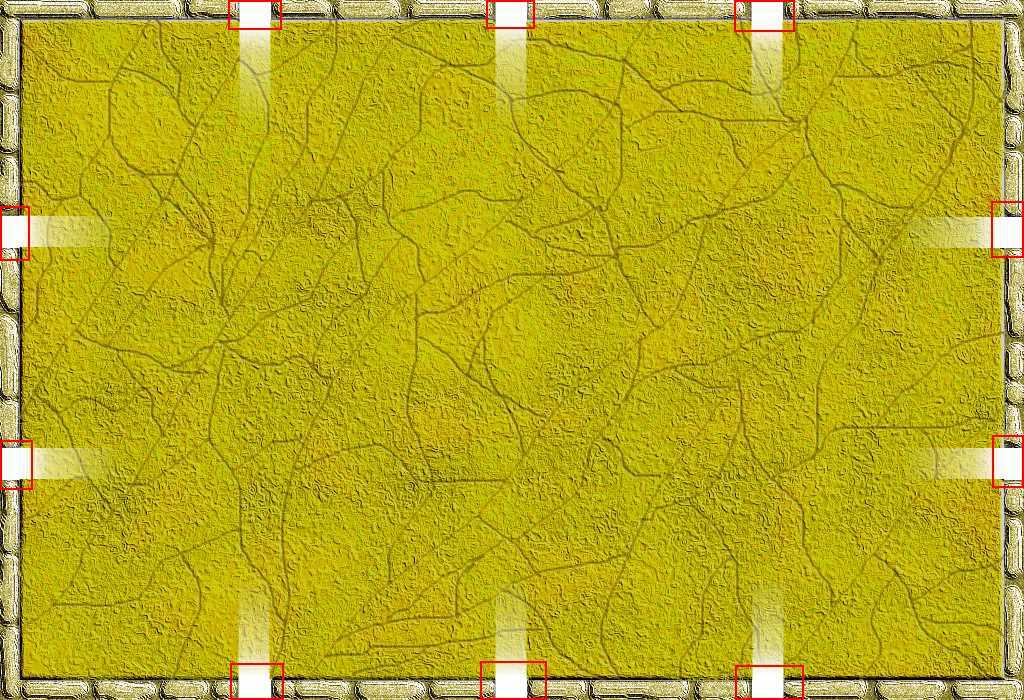
Figure 15 - Ghost Spawn Points
The _ghostSpawnDirections match the _ghostSpawnPoints—points at the top have a direction of South, points at the right have a direction of West, etc.
The _rnd member is used to pick a random spawn point when a ghost spawns.
The two origin members are used for collision detection between the ghosts and character. Since they can rotate, we need to do some calculations before we can accurately detect a collision between the two.
When the EntityManager object is initialized, the sprite for the player character and ghosts are loaded and the color data for each frame of each sprite is obtained. The player Entity object is then created and placed in the middle of the screen. The spawn points for the ghosts is then set. The x and y coordinates for each spawn point are hard-coded except for the y coordinate of the three spawn points at the top of the arena, since that location is known and will not change as the area above that location is used for displaying game information. The last thing that happens is that the initial four ghosts are spawned.
The Update method is pretty simple—if the gameplay screen is active, we update the time check for spawning ghosts first. Note that the index into the screen array is hard-coded; not the best thing to do, but for a fairly simple game, we know this will always be correct. If you implement functionality before the gameplay that keeps a screen loaded when the gameplay screen starts, this will cause problems. A way to fix this would be to search the loaded screens for the GameplayScreen instance and use that object. We then update each entity by calling its Update method. After this, we check for collisions between the player character and the ghosts, then between ghosts and bullets.
The Draw method is also pretty straightforward. The entity array is gone through, and each entity is drawn based on its movement direction. If the entity is the player character, the active bullets are also drawn.
While we’re not at the point yet where we have bullets flying around the screen, we’ll add a stub method to the Enity class so we don’t get a compile error:
public void DrawBullets(SpriteBatch sb) {
} |
Code Listing 26 – DrawBullets Stub Method
There’s a static member in the Game class that needs to be added:
public class Game1 : Game { public static int LevelTop = 68; } |
Code Listing 27 – Game Class Static Member
The EntityManager is used by the GameplayScreen. A number of other sprites and text are drawn in the GameplayScreen as well. We’ll add the skeleton code for that screen now and enhance it in later chapters so that we can at least get the sprites drawing on the screen.
class GameplayScreen : GameScreen { Texture2D _level; Texture2D _healthbar; Texture2D _healthbarBorder; Rectangle _rectHealthBorder; Vector2 _levelLocation; Vector2 _scoreLocation; SpriteFont _scoreFont; EntityManager _entityManager; Vector2 _curLevelLoc;
public GameplayScreen() { TransitionOnTime = TimeSpan.FromSeconds(1.5); TransitionOffTime = TimeSpan.FromSeconds(0.5); } public override void Initialize() { _entityManager = new EntityManager(); _entityManager.Initialize(); _levelLocation = new Vector2(0, Game1.LevelTop); _scoreLocation = new Vector2(900, 32); _curLevelLoc = new Vector2(10, 10); _rectHealthBorder = new Rectangle(ScreenManager.Game.Window.ClientBounds.Width / 2 - 101, 10, 202, 18); } public override void LoadContent() { _level = Game1.Instance.Content.Load<Texture2D>("level"); _scoreFont = Game1.Instance.Content.Load<SpriteFont>("gamefont"); _healthbar = Game1.Instance.Content.Load<Texture2D>("healthbar"); _healthbarBorder = Game1.Instance.Content.Load<Texture2D>("healthbarborder"); } public override void Update(GameTime gameTime, bool otherScreenHasFocus, bool coveredByOtherScreen) { base.Update(gameTime, otherScreenHasFocus, coveredByOtherScreen); } public override void Draw(GameTime gameTime) { ScreenManager.GraphicsDevice.Clear(ClearOptions.Target, Color.Black, 0, 0); Vector2 timeLoc = new Vector2(ScreenManager.GraphicsManager.PreferredBackBufferWidth / 2 - _scoreFont.MeasureString("Time Remaining: " + _remainingTime.ToString()).X / 2, 40.0f); ScreenManager.SpriteBatch.Begin(); ScreenManager.SpriteBatch.Draw(_level, _levelLocation, Color.White); ScreenManager.SpriteBatch.Draw(_healthbarBorder, _rectHealthBorder, Color.White); ScreenManager.SpriteBatch.Draw(_healthbar, new Rectangle(_rectHealthBorder.Left + 1, _rectHealthBorder.Top + 1, _entityManager.GetPlayerHealth() * 2, 16), Color.White); ScreenManager.SpriteBatch.DrawString(_scoreFont, "score: " + _entityManager.Score.ToString(), _scoreLocation, Color.White); ScreenManager.SpriteBatch.End(); _entityManager.Draw(gameTime); // If the game is transitioning on or off, fade it out to black. if (TransitionPosition > 0) ScreenManager.FadeBackBufferToBlack(255 - TransitionAlpha); } } |
Code Listing 28 – GameplayScreen Class
The GameplayScreen draws the level graphic, the graphic that shows the health of the character, and the player’s score. Later on we’ll add drawing the timer for the game that’s used in conjuction with the game difficulty, but we don’t need that for now.
The character’s health is divided into two pieces: the border, and a rectangle that is scaled from filling the border to nothing based on the amount of health remaining to the character. If you looked earlier when we added the graphics files to the content pipeline tool, you would have seen that the healthbar graphic is just a single green pixel. The overloaded version of the Draw method that we’re using to draw the inner part of the healthbar takes a rectangle parameter, with which the method automatically scales whatever Texture2D object you pass to fill the rectangle. This can lead to unexpected results on the screen, depending on the graphic file you load into the Texture2D object. A graphic containing multiple colors for an image of some object could display less than ideally, depending on how you scale the object. Drawing the object much larger than the original image could lead to a pixelated image onscreen. Drawing the character sprite several times larger than the original image, for example, would make the character look something like the following:
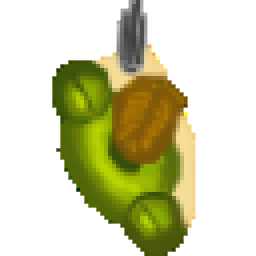
Figure 16 - Scaled Character
The pixels in the scaled character are very noticeable in the stretched image. There is a way to deal with this using mipmaps, but that’s beyond the scope of this book. If you really need to display a graphic at multiple size where stretching the image would lead to pixilation, feel free to research mipmaps.
Now that we have some drawing functionality, we need to modify some of the screens to add this functionality. The ScreenManager class needs some new members:
IGraphicsDeviceService _graphicsDeviceService; GraphicsDeviceManager _graphicsDeviceManager; SpriteBatch _spriteBatch; SpriteFont _font; Texture2D _blankTexture; |
Code Listing 29 – ScreenManager Class graphics members
|
/// <summary> /// Expose access to our graphics device (this is protected in the /// default DrawableGameComponent, but we want to make it public). /// </summary> new public GraphicsDevice GraphicsDevice { get { return base.GraphicsDevice; } } public SpriteBatch SpriteBatch { get { return _spriteBatch; } } public SpriteFont Font { get { return _font; } } public GraphicsDeviceManager GraphicsManager { get { return _graphicsDeviceManager; } } public ScreenManager(Game game, GraphicsDeviceManager graphicsDeviceManager) : base(game) { _graphicsDeviceManager = graphicsDeviceManager; _graphicsDeviceService = (IGraphicsDeviceService)game.Services.GetService( typeof(IGraphicsDeviceService)); if (_graphicsDeviceService == null) throw new InvalidOperationException("No graphics device service."); } public void FadeBackBufferToBlack(int alpha) { Viewport viewport = GraphicsDevice.Viewport; _spriteBatch.Begin(); _spriteBatch.Draw(_blankTexture, new Rectangle(0, 0, viewport.Width, viewport.Height), new Microsoft.Xna.Framework.Color((byte)0, (byte)0, (byte)0, (byte)alpha));
_spriteBatch.End(); } |
Code Listing 30 – ScreenManager Class Graphics Methods
We also need to update some of the existing methods to add drawing functionality:
protected override void LoadContent() { // Load content belonging to the screen manager. _spriteBatch = new SpriteBatch(GraphicsDevice); _font = Game1.Instance.Content.Load<SpriteFont>("menufont"); _blankTexture = Game1.Instance.Content.Load<Texture2D>("blank"); } public void AddScreen(GameScreen screen) { . . . if ((_graphicsDeviceService != null) && (_graphicsDeviceService.GraphicsDevice != null)) { screen.LoadContent(); } } public void RemoveScreen(GameScreen screen) { . . . if ((_graphicsDeviceService != null) && (_graphicsDeviceService.GraphicsDevice != null)) { screen.UnloadContent(); } } |
Code Listing 31 – ScreenManager Class Updated Methods
In the GameplayScreen class, we’re not yet drawing the time remaining or level, so let’s add that. The following code should be placed right before the ScreenManager.SpriteBatch.End(); line:
_displayMinutes = _remainingTime >= 60 ? ((int)(_remainingTime / 60)).ToString() : ""; ScreenManager.SpriteBatch.DrawString(_scoreFont, "Time Remaining: " + _displayMinutes + ":" + ((int)(_remainingTime % 60)).ToString("00"), timeLoc, Color.Red); ScreenManager.SpriteBatch.DrawString(_scoreFont, "Level: " + _curLevel.ToString(), _curLevelLoc, Color.White); |
Code Listing 32 – GameplayScreen Class Draw Method Code
The MenuScreen class gets some additional code to add a pulse effect to the selected menu item:
public override void Draw(GameTime gameTime) { . . . // Draw each menu entry in turn. ScreenManager.SpriteBatch.Begin(); for (int i = 0; i < _menuEntries.Count; i++) { Color color; float scale; if (IsActive && (i == _selectedEntry)) { // The selected entry is yellow, and has an animating size. double time = gameTime.TotalGameTime.TotalSeconds; float pulsate = (float)Math.Sin(time * 6) + 1;
color = Color.Yellow; scale = 1 + pulsate * 0.05f; } else { // Other entries are white. color = Color.White; scale = 1; } // Modify the alpha to fade text out during transitions. color = new Color(color.R, color.G, color.B, TransitionAlpha); // Draw text, centered on the middle of each line. Vector2 origin = new Vector2(0, ScreenManager.Font.LineSpacing / 2); ScreenManager.SpriteBatch.DrawString(ScreenManager.Font, _menuEntries[i], position, color, 0, origin, scale, SpriteEffects.None, 0); position.Y += ScreenManager.Font.LineSpacing; } ScreenManager.SpriteBatch.End(); } |
Code Listing 33 – MenuScreen Class Updated Method
The MessageBoxScreen class needs some updating to make the portion of the screen not covered by the message box:
public override void Draw(GameTime gameTime) { // Darken down any other screens that were drawn beneath the popup. _screenManager.FadeBackBufferToBlack(TransitionAlpha * 2 / 3); // Center the message text in the viewport. Viewport viewport = _screenManager.GraphicsDevice.Viewport; Vector2 viewportSize = new Vector2(viewport.Width, viewport.Height); Vector2 textSize = _screenManager.Font.MeasureString(_message); Vector2 textPosition = (viewportSize - textSize) / 2; // The background includes a border somewhat larger than the text itself. const int hPad = 32; const int vPad = 16; Rectangle backgroundRectangle = new Rectangle((int)textPosition.X - hPad, (int)textPosition.Y - vPad, (int)textSize.X + hPad * 2, (int)textSize.Y + vPad * 2); // Fade the popup alpha during transitions. Microsoft.Xna.Framework.Color color = new Microsoft.Xna.Framework.Color((byte)255, (byte)255, (byte)255, TransitionAlpha); _screenManager.SpriteBatch.Begin(); // Draw the background rectangle. _screenManager.SpriteBatch.Draw(_gradientTexture, backgroundRectangle, color); // Draw the message box text. _screenManager.SpriteBatch.DrawString(_screenManager.Font, _message, textPosition, color); _screenManager.SpriteBatch.End(); } |
Code Listing 34 – MessageBoxScreen Class Updated Method
The OptionsMenuScreen needs an additional line to toggle the screen between full-screen and windowed mode. Add this line in the case 0 section in the OnSelectEntry method:
ScreenManager.GraphicsManager.ToggleFullScreen(); |
Code Listing 35 – OptionsMenuScreen Class Toggle Full-Screen Code
The LoadingScreen gets some code added to the if(_loadingIsSlow) block in the Draw method:
Viewport viewport = ScreenManager.GraphicsDevice.Viewport; Vector2 viewportSize = new Vector2(viewport.Width, viewport.Height); Vector2 textSize = ScreenManager.Font.MeasureString(message); Vector2 textPosition = (viewportSize - textSize) / 2; Microsoft.Xna.Framework.Color color = new Microsoft.Xna.Framework.Color((byte)255, (byte)255, (byte)255, TransitionAlpha); // Draw the text. ScreenManager.SpriteBatch.Begin();
ScreenManager.SpriteBatch.DrawString(ScreenManager.Font, message, textPosition, color);
ScreenManager.SpriteBatch.End(); |
Code Listing 36 – LoadingScreen Update Draw Method Code
We can now add the missing drawing functionality to the HighScoreScreen class, along with the graphics:
private SpriteFont _titleFont; private Texture2D _buttonB; public override void LoadContent() { _titleFont = Game1.Instance.Content.Load<SpriteFont>("menufont"); _buttonB = Game1.Instance.Content.Load<Texture2D>("BButton"); . . . } public override void Draw(GameTime gameTime) { Vector2 textPosition; ScreenManager.GraphicsDevice.Clear(ClearOptions.Target, Color.Black, 0, 0); Microsoft.Xna.Framework.Color color = new Microsoft.Xna.Framework.Color((byte)0, (byte)255, (byte)0, TransitionAlpha); ScreenManager.SpriteBatch.Begin(); //draw title Vector2 titleSize = _titleFont.MeasureString("High Scores"); textPosition = new Vector2(ScreenManager.GraphicsDevice.Viewport.Width / 2 - titleSize.X / 2, 5); ScreenManager.SpriteBatch.DrawString(_titleFont, "High Scores", textPosition, color); color = new Microsoft.Xna.Framework.Color((byte)255, (byte)255, (byte)255, TransitionAlpha); //draw header textPosition = new Vector2(50, 100); ScreenManager.SpriteBatch.DrawString(ScreenManager.Font, "Date", textPosition, color); ScreenManager.SpriteBatch.DrawString(ScreenManager.Font, "Score", textPosition + new Vector2(250,0), color); ScreenManager.SpriteBatch.DrawString(ScreenManager.Font, "Level", textPosition + new Vector2(400, 0), color); int count = 0; //loop through list and draw each item if (_list.Scores != null) { foreach (HighScore item in _list.Scores) { textPosition = new Vector2(50, 150 + 50 * count); ScreenManager.SpriteBatch.DrawString(ScreenManager.Font, item.Date, textPosition, color); ScreenManager.SpriteBatch.DrawString(ScreenManager.Font, item.Score.ToString(), textPosition + new Vector2(250, 0), color); ScreenManager.SpriteBatch.DrawString(ScreenManager.Font, item.Level.ToString(), textPosition + new Vector2(400, 0), color); count++; } } ScreenManager.SpriteBatch.Draw(_buttonB, new Rectangle(800, 700, 48, 48), Color.White); ScreenManager.SpriteBatch.DrawString(ScreenManager.Font, "Back", new Vector2(855, 700), Color.White); ScreenManager.SpriteBatch.End(); if (TransitionPosition > 0) ScreenManager.FadeBackBufferToBlack(255 - TransitionAlpha); } |
Code Listing 37 – HighScoreScreen Class Draw Method
The PauseMenuScreen needs just one line to fade the screen:
public override void Draw(GameTime gameTime) { _screenManager.FadeBackBufferToBlack(TransitionAlpha * 2 / 3); . . . } |
Code Listing 38 – PauseMenuScreen Class Updated Draw Method
At this point we have just about everything being drawn to the screen to allow us to play the game. Unfortunately, we don’t have a way of moving the character around the screen, so it would quickly die. It’s time to fix that by implementing an input system.


- 1800+ high-performance UI components.
- Includes popular controls such as Grid, Chart, Scheduler, and more.
- 24x5 unlimited support by developers.