
MongoDB 3 Succinctly®

CHAPTER 10
Binary Data (File Handling) in C#
In Chapter 1, we mentioned the fact that the BSON documents stored in the MongoDB database have a hard limit of 16 megabytes. This is for both memory usage and performance reasons. MongoDB offers a possibility, however, to store files larger than 16 megabytes.
GridFS is a MongoDB specification and a way of storing binary information larger than the maximum document size. GridFS It is kind of a file system to store files, but its data is stored within MongoDB collections.
When the file is uploaded to GridFS, instead of storing a file in a single document, GridFS divides a file into parts called chunks. Each chunk is a separate document and has a maximum of 255 kilobytes of data. When the file is downloaded (retrieved) from GridFS, the original content is reassembled.
GridFS by default uses two collections to store the file’s metadata (fs.files) and chunks (fs.chunks). As happens for any other document in MongoDB, each chunk is identified by its unique _id, which is of type ObjectId field. The fs.files acts as a parent document. The files_id assigned to a chunk holds a reference to its parent.

Figure 44: GridFS chunks.
When working in C#, we have to always use an object called GridFSBucket in order to interact with the underlying GridFS system. We should avoid directly accessing the underlying collections.
In order to use the GridFS from the MongoDB driver, we have to install the MongoDB.Driver.GridFS package from NuGet.
Uploading files
There are mainly two ways of uploading a file: either by specifying the location on the disk (from the client), or by submitting the data to a Stream object that the driver supplies.
One of the easiest ways to upload a file is by using the byte array. We will store the file in the database called file_store.
In the following example, we can see that we are instantiating a new instance of the GridFSBucket object, which will then be responsible for uploading the file via the UploadFromBytes method. To get the file byte data, we simply use the .NET standard File.ReadAllBytes method from the System.IO namespace.
Code Listing 108: Storing a file into MongoDB via GridFSBucket
public static void UploadFile() { var database = DatabaseHelper.GetDatabaseReference("localhost", "file_store");
IGridFSBucket bucket = new GridFSBucket(database);
byte[] source = File.ReadAllBytes("sample.pdf");
ObjectId id = bucket.UploadFromBytes("sample.pdf", source);
Console.WriteLine(id.ToString()); } |
This code generates the result shown in Figure 45. We can see that one entry in the fs.files collection has been created, and one entry (for the sake of space, we cannot see the full content) in the fs.chunks. We can also see that the chunk itself contains a pointer to the fs.files metadata through the files_id property.
The result returned by the method is the newly created ObjectId.
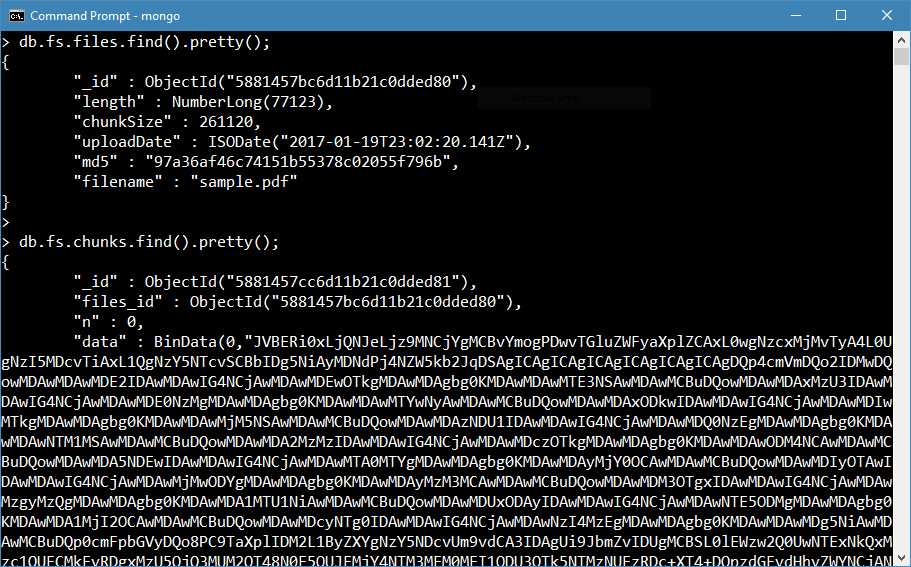
Figure 45: Database after uploading the file
Uploading files from a stream
There are also other ways of uploading the files, such as uploading from a file stream. The idea here is that instead of returning the byte array of a file, we supply the input information in the form of a Stream object.
Code Listing 109: Uploading a file from a stream
public static void UploadFileFromAStream() { var database = DatabaseHelper.GetDatabaseReference("localhost", "file_store");
IGridFSBucket bucket = new GridFSBucket(database); Stream stream = File.Open("sample.pdf", FileMode.Open); var options = new GridFSUploadOptions() { Metadata = new BsonDocument() { {"author", "Mark Twain"}, {"year", 1900} } };
var id = bucket.UploadFromStream("sample.pdf", stream, options);
Console.WriteLine(id.ToString()); } |
In pretty much the same way as before, when updating a byte array by opening a file through File.Open, we obtain the stream object and pass it to the GridFSBucket.
One interesting thing is that there is another parameter available to pass the options to the UploadFromStream, where we can add some metadata to the file being uploaded. The metadata is again a BsonDocument, and it can have any structure we like.
After running the previous code, we get the following stored in the database. We can see that the metadata is now shown in the fs.files collection. The fs.chunks, as displayed in Figure 46, doesn’t show the data attribute (which contains the byte code) intentionally.
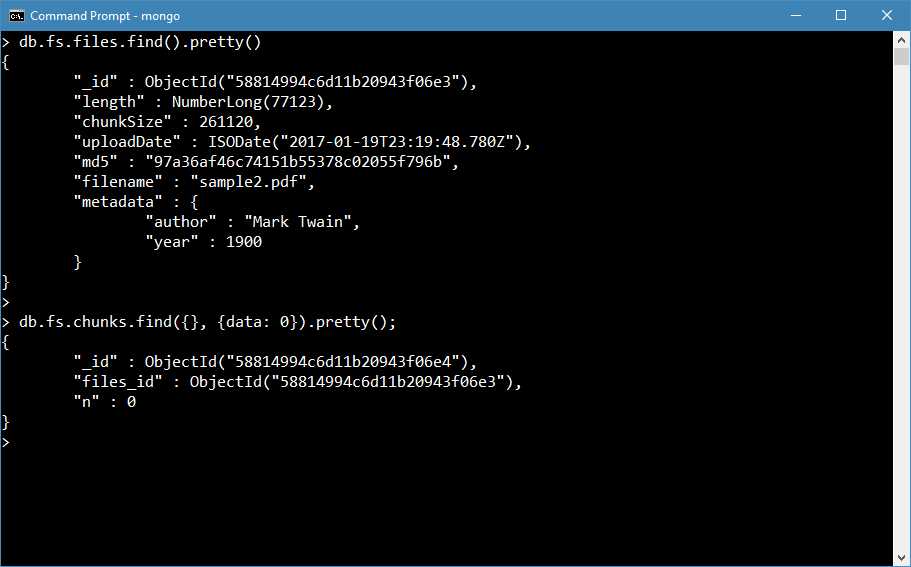
Figure 46: File uploaded with metadata
One very important thing to mention is the fact that if the file with the same name gets sent to the GridFS, then this file will be treated as a new version of that particular file.
Downloading files
There are a few ways to download a file from GridFS; the two main approaches are downloading the file as a byte array, and receiving back a Stream object from the driver.
It’s possible to download files by using one of the following methods:
Table 19: Methods for downloading files
DownloadAsBytes DownloadAsBytesAsync | Downloads a file stored in GridFS and returns it as a byte array. |
DownloadAsBytesByName DownloadAsBytesByNameAsync | Downloads a file stored in GridFS and returns it as a byte array. |
DownloadToStream DownloadToStreamAsync | Downloads a file stored in GridFS and writes the contents to a stream. |
DownloadToStreamByName DownloadToStreamByNameAsync | Downloads a file stored in GridFS and writes the contents to a stream. |
DownloadAsBytes
One of the easiest ways to download files is to receive back the byte array. However, a bit of attention needs to be paid to the fact that the data of the byte array will be held in memory, so downloading large files can result in a high usage of memory.
Code Listing 110: Example of DownloadAsBytesAsync method
public static async Task DownloadFile() { var database = DatabaseHelper.GetDatabaseReference("localhost", "file_store"); var bucket = new GridFSBucket(database);
var filter = Builders<GridFSFileInfo<ObjectId>> .Filter.Eq(x => x.Filename, "sample2.pdf");
var searchResult = await bucket.FindAsync(filter); var fileEntry = searchResult.FirstOrDefault();
byte[] content = await bucket.DownloadAsBytesAsync(fileEntry.Id);
File.WriteAllBytes("C:\\temp\\sample2.pdf", content); } |
As the DownloadAsBytes requires the ObjectId of the file to be downloaded, we need to find some information about the file itself before calling the method. As we have done previously, we are creating a filter that will retrieve a file by searching by name. A particularity of the filter is that it uses GridFSFileInfo<ObjectId> as the generic parameter. This helps us to have strongly typed attributes of the file (x.Filename).
After receiving the data, we can safely save the file on the disk by calling the static methods in the standard .NET File class.
At the same time, downloading by name is very similar, with the only difference being that the name is being passed as the input parameter rather than the ObjectId. As we happen to know the name of the file, we don’t need to search for its existence before downloading.
Code Listing 111: Example of DownloadAsBytesByNameAsync method
public static async Task DownloadFileAsBytesByName() { var database = DatabaseHelper.GetDatabaseReference("localhost", "file_store");
IGridFSBucket bucket = new GridFSBucket(database);
byte[] content = await bucket.DownloadAsBytesByNameAsync("sample2.pdf");
File.WriteAllBytes("C:\\temp\\sample2.pdf", content);
System.Diagnostics.Process.Start("C:\\temp\\sample2.pdf"); } |
Download to a stream
Downloading to a stream is not that much different from the previously described methods. Obviously, the big difference is the object returned back, in this case, a Stream. In the following code, we are showing how to use the DownloadToStreamAsync method in order to download and store the data as a file.
Code Listing 112: Example usage of DownloadtoStreamAsync method
public static async Task DownloadFileToStream() { var database = DatabaseHelper.GetDatabaseReference("localhost", "file_store");
IGridFSBucket bucket = new GridFSBucket(database);
var filter = Builders<GridFSFileInfo<ObjectId>> .Filter.Eq(x => x.Filename, "sample2.pdf");
var searchResult = await bucket.FindAsync(filter); var fileEntry = searchResult.FirstOrDefault();
var file = "c:\\temp\\mystream.pdf"; using (Stream fs = new FileStream(file, FileMode.CreateNew, FileAccess.Write)) { await bucket.DownloadToStreamAsync(fileEntry.Id, fs);
fs.Close(); } } |
As we did for DownloadAsBytes, we require the ObjectId of the file to download; therefore, we are performing a search beforehand.
The interesting part of this method is the fact that the Stream gets created beforehand, and the stream is closed afterward. One very important aspect is that the stream management is left to the application itself.
Here is an example that uses the DownloadToStreamByNameAsync:
Code Listing 113: Example of using DownloadToStreamByNameAsync method
var file = "c:\\temp\\mystream2.pdf"; using (Stream fs = new FileStream(file, FileMode.CreateNew, FileAccess.Write) ) { await bucket.DownloadToStreamByNameAsync("sample2.pdf", fs);
fs.Close(); } |


- 1800+ high-performance UI components.
- Includes popular controls such as Grid, Chart, Scheduler, and more.
- 24x5 unlimited support by developers.