
Migrating from Xamarin.Forms to .NET MAUI Succinctly®

CHAPTER 6
Upgrading Components and Libraries
In the premigration analysis provided in Chapter 3, particular attention has been given to third-party components and libraries, focusing on two main aspects: you can’t take for granted that there is feature parity between Xamarin.Forms libraries and .NET MAUI libraries, and you can’t take for granted that the libraries you used in Xamarin.Forms already have a .NET MAUI counterpart. This chapter explains both situations in more detail and intentionally walks you through the difficulties of upgrading libraries. The first part of the chapter discusses displaying Lottie animations, and the second focuses on displaying PDF documents.
Library upgrade: Displaying Lottie animations
In the sample Xamarin.Forms project created in Chapter 2, you installed the Com.Airbnb.Xamarin.Forms.Lottie library to display Lottie animations. Unfortunately, there is no .NET MAUI counterpart for this library, so it is necessary to find an alternative, which will need to be resolved. Here are a few things to consider:
- You’ll need to find an alternative, hopefully with more or less the same features.
- If your company is paying for a Xamarin.Forms library license, they might need to pay for the license of another third-party library, too.
- You’ll need to learn the new library API.
- Your code will need to be changed, and it’s impossible to predict how substantial such changes could be.
Depending on your business, deciding what to do might involve people from different roles, but it’s your responsibility as a developer to report the problems you find when you do the premigration analysis.
Finding a library alternative
As a general approach, I suggest you do extensive research to understand which alternative libraries fit into your scenario, recording the pros and cons of each. For the current example, the only available alternative at this writing is a new component from the SkiaSharp graphic library. This is a popular, free library that has been widely used for Xamarin.Forms projects and is also available to use in .NET MAUI. More specifically, the new component is called SKLottieView, and it’s available through the SkiaSharp.Extended.UI.Maui NuGet package. Assuming you’ve done your research and read the documentation to understand benefits and limitations, you can proceed with the implementation.
Installing NuGet packages
For the SKLottieView component, you’ll need to open the NuGet Package Manager tool and search for the SkiaSharp.Extended.Ui.Maui package, as shown in Figure 17, and install it in the MAUI project.
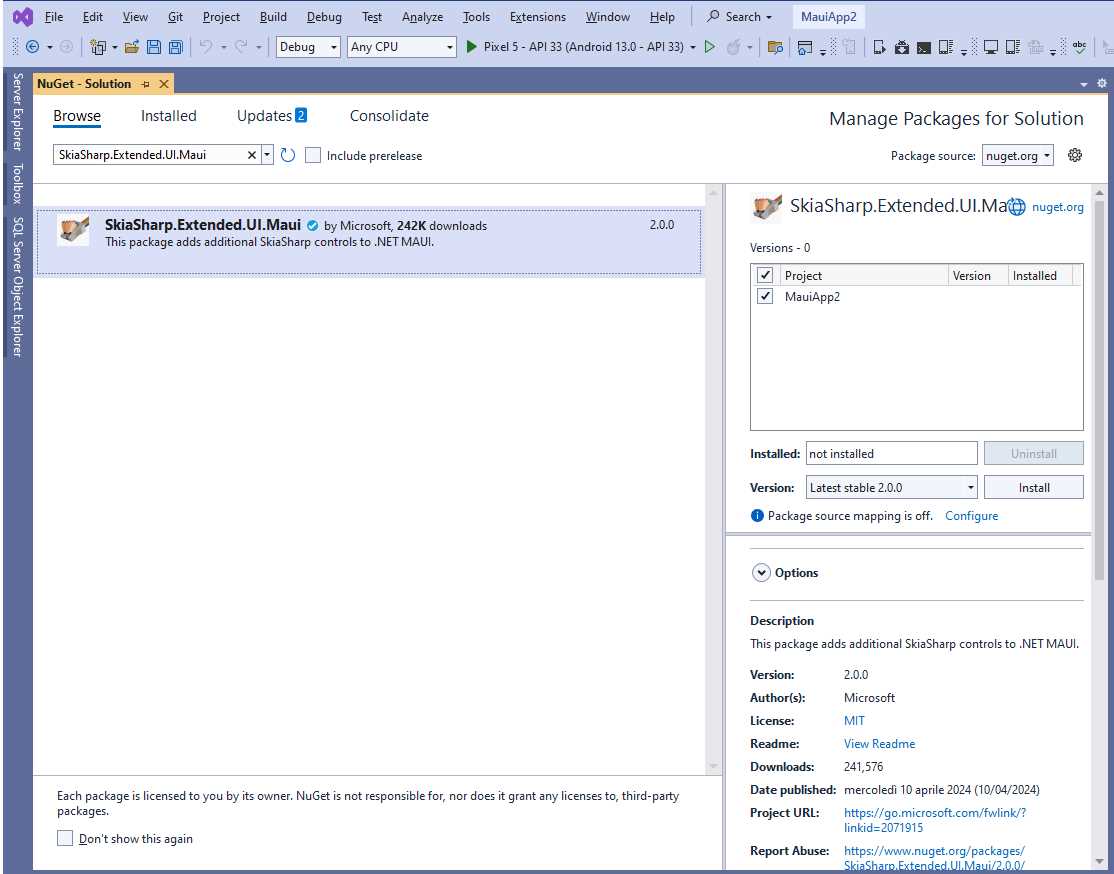
Figure 17: Installing the SkiaSharp.Extended.UI.Maui package
Once the NuGet package is installed, you can start writing code.
Using the SKLottieView component
Now, you’ll implement the Lottie viewer component. First, you’ll need to add an animation file to the project. You can reuse the lottielogo.json file that you used for the Xamarin.Forms example. In .NET MAUI, the file must be copied into the Raw folder and its build action property must be set as MauiAsset.
At this point, add a new folder called Views to the project and add a new content page called LottiePage.xaml to the folder. This will be the place where you’ll write the code for the animation viewer. To accomplish this, in Solution Explorer, right-click the project name and select Add > New Item. In the Add New Item dialog (see Figure 18), locate the .NET MAUI template group on the left and select the .NET MAUI ContentPage (XAML) template.
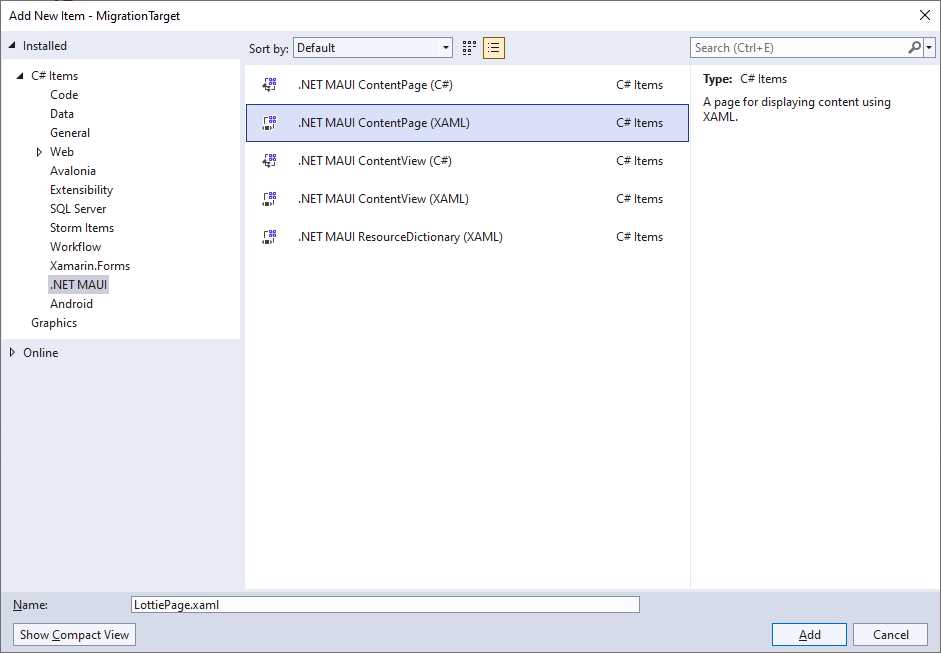
Figure 18: Adding a .NET MAUI content page
Enter the name and select Add. The new content page will be added to the project. You need to add an XML namespace declaration that refers to the SkiaSharp library, as follows:
xmlns:skia="clr-namespace:SkiaSharp.Extended.UI.Controls;assembly=SkiaSharp.Extended.UI"
Now add the following code as the content for the page:
<Grid HorizontalOptions="FillAndExpand" VerticalOptions="FillAndExpand">
<skia:SKLottieView HorizontalOptions="FillAndExpand"
Source="lottielogo.json" IsAnimationEnabled="True"
RepeatCount="3" RepeatMode="Restart"
VerticalOptions="FillAndExpand" />
</Grid>
If you look at the code, you’ll find similarities with the Xamarin.Forms library, but there are also the following differences:
- The animation file is specified via the SKLottieView.Source property. In Xamarin.Forms, the property is AnimationView.Animation.
- The autoplay option is specified via the SKLottieView.IsAnimationEnabled property. In Xamarin.Forms, it’s AnimationView.IsPlaying.
- RepeatCount represents the number of times an animation is played. In Xamarin.Forms, you have the Loop property.
In addition, the SKLottieView component does not allow for controlling the animation playback in code-behind, and it has limited support for different animation sources. For these reasons, you might need to rethink the way you store and play animations. You might have to make some compromises, even though you only need one copy of the animation file (as it usually is with any asset or resource in .NET MAUI). The handler for the SKLottieView component must be initialized at application startup. This is accomplished in the MauiProgram.cs file, where you append the invocation to the UseSkiaSharp method to the builder object as follows:
builder
.UseMauiApp<App>().UseSkiaSharp()
.ConfigureFonts(fonts =>
{
fonts.AddFont("OpenSans-Regular.ttf", "OpenSansRegular");
fonts.AddFont("OpenSans-Semibold.ttf", "OpenSansSemibold");
});
At this point, everything is in place.
Assigning the page to the shell
The page you created in the previous section to display Lottie animations must be added to the shell to make it visible. To accomplish this, open the AppShell.xaml file and add the following XML namespace declaration:
xmlns:views="clr-namespace:MigrationTarget.Views"
Next, add a TabBar element and enclose the pages as follows:
<TabBar>
<ShellContent
Title="Home"
ContentTemplate="{DataTemplate local:MainPage}"
Route="MainPage" />
<ShellContent
Title="Lottie"
ContentTemplate="{DataTemplate views:LottiePage}"
Route="LottiePage" />
</TabBar>
The shell definition in .NET MAUI is the same in Xamarin.Forms, so your existing knowledge is still valid.
Running the code
You can now run the sample project. When the app is ready, you can open the Lottie tab, and you’ll see the Lottie animation playing (see Figure 19).
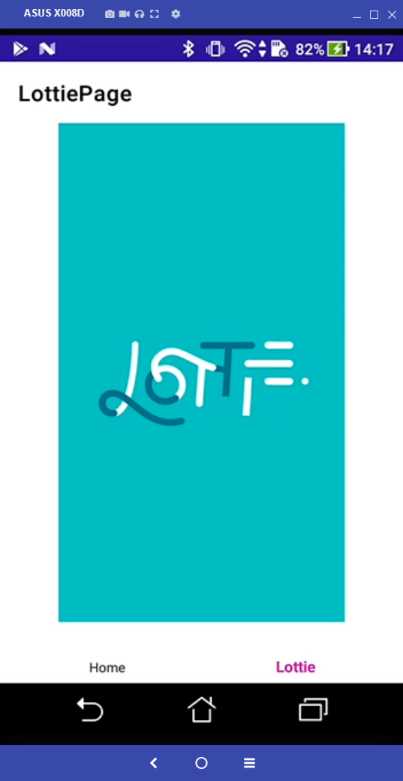
Figure 19: Displaying Lottie animations in .NET MAUI
The Lottie animation is being displayed as expected, with an alternative library. Obviously, real-world requirements might differ, but this demonstrates the approach you should use when upgrading components and libraries.
Library upgrade: Displaying PDF documents
Another common scenario you might face when migrating your projects to .NET MAUI is the lack of 100% feature parity between the Xamarin.Forms and MAUI versions of a library. You’ll first see how to implement the Syncfusion® PDF Viewer for .NET MAUI in the sample app, and then you’ll learn about important considerations that you’ll need to make at premigration analysis time.
Installing NuGet packages
Syncfusion® offers the .NET MAUI counterpart of the SfPdfViewer component that was previously used for Xamarin.Forms. You’ll need to install the Syncfusion.Maui.PdfViewer NuGet package in the project, as shown in Figure 20.
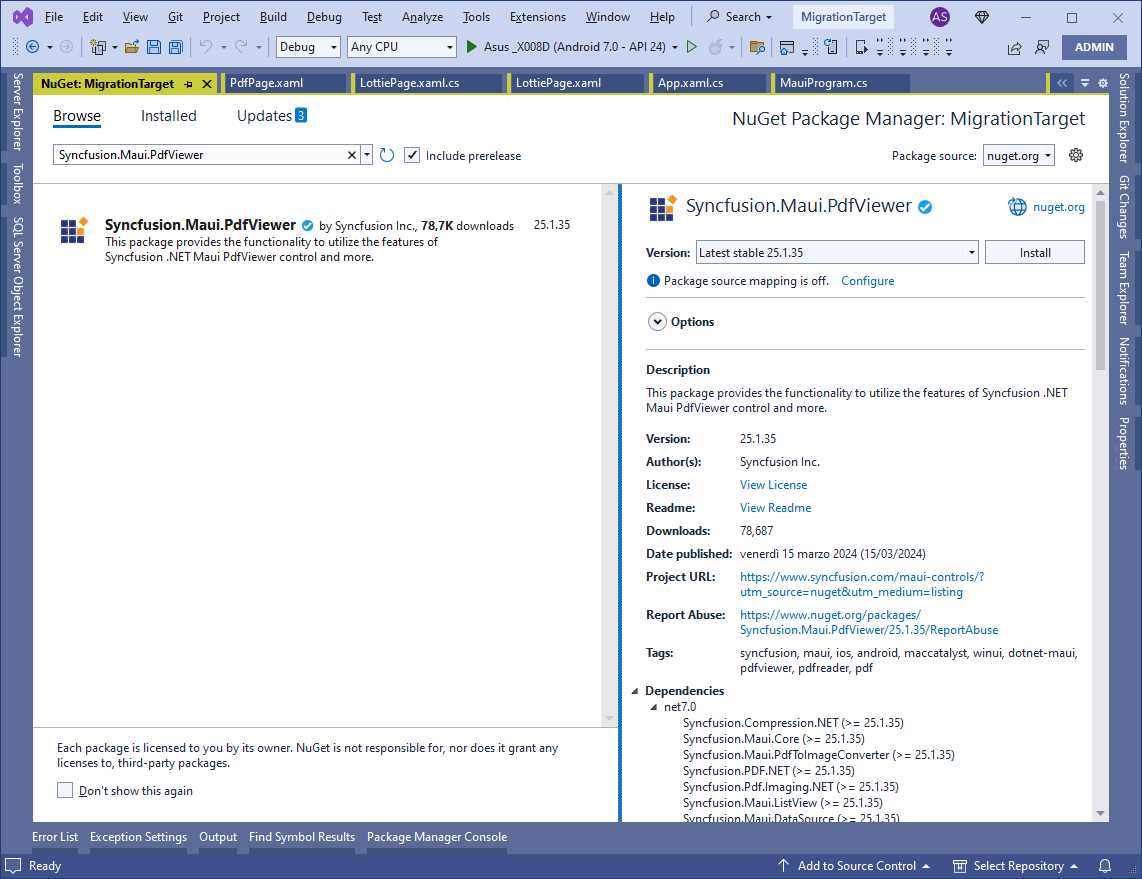
Figure 20: Installing the Syncfusion® PDF Viewer package
The same considerations about licensing apply; if you have a paid license, you’ll need to register the serial number in the App.xaml.cs file. If not, you can use a trial version to complete the current example.
Implementing the PDF Viewer
Once the package is installed, add a new content page called PdfPage.xaml to the Views folder of the project. Then, add the following XML namespace declaration that allows for referencing the SfPdfViewer:
xmlns:syncfusion="clr-namespace:Syncfusion.Maui.PdfViewer;assembly=Syncfusion.Maui.PdfViewer"
Finally, add the following XAML code as the content of the page:
<Grid>
<syncfusion:SfPdfViewer x:Name="PdfViewer" />
</Grid>
You might immediately notice that the .NET MAUI version of the component does not expose a property called IsToolbarVisible. This is important because it represents a huge difference in feature availability in .NET MAUI. However, the code is exactly the same as Xamarin.Forms and is the following:
protected override async void OnAppearing()
{
base.OnAppearing();
await SetPdfDocumentStreamAsync("https://www.syncfusion.com/downloads/support/directtrac/general/pd/PDF_Succinctly1928776572");
}
private async Task SetPdfDocumentStreamAsync(string URL)
{
HttpClient httpClient = new HttpClient();
HttpResponseMessage response = await httpClient.GetAsync(URL);
PdfViewer.DocumentSource = await response.Content.ReadAsStreamAsync();
}
Before you can use the component, you’ll need to invoke the ConfigureSyncfusionCore method over the instance of the builder object in the MauiProgram.cs file, as follows:
builder
.UseMauiApp<App>().UseSkiaSharp().ConfigureSyncfusionCore()
.ConfigureFonts(fonts =>
{
fonts.AddFont("OpenSans-Regular.ttf", "OpenSansRegular");
fonts.AddFont("OpenSans-Semibold.ttf", "OpenSansSemibold");
});
This basically initializes the component handler.
Assigning the page to the shell
Similarly to what you’ve done with the LottiePage.xaml page, you’ll need to add a reference to the PdfPage.xaml page to the shell definition. In the AppShell.xaml file, add the following code before the closing tag of the TabBar element:
<ShellContent Title="PDF" ContentTemplate="{DataTemplate views:PdfPage}"
Route="PdfPage" />
This lets you quickly navigate to the new page from the app’s navigation bar.
Running the code
At this point, you can run the sample project. When the app is ready, open the PdfPage page, and you’ll see the PDF document displayed as expected. Figure 21 shows the output of my PdfPage page.
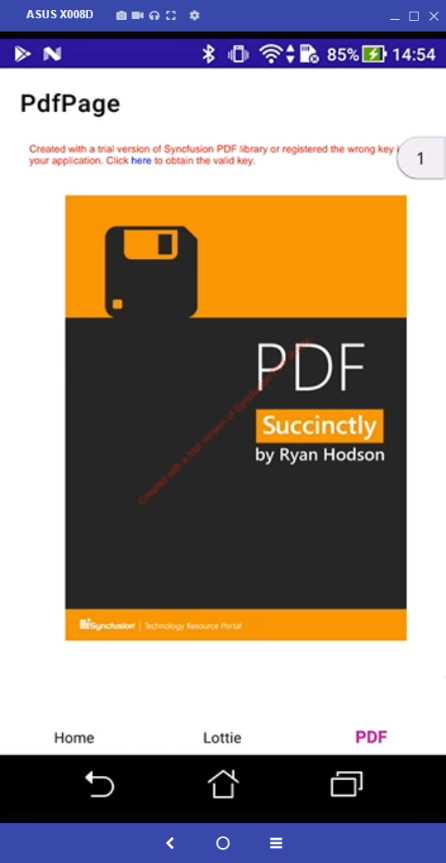
Figure 21: The Syncfusion® PDF Viewer in action on .NET MAUI
Facing the lack of feature parity
The SfPdfViewer has a .NET MAUI counterpart, so it was possible to use it for migration. However, many other components on the market won’t have 100% feature parity. This is a temporary issue because future components will have more features. It’s still a good component in .NET MAUI that offers many features. At the time of this writing, though, there’s no toolbar and consequently many standard tools are missing.
Since certain features were available in Xamarin.Forms, your customers or stakeholders will likely expect feature parity. It’s fundamental that you raise this problem with your clients before you start migration. Decision-makers will need to consider whether the situation is acceptable or not for their purposes. It’s also important to check whether there’s a roadmap for the library you’re using, so that you can have an idea of when to expect feature parity. Like for Lottie animations, there’s no single answer. It all depends on the situation you’re in. The crucial thing is to understand the problems and limitations in advance to simplify the decision-making process.
Hints about NewtonSoft.Json
NewtonSoft.Json is probably the most popular cross-platform library to manipulate JSON data, and it’s been used for many years on many projects. Without a doubt, it’s also the most used library in Xamarin.Forms projects. Now that .NET has included the System.Text.Json API for a few years, you might wonder if you also need to migrate your code to avoid an external library. As always, there isn’t one single answer, but if the migration is strictly timeboxed, you might prefer using NewtonSoft.Json, where you can simply copy and paste your code. Moving to System.Text.Json requires a lot of code refactoring despite the similar syntax and approach. You can consider the .NET built-in API for new projects, but if you’re migrating, the fastest choice is still going with NewtonSoft.Json.
Chapter summary
In this chapter, you’ve faced the most critical aspect of the migration from Xamarin.Forms to .NET MAUI: upgrading libraries and third-party components. As for Lottie animations, you’ve seen how there’s no counterpart to the Xamarin.Forms library in .NET MAUI. You had to decide whether to completely change the library with all the involved implications—whether you’ll have to compromise on features or if it’s even possible to reuse your code.
As for PDF documents, you’ve seen how a library counterpart exists for .NET MAUI, but feature parity isn’t yet reached, and you may have had to accept compromises with the assumption that they’re temporary. You’ve been able to implement the features, but you had to make some difficult decisions. In reality, such decisions are usually made by multiple people in different roles. So, while the responsibility of the decision is not 100% yours, it is your responsibility to let others know the limitations. In addition, upgrading libraries isn’t the only critical part. As you’ll see in the next chapters, migrating custom renderers might also have an important impact.


- An ever-growing .NET MAUI control suite with rich feature sets.
- DataGrid, Charts, ListView, Scheduler, and more.
- Active community and dedicated support.
- Phone, tablet, and desktop support.