
Migrating from Xamarin.Forms to .NET MAUI Succinctly®

CHAPTER 9
Migrating Assets and Colors
One of the biggest benefits of switching from Xamarin.Forms to .NET MAUI is that you share code, images, and other assets and resources like raw files across platforms. This means that you no longer need to add duplicate files to all the platform projects. In the case of images, you no longer need to produce the same image in multiple resolutions. This chapter explains how to move fonts, images, and colors in .NET MAUI, highlighting the most critical parts in terms of planning and implementation.
Migrating fonts
Note: By default, Xamarin.Forms projects use system fonts. .NET MAUI projects use custom fonts that are automatically registered. However, in this chapter, such fonts will be ignored so that you can understand the difference in adding, registering, and consuming fonts between Xamarin.Forms and .NET MAUI.
In Chapter 2, you downloaded the NotoSans Regular font and saw how to register and consume the custom font in Xamarin.Forms. You had to place the font file into all the targeted platform projects, and you registered the font in the app resources. In .NET MAUI, things are quite different. There’s only one place where you need to put font files—the Resources\Fonts subfolder of the project. Once you’ve copied the font files to the appropriate location, you register fonts in the MauiProgram.cs file. More specifically, you invoke the ConfigureFonts method over the builder object, as shown in the following code:
builder
.UseMauiApp<App>()
.ConfigureFonts(fonts =>
{
fonts.AddFont("OpenSans-Regular.ttf", "OpenSansRegular");
fonts.AddFont("OpenSans-Semibold.ttf", "OpenSansSemibold");
fonts.AddFont("NotoSans-Regular.ttf", "NotoSansRegular");
});
Your effort here will be limited because the autogenerated code already invokes the ConfigureFonts method. This code registers two Open Sans fonts that are automatically added when creating the solution. Additional fonts must be registered by invoking the IFontCollection.AddFont method, which takes the file name and a font identifier as arguments.
The way you then consume fonts is the same as in Xamarin.Forms: assign the FontFamily property of views that support custom fonts with the font identifier. For example, the following code demonstrates how to assign the Noto Sans Regular font to one of the labels declared in the MainPage.xaml file:
<Label x:Name="BatteryStatusLabel" FontFamily="NotoSansRegular"
Margin="10,0,0,0" />
Nothing else must be done on this side, so the migration for fonts will be quick.
Migrating colors
If you work with colors in C# code, there are a few differences between Xamarin.Forms and .NET MAUI that you need to be aware of. In Xamarin.Forms, everything is managed with the Colors class, which exposes constants that represent colors and methods that allow for color manipulation. In .NET MAUI, colors are handled by the combination of two classes: Color and Colors, both from the Microsoft.Maui.Graphics namespace. The Color class exposes methods that allow for color manipulation, whereas the Colors class exposes constants that represent actual colors. Some common Xamarin.Forms methods have been deprecated in .NET MAUI. For example, in Xamarin.Forms, you could write the following line of code to generate a color from a hexadecimal value:
var black = Colors.FromHex("#000000");
In .NET MAUI, you would rewrite it as follows:
var black = Color.FromArgb("#000000");
FromHex is marked as obsolete in .NET MAUI, and methods that manipulate colors are now exposed by the Color class. The other existing methods still work as expected in .NET MAUI. In Xamarin.Forms, the Colors class also exposes the Accent property, which returns the most relevant color tint in the user interface, and the Default property, which returns the default color. Both are unavailable in .NET MAUI, so you’ll need to take care of this when migrating.
Tip: If you have many calls to methods that manipulate colors, you could do a bulk rename using Visual Studio’s Replace in Files feature (available under Edit > Find > Replace).
This is a summary of what you need to know regarding the migration of color management from Xamarin.Forms to .NET MAUI. If you want to learn more about colors in .NET MAUI from a more general perspective, you can read the appropriate documentation page.
Migrating images and icons
.NET MAUI simplifies the way images and icons are handled. In Xamarin.Forms, you have to produce multiple resolutions of the same .png image for each platform project. Normally, there are at least five for Android and three for iOS. In .NET MAUI, you can have one single .svg image, a standard format created many years ago by the World Wide Web Consortium. This file type allows for resizing an image without quality loss. It’s perfect for cross-platform and cross-device technology like .NET MAUI.
Note: The appropriate resizing is performed at build time in .NET MAUI, depending on the target device selected in Visual Studio.
For a quick comparison, think of the application icon. If you look back at Figure 8, you can see how different resolutions have been produced for the same image in both Android and iOS projects. The number of images would increase if you were targeting additional platforms. In .NET MAUI (see Figure 26), there’s typically one .svg file called appicon.svg, available under Resources > AppIcon.
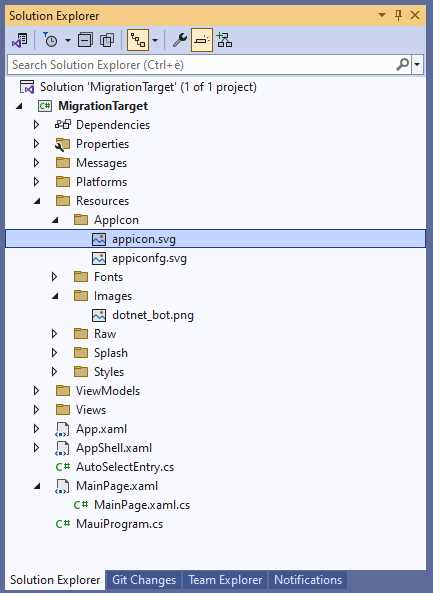
Figure 26: Simplified image handling in .NET MAUI
Note: The app icon is actually a peculiar case, because it’s possible to compose the app icon from multiple icons. Figure 26 also shows another file called appiconfg.svg, where fg stands for foreground. This makes it possible to add a specific foreground to the icon. For the current explanation, ignore this second file and focus only on the appicon.svg file, whose rules apply to any other image.
Individual .svg files must be copied into the Resources > Images folder, and their build action property must be set to MauiImage. The splash screen should also be supplied as an .svg file and will be placed into the Resources > Splash folder, with the conventional name of splash.svg. .NET MAUI still supports .png files, but it’s not recommended to use them.
The real problem when it comes to migration is that you should convert every .png image with the highest resolution to .svg. If you work on a larger team, this could be the task of a professional designer. It’s a time-consuming task if you have dozens of images and icons, so it shouldn’t be underestimated. If you need to do this on your own, you should use a conversion tool or a professional design tool, which may take even more time. So, while not technically complex, migrating images in .NET MAUI isn’t simple, but it does have long-term benefits. Also, remember that:
- In .NET MAUI, image file names must be lowercase. If not, the build process will fail.
- For consistency, you should edit all the image file names in the XAML code to make them lowercase.
- If you’re copying and pasting code from Xamarin.Forms, and you added the .png file extension, the best practice is to remove it to keep only the file name. However, this won’t halt your work, since Visual Studio can resolve the image file based on the name, not the extension.
The final consideration is that the Image view in .NET MAUI has the same definition and behavior as in Xamarin.Forms. Thankfully, you won’t need to make any additional changes, saving you a lot of time.
Chapter summary
In this chapter, you’ve seen how to migrate fonts, images, and colors from Xamarin.Forms to .NET MAUI. This is another relevant part of the migration, because it might take time—especially for images—and must be planned carefully. At the same time, you’ve seen how much simpler the maintenance of these assets in .NET MAUI is, since everything resides in one place. The next chapter covers the last part of the migration: analytics and diagnostics with the Visual Studio App Center.


- An ever-growing .NET MAUI control suite with rich feature sets.
- DataGrid, Charts, ListView, Scheduler, and more.
- Active community and dedicated support.
- Phone, tablet, and desktop support.