
Migrating from Xamarin.Forms to .NET MAUI Succinctly®

CHAPTER 10
App Center: Migrating and Maintaining Analytics
It’s very common to collect analytics and diagnostic information in mobile apps to understand how an application is used and where the business might drive investments. In Chapter 2’s sample Xamarin.Forms project, you implemented analytics based on the Visual Studio App Center to replicate a scenario that would be subject to migration to .NET MAUI. In this chapter, you’ll see how to migrate the code to .NET MAUI without losing the analytics history. You’ll also learn about different services, since the App Center is set to retire.
Migrating App Center analytics
There is no difference from Xamarin.Forms in how you send analytic and diagnostic events to the Visual Studio App Center from a .NET MAUI project. Both development platforms use the same NuGet packages. This is good news, because you can literally copy and paste the code that sends events. The main concern would be losing the existing event history because you’re building a new project. Luckily, you’ll lose no event history, as you’ll see shortly. The first thing to do is install the appropriate NuGet packages.
Installing NuGet packages
Open the NuGet Package Manager tool and browse for the Microsoft.AppCenter.Crashes and Microsoft.AppCenter.Analytics NuGet packages, as shown in Figure 27.
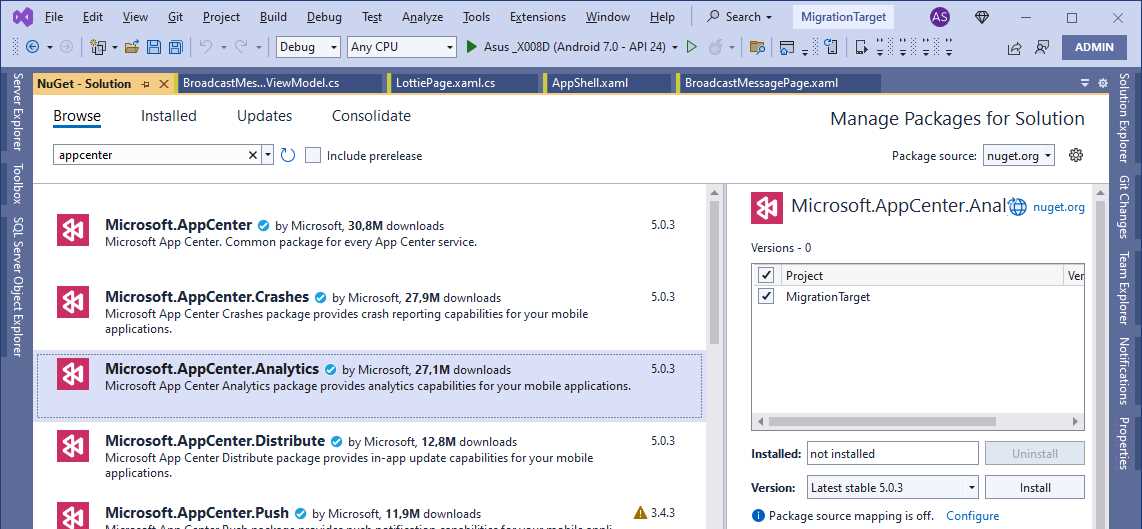
Figure 27: Installing the App Center NuGet packages for analytics
You’ll need to install both, and they’ll also bring the Microsoft.AppCenter package as a dependency.
Implementing analytics
When it comes to writing the code for analytics implementation, you’ll do exactly as you did in Xamarin.Forms. In the App.xaml.cs file, add the following line of code in the constructor after the invocation of the InitializeComponent method:
AppCenter.Start("android=Your Android App secret here;" +
"uwp={Your UWP App secret here};" +
"ios={Your iOS App secret here};" +
"macos={Your macOS App secret here};",
typeof(Analytics), typeof(Crashes));
Add the same app secret that you used for the Xamarin.Forms project for each platform you are targeting. This will keep the event history and will make it possible to send new events to the same place. Now, exactly as you did in the Xamarin.Forms project, open the MainPage.xaml.cs file and extend the code of the event handlers to send analytic events as follows:
private async void LinkGesture_Tapped(object sender,
EventArgs e)
{
await DisplayAlert("Info",
"You tapped the link!", "OK");
Analytics.TrackEvent("Link tapped in .NET MAUI");
}
private void BatteryStatusButton_Clicked(object sender,
EventArgs e)
{
try
{
BatteryStatusLabel.Text =
$"Charge level: {Battery.ChargeLevel}";
Analytics.TrackEvent("Battery status checked in .NET MAUI.");
}
catch (Exception ex)
{
Crashes.TrackError(ex);
}
}
Notice how the event messages contain the in .NET MAUI phrase, which will allow you to differentiate between events sent from the two versions of the app.
Running the code
Now, run the sample project again and click the button that checks the battery status and the hyperlink under the label several times. When done, log in to the Visual Studio App Center and go to the analytics events for the release you are currently targeting. As you can see in Figure 28, the event history has been kept, and new events have been merged over from the .NET MAUI project.
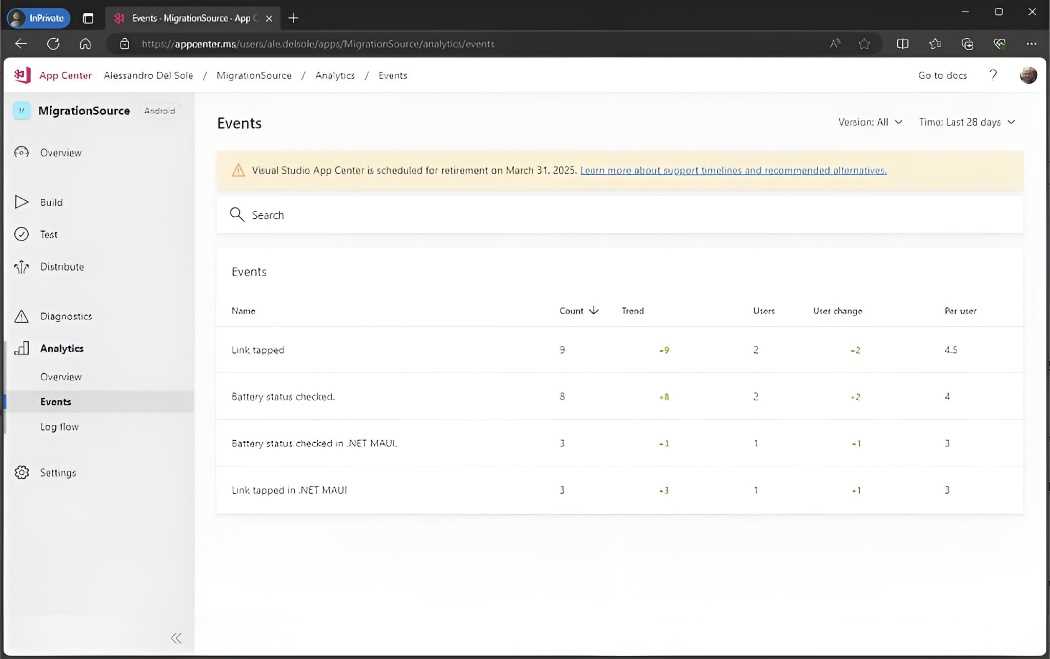
Figure 28: Analytics have been extended with events from the .NET MAUI project
With this, you can quickly migrate the analytics events handling to .NET MAUI so you have more time to think about alternatives.
Microsoft recommendations for alternatives
With the retirement of the Visual Studio App Center, you’ll need to think about alternatives. You’re certainly free to choose the platform that’s best for you, but if you want to stay with Microsoft, they recommend using one of the services offered through Microsoft Azure. More specifically, Microsoft recommends Datadog, Dynatrace, and New Relic. It’s not possible to go into the details of each platform here, nor is it possible to suggest the best alternative for your needs.
Chapter summary
In this chapter, you’ve seen how easy it is to migrate your existing code from Xamarin.Forms to .NET MAUI by sending events to the Visual Studio App Center, and you’ve seen how the event history will be kept by simply using the same app secret in the new project. The Visual Studio App Center will be retired in 2026, so you’ll need to select an alternative.


- An ever-growing .NET MAUI control suite with rich feature sets.
- DataGrid, Charts, ListView, Scheduler, and more.
- Active community and dedicated support.
- Phone, tablet, and desktop support.