
MATLAB Succinctly®

CHAPTER 1
User Interface
Showing user interface screenshots in a book may not be the best idea, but to MATLAB’s credit, it does have a rather well-designed interface that makes certain common operations simpler. Plus, we need to agree on the notation regarding the windows and controls. So let’s get through this quickly, shall we?
Windows
When you open MATLAB for the first time, you’re likely to see something like this:
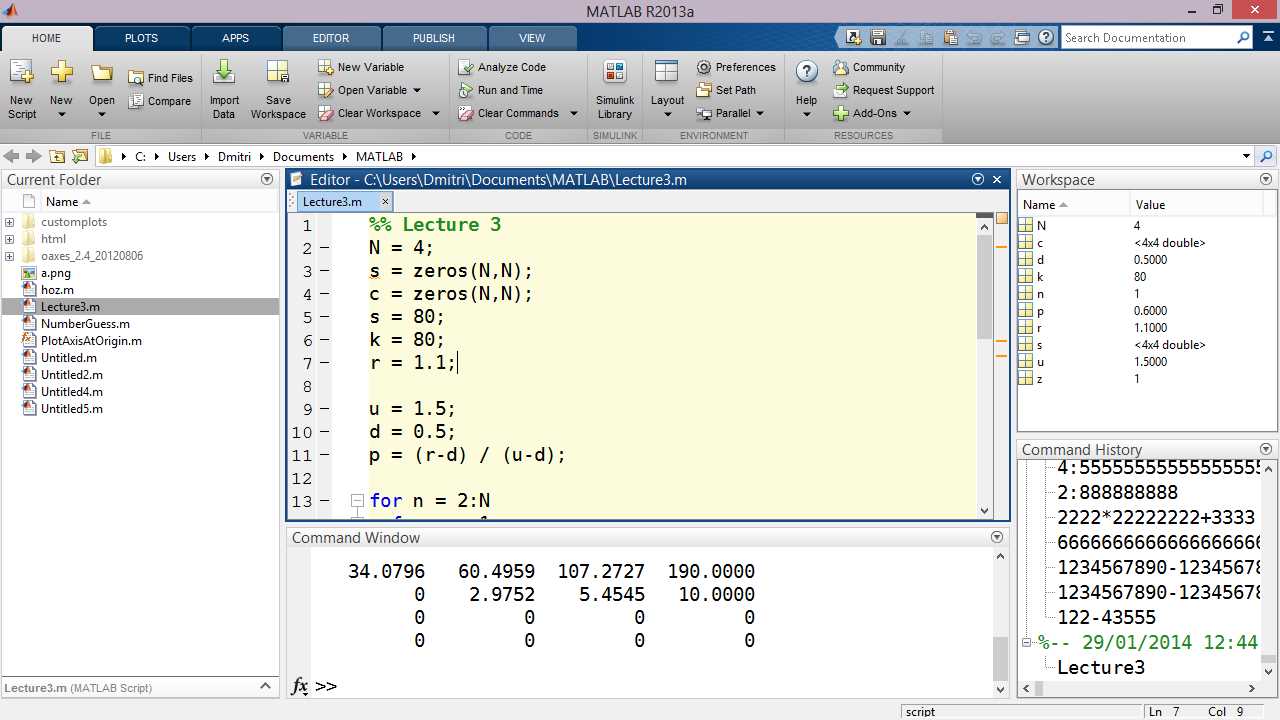
MATLAB, in the flesh. With luck, you will spend days, I mean, years in this window.
Well, maybe without the file editor, but I’ve added it just in case. What you’re looking at is a highly modular (there’s that word again) system of windows: effectively, everything except the top-level ribbon toolbar is a separate window that can be detached and moved to a different part of the container window or even a different monitor.
Let us discuss the different windows that make up the default MATLAB window layout. They are:
- Command Window: This is essentially a console where you can type in commands for immediate execution. Type in 2+2 and you get 4, type in foo and MATLAB will go off looking for a variable called foo or, failing that, for a script foo.m on the available paths. (More about paths later.)
- Editor: This is where scripts can be edited. The Editor window has a tabbed interface, but you can “detach” any of the tabs to a separate window. The Editor window also adds a few ribbon tabs, namely Editor, Publish, and View. We’ll talk about those in the chapter on scripts.
- Workspace: This is a list of all the variables currently being used. In addition to showing variable names and (where possible) values, you can also tell MATLAB to display some basic statistical properties of arrays:
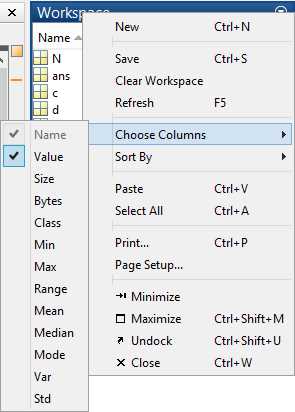
Picking columns for the Workspace window. For arrays, you can display statistical
results such as average, variance, or standard deviation values.
- Command History: This window contains a list of all the previous commands you’ve executed. This is, arguably, the least useful window due to the fact that recent commands are rarely needed, and when they are, you can simply press the up/down arrow keys on the keyboard to cycle through the previously entered commands.
- Current Folder: This window, together with the toolbar just above it, lets you navigate, open, and execute scripts from a particular folder. The window menu (opened by pressing the downward-pointing arrow) also has various file-related commands (e.g., commands to create new files or folders). The selected folder is automatically added to MATLAB’s path settings, so executing a script by name from this folder will work, whereas when you’re accessing scripts from other folders, they have to be on the MATLAB path. Also, for files currently selected in the current folder, you might see a preview window below that shows internals of the file. For example, for MAT files, this window shows the value of the stored variables.
- Ribbon: This is the part that contains all the controls. The ribbon interface is a relatively new addition to MATLAB, with earlier versions having an ordinary toolbar instead.
- Quick-Access Bar: This is a special toolbar that appears in the top-right corner of the screen. It’s a place where you can add the most frequently used commands that will never be obscured, unlike the Ribbon interface, where only one tab may be visible at any time.
The Paths of MATLAB
If you go ahead and type cruller into the command window (regardless of what the current path is), you’re likely to see something like this:
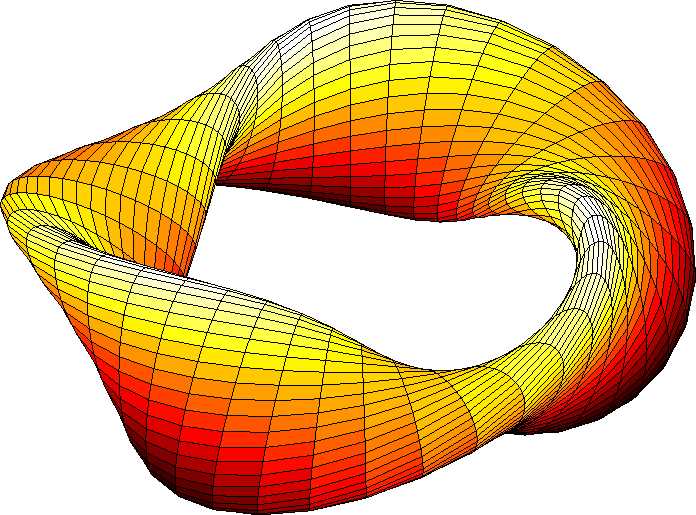
A cruller—apparently a type of fried pastry.
The above shape is generated by one of MATLAB’s sample scripts, and the reason you got it is because the file that renders it, cruller.m, happens to reside in a location that is added to MATLAB’s execution path by default.
Essentially, to make use of any files in MATLAB, those files need to be placed on MATLAB’s path. To configure these paths, look for the Set Path button of the Home path of the ribbon. Click Set Path to open up the Set Path window:
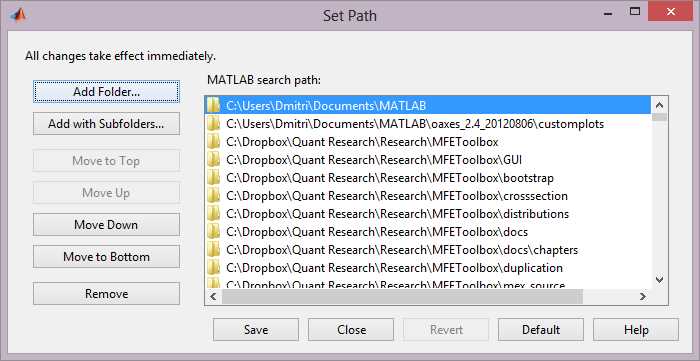
Set Path window.
The Set Path window lets you add a folder (or a folder with all its subfolders included) that will subsequently be used for searching for scripts to execute. You can also move the list elements up and down to indicate search priority (higher path position means higher priority).
Shortcuts
If you find yourself writing the same command over and over again, you might want to turn it into a shortcut to be placed either in the Quick Access Bar just to the left of the Search Documentation box or on a separate toolstrip tab called Shortcuts. Shortcuts can be created either via the Context menu in the Command History window (see, it’s not entirely useless!) or by pressing the New Shortcut button on the top-level toolbar.
The Shortcut Editor is fairly simple: it lets you label your shortcut and decide where you want it to be placed, and with what icon:
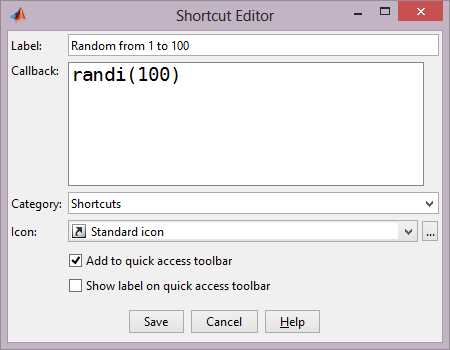
Shortcut Editor window.
Help and Documentation
MATLAB has a rather elaborate help system, so let’s examine its different facets.
The simplest way to get to MATLAB’s documentation is to press the Help button (or F1). This opens up the documentation browser that includes documentation for all the products (i.e. toolboxes) that you have installed. It also lets you search for specific topics, with reasonably fast completion, too!
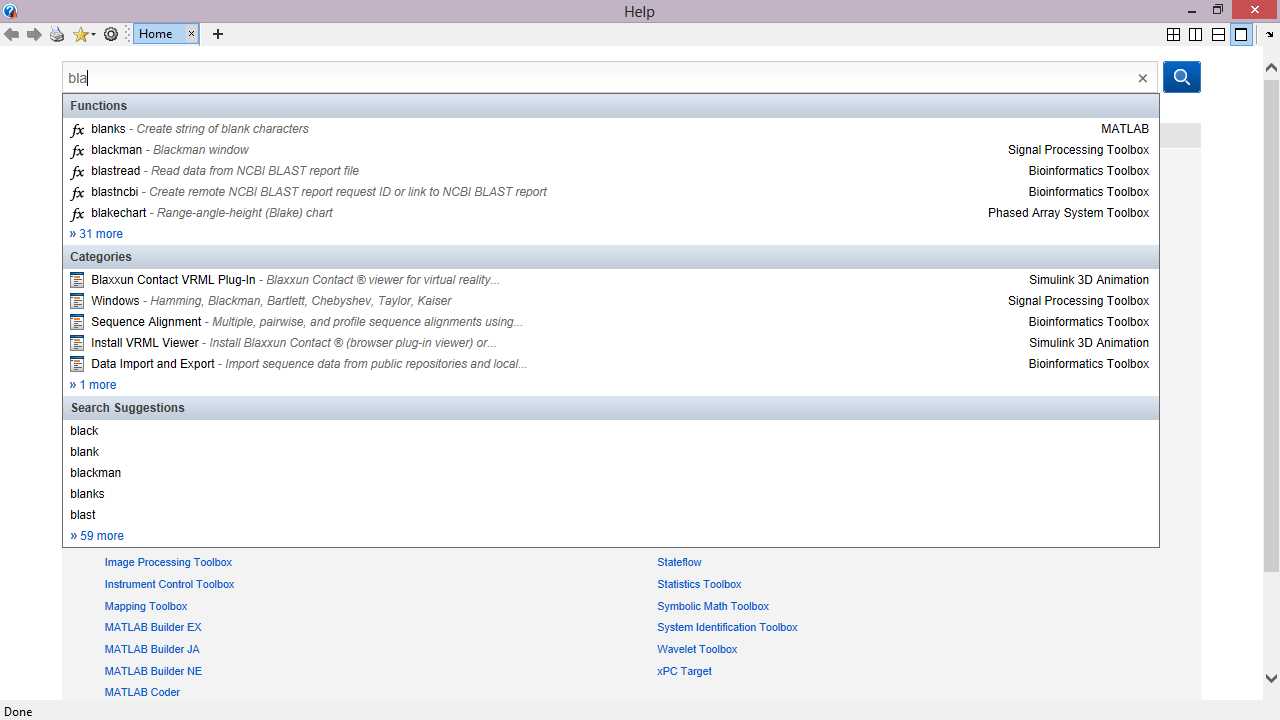
Help window.
In terms of search, similar functionality is available in the Search Documentation text box in the top-right corner of the page: simply start typing and MATLAB will try to guess what it is you’re looking for.
If you need information on a particular function, you can use yet another tool called the Function Browser. This is the equivalent of the full documentation that is shown in a pop-up window instead.
The simplest way of bringing up the function browser is to press the fx button that’s just to the left of the input line on the command window. This gives a tree-like listing of all the functions. When you click a function, you get a documentation popup on the right:
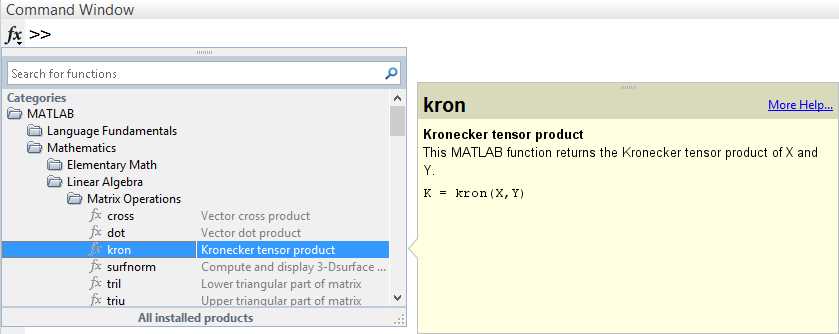
Function browser drill-down window with documentation preview.
If you already know the function name, getting documentation for that function is even easier: simply press F1 when on a function and you get the documentation pop-up for that function:
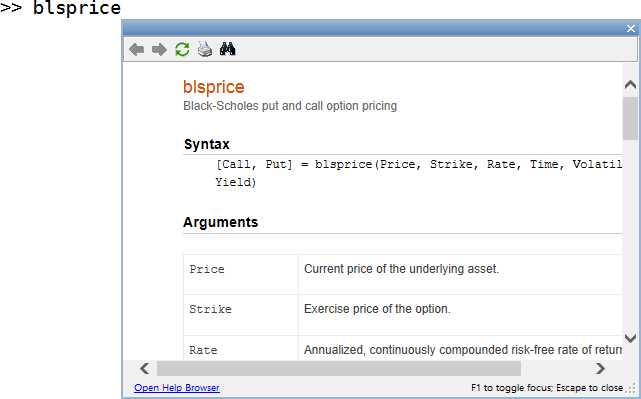
Function browser pop-up window.
The pop-up is simply the ordinary documentation browser packaged in a pop-up window; you can easily move between it and the command window or open the full-frame documentation browser if required.
But that’s not all! You can also get help on a particular function in plain text by typing its name prefixed by the word help into the command window:
>> help cross |
This may not be the most convenient way of reading documentation, but the option is here if you need it, e.g., if you need to work in MATLAB purely in terminal mode (because we all know how atrociously slow running X11 over VPN is).
If you know only part of an identifier, you can use lookfor to perform a search. For example, here’s a search for all the Black Scholes-related functions (note some spurious results below):
>> lookfor bls |
Another way MATLAB helps you use functions is by highlighting the parameter you are currently entering in a small overlay window. This also has a More Help link, which opens a documentation browser.

Parameter help as you type.
In addition to local documentation, MATLAB’s documentation is also available online at http://www.mathworks.com/help/matlab/.
Introspection
To find out what toolboxes you’ve actually got installed, simply type ver into the Command Window. This will give you a listing of every single installed product and its version.
Also, keep in mind that some toolboxes supply their own apps—these are essentially separate GUI-based applications that integrate with MATLAB. These are available on the Apps tab:

When in Trouble…
If you have trouble with something in MATLAB, your first port of call should be the menu item under Help | Request Support. This lets you file a support request without leaving MATLAB. As you may have guessed, it does require your MathWorks credentials (the same ones you used to download MATLAB in the first place).
Then there is plenty of community support. StackOverflow is an obvious choice (unlike Mathematica, its lack of a front-end prevented it from getting its own StackExchange site), and so is MATLAB Central—a special website for all things MATLAB. This website includes a section for sharing downloadable scripts and extensions (File Exchange), its own Q&A section (Answers), a Newsgroup for general discussion, a Blogs section, and Cody—a game that challenges programmers and helps them expand their knowledge of MATLAB.
If all else fails, just type why into the console window and press Enter. MATLAB will attempt to explain to you just why things aren’t going the way they should be. Beware though, because in the majority of cases, MATLAB tries to blame some mythical co-worker that you might not even have!


- 1800+ high-performance UI components.
- Includes popular controls such as Grid, Chart, Scheduler, and more.
- 24x5 unlimited support by developers.