
Localization for .NET Succinctly®

CHAPTER 4
Time zones
Time is not the same all over the world. When I go home from work (in Sweden), citizens in New York are having lunch.
The tricky part is handling different time zones within in the same application.
Universal Coordinated Time
UTC is ground zero. It’s the time zone on which all other time zones are based. It is also known as GMT (Greenwich Mean Time). The purists do however discourage you from using the GMT name, as it’s not as exact as UTC. It doesn’t have a definition of leap seconds to compensate for the earths slowing rotation.
Different time zones are illustrated below:
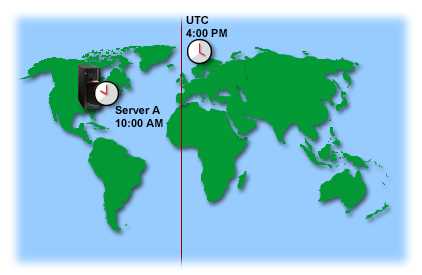
- Time zones (Image courtesy of IBM)
UTC does not have support for Daylight Saving Time (DST). In fact, the majority of countries do not observe DST. The image below illustrates that.
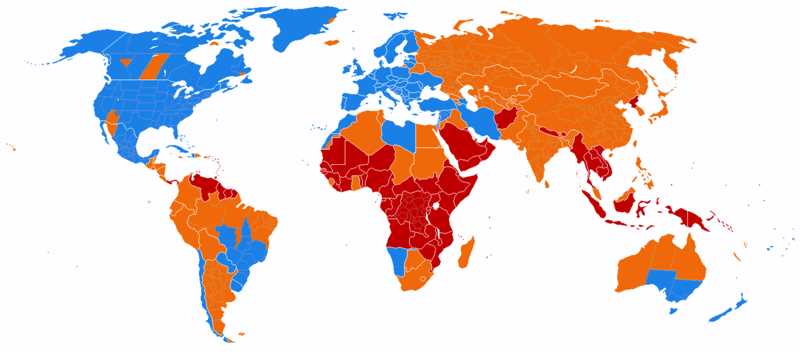
Image courtesy of Wikipedia
DST observed
DST formerly observed
DST never observed
Handling different time zones
It can get complicated if you want to display dates for users in different time zones but store the date entered by the user (or by the client application). Have you ever visited an online forum where you wonder what the date/time really represents? See below for an illustration.
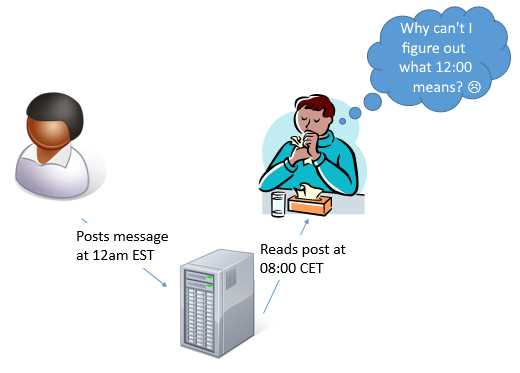
The answer to the question is that 12:00 means that the US user posted the message one hour ago.
A good practice is therefore to always use UTC (Universal Coordinated time) internally in your applications. It simplifies processing since you never have to think about which time zone you are currently representing. It also removes any need to do conversions other than between two different user time zones.
You should only use local time in the user interactions, like when displaying dates or letting the user specify dates in your forms.
The image below illustrates what I mean.
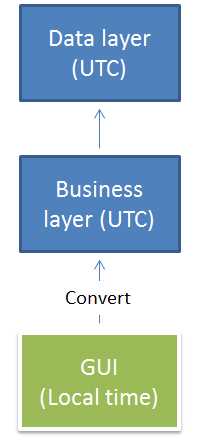
The great thing with this approach is that the user will always see time and date using their own time zone, no matter which user saved the entry.
Client/server guideline
With client/server I mean all forms of communication where you either send or receive information from another process, like with a REST (REpresentational State Transfer) API or a messaging system like MSMQ (Microsoft Messaging Queues).
I recommend you use UTC anytime you either consume or produce information for your clients. You might know where your client applications are located, but do you know where the client application users are?
It’s therefore better to expose UTC and let the client decide whether or not to do a time zone conversion.
Also, make it clear that you expect to get UTC in all requests sent by the client.
.NET
The DateTime structure does not specify what time zone it is for. It just contains a date/time. That’s actually a really good decision, since anything else could lead to a mess. What kind of result would you expect from performing an addition between two date/times in different time zones?
| Tip: Test your time zone handling when developing applications. Right-click on the clock in the systray and choose “Adust date and time” to change the time zone. |
Notice that the .NET Framework offers a date/time structure, which has support for time zones (DateTimeOffset). Use it in applications that require it, like those developed for Windows 8, WinRT, and Windows Phone.
In other cases it can make sense to avoid it since most developers are more used to DateTime. In those cases it might be more straightforward to use UTC internally as described earlier.
Listing time zones
All available time zones can be listed by using the System.TimeZoneInfo class. It will return all time zones available.
class Program { static void Main(string[] args) { foreach (var timeZone in TimeZoneInfo.GetSystemTimeZones()) { Console.WriteLine(timeZone.DisplayName); } |
The result follows:
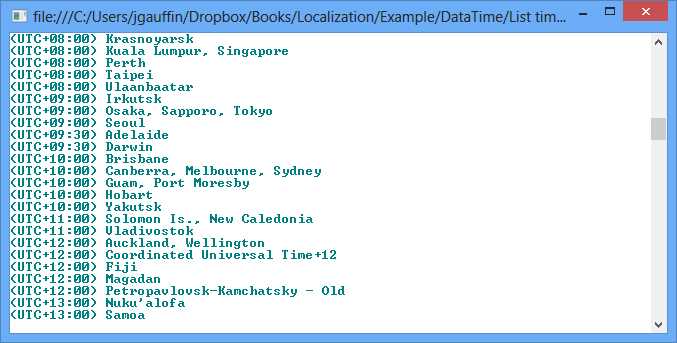
The System.TimeZoneInfo class can be used to do the following:
- Retrieve all previously defined time zones: TimeZoneInfo.GetSystemTimeZones()
- Convert date/time between two time zones: TimeZoneInfo.ConvertTime()
- Create a new time zone (if missing amongst the predefined ones).
Conversion in fat clients
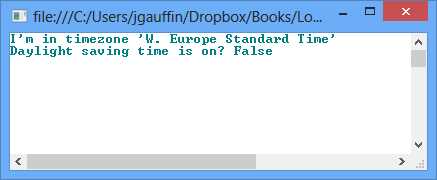
If you are running desktop applications (such as WPF) on fat clients, you can get the current time zone (i.e. the time zone configured in the operating system for the current user) like this:
class Program { static void Main(string[] args) { var zone = TimeZone.CurrentTimeZone; Console.WriteLine("I'm in timezone '{0}'", zone.StandardName); Console.WriteLine("Daylight saving time is on? {0}", zone.IsDaylightSavingTime(DateTime.Now)); |
The result follows:
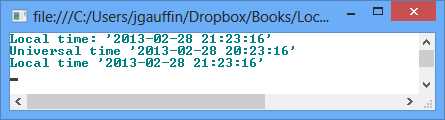
And you can do conversions like this:
class Program { static void Main(string[] args) { var currentTime = DateTime.Now; Console.WriteLine("Local time: '{0}'", currentTime);
var universal = currentTime.ToUniversalTime(); Console.WriteLine("Universal time '{0}'", universal); var localAgain = universal.ToLocalTime(); Console.WriteLine("Local time '{0}'", localAgain); |
The result is:
Conversions in client/server
The client isn’t always a .NET application that can provide UTC times to you. However, the client needs to provide the time zone in some way by either using the name, like “W. Europe Standard Time” or by using the base offset (without Daylight Saving Time) like “01:00.”
If you got that information, you can do something like this (using the extension methods in the Appendix):
class Program { static void Main(string[] args) { // local time specified by the user var dt = new DateTime(2013, 5, 14, 19, 46, 00);
// if the user is in central Europe var cet = dt.ToUniversalTime(TimeSpan.FromHours(1)); var cet2 = dt.ToUniversalTime("W. Europe Standard Time"); // if the user is in PST var pst = dt.ToUniversalTime(TimeSpan.FromHours(-8)); var pst2 = dt.ToUniversalTime("Pacific Standard Time"); // the standard .NET way var cet3 = new DateTimeOffset(dt, TimeSpan.FromHours(1)).ToUniversalTime(); var pst3 = new DateTimeOffset(dt, TimeSpan.FromHours(-8)).ToUniversalTime(); } |
JavaScript
Web applications are like client/server applications, except that you have no control over the client. We have the same problems, but we have no control over what the client sends to us by default.
Since web applications are client/server-based, we are depending of one of the following options: That the client supplies us with the user time zone, or the client automatically converts date and time to/from UTC.
The problem is that HTTP does not have a standard header that could supply us with the user time zone. That basically means that it’s up to us to figure out a way to handle the time zone.
It’s not possible to use HTML only to handle the time zone. Instead we have to use JavaScript. Getting the time zone is quite easy. We can use the Date object for that, create a new HTML page and paste the following:
<html> <body> <script type="text/javascript"> document.write(new Date().getTimezoneOffset()); </script> </body> </html> |
We get the following result:
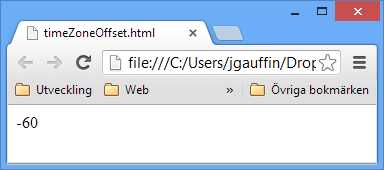
The above example will print -60 for the Swedish time zone (UTC+1) since we have to subtract 60 minutes to get a UTC time. Powered with that knowledge, let’s do a simple conversion from local time to UTC:
<html> <body> <script type="text/javascript"> var localTime = new Date(); var utc = new Date(localTime.getTime() + localTime.getTimezoneOffset()*60000); document.writeln(localTime + "<br>"); document.writeln(utc + "<br>"); </script> </body> </html> |
The result is:
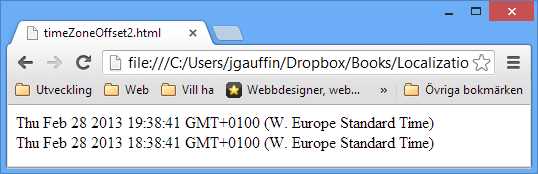
The time is right, but the time zone is wrong. We didn’t supply a time zone, so JavaScript just thought that we wanted to display a specific time in the current time zone.
Let’s examine that a bit by creating a date/time where we explicitly specify the time zone:
<html> <body> <script type="text/javascript"> var utc = new Date("Thu Feb 28 2013 19:38:41 GMT+0"); document.writeln(utc + "<br>"); </script> </body> </html> |
The result follows:
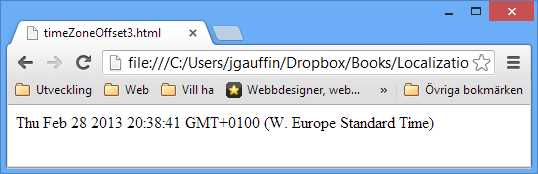
The thing is that JavaScript will always implicitly convert all specified times to the user time zone. Hence it can get confusing quickly if we do not handle UTC in some other way.
Let’s do a small elaboration. The number 1356350400000 represents the number of seconds from January 1, 1970 to 12:00 on December 24, 2012. Those kind of numbers are called UNIX times. What happens if we create a JavaScript Date() object from it?
<html> <body> <script type="text/javascript"> var time = new Date(1356350400000); document.writeln(time + "<br>"); </script> </body> </html> |
The result is:
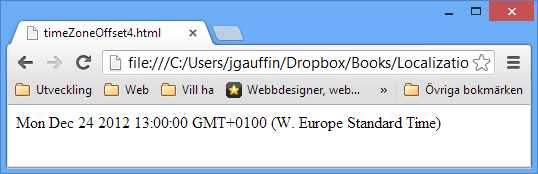
That means that any supplied UNIX time should be in UTC format. Hence we can use UNIX times to represent UTC and Date objects to represent local time.
We could now use two different strategies to deal with time zones. We either handle everything at client side (in the browser) or transport the time zone to the server and let the server deal with the conversion.
Sending the time zone to the server
Sending the time zone is easy to do if cookies are enabled. Simply create a session cookie (i.e. a cookie which expires when the browser window is closed) that contains the time zone. You can create a session cookie in ASP.NET by using Response.SetCookie with a new cookie that has not specified an expiration time.
Well, it could be that simple. But the fact is that not everyone allows cookies. Hence we must consider that cookies could be turned off. The best approach to take is to have a minimal front page which just directs to the real page (with the cookie set).
By doing so we can gracefully downgrade to just use the default time zone (if no cookies were sent to the second page).
Note: Since .NET doesn’t have much of a concept of user time zones in the scope of client/server applications, you can never use DateTime.ToUniversalTime() to convert from the time specified by the user to UTC. That method will only convert from the client time zone (the time zone for the web server) to UTC. |
The entry page would be minimal and just contain something like:
<!DOCTYPE html> <html> <head> <title>Yoursite</title> <script type="text/javascript"> var date = new Date(); var offset = -date.getTimezoneOffset() / 60; var timeZone = 'UTC'; if (offset < 0) { timeZone = "UTC" + offset; } else { timeZone = 'UTC+' + offset; } document.cookie = 'userTimeZone=' + timeZone; window.location = '/home/?userTimeZone=' + timeZone; </script> </head> <body> <a href="@Url.Action("Front")">Visit main page</a> </body> </html> |
This page allows us to do the following:
- Detect if cookies are supported (no cookie is set in the server, but the query string parameter is present)
- Detect if scripts are supported (neither query string or cookie is present)
- Gracefully fallback (clicked on the link)
You can in other words use that to determine what to do, such as saying “Hello, stone age user. Get a new browser.”
The following code is for ASP.NET MVC. If you want to try it out, create a new ASP.NET MVC project and change the included HomeController to the following. So at server side we can code something like:
public class HomeController : Controller { public ActionResult Index(string userTimeZone) { var cookieTimeZone = Request.Cookies["userTimeZone"]; var cookieValue = cookieTimeZone == null ? null : cookieTimeZone.Value; if (cookieValue != userTimeZone && userTimeZone != null) { // Cookies are not supported. } if (userTimeZone == null) { // No support for scripts. } // now display the real page. return RedirectToAction("Front"); } public ActionResult Front() { var cookieTimeZone = Request.Cookies["userTimeZone"]; // default time zone var cookieValue = cookieTimeZone == null ? "UTC" : cookieTimeZone.Value; ViewBag.Message = "Hello. Your time zone is: " + cookieValue; return View(); } public ActionResult About() { return View(); } } |
We’ve now ensured that we get the user time zone in each HTTP request (thanks to the cookie). However, we have nothing in our web application that will load the time zone setting. Using the cookie everywhere would be not very DRY and would also couple our logic with the HTTP implementation.
Let’s instead use a feature in ASP.NET MVC called Action Filter. Action filters allow you to apply logic to a set of requests (ranging from all requests to a specific action). We’ll use the action filter to transfer the time zone from the cookie into something that we can use in the rest of our code.
To try it out, put the following code into a new class file at the root folder for simplicity.
public class TimeZoneFilterAttribute : ActionFilterAttribute { public static void ReadCookie(HttpCookieCollection cookies) { var timeZoneCookie = cookies["userTimeZone"]; if (timeZoneCookie == null || string.IsNullOrEmpty(timeZoneCookie.Value)) return; UserTimeZone.SetTimeZone(timeZoneCookie.Value); } public override void OnActionExecuting(ActionExecutingContext filterContext) { var timeZoneCookie = filterContext.HttpContext .Request.Cookies["userTimeZone"]; if (timeZoneCookie == null || string.IsNullOrEmpty(timeZoneCookie.Value)) return; UserTimeZone.SetTimeZone(timeZoneCookie.Value); } } |
To activate the filter we need to add it to global.asax:
public class MvcApplication : System.Web.HttpApplication { public static void RegisterGlobalFilters(GlobalFilterCollection filters) { filters.Add(new HandleErrorAttribute()); filters.Add(new TimeZoneFilterAttribute()); } } |
In our filter we used another class called UserTimeZone, which is shown below. It’s the class that we’ll use each time we need to convert UTC to the user time zone. The class itself looks something like this:
public static class UserTimeZone { [ThreadStatic] private static TimeZoneInfo _current; static UserTimeZone() { DefaultTimeZone = TimeZoneInfo.Utc; } public static TimeZoneInfo DefaultTimeZone { get; set; } public static TimeZoneInfo Instance { get { return _current ?? DefaultTimeZone; } private set { _current = value; } } public static void SetTimeZone(string timeZone) { // it's up to you to decide how invalid cookies should be handled. int hours; if (!int.TryParse(timeZone.Substring(4), out hours)) return; var myOffset = TimeSpan.FromHours(hours); Instance = (from x in TimeZoneInfo.GetSystemTimeZones() where x.BaseUtcOffset == myOffset select x).First(); } public static DateTime ToUserTime(this DateTime dateTime) { return dateTime.Add(Instance.BaseUtcOffset); } public static DateTime FromUserTime(this DateTime dateTime) { return dateTime.Subtract(Instance.BaseUtcOffset); } } |
The DefaultTimeZone can be used to configure which time zone to use of none has been specified in the cookie. ToUserTime() converts a date/time from UTC to the user time zone while FromUserTime() converts the user-specified time to UTC.
The cool thing is that the filter will automatically configure that class for us. Hence we only need to use something like this:
public ActionResult Front() { var christmasNoonUtc = new DateTime(2012, 12, 14, 12, 00, 00); var msg = "Hello. When it's christmas noon at UTC, it's {0} at your place."; ViewBag.Message = string.Format(msg, christmasNoonUtc.ToUserTime()); return View(); } |
Time zone through login
There is an alternative solution, which is a lot less complex: use a user login and let the user configure the time zone in the settings. ASP.NET MVC and other libraries have login solutions included in the project templates that are created.
You can just create a new option in the Settings page where users can choose their own time zone.
You can still use the UserTimeZone class and an action filter from the previous section.
Date/time in form posts
Users might also specify date and time values in your HTML forms. Hence we need to convert those dates from the user time zone to UTC. Wouldn’t it be nice if that conversion was done automatically?
That’s possible, thanks to another feature in ASP.NET MVC. You can use the Model Binders feature to convert HTML forms into your view models or action arguments.
So what we basically will do is to override the default model binder for date/time and automatically convert the dates to UTC. It looks like this:
public class DateTimeModelBinder : DefaultModelBinder { public override object BindModel(ControllerContext controllerContext, ModelBindingContext bindingContext) { var value = base.BindModel(controllerContext, bindingContext); if (value is DateTime) { return ((DateTime)value).FromUserTime(); } return value; } } |
To active it, we have to tell MVC to use that binder for date/time. The configuration is usually made in global.asax.
protected void Application_Start() { AreaRegistration.RegisterAllAreas(); RegisterGlobalFilters(GlobalFilters.Filters); RegisterRoutes(RouteTable.Routes); ModelBinders.Binders.Add(typeof(DateTime), new DateTimeModelBinder()); } |
Done. Every time we get a date/time now, we’ll get it as UTC (as long as the action filter has done its job).
One problem though: the action filters are executed after model binders. Hence the user time zone has not been set when the binder is running. So the time zone will not been specified. I’ve not come up with a better solution than to invoke the filter and supply the cookie from the binder.
And that’s to use a custom HTTP module. Since ASP.NET 4 (and the introduction of WebPages), there is a new way to automatically register HTTP modules, using a special attribute shown below.
[assembly:PreApplicationStartMethod(typeof(TimeZoneCookieWithFilter.TimeZoneHttpModule), "RegisterModule")] namespace TimeZoneCookieWithFilter { public class TimeZoneHttpModule : IHttpModule { public void Init(HttpApplication context) { context.BeginRequest += OnRequest; } public static void RegisterModule() { DynamicModuleUtility.RegisterModule(typeof(TimeZoneHttpModule)); } public static void ReadCookie(HttpCookieCollection cookies) { var timeZoneCookie = cookies["userTimeZone"]; if (timeZoneCookie == null || string.IsNullOrEmpty(timeZoneCookie.Value)) return; UserTimeZone.SetTimeZone(timeZoneCookie.Value); } private void OnRequest(object sender, EventArgs e) { var app = (HttpApplication) sender; var timeZoneCookie = app.Request.Cookies["userTimeZone"]; if (timeZoneCookie == null || string.IsNullOrEmpty(timeZoneCookie.Value)) return; UserTimeZone.SetTimeZone(timeZoneCookie.Value); } public void Dispose() {
} } } |
That will automatically initialize the user time zone before the model binders. All user-submitted dates will now be in UTC when your action methods are invoked.
If you are using a framework that has View Models, use them to convert the dates to the user time zone before displaying.


- 1800+ high-performance UI components.
- Includes popular controls such as Grid, Chart, Scheduler, and more.
- 24x5 unlimited support by developers.