
LightSwitch Mobile Business Apps Succinctly®

CHAPTER 4
Tweaking the looks
This chapter, ‘Tweaking the looks’ explains customization techniques that can be done from the LightSwitch screen designer, in combination with some very basic JavaScript and CSS techniques.
Right out of the box, the application was fully functional and had some basic styling. In this chapter, I’ll show you a couple of techniques to further refine the appearance. At first you’ll use the Screen Designer only, eventually dive into some basic CSS, JavaScript and JQuery, and end by completely branding the global application theme.
From the Screen Designer: layout and controls
Our first objective is to turn the flat list of Customers into a more dynamic overview that offers more information than only the name. From the Screen Designer, select the List of customers in the view (the tree of controls on the right hand side) and from the dropdown menu next to the List control, select Table instead.
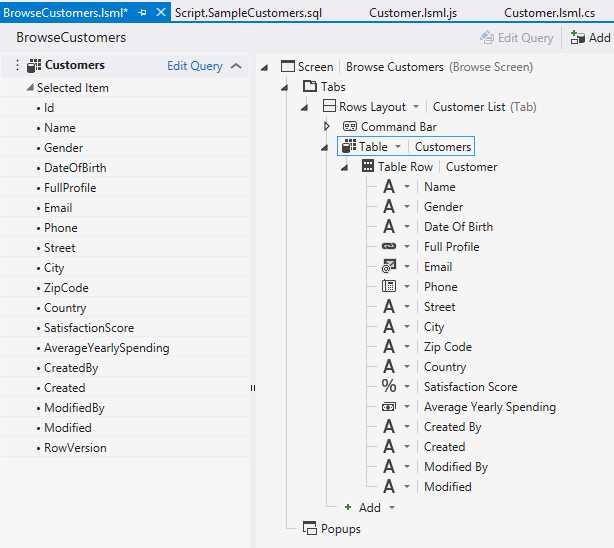
Changing the collection control of the Customers ContentItem
Save, then refresh the browser to see the change.
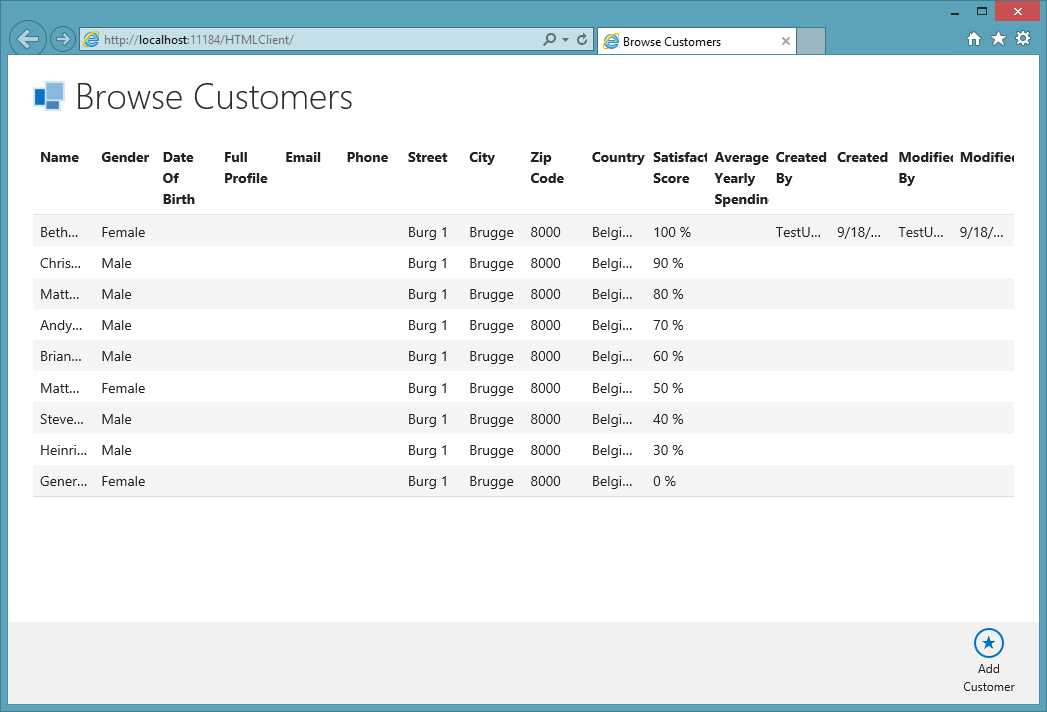
Customers are now shown in a Table
By default, each field on the Customer entity will be shown as a column, including the automatically generated and maintained auditing columns (but excluding the RowVersion column used for concurrency checking on the server).
If you are wondering why the first record has date in those auditing fields and the others don’t, it is because in my case, the first row was created using the application. The contents of that same record was then later overwritten by the SQL script directly in the database, because the script matches on ID. The auditing columns are maintained by the middle tier (the OData service) this is why the rows that were created by our SQL post-deployment script have no auditing information.
Let’s tidy this up a bit. Back in screen designer, select any subnode of the Table Row node and press delete on your keyboard or click the delete button in the command bar. Repeat until you have about 5 columns left.
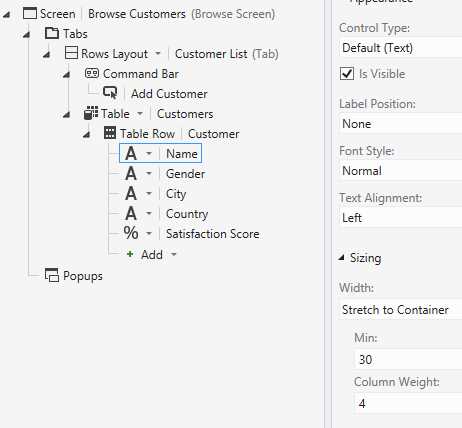
Removing excess columns
Not every column needs the same amount of space to display the contents. Using Properties Window you can select some of the columns and give them a Fixed Width or have them resize automatically based on the available width by setting them to Stretch to Container. In the latter case, columns with a larger Column Weight will be given a larger proportion of the available width.
Again, save and refresh shows you the updated layout.
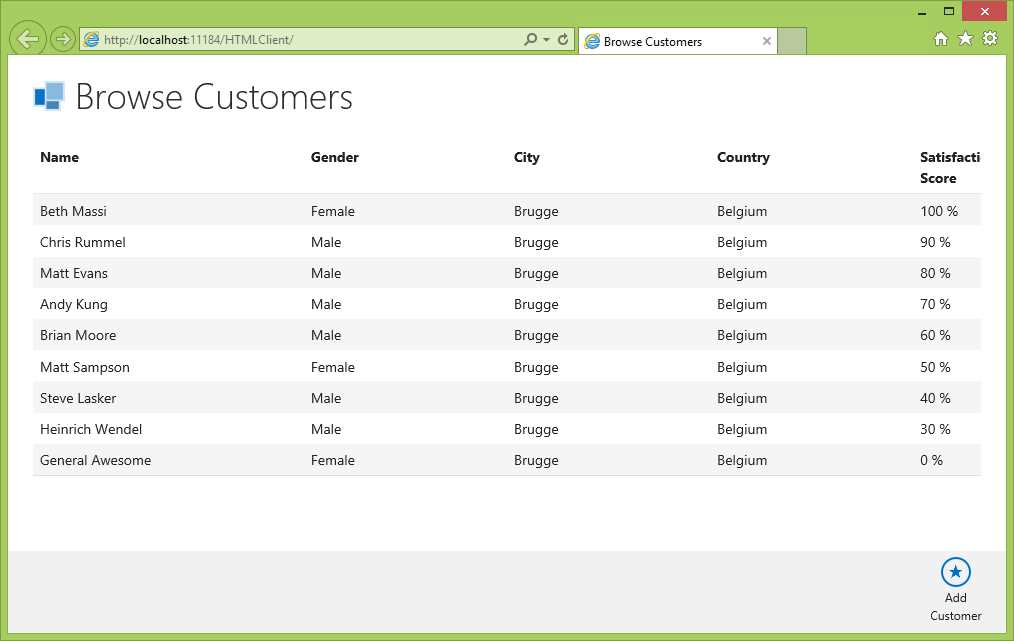
Customer Table, cleaned up
The neat thing about displaying collections in a Table control is that the control has a unique way of adapting to smaller screen factors. If the screen width is smaller than the combined Minimum Width of each column (30 pixels by default), it will change orientation and display each column vertically instead of horizontally, per row.
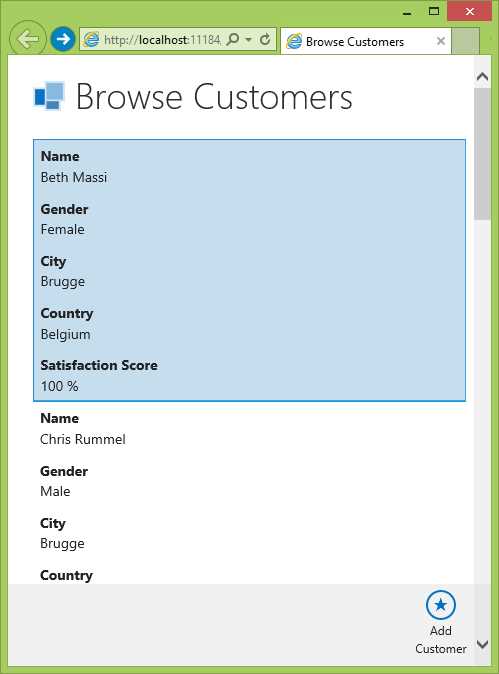
Adaptive design of the Table control in action.
Really impressive, but let’s give the third layout control a chance before we move on. Select the Customer Table node in Screen Designer and from the dropdown menu choose Tile List instead.
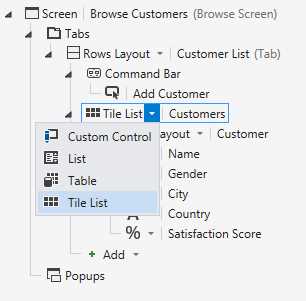
Tile List collection control
To prevent cramming too much information in each tile, I further removed all Customer fields except for Name and Satisfaction score. If you happened to have removed any of these columns simply select the Rows Layout ContentItem that is bound to the Customer, and click the Add button at the bottom.
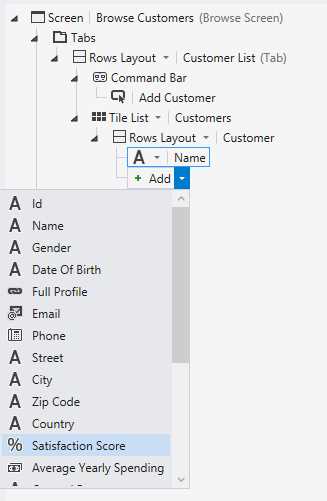
Adding fields back to the View
Save and refresh shows the Tile List in action.
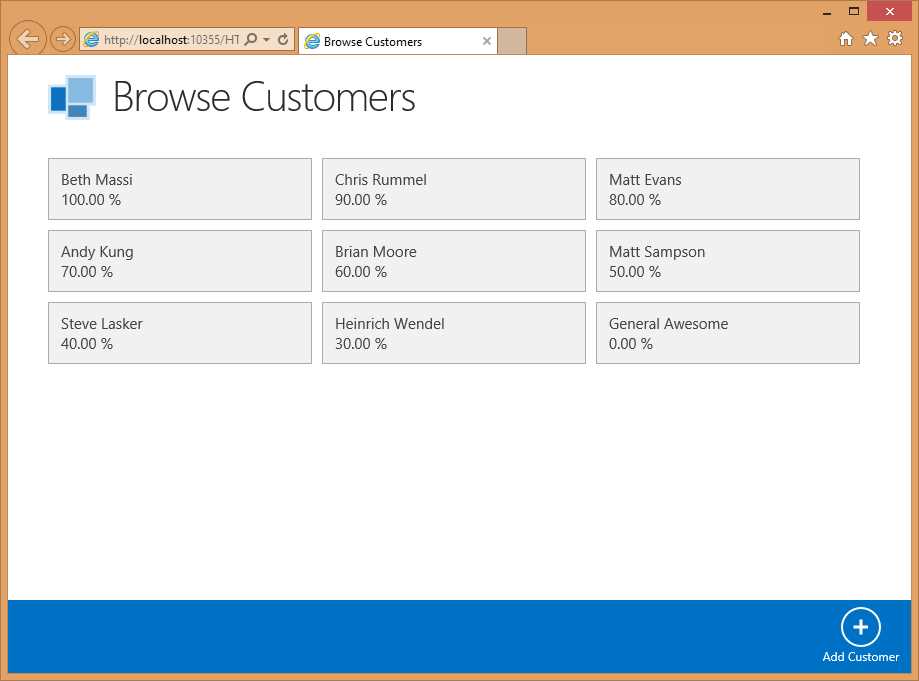
The tile list
A Tile List control will also adapt to the available screen width like the Table control. The Tile List does this by reducing the number of columns. On smartphone there would be only one column of Tiles, whereas tablets usually have a large enough screen to display three or four columns.
From the Screen Designer: Popups and filtering
By choosing the right combination of collection controls and layouts, you can make sure that the application shows as much useful information as possible, and only the useful information, for which your end users will be grateful. Still, it shows useful information for all of the customers and I can’t really imagine any of my end users being grateful for swiping through thousands of pages in order to find the one bit of information they really needed. Let’s explore some possibilities to filter the data.
Select the Customer collection from the view model in the Screen Designer (the left hand side) and hit the Edit Query link.
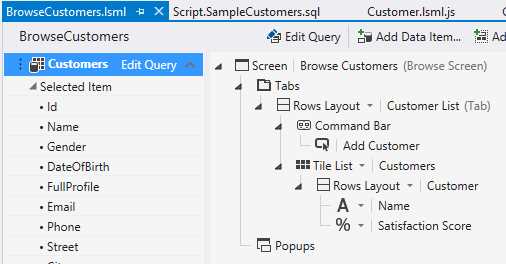
Each Query on the View Model can be edited.
This will open up the collection in the Query Designer (2).
This designer makes it easy to sort the data or filter it by any combination of limitations on Literals (fixed values), other Properties (fields), parameters or sometimes even smart business values (globals like “end of the current month”). Remember that you are editing the query that is used by the collection in the View Model to retrieve data from the middle tier. Filtering and sorting will thus be done by the server, directly in the data source (if supported), you are not actually filtering or sorting the collection client side.
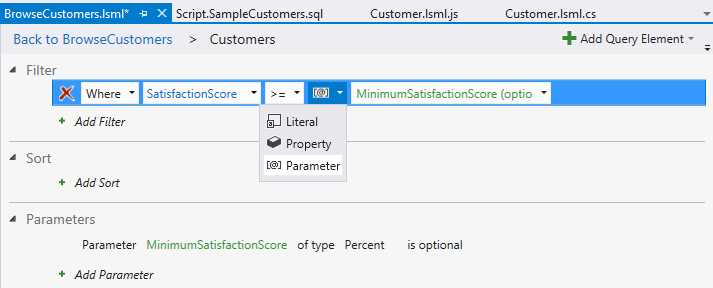
The Query Designer
Alter the query so it returns only those Customers where the SatisfactoinScore is higher than a particular value. This value will be passed as a parameter, I named mine MimumSatisfactionScore. Before saving and navigating back to the Screen Designer by hitting the Back to the BrowseCustomers link at the top, make sure you select the newly created MinimunSatisfactionScore parameter in the Query designer and from Properties Window check the Is Optional box.
Back in the Screen Designer, you’ll notice that the Customer collection on our view model now has the newly added Query Parameter called MimumSatisfactionScore.
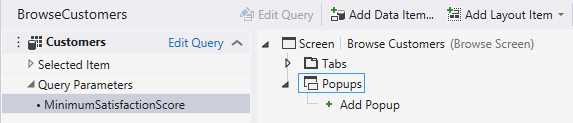
The MininmunSatisfactionScore got added as a Query Parameter
From the view on the right hand side, select the Popups node in the visual tree and click Add to add a popup.
A new Rows Layout node will appear as the root node of your popup. Select it and from Properties Window change the name to FilterPopup or something more meaningful than the default ‘Group’.
Drag and drop the new Query Parameter ‘MinimunSatisfactionScore’ from the view model onto the newly created popup in the view.
This drag and drop operation will have two effects. First, a local Screen Property will be added to the View Model (on the left hand side) named ‘MinimumSatisfactionScore’. This Screen Property will be databound to the Query Parameter, so any changes to this property will change the parameter and cause the Customers collection to be refreshed automatically. You can see that the local Screen Property is databound to the Query Parameter because of the arrow between the two. You can remove the ambiguity by renaming either, for example by selecting the ‘MinimumSatisfactionScore’ Screen Property and from Properties Window, setting the Name to HappinessFactor.
Secondly, a ContentItem node will be added to the visual tree (the View, on the right hand side) that informs you a Percentage Editor control will be rendered in the Popup, which will be data-bound to the local HappinessFactor Screen Property.
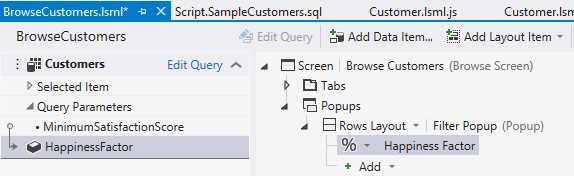
State of the Screen Designer after dragging the Query Parameter onto the popup.
Now that our popup is in place, you need some kind of trigger that will open the popup at runtime. The easiest way to set this up is by selecting the Screen Command Bar and adding a new button. This will automatically open the Add Button wizard. By default, the navigation action showPopup will be selected so just hit OK and you’re all set.
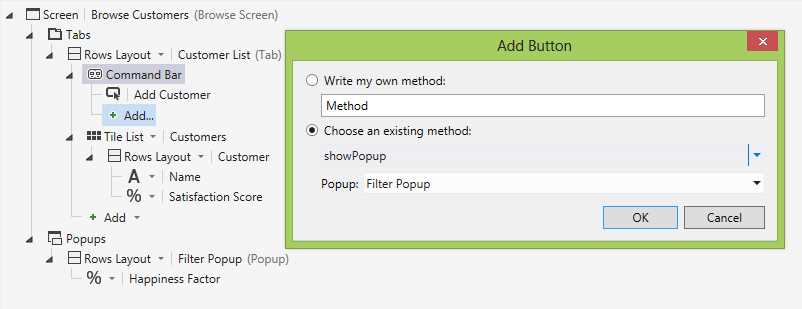
Opening a popup from the Add Button Wizard
With the newly created button selected, have a look at Properties Window and select any of the built-in icons as the Icon to use. The ‘Filter’ one made the most sense.
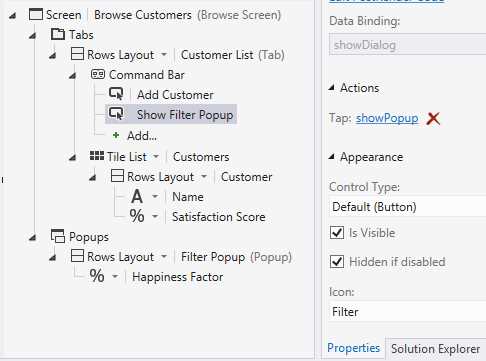
Selecting an Icon for the newly added button
Save your work, then refresh your browser to see the result in action.
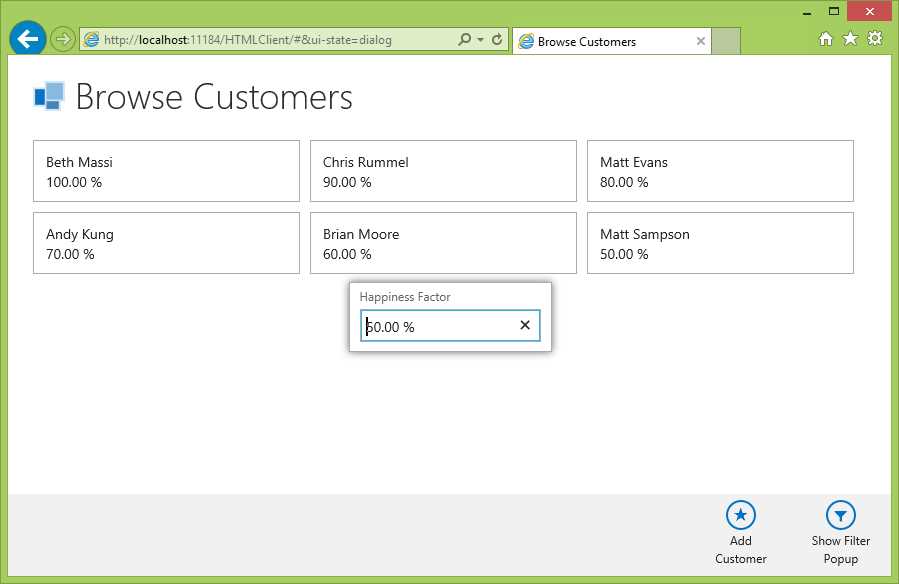
The filter popup in action
Almost good enough, the only thing that bothers me is forcing the end user to enter a numerical value, I would much rather present the end user with a choice list with some visual feedback instead.
At first it seems like this is not supported in via the Screen Designer, the HappinessFactor ContentItem node in the screen’s View only offers Custom Control (more about that in a couple of pages), Percentage Editor, Text Box or Area and a couple of read-only options.
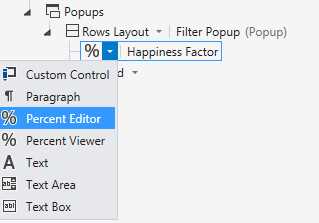
Available controls to render the Happiness Factor
The power of local screen properties and databinding
Choice lists are only supported for String and Integer properties or fields, so we’ll need to add a little workaround.
From the top of the Screen Designer, click the ‘Add Data Item…’ button. The wizard that appears allows you to create a new Local Property of the Integer type, called HappinessLevel. With this newly created HappinessLevel selected in the View Model, click the Choice List link in Properties Window. A dialog will appear where you can restrict this HappinessLevel property to a couple of predefined values, each with a descriptive Display Name.
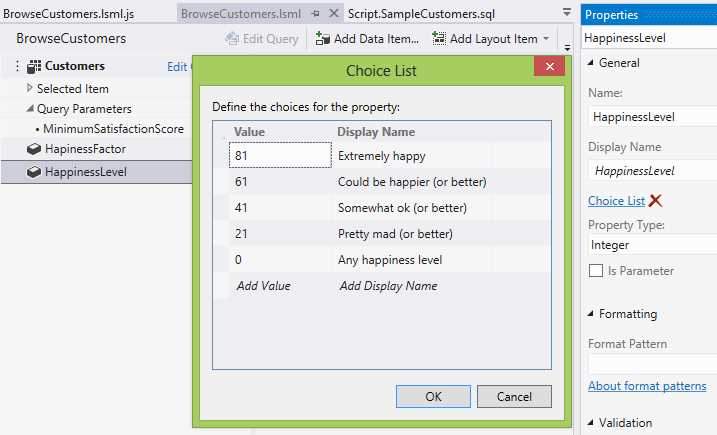
Restricting the HappinessLevel property to a couple of choices
The next problem to overcome is that there is no way in the Screen Designer to bind this Integer HappinessLevel to the Percentage MinimumSatisfactionScore Query Parameter, you’ll need to write some custom JavaScript to accomplish this.
Find the button at the top of the Screen Designer called Write Code, and from the dropdown select the created link.
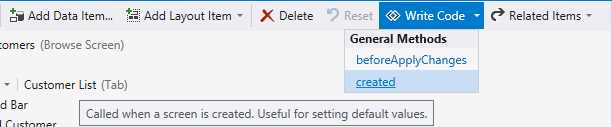
Creating a function stub
Clicking this link will take you to the ‘code behind’ file of the screen, and generate a function stub that will be executed when the screen is created at runtime:
myapp.BrowseCustomers.created = function (screen) {
// Write code here.
};
Replace the body of the function with the following code snippet:
myapp.BrowseCustomers.created = function (screen) {
screen.HappinessLevel = 0;
screen.addChangeListener(
"HappinessLevel",
function () {
screen.HapinessFactor = screen.HappinessLevel / 100;
}
);
}
The first line initializes the HappinessLevel screen property to 0, then adds a change listener to the screen. Whenever the HappinessLevel property changes, a callback function will be executed that sets the HappinessFactor to the percentage equivalent of the chosen HappinessLevel. Since the HappinessFactor property is still databound to the Query Parameter, the query will automatically executed as a result.
So all you need to do is remove the HappinessFactor from the screen and drag the HappinessLevel property to its place. Since you restricted the HappinessLevel with a choice list, LightSwitch will automatically use a Drop Down control to visualize it.
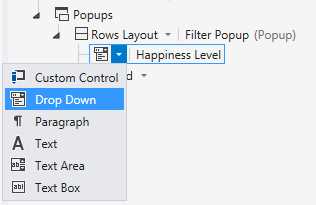
Drop Down controls are preferred for restricted values
Save your progress and refresh the browser (both the Screen Designer and the JavaScript do not need to be compiled).
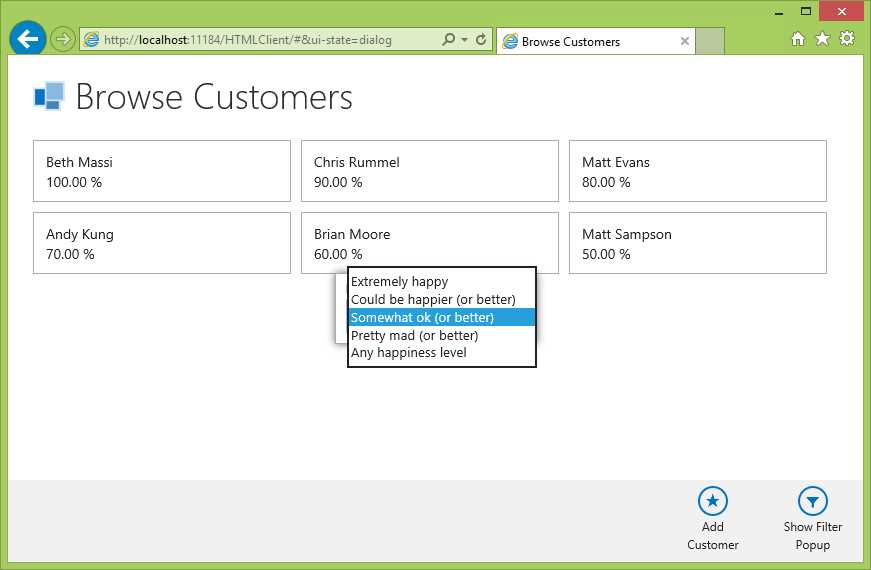
Doesn’t take a rocket scientist to figure out how this filter works
Custom controls: PostRendering
There are a lot of different screen layouts and actions that require no code at all but still allow you to tweak your application to the needs of the end user.
Sometimes though, it makes sense to slightly alter the way that LightSwitch visualizes particular elements. It is possible to augment or even completely override the outcome of the LightSwitch view engine at any point. The former is a process known to LightSwitch developers as PostRendering.
A first example could be to color the background based on the gender of a customer.
Back in the Screen Designer, select the Rows Layout ContentItem in the View just below the Tile List. This ContentItem is data-bound to a particular Customer, as you can see both in the Screen Designer as in Properties Window.
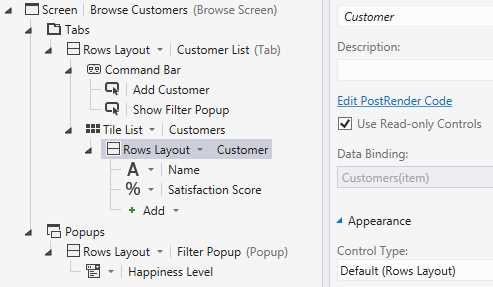
The Rows Layout ContentItem in the visual tree is data-bound to a Customer.
With that element selected, in Properties Window there will be a link that says “Edit PostRender Code”. When you click the link, a JavaScript function stub will be generated in the same ‘code-behind’ file where we already wrote some code before.
myapp.BrowseCustomers.RowTemplate_postRender = function (element, contentItem) {
// Write code here.
};
This function is passed two arguments: element and contentItem.
There really isn’t a concept like ‘controls’ in the HTML world, an HTML page is just an XML file with a number of nested elements that are rendered by your browser. The argument named element is a reference to the HTML element that LightSwitch has just added to the HTML page, probably a DIV-element in this case. To add, remove or alter elements to the HTML page from Javascript, LightSwitch will interact with a JavaScript object known as the DOM (Document Object Model).
The second argument, contentItem, is a JavaScript object that represents the Rows Layout Element node in the Screen Designer. You can query different properties like the DisplayName or Icon (in the case of a button), or you can get the value it is databound to (the Customer Entity) by accessing the property called ‘value’.
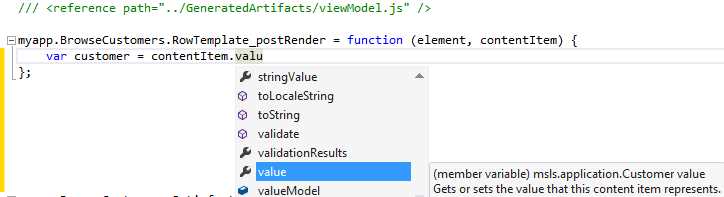
Intellisense on the value property
Instead of accessing the Customer to retrieve the Gender through this value property directly, it’s a habit to attach a data binding instead. This way, if the data ever changes (by the end user through the UI or even through code) the view will be automatically updated.
You already attached a data listener to the screen by using the addDataListener API. Attaching a data binding on a particular contentItem is done through a function call on contentItem called dataBind.
Just like before, this function needs two arguments: a string representing the path on the contentItem you want to bind to (“value.Gender” in this case), the second one is a callback function that will be executed whenever the value changes, (including when the data is initially loaded).
myapp.BrowseCustomers.CustomersTemplate_postRender = function (element, contentItem) {
contentItem.dataBind("value.Gender",
function (gender) {
// Code here gets executed when the Customer.Gender changes...
);
};
Let’s start the coloring adventure with a bit of static markup: setting the text color to white (for readability, since you’ll be coloring the background in a couple of seconds). What you need to accomplish is changing the style of the DIV element that LightSwitch inserted. Instead of interacting with the DOM directly, we’ll use a Javascript library named JQuery.
If you are completely new to JQuery then I recommend JQuery Succinctly from http://www.syncfusion.com/resources/techportal/ebooks/ . However if you are reading this eBook during your only coffee break today, here’s the 30-second version that you’ll need in order to understand the code used in the rest of this eBook. JQuery is an open source JavaScript library that adds a lot of functionality for JavaScript developers by encapsulating common tasks and browser anomalities behind a simplified API.
One example of this are JQuery selectors (http://www.w3schools.com/jquery/jquery_ref_selectors.asp). Using a JQuery selector actually means executing the JQuery() function to get a reference to a JQuery object that wraps a single or even multiple HTML elements in a simplified adapter. To make matters even more confusing for the starting JavaScript developer, is that there is an alias to the JQuery() function: the dollar sign. So when you see: $(“div”) just know that this equals JQuery(“div”), and that this will return a JQuery wrapper around all HTML DIV elements currently present in the page (the DOM).
Doing LightSwitch customizations, you’ll typically use these JQuery selectors with a number of different arguments to get various effects. Finding all elements of a particular type or with a particular id is one way, but you can also use the JQuery selector to create new HTML elements from scratch, with code such as
var customElement = $("<div />");
You’ll be creating new elements in a page or two, for now you’ll just want to wrap JQuery around the DIV element that LightSwitch inserted, so that you can access some JQuery utility functions to alter the style that is used. Surprisingly, the argument named element can also be passed directly to the JQuery function, thus our postRender function becomes
myapp.BrowseCustomers.CustomersTemplate_postRender = function (element, contentItem) {
contentItem.dataBind("value.Gender",
function (gender) {
$(element). // Wrapped a JQuery object around the element
);
};
One of the easiest ways to alter the style of a particular element is by directly altering the css through the css function on the JQuery object…
myapp.BrowseCustomers.CustomersTemplate_postRender = function (element, contentItem) {
contentItem.dataBind("value.Gender",
function (gender) {
$(element).css("color", "white");
);
};
The same trick can be used to alter the background based on the Customer’s gender as well:
myapp.BrowseCustomers.CustomersTemplate_postRender = function (element, contentItem) {
contentItem.dataBind("value.Gender",
function (gender) {
$(element).css("color", "white");
if (gender == "F")
$(element).parent('li').css("background", "#EE317C");
else
$(element).parent('li').css("background", "#131083");
}
);
};
To color the background of the tile, I first navigate upwards in the DOM to find a matching list item (LI) element by using the JQuery .parent fuction, to avoid a gray border inside the tile, as described in the MSDN Leading LightSwitch column http://msdn.microsoft.com/en-us/magazine/dn160191.aspx.
Save your work and refresh the browser to see the colors in place. Simple yet effective.
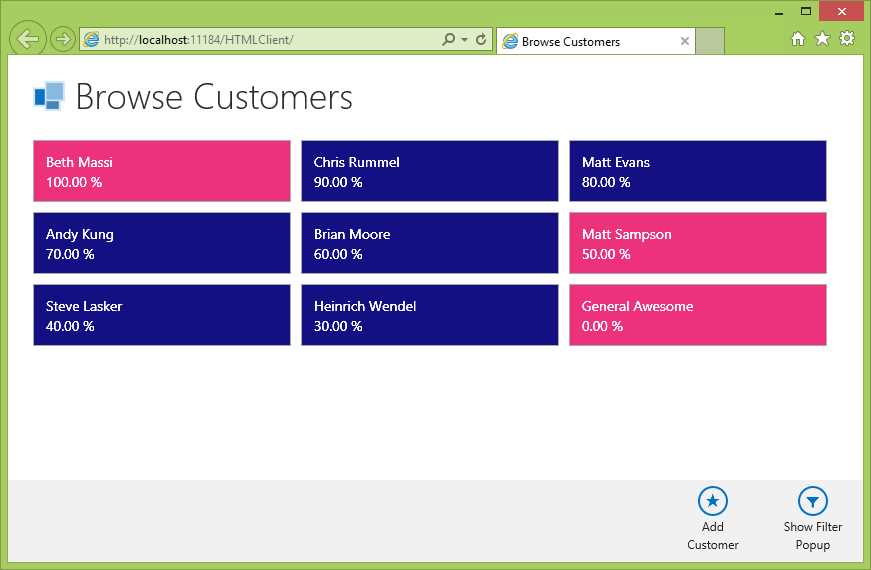
Colored tiles depending on the gender
Although it is possible to alter the css directly from the code, programming like this doesn’t really result in an application that is easy to maintain. Instead, it is a better approach to apply a particular style (called a ‘class’ in the HTML world) from code, then tweaking this class from seperate css files. Let’s up our styling game while having a look at the Rendering process.
Custom controls: Rendering
Rendering is exactly as PostRendering, only instead of tweaking the result of LightSwitch adding elements to the DOM, you are completely overriding and taking control of this yourself. As an example, we’re going to change the application so that it displays the Customer’s Satisfaction Score not as text but as a smiley.
First point on the agenda is to find some smileys. When it comes to finding or creating really good icons, I highly recommend downloading Syncfusion’s free Metro Studio from http://www.syncfusion.com/downloads/metrostudio.
If you search Metro Studio for ‘smiley’, more than enough suitable graphics show up.
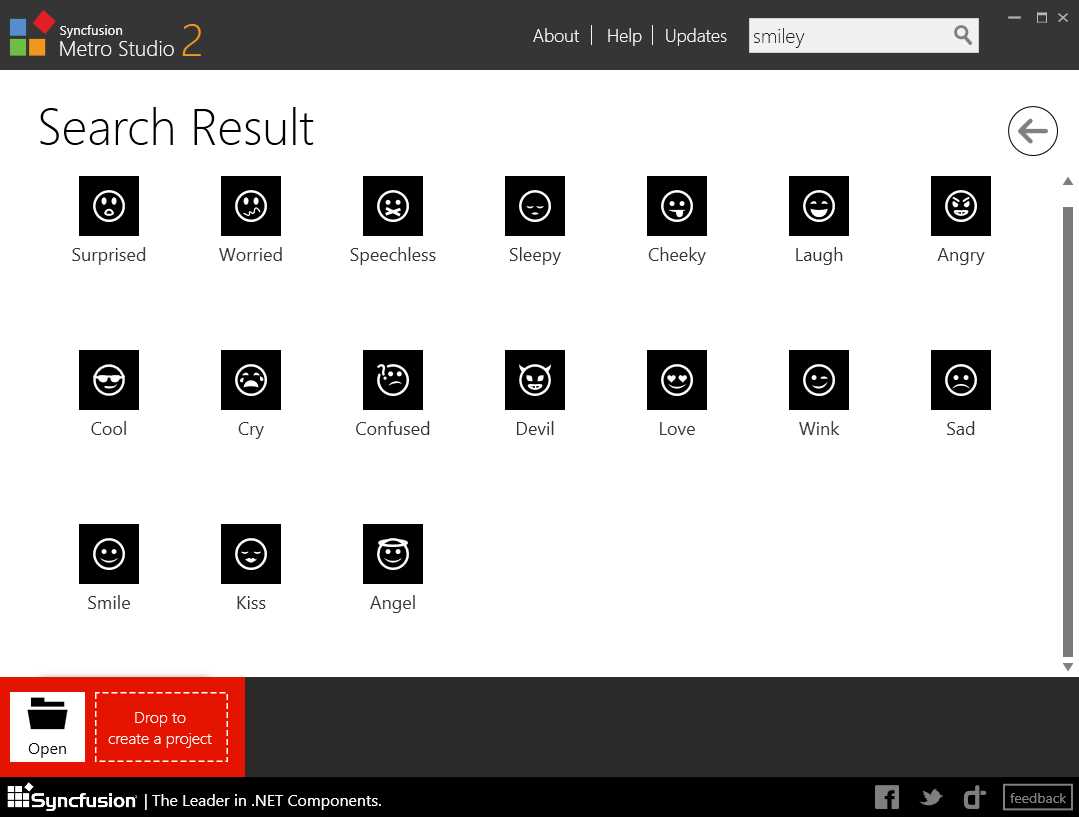
Syncfusion Metro Studio providing smileys for our application
I took five of them and exported them to the Images folder (located inside the Content subfolder in the HTML project) with names varying from ReallyHappy.png to PureEvil.png.
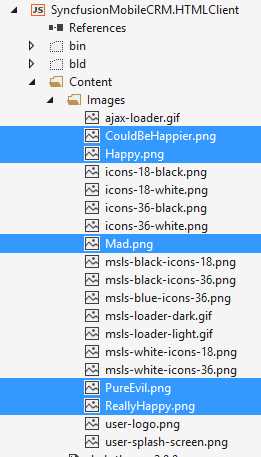
Content and Images subfolders in Solution Explorer
By the way, one of the images, user-logo.png, is the icon sitting at the top left each screen. Feel free to take this opportunity to swap it out for your company logo.
Besides Images, the Content subfolder is the designated place to store your Cascading Style Sheets (CSS). One of the css files is named user-customization.css
This file allows you to override any styling that LightSwitch created, without having to actually modify the LightSwitch proprietary css (and thus your customisations become more resillient to versioning). For smaller applications, I use this user-customization.css file not only to alter styling but to add new classes as well. Open the user-customization file and add the following styling:
.ReallyHappyCustomer, .HappyCustomer, .CouldBeHappierCustomer, .MadCustomer, .PureEvilCustomer {
width: 48px;
height: 48px;
}
.ReallyHappyCustomer {
background-image: url(Images/ReallyHappy.png);
}
.HappyCustomer {
background-image: url(Images/Happy.png);
}
.CouldBeHappierCustomer {
background-image: url(Images/CouldBeHappier.png);
}
.MadCustomer {
background-image: url(Images/Mad.png);
}
.PureEvilCustomer {
background-image: url(Images/PureEvil.png);
}
The classes that I added have names ranging from ReallyHappyCustomer to PureEvilCustomer. All five of them simply set the width, height, and background image. Now all that’s left to do is to create an element and apply these classes from code.
Open the Browse Customer screen in the Screen Designer.
Originally, each Tile consisted out of a Rows Layout that vertically renders out the Customer’s Name and Satisfaction Score using a Text element and a Percentage Viewer.
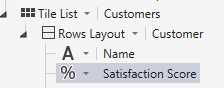
Change the layout of the tiles to use a Columns Layout instead to horizontally render the Satisfaction Score using a “Custom Control” and then the Name.
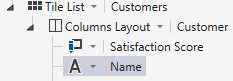
Select the Name ContentItem and set the Text Alignment to ‘Center’, and Width to ‘Stretch to Container’
When you select the Satisfaction Score node in the Screen Designer, the Properties Window will not have link to generate a PostRender function, but instead a link called Edit Render Code…
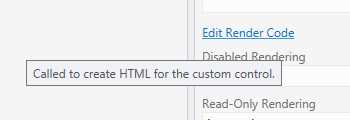
Custom Controls have an Edit Render Code link in Properties Window
Clicking that link generates a familiar function stub in the same JavaScript ‘code-behind’ as the PostRender method did.
myapp.BrowseCustomers.SatisfactionScore_render = function (element, contentItem) {
// Write code here.
};
Again, the function has two arguments named element and contentItem. Element is a reference to an HTML DIV tag that serves as the placeholder around your custom control, contentItem again is a JavaScript object that references the LightSwitch node from the visual tree, which is databound to the Customer’s SatisfactionSore.
Our JavaScript mission will be to add a custom HTML element to the DOM using JQuery, then setting the appropriate css class (from ReallyHappyCustomer to PureEvilCustomer) based on the value of the Customer’s Satisfaction Score.
Adding a custom element will again accomplished using the JQuery $ function, this time passing it a bit of HTML, then appending it to the parent element that was passed as an argument.
myapp.BrowseCustomers.SatisfactionScore_render = function (element, contentItem) {
var customElement = $("<div />");
customElement.appendTo(element);
};
Lastly, you use the LightSwitch databinding API again to attach a callback function to the value of the contentItem (the Satisfaction Score):
myapp.BrowseCustomers.SatisfactionScore_render = function (element, contentItem) {
var customElement = $("<div />");
customElement.appendTo(element);
contentItem.dataBind("value",
function (satisfactionScore) {
// You will add the appropriate css class here.
}
);
};
And finally, in that callback function, apply the appropriate css class using the addClass() function on the JQuery object.
myapp.BrowseCustomers.SatisfactionScore_render = function (element, contentItem) {
var customElement = $("<div />");
customElement.appendTo(element);
contentItem.dataBind("value",
function (satisfactionScore) {
customElement.removeClass();
if (satisfactionScore > 0.8)
customElement.addClass("ReallyHappyCustomer");
else if (satisfactionScore > 0.6)
customElement.addClass("HappyCustomer");
else if (satisfactionScore > 0.4)
customElement.addClass("CouldBeHappierCustomer");
else if (satisfactionScore > 0.2)
customElement.addClass("MadCustomer");
else
customElement.addClass("PureEvilCustomer");
}
);
};
Did you see I sneaked in a line that clears all css classes on the element as well:
customElement.removeClass();
I did this because the actual value of the Customer’s Satisfaction Score can change during the execution of the application. When this happens (even when done in another screen or from code), our callback function will be executed again. Clearing the css classes on our custom element this way helps to avoid duplicate or even conflicting styling.
Save the progress and refresh the browser to put the new styling to the test.
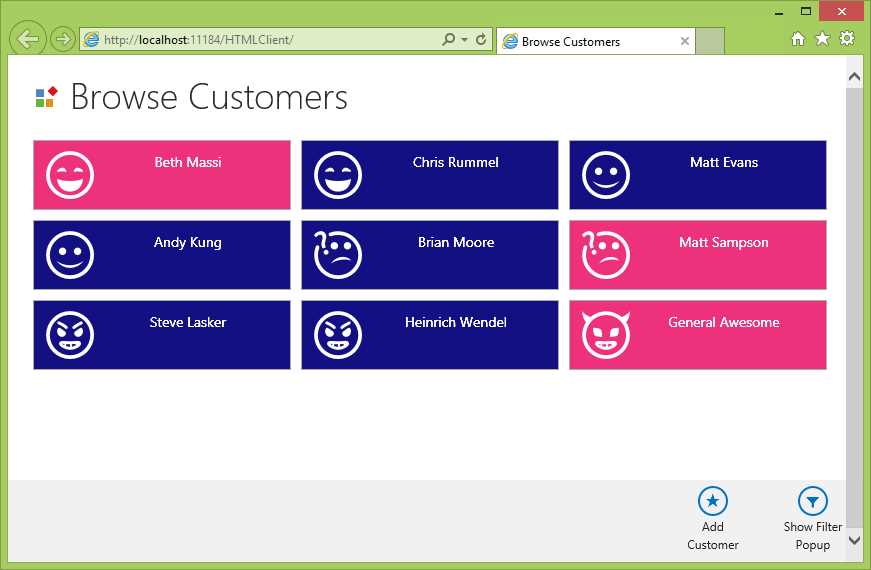
Customers’ Satisfaction Score styled as smileys


- 1800+ high-performance UI components.
- Includes popular controls such as Grid, Chart, Scheduler, and more.
- 24x5 unlimited support by developers.