
LightSwitch Mobile Business Apps Succinctly®

CHAPTER 7
Get in position
This chapter, ‘Get in position’, describes how a LightSwitch application can be published to Azure cloud services.
Available hosting options
The only way software can deliver additional value to an end-user, is in the form of shippable, runnable features. I have yet to meet the first end-user that got excited over a sln file (a Visual Studio solution), so let’s explore how a LightSwitch project can emancipate from your local debug environment to a deployed application.
LightSwitch offers a variety of supported hosting environments out of the box, both on premesis or in the cloud. Your intrinsic databases, the database that is automatically created based on your entities unless you chose to connect to an existing database, can be deployed to a SQL 2008, 2012, 2013 or SQLAzure server, and your HTML project and middle-tier can be hosted on an IIS or in an Azure Web Site.
Alternatively, LightSwitch allows you to create Cloud Business Apps as well, this allows the app to be autohosted by a Sharepoint 2013 server either on premesis or at an external provider like O365.
For now, you’ll stick with the easiest solution: deploy the application as a free (see note 6) SQL Azure Web Site.
Creating the Azure Web Site
To create an Azure Web Site, log in to your Azure account dashboard at https://manage.windowsazure.com/.
Select Web Sites from the overview panel on the left hand side, then click the NEW button at the bottom.
From the menu that appears, select to CUSTOM CREATE a new WEB SITE.
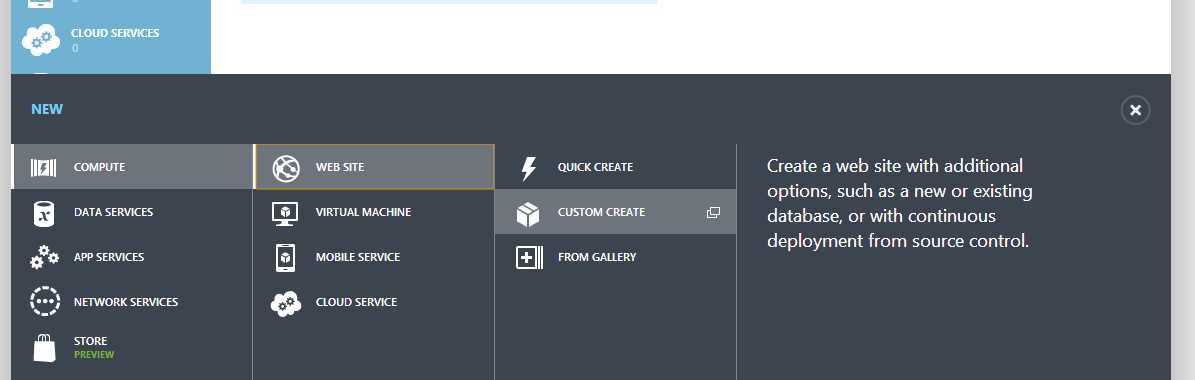
Azure Dashboard menu
A modal dialog will appear to configure additional information about your new Web Site, like the name (affecting the URL of the site), the region to the data center of your choice (the closer to the end users, the better), and some options to create a new database.
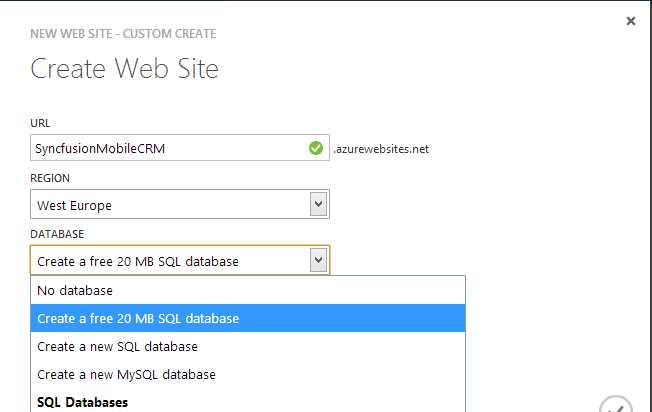
Create Web Site dialog
In a second step, you’ll be asked to name the database, and select a region for it (select the same data center as before). After a very small pause, your web site will be ready.
Publishing the application
With the supporting Azure infrastructure in place, you should be less than a minute away from having your first mobile business application ready to show off with.
Change your build configuration from Debug to Release, then right click on the LightSwitch project in Solution Explorer, and hit Publish from the context menu.
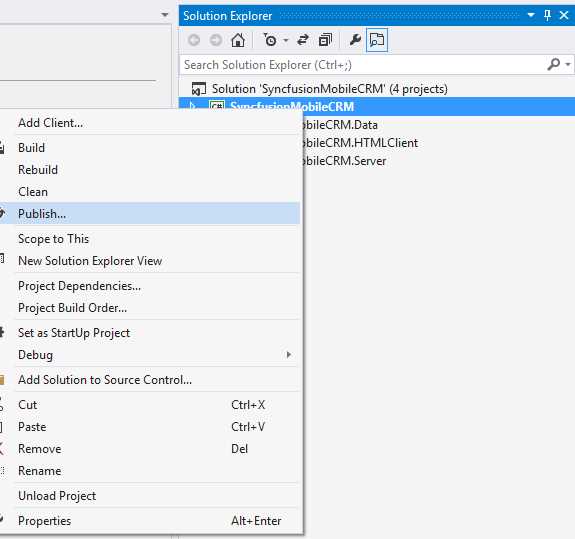
Publish the LightSwitch application.
This will open up the LightSwitch Publish Application Wizard to guide you through the process.
This wizard allows you to publish the application as a whole, or deploy the middle tier as an OData service only. The second tab, Application Server Configuration, allows you to choose between an on premise installation to IIS or an installation to Azure, which is of course the option you’ll want to select. If you do not have the Azure SDK installed, Visual Studio will now guide you through the required installation tab.
The third tab, Subscription, is probably the biggest time saver.
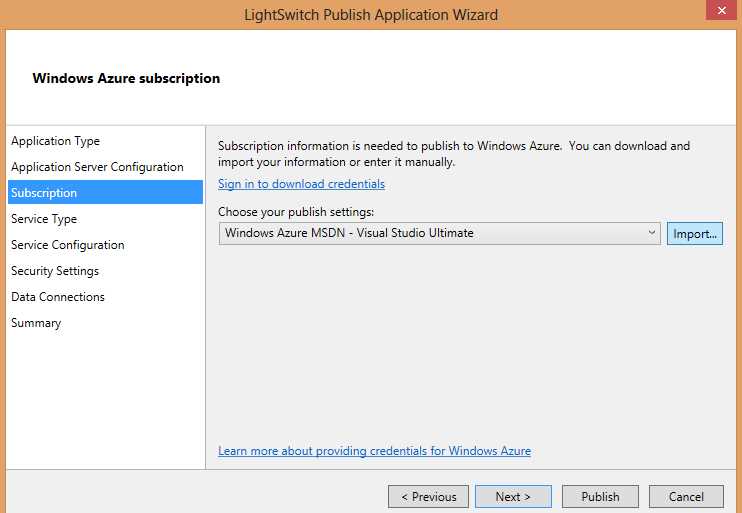
The Subscription tab
This tab allows you to connect to your Azure account from within Visual Studio to download technical information about your Azure account instead of manually having to configure everything. First, click the ‘Sign in to download settings’ link. This will open up your browser and after you confirm your Azure credentials, start to download a settings file for you. From the wizard you can now click the import tab to select that settings file.
With this in place, the rest of the wizard is a no brainer. The name you gave to your Web Site will be available to select from the Service Configuration tab, and the connection to the database you created will already be filled in the Data Connections tab.
After reviewing the Summary page for potential errors, click Publish. Visual Studio will build, package, upload and deploy your application. Your post deployment scripts in the Database Project will be ran as well, providing you with the same sample data.


- 1800+ high-performance UI components.
- Includes popular controls such as Grid, Chart, Scheduler, and more.
- 24x5 unlimited support by developers.