
LightSwitch Mobile Business Apps Succinctly®

CHAPTER 3
Adding fuel
This chapter, ‘Adding fuel’, explains the strategy to use further shape the intrinsic database using a SQL Server Database project.
One of my favorite new LightSwitch features is the ability to add a database project to the solution to help shape the intrinsic database. This recent addition is completely in line with the LightSwitch vision: use simple editors to do the bulk of the work quickly, while still retaining the possibility to change even the tiniest technical detail on the lowest level.
This database project is intended to have a place to create stored procedures that can handle heavy loads of work, or to add some default/sample data or configuration. The LightSwitch project will keep the data model of this Database project in sync with the Entity designer (and execute any post-deployment scripts) each time you make a layout change in the Entity Designer.
This synchronization works in one direction only, the Entity Designer holds the single, unambiguous, authorative representation of the truth (see the definition of DRY) and you’re asking for trouble if you use the Database project to fundamentally alter the layout of the tables that will be generated based on your work in the Entity Designer.
SDET Chris Rummel explains this feature in detail at http://blogs.msdn.com/b/lightswitch/archive/2013/07/03/intrinsic-database-management-with-database-projects-chris-rummel.aspx.
The link is provided for more detail, I’ll guide you through the basic idea: start by right clicking on the solution and selecting Add New Project.
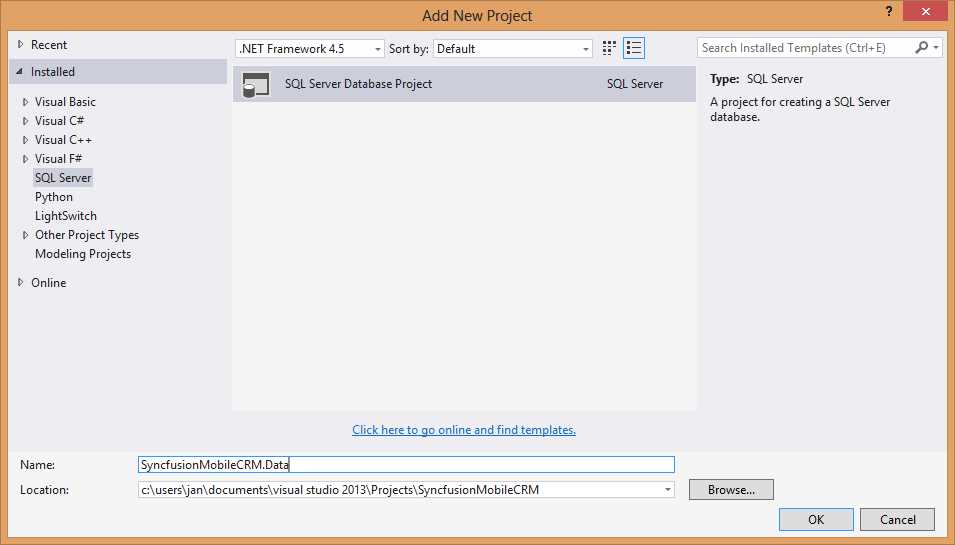
Add a new SQL Server Database Project
Once the project has been added to the solution, instruct the LightSwitch project to keep it in sync with the other projects. To do this, right click on the LightSwitch project then select Properties. From the General Properties tab, set the SQL Database Project to the project you have just created.
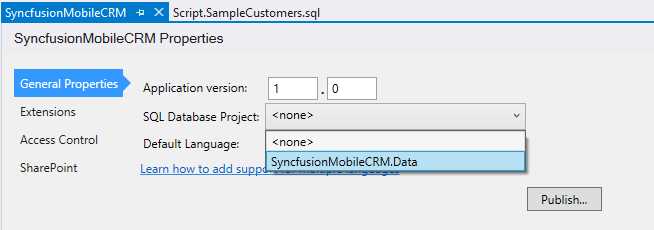
Linking a database project
Now that the basic infrastructure is in place, add a new Post-Deployment script to the database project.
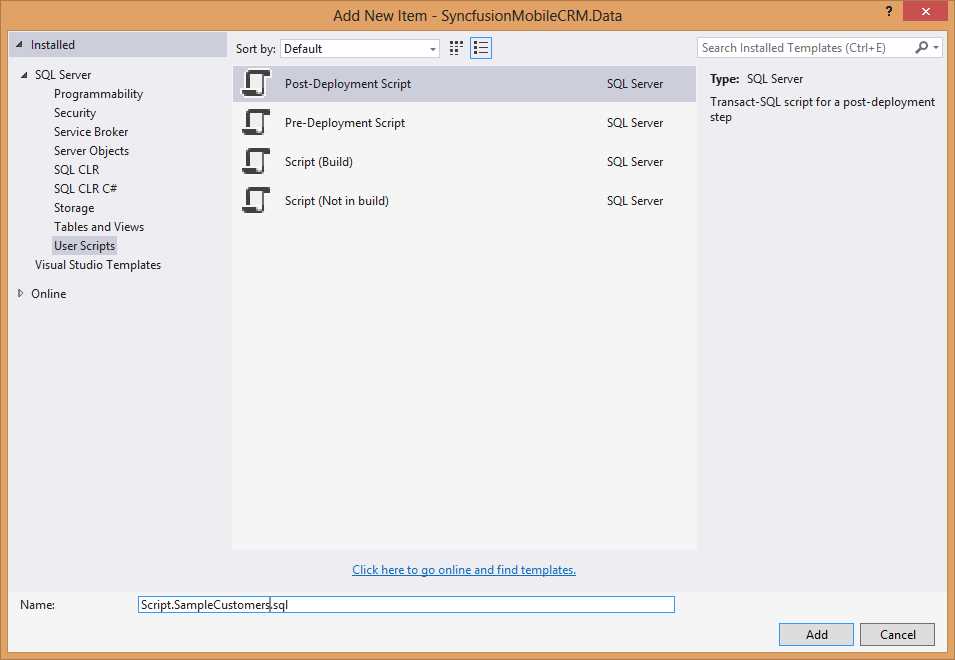
Adding a post-deployment script
This post-deployment script will be executed each time the database is deployed. This includes when you publish the application for the first time, when you publish an update, but will also run against your local test database every time you make a change to the layout of your entities (and thus the database structure changes). I’ve updated Chris’s SQL script to match our model…
SET IDENTITY_INSERT [dbo].[Customers] ON;
MERGE INTO [dbo].[Customers] AS Target
USING (VALUES
(1, 'Beth Massi', 'F', 'Burg 1', '8000', 'Brugge', 'Belgium', 1.00),
(2, 'Chris Rummel', 'M', 'Burg 1', '8000', 'Brugge', 'Belgium', 0.90 ),
(3, 'Matt Evans', 'M', 'Burg 1', '8000', 'Brugge', 'Belgium', 0.80 ),
(4, 'Andy Kung', 'M', 'Burg 1', '8000', 'Brugge', 'Belgium', 0.70 ),
(5, 'Brian Moore', 'M', 'Burg 1', '8000', 'Brugge', 'Belgium', 0.60 ),
(6, 'Matt Sampson', 'F', 'Burg 1', '8000', 'Brugge', 'Belgium', 0.50 ),
(7, 'Steve Lasker', 'M', 'Burg 1', '8000', 'Brugge', 'Belgium', 0.40 ),
(8, 'Heinrich Wendel', 'M', 'Burg 1', '8000', 'Brugge', 'Belgium', 0.30 ),
(9, 'General Awesome', 'F', 'Burg 1', '8000', 'Brugge', 'Belgium', 0.00)
)
AS Source(Id, Name, Gender, Street, ZipCode, City, Country, SatisfactionScore)
ON Target.Id = Source.Id
-- update matched rows
WHEN MATCHED THEN
UPDATE SET Name = Source.Name, Gender = Source.Gender, Street = Source.Street,
ZipCode = Source.ZipCode, City = Source.City, Country = Source.Country,
SatisfactionScore = Source.SatisfactionScore, DateOfBirth = NULL,
FullProfile = NULL, Email = NULL, Phone = NULL, AverageYearlySpending = NULL
-- insert new rows
WHEN NOT MATCHED BY TARGET THEN
INSERT (Id, Name, Gender, Street, ZipCode, City, Country, SatisfactionScore)
VALUES (Id, Name, Gender, Street, ZipCode, City, Country, SatisfactionScore)
-- delete rows that are in the target but not the source
WHEN NOT MATCHED BY SOURCE THEN
DELETE;
SET IDENTITY_INSERT [dbo].[Customers] OFF;
GO
The intent of the script is simple: given a hardcoded set of customers, update the rows in the database with corresponding IDs, insert the missing ones and remove the excess data. Any resemblance between the characters in this data and any persons, living or dead, is pure coincidence (5).
Rebuild and launch the application again to verify our test subjects are in place.
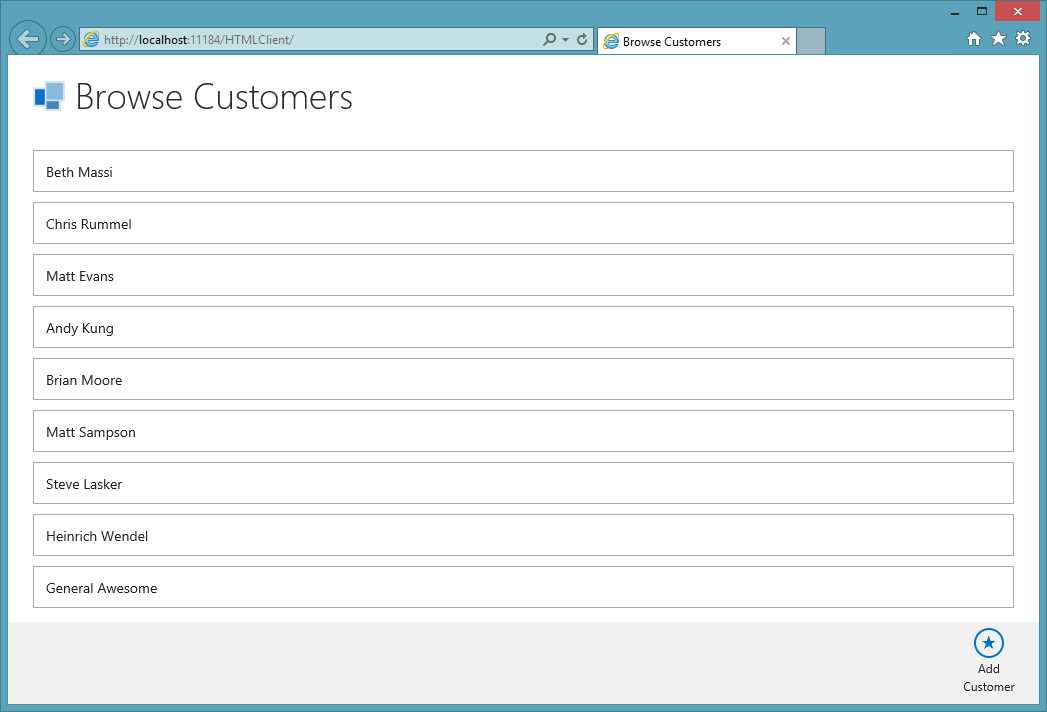
The app with some sample data


- 1800+ high-performance UI components.
- Includes popular controls such as Grid, Chart, Scheduler, and more.
- 24x5 unlimited support by developers.