
Keystone.js Succinctly®

CHAPTER 6
Forms and Validation
Let us see how to use forms to modify the contents of nodepress directly. We will create forms for working with the News model, learn how to receive and validate user data, and finally update the values in the database.
Handling form submissions
Let us create a form where an authenticated user can create a new News item. We will create a form that will be posted to the server. Create a new template named createnews.swig to hold our web form, place it in the /templates/views/ folder, and rebuild the project.
Code Listing 66: Create News form
{% extends "../layouts/default.swig" %} {% block content %} <div class="container"> <div class="panel panel-primary"> <!-- Default panel contents --> <div class="panel-heading">Create News Item</div> <div class="panel-body"> <form class="form-horizontal custom-form" action="/createnews" method="post"> <div class="form-group"> <div class="col-sm-2 label-column"> <label for="name-input-field" class="control-label">Title </label> </div> <div class="col-sm-6 input-column {% if validationErrors.title %}has-error{% endif %}"> <input type="text" name="title" placeholder="Title of the News" class="form-control" value="{{form.title}}" /> </div> </div> <div class="form-group"> <div class="col-sm-2 label-column"> <label for="email-input-field" class="control-label">Content </label> </div> <div class="col-sm-6 input-column" {% if validationErrors.content %}has-error{% endif %}> <textarea name="description" placeholder="Describe the News" class="form-control">{{form.content}}</textarea> </div> </div> <div class="form-group"> <div class="col-sm-2 label-column"> <label for="" class="control-label">State </label> </div> <div class="col-sm-6 input-column"> <select class="form-control" name="state"> <option value="draft" {% if form.state == 'draft' %} selected{% endif %}>Draft</option> <option value="published" {% if form.state == 'published' %} selected{% endif %}>Published</option> <option value="archived" {% if form.state == 'archived' %} selected{% endif %}>Archived</option> </select> </div> </div>
<input type="submit" class="btn btn-primary submit-button" value="Create News"/> </form> </div> </div> </div> {% endblock %} |
The form will look like the following figure.

Figure 18: Create News form
The form is pretty straightforward. We have HTML form fields for each of the model fields on the News model.
Add a route to the routes index file.
Code Listing 67: Create news route
app.all('/createnews', middleware.requireUser, routes.views.createnews); |
As you see, we are taking advantage of the requireUser middleware to make sure that our user is first logged into the application before being able to create a news item.
Validating input and error messages
Our view will perform all the input validations and will populate the validationErrors in the response, if any. Create a file for our view named createnews.js under the /routes/views folder.
Code Listing 68: Create News view
var keystone = require('keystone'), News = keystone.list('News'); exports = module.exports = function (req, res) { var view = new keystone.View(req, res), locals = res.locals; locals.form = req.body; locals.data = { users: [] }; view.on('init', function (next) { var q = keystone.list('User').model.find().select('_id username') q.exec(function (err, results) { locals.data.users = results; next(err); }); }); view.on('post', function (next) { var newNews = new News.model(), data = req.body; data.author = res.locals.user.id; newNews.getUpdateHandler(req).process(data, { flashErrors: true, }, function (err) { if (err) { locals.validationErrors = err.errors; } else { req.flash('success', 'Your news item has been created!'); return res.redirect('/news/' + newNews.slug); } next(); }); }); // Render the view view.render('createnews'); }; |
The getUpdateHandler method will perform validation based on the model definition. We can use the following snippet to highlight any fields that failed validation by applying the bootstrap has-error CSS class in our template.
Code Listing 69: Bootstrap error CSS
{% if validationErrors.title %}has-error{% endif %}" |
Flash errors are used to show an aggregate of all the errors that occur. The following figure shows an example of flash errors.
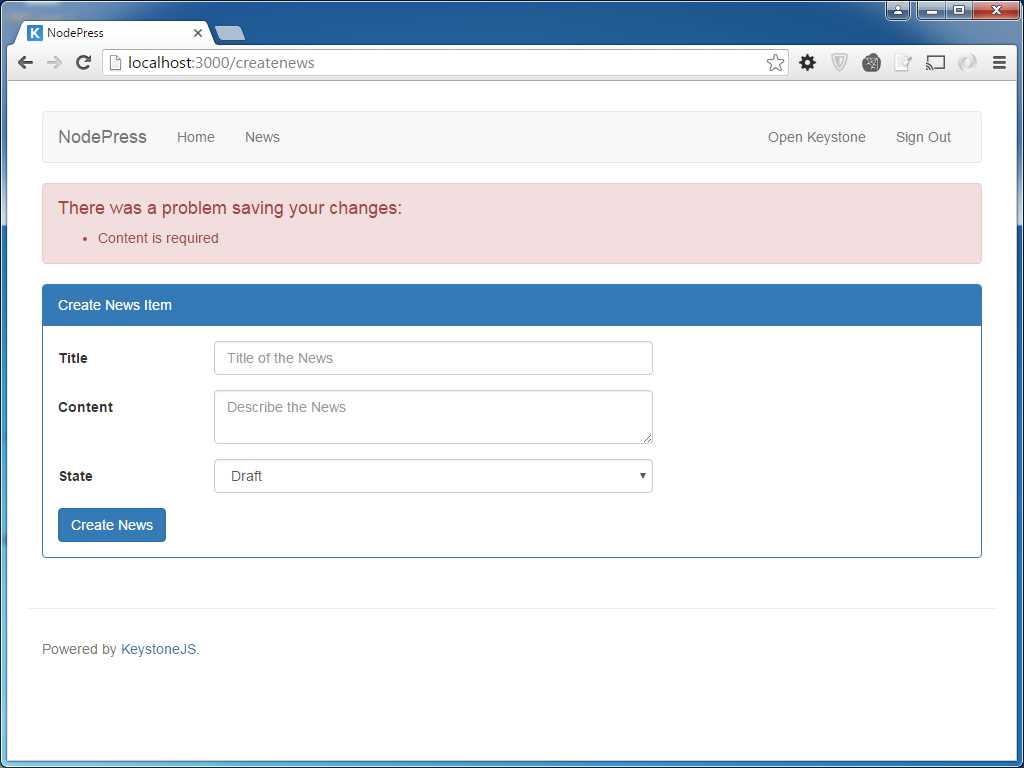
Figure 19: Flash errors
To receive the form data on the server side, we use the request body on the HTTP post. The getUpdateHandler method on an instance of the model can take in the post data and create a new entry in the database. It is important that the object keys in the input data read from the form post match up to the fields defined in the model.
Summary
In this chapter, we learned about the ease of integrating forms within a Keystone.js application. Keystone.js form validation makes it very convenient to implement complex forms in any application.


- 1800+ high-performance UI components.
- Includes popular controls such as Grid, Chart, Scheduler, and more.
- 24x5 unlimited support by developers.