
Keystone.js Succinctly®

CHAPTER 3
Data Modeling in Keystone.js
The Mongoose object document mapper (ODM) included with Keystone.js provides a beautiful, simple API implementation for working with your MongoDB database. Each database collection has a corresponding "model" that is used to interact with that collection. Models allow you to query for data in your Mongo collections, as well as insert new documents into the collection.
Mongoose provides an abstract and common interface to the data in a document database. The ODM makes it very easy to convert data between JavaScript objects and the underlying Mongo documents.
Defining models
With Keystone.js, creating a model is as easy as defining a JavaScript file and specifying a number of attributes assigned to that file. Let's start with a very basic model for our news entries. Create a new file named News.js in the project's Models directory and enter the following code.
Code Listing 10: News.js model
var keystone = require('keystone'); var Types = keystone.Field.Types; /** * News Model * ========== */ var News = new keystone.List('News', { autokey: { path: 'slug', from: 'title', unique: true } }); News.add({ title: { type: String, required: false }, state: { type: Types.Select, options: 'draft, published, archived', default: 'draft', index: true }, author: { type: Types.Relationship, ref: 'User', index: true }, publishedDate: { type: Types.Date, index: true, dependsOn: { state: 'published' } }, content: { type: Types.Html, wysiwyg: true, height: 400 } }); News.defaultColumns = 'title, state|20%, author|20%, publishedDate|20%'; News.register(); |
There is a lot going on, so let's start with the require statement and work our way down. We begin by importing the standard Keystone library and obtaining a reference to the Keystone field types.
Next is the News model definition. Our News model is an object that is an instance of the keystone.List. By relying on the keystone.List, our News object will inherit a variety of helpers that we'll use to query the database.
Before adding fields to the News model, we define the name of the model as the first parameter to the list—in our case, News. The second parameter is an object that can be used to assign behaviors to the News model. The autokey option is used to generate slugs for the model, which we will use to give our news entries some nice URLs. The URL is generated from the title of the post and can be accessed via the slug property of a news post. If the unique option is set to true, Keystone.js validates that no other post exists with the same title as the one being entered. This is an easy way to prevent duplicate news.
Each post can have multiple fields within it, which can be used to enter relevant data. The attributes of the News model are a simple mapping of the names and data that we wish to store in the database. They are listed as follows:
- Title: This field can hold a string and is used for storing the news post title. The required option is useful to validate that the field has a value before it is saved. A database index is also used to enforce this.
- State: This is a field in which to save the status of the news post. We use a select field type, so the value for this field can be set to one of the given choices. The default option is set to a draft status.
- Content: This is the field to be used to store the description of the ticket. The Text area field type will display a text area within the admin UI.
- Author: This field will hold a reference to the user who created the news post. The field is like a foreign key that defines many-to-one relationships in a relational database. This field is displayed as an autosuggest text box in the admin UI that allows us to pick a single user. Setting the many option to false indicates that only a single user can be selected. Setting the index option to true will tell Keystone.js that we are interested in a database index to be created for this field. The categories field can be set up similarly to a relationship field.
- PublishedDate: This date-time field indicates when the news post was created by the user. Since we are using the default value of Date.now, the date will be saved automatically when creating a new post object.
The defaultColumns option allows you to set the fields of your model that you want to display in the admin list page. By default, only the object ID is displayed. In Code Listing 10, we are specifying the title, state, author, and publishedDate as the default columns to display in the admin UI, with state, author, and publishedDate being given column widths. The call to register on our keystone.js list finalizes the model with any attributes and options we set.
Restart the application and refresh the administration page. You should see the option to manage news items, as shown in Figure 11.

Figure 11: Manage news in administration UI
Click News and add a new news item with the green Create News button. You will be provided with an autogenerated UI with all the fields that were defined in the News model.

Figure 12: Manage news in administration UI
Timestamps
The track option in the list initialization options allows us to keep track of when and who created and last updated an item.
Code Listing 11: Specify track option on News.js model
var keystone = require('keystone'); var Types = keystone.Field.Types; /** * News Model * ========== */ var News = new keystone.List('News', { autokey: { path: 'slug', from: 'title', unique: true }, /* Automatic change tracking */ track: true }); |
These fields are automatically added:
- CreatedAt: Enables tracking when the news post was created.
- CreatedBy: Enables tracking which user created the news.
- UpdatedAt: Enables tracking when the news post was last updated.
- UpdatedBy: Enables tracking which user last updated the news post.
An alternate way of registering the track functionality is to use the track property on the News list.
Code Listing 12: Specify track option on News.js model
News.track = true; |
Collection names
Note that we did not tell Keystone.js which MongoDB collection to use for our News model. The plural name of the model will be used as the collection name unless another name is explicitly specified. So, in this case, Keystone.js will assume the News model stores documents in the News collection. You may specify a custom collection by defining a schema property on your model.
Code Listing 13: Specify custom collection for News.js model
var keystone = require('keystone'); var Types = keystone.Field.Types; /** * News Model * ========== */ var News = new keystone.List('News', { autokey: { path: 'slug', from: 'title', unique: true }, track: true, /* custom collection name */ schema: { collection: 'mynews' } }); …. |
Primary keys
Keystone.js will assume that each document has a primary key column named _id that holds the MongoDB object ID. This field is generally used for querying as well as looking up related documents.
Adding relationships to model
Each model in an application can be related to another model in a couple of ways. They may be connected under a one-to-many relationship, or a many-to-many relationship.
One-to-many relationships are used when one model document can be associated with multiple documents of another single model. For instance, a user can author many news posts, and one news post can belong only to one user.
To define a one-to-many relationship, use the following code.
Code Listing 14: One-to-many relationship for the News.js model
var keystone = require('keystone'); var Types = keystone.Field.Types; /** * News Model * ========== */ News.add({ author: { type: Types.Relationship, ref: 'User', index: true, many: false } }); |
We have defined the relationship between a news post and a user on the News model. The field is of type Types.Relationship and the ref option is set to the User model, which indicates the model it is related to. Setting the many option to false indicates that we can only select one user for this field.
Restart the application and add a few news items. The author column should be populated as per the relationship.
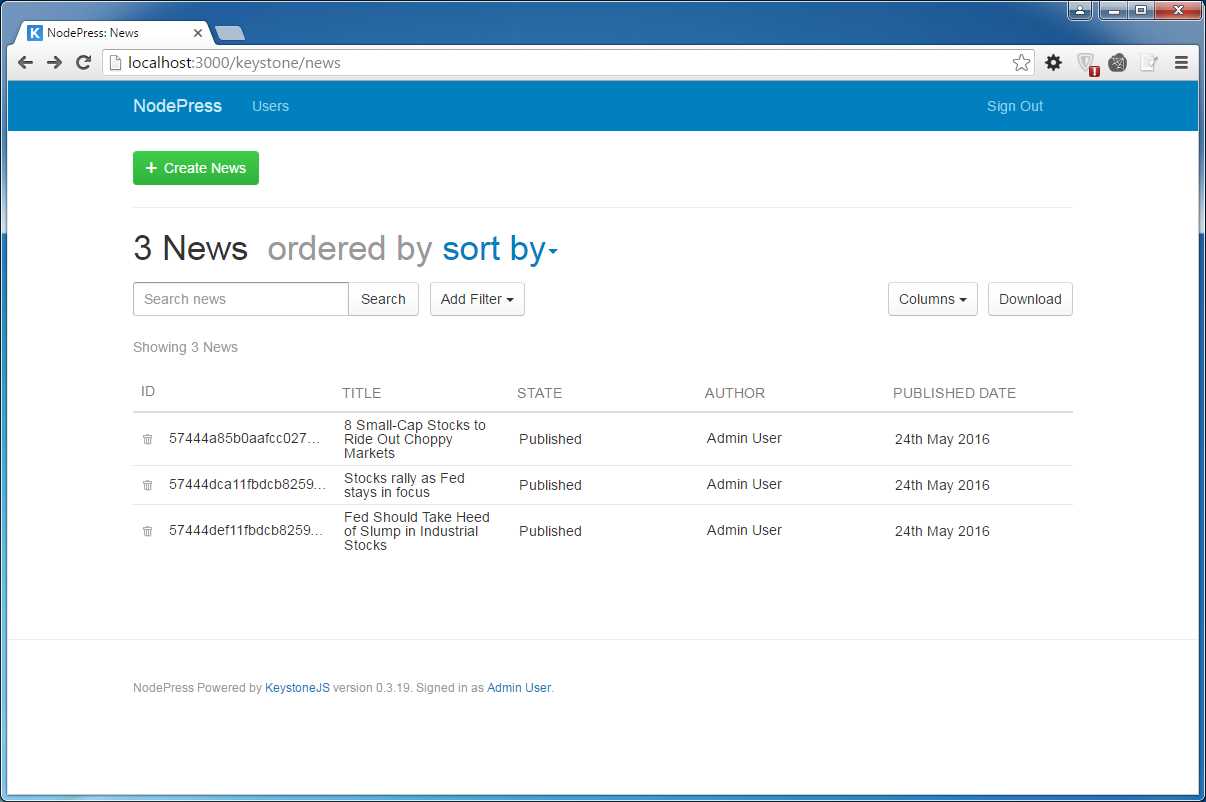
Figure 13: Authors related to News
To represent the relationship from both sides, we can define the relationship on the user model as well. We can do this by calling the relationship method on the user model. Add the below line to the user model.
Code Listing 15: One-to-many relationship for the User.js model
var keystone = require('keystone'); var Types = keystone.Field.Types; /** * User Model * ========== */ User.relationship({ path: 'news', ref: 'News', refPath: 'author' }); |
- path: This option defines the path of the relationship reference on the model.
- ref: This option is the key of the referred model (the one that has the relationship field).
- refPath: This option specifies the field of the relationship being referred to in the referred model.
Click on the admin user, and you should see the list of news articles authored by that user in the Relationships section.
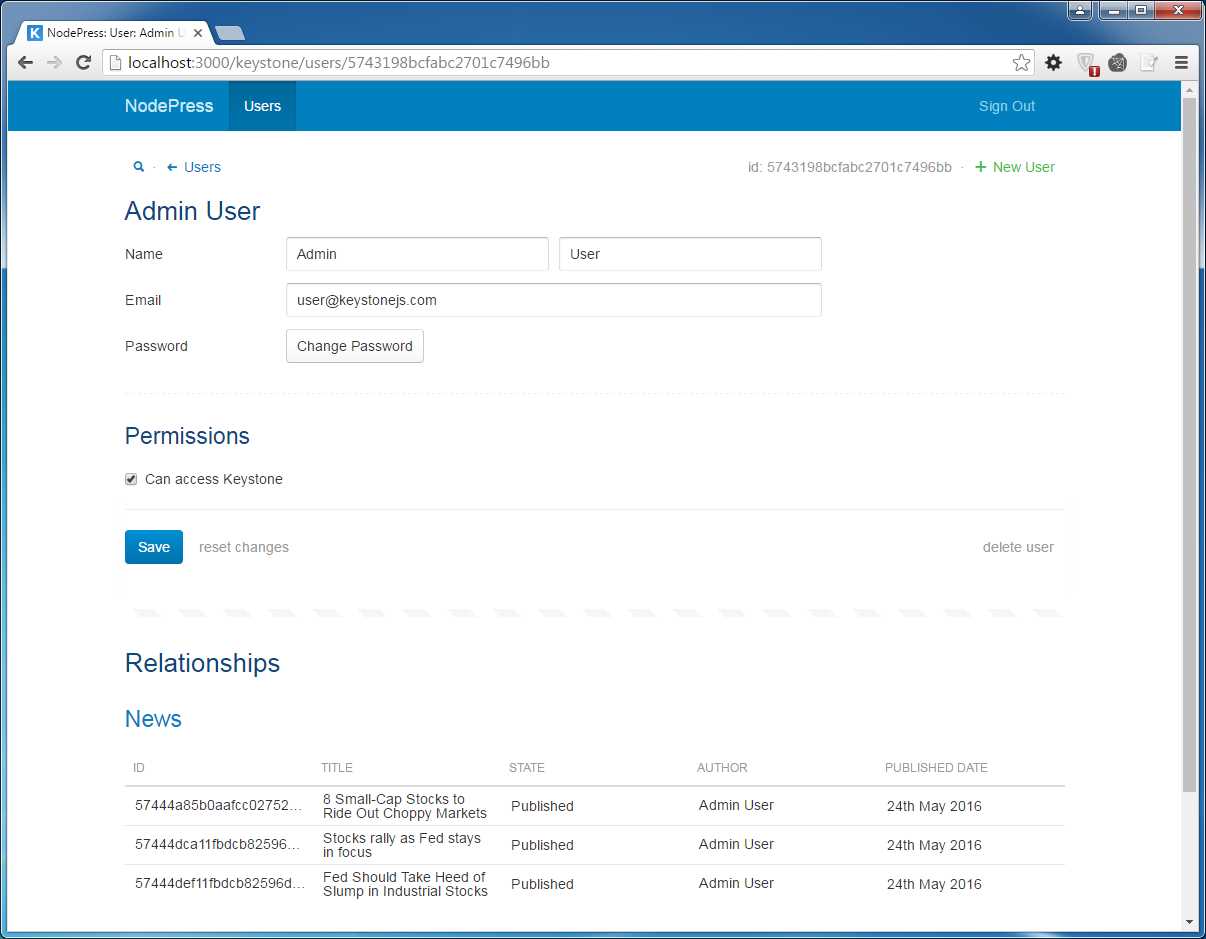
Figure 14: News related to a single author
A many-to-many model relationship is defined as a one-to-many relationship with the exception of the many option set to true. Keystone.js provides an intuitive input tags user interface along with autosuggest to add many-to-many relationship data.
Keystone.js fields and data types
Each record stored within a MongoDB collection is referred to as a document. MongoDB supports 20 data types to store information within a document, including the following types:
- String
- Number
- Date
- Buffer
- Boolean
- Mixed
- ObjectId
- Array
These data types are sufficient to store raw data, but make the application very difficult to work with as it grows. Keystone.js addresses this problem by wrapping the basic data types with advanced functionality and calling them field types. There are quite a few field types available, and they are very simple to use. We have already used a few of these when we defined the News model earlier. The available field types are:
- Text
- Boolean
- Code
- Color
- Date
- Datetime
- Html
- Key
- Location
- Markdown
- Money
- Name
- Number
- Password
- Select
- Text
- Textarea
- Url
- AzureFile
- CloudinaryImage
- CloudinaryImages
- Embedly
- LocalFile
- S3 File
Some field types include helpful underscore methods, which are available on the item at the field's name preceded by an underscore. For example: use the format underscore method of the publishedDate DateTime field of the News model like in Code Listing 16.
Code Listing 16: Underscore method in Keystone.js field
console.log(news._.publishedDate.format('Do MMMM YYYY')); // 25th May 2016 |
Keystone.js model extensions
Virtual properties
Virtual properties allow us to format the data in fields when retrieving them from a model or setting their value. A virtual property is added to the underlying Mongoose schema. Let us add a virtual property that returns the year in which a news post was published.
Code Listing 17: Define virtual property on News model
News.schema.virtual('publishedYear').get(function () { return this._.publishedDate.format('YYYY') }); |
The advantage of virtual properties is that they are not persisted to the document saved within MongoDB, yet are available on the document retrieved as a result of the query. The virtual property can be used similarly to a regularly defined property, as shown in Code Listing 18.
Code Listing 18: Display a virtual property
console.log(newsItem.publishedYear); |
Virtual methods
Virtual methods are similar to virtual properties and are added to the schema of the list. These methods can be invoked from the templates if necessary. A good example is a method that can return a well-formed URI to a news item.
Code Listing 19: Define virtual method on News model
News.schema.methods.url = function () { return '/newsdetail/' + this.slug; }; |
Pre and Post hooks
Keystone.js lists leverage the underlying Mongoose pre and post middleware. These are methods that are defined on the model and are automatically invoked before or after a certain operation, by the framework. A common example would be the pre and post save hooks, which are used to manipulate the data in the model before it is saved to the MongoDB collection.
For example, in our News model, we might want to automatically set the publishedDate value when the state is changed to published (but only if it hasn't already been set).
We might also want to add a method to check whether the post is published, rather than checking the state field value directly.
Before calling News.register(), we would add the following code.
Code Listing 20: Pre-save hook
News.schema.methods.isPublished = function () { return this.state == 'published'; } News.schema.pre('save', function (next) { if (this.isModified('state') && this.isPublished() && !this.publishedDate) { this.publishedDate = new Date(); } next(); }); |
Keystone.js model queries
To query data, we can use any of the Mongoose query methods on the Keystone.js model. Let us look at the queries that will be used in views (coming up in the next chapters).
Retrieving all news items
To fetch all news items, we can use the find method.
Code Listing 21: Find method
var q = keystone.list('News').model.find(); q.exec(function(err, results) { var newsitems = results; next(err); }); |
Retrieving a news item by slug:
To fetch a news item that matches the slug, we can use the findOne method shown in Code Listing 22. The slug can be read from the req.params collection.
Code Listing 22: FindOne method with filter
var q = keystone.list('News').model.findOne({'slug':req.params.slug})
q.exec(function(err, results) { var newsitems = results; next(err); }); |
Selecting specific fields
For optimal performance, it is always advised to construct queries that retrieve only the necessary data.
Code Listing 23: Select method
var q = keystone.list('News').model .findOne({'slug':req.params.slug}) .select('title status author'); q.exec(function(err, result) { var newsitem = result; next(err); }); |
Counting results
To count the number of documents associated with a given query, use the count method.
Code Listing 24: Count method
var q = keystone.list('News').model.count(); q.exec(function(err, count) { console.log('There are %d news items', count); next(err); }); |
Ordering results
The sort method can be used in conjunction with the find method to order results of a query. The following example will retrieve all news, ordered by title.
Code Listing 25: Sort method
var q = keystone.list('News').model.find().sort('title'); q.exec(function(err, results) { var news = results; next(err); }); |
By default, the results are sorted in ascending order. This default behavior can be reversed by prefixing a minus sign to the field that is being used to sort.
Code Listing 26: Reverse sort method
var q = keystone.list('News').model.sort('-title'); q.exec(function(err, results) { var news = results; next(err); }); |
Filtering results
The where method can be used to conditionally find documents with attributes that we are interested in. Multiple where clauses can also be chained together. In the following example, let us try to retrieve news items that have status as published.
Code Listing 27: Where clause
var q = keystone.list('News').model .where('state').equals('published'); q.exec(function(err, results) { var news = results; next(err); }); |
Limiting returned results
To retrieve a small subset of documents, for instance, the ten most recently added news items, we can do so using the limit method.
Code Listing 28: Limit clause
var q = keystone.list('News').model .limit(10); q.exec(function(err, results) { var news = results; next(err); }); |
If you wanted to retrieve a subset of documents beginning at a certain offset, you can combine the limit method with the skip method. The following example will retrieve the ten most recent news items beginning with the sixth record.
Code Listing 29: Limit clause with skip
var q = keystone.list('News').model.skip(6) .limit(10); q.exec(function(err, results) { var news = results; next(err); }); |
Test existence of a field
We can use the exists method to determine whether a particular document contains a field without actually loading it. For example, to determine a list of news items that are empty (that is, where the content field does not exist on the News MongoDB document), use the following statements.
Code Listing 30: Exists clause
var q = keystone.list('News').model .where('content') .exists(false); q.exec(function(err, results) { var news = results; //list of news with missing content next(err); }); |
Inserting a document programmatically
To create and save a new document, use the save method. You’ll first create a new instance of the desired model, update its attributes, and then execute the save method.
Code Listing 31: Insert a new document
var keystone = require('keystone') News = keystone.list('News'); var newItem = new News.model(); newItem.title = 'Credit Suisse, Leader in Global Cleared Derivatives'; newItem.status = 'Published'; newItem.description = 'The FIS Derivatives Utility was designed to help global capital markets firms better adapt to market challenges by enabling market participants.'; newItem.save(function (err) { if (err) { console.error("Error adding News to the database:"); console.error(err); } else { console.log("Added news “ + newItem.title + " to the database."); } done(err); }); |
Upon saving, the new News items will have a unique slug generated based on the title because the autokeyoption was set on the model.
Updating an existing document programmatically
To update existing documents, we can leverage the Keystone.js UpdateHandler functionality. This process typically involves retrieving the desired document using its identifier, setting the changed fields on the document, and requesting Keystone.js to process the updates.
Code Listing 32: Update an existing document
var q = keystone.list('News').model.findOne({'slug':req.params.slug})
q.exec(function(err, item) { if (err) return res.apiError('database error', err); if (!item) return res.apiError('not found'); var data = req.body; item.getUpdateHandler(req).process(data, function (err) { if (err) return console.error('create error', err); console.log("Successfully updated the news item"); }); }); |
Let us assume we receive the slug of a news item via a form post along with the changes. Code Listing 32 first retrieves a news item that matches the provided slug. If the item is found, any matching fields and their values (from the form post) are set to the data object. The getUpdateHandler method on the matching news item can process the updates to the document via a call to the process method. The data object is provided as an input to this method.
Deleting a document programmatically
To delete a document, first locate the document, and then use the remove method.
Code Listing 33: Delete a document
var keystone = require('keystone') News = keystone.list('News'); var q = keystone.list('News').model.findOne({ 'slug': req.params.slug }) .remove(function (err) { if (err) return res.apiError('database error', err); console.log("Successfully deleted the news item"); }); |
Summary
In this chapter, we learned how to create and work with models to save, retrieve, and manipulate data. These are the most basic operations in all web applications, and Keystone.js makes it a breeze to implement.


- 1800+ high-performance UI components.
- Includes popular controls such as Grid, Chart, Scheduler, and more.
- 24x5 unlimited support by developers.