
Keystone.js Succinctly®

CHAPTER 8
Administration Interface
The admin interface provided by Keystone.js is possibly the best reason for the popularity of Keystone.js over other similar Node.js web frameworks. The admin interface does a lot of heavy lifting for developers, with minimal configuration. It provides a fully featured and extremely tailored content management system (CMS) for Create, Update, Delete operations on models. In this chapter, let’s learn how easy it is to configure and customize the admin interface to get the functionality we desire.
The admin panel
The admin interface can be accessed by navigating to http://localhost:3000/keystone. You will be provided with a login interface as shown in Figure 23.

Figure 23: Admin login screen
To log in to the admin panel, use the credentials that were set during the creation of the project using Yeoman. The default credentials are [email protected] for email and admin for password. After logging in you should see something similar to this.
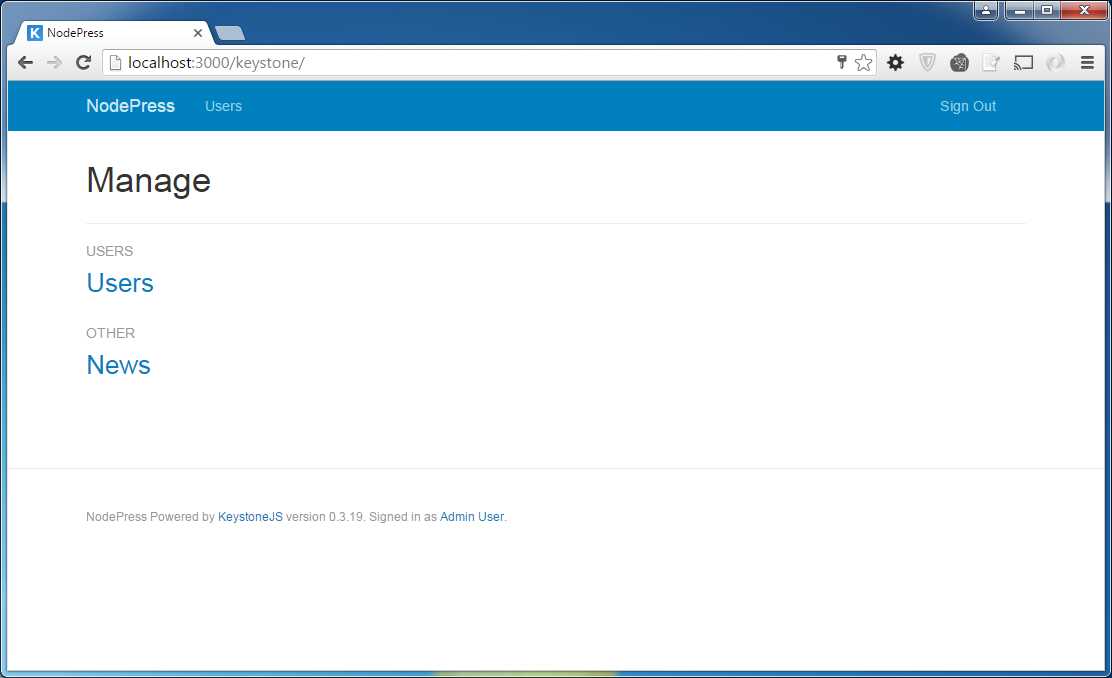
Figure 24: Admin interface
A few things to note in this screen. First, Keystone.js will by default add links to manage users to the navigation menu. Second, any models that we save to the models folder will show up in the admin area and are grouped under the OTHER label. Thus, the link to manage News shows up under the label OTHER.
Let's try editing one of the news items that we have in our MongoDB database. Click on the News link, and you should see a screen similar to the following.

Figure 25: News management interface
Click on the green Create News button at the top, and fill in the form to add a new news item. An autogenerated form is created, as shown in the following figure. The form is created by inspecting the models and model options dynamically.

Figure 26: Add a news item
Just make sure to set the State field to Published for it to show up on the news page of the site. The delete news button can be used to remove unwanted entries. The Author input field automatically shows an autocomplete text box since it was marked as a relationship field type during model definition in code.
Customizing menus
The menu items in the administration site can be easily configured in the keystone.js file. The menu items are stored in an object in the configuration with nav as the key. Let's add the news menu item to the menu.
Code Listing 80: Updated nav menu
keystone.set('nav', { 'users': 'users', 'manageNews': 'news' }); |
The updated navigation menu will look as shown in the following figure.

Figure 27: Modified nav menu
Customizing the list views
On the Manage News screen, we see a neatly organized list of news items. The title, state, author, and published date show up in the interface since we configured the corresponding option (defaultColumns) on the News model. Recall the following line of code from the News model.
Code Listing 81: Default columns on admin interface
News.defaultColumns = 'title, state|20%, author|20%, publishedDate|20%'; |
The default columns option is a comma-delimited list of default columns to display in the Admin UI list view. You can specify width in either pixels or percent after a | pipe character.
We can also select additional columns or remove columns from the list view using the Columns drop-down menu on the right-hand side, as shown in the following figure.

Figure 28: Dynamic columns
Columns that are already defined are shown with a check next to them. The drop-down menu allows us to choose additional columns or remove existing columns on the fly.
Search and filter
Most admin panels allow for users to search and filter content. Keystone.js provides powerful search and filter options out of the box. The Search box provided in the admin panel performs a search on the title of the news by default. We can specify additional columns that need to be searched by setting the searchFields options on the model.

Figure 29: Dynamic filters
Figure 29 shows an added filter that allows us to search on the content as well as title. We have options to search for an exact match or for content that contains our keywords. The invert option is used to negate the search query.
Keystone.js provides intuitive and powerful filter options depending on the field type. For example, in Figure 30, we have enabled the filter for the published date, and Keystone.js automatically shows options to filter by date on, after, before, and between two dates.

Figure 30: Intuitive date filter
Summary
We have covered the Keystone.js admin interface, which lets us handle routine Create, Read, Update, and Delete operations almost for free. We have a powerful and friendly way to create test data, and one that would serve us well for production purposes if we wanted.


- 1800+ high-performance UI components.
- Includes popular controls such as Grid, Chart, Scheduler, and more.
- 24x5 unlimited support by developers.