
Java Succinctly® Part 2

CHAPTER 1
Packages and Assert
Packages
Packages offer a way to organize classes into groups. They allow us to have multiple classes with the same name but that belong to different packages, and they allow us to reuse code. A package is like a folder on a computer. A folder can contain multiple files, just like a package contains multiple classes. And there can be two files with exactly the same name, so long as they are in different folders. Similarly, you can have two different items with exactly the same identifier in different packages. When we use the import keyword, we can specify the packages and classes to import from.
Adding a package manually
In order to place your class into a new package, you must use the package keyword, followed by the package name, as in Code Listing 1.0.
Code Listing 1.0: Package Keyword
package MainPackage; public class MainClass { public static void main(String[] args) { System.out.println("This class belongs to the MainPackage package!"); } } |
You will notice that the first line of this code is underlined in red in Eclipse. This is because at the moment, there is no package called MainPackage. We can add the main package in two ways. The first is by right-clicking the src folder in the Package Explorer, then selecting New and Package from the context menus. This will bring up a dialog box in which you can type a name for your new package.


Figure 1: Adding a New Package
In the New Package box (the right window in Figure 1), you can specify a new folder for your package. I have left the folder as src. When you name the new package and click Finish, Eclipse will add the new package, but you will notice that MainClass is still not included in our new package, it remains part of the default package. You can drag the MainClass.java file into the MainPackage using the Package Explorer, as in Figure 2. When you move MainClass to the MainPackage package, you might be prompted to save the file first. When the move operation is complete, and if there are no classes in the default package, you will notice that the default package is removed from your project.

Figure 2: Drag MainClass.java into MainPackage
Adding packages using Eclipse suggestions
The second method for adding the package is to use Eclipse's built-in suggestion feature. Whenever there is an error or warning in our code, Eclipse will underline the suspect portion of code. We can hover our mouse cursor over the code, and Eclipse will pop up a box full of suggestions as to how to remedy the problem.
Note: In this e-book, I have used Eclipse as the IDE, but many other IDEs allow you to create Java applications. You might like to explore other IDEs, such as NetBeans, IntelliJ, and Android Studio (which is a version of Eclipse primarily designed to assist Android application development).
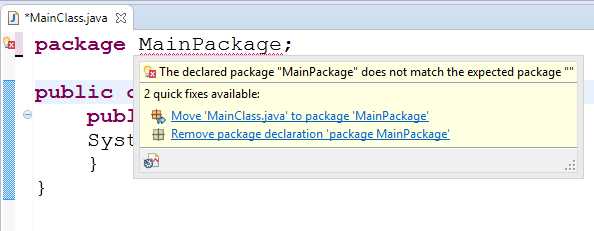
Figure 3: Eclipse's Suggestions to Add Package
Figure 3 shows two Eclipse suggestions for remedying the problem line “package MainPackage” when there is no MainPackage. The first suggestion is to move MainClass.java to package MainPackage. This is exactly what we want to do, so we click this suggestion and Eclipse will create the package in the Package Explorer, then move MainClass.java there for us.
Before we fix the problem, let’s also note that there is a light bulb icon in the margin of the code window at the point where our MainPackage is underlined. You can click this icon to receive the same suggestions as you get by hovering with the mouse cursor.
Be sure to read Eclipse's suggestions very carefully—especially when dealing with potentially large-scale changes such as adding and removing classes from packages. If you are new to programming, good practice is to fix the problems manually before reverting to Eclipse's suggestions. Programming large-scale projects requires a degree of fluency that can only be obtained through practice.
Creating multiple packages
Let’s add another class in a different package and see how we can import the second class into our MainClass by using the import keyword. Add a new class called OtherClass. Place OtherClass into a package called OtherPackage either using Eclipse's suggestion or by adding it to the Package Explorer, just as we did a moment ago with MainClass.

Figure 4: Two Packages
Figure 4 shows the two classes, each in a separate package. The code for the OtherClass.java file is listed in Code Listing 1.1.
Code Listing 1.1: The OtherClass
package OtherPackage; public class OtherClass { public void SayHello() { System.out.println("No, say it yourself!"); } } |
Code Listing 1.2: MainClass.java
package MainPackage; // Import OtherPackage.*; import OtherPackage.OtherClass; public class MainClass { public static void main(String[] args) { OtherClass o = new OtherClass(); o.SayHello(); } } |
Code Listing 1.2 shows how we can import the package called OtherPackage into our MainClass.java file, create an object from the class, and call a SayHello method. The line that imports the package is "import OtherPackage.OtherClass;". We can also use the wildcard symbol, (*), to import all classes defined as the OtherPackage package with the commented out line "import OtherPackage.*;".
We can write all the code for a program into a single package or never specify a package at all (this would mean all the classes in our project belong to the default package). But as projects become larger, we will typically collect algorithms and useful code that we can tie up in a package and reuse from project to project.
Assert
Assert is a useful debugging mechanism. To assert a condition in Java is to ensure that it is true. When we make an assertion, we are saying that if some statement is false, terminate the application and let us know (assert is meant for debugging, it is not designed for the end user or production code). We use assert to include tests in our program. If we are careful in designing the tests throughout our application’s development, assert can let us know that something has gone wrong, and it can improve our ability to maintain and debug our projects. For the following, I have created a new project called AssertTesting and added a MainClass. The code for the new class is listed in Code Listing 1.3.
Code Listing 1.3: Using Assert
import java.util.Scanner; public class MainClass { public static void main(String[] args) { int numerator; // Numerator for our fraction. int denominator;// Denominator for our fraction. Scanner scanner = new Scanner(System.in);
// Read a numerator. System.out.println("Please enter a numerator: "); numerator = Integer.parseInt(scanner.nextLine());
// Read a denominator. System.out.println("Please enter a denominator: "); denominator = Integer.parseInt(scanner.nextLine());
// Ensure that the denominator is not 0! assert(denominator != 0);
// If the assert passed, print out some info using our fraction: System.out.println(numerator + " / " + denominator + " = " + (numerator / denominator) + " remainder " + (numerator % denominator)); } } |
The program in Code Listing 1.3 reads two integers from the user, a numerator, and a denominator. It is designed to divide the numerator by the denominator and output the results and remainder of the division. However, if the user inputs 0 as the denominator, the program cannot perform the division because division by 0 is not defined. The program uses “assert(denominator != 0)” to ensure that denominator is not zero.
Notice that the assert keyword has an associated boolean expression in brackets. If the boolean expression is true, the assert passes and the program continues execution normally. If the expression is false (i.e. the user typed 0 as the denominator), then the assertion failed and the program will exit. At least, that is the plan. By default, Eclipse is set to ignore assertions, and upon running the application and inputting a denominator of 0, it will cause our program to crash. In order to run our application and have our assertions halt the program when they fail, we need to supply -ea as a command-line option to the JVM (-ea is short for enable assertions). In order to supply command-line arguments to the program, select Run from the file menu, followed by Run Configurations. This will open the Run Configurations dialog box, as shown in Figure 5.

Figure 5: Specifying Command-Line Arguments to the JVM
In order to turn on assertions, select the Arguments tab and type -ea into the VM arguments box. Do not forget to click Apply after you do this. After the -ea argument is passed to the VM, we can debug our application again, and Eclipse will react more appropriately to our assertions. In order to switch the assertions off (to have the JVM ignore all assertions), remove the -ea argument from the arguments list as in Figure 5.
When an assertion fails in debugging mode, the program will pause on the assertion and highlight it so that the programmer can examine exactly what went wrong. When an assertion fails in run mode, the console window will show a message that points the programmer to the problem assertion, and to which file the assertion failed.
There are many command-line options available for the JVM and JVC. For more information on the available options, visit:
http://docs.oracle.com/javase/7/docs/technotes/tools/windows/java.html
http://docs.oracle.com/javase/7/docs/technotes/tools/solaris/javac.html#options


- 1800+ high-performance UI components.
- Includes popular controls such as Grid, Chart, Scheduler, and more.
- 24x5 unlimited support by developers.