
Implementing a Custom Language Succinctly®

CHAPTER 7
Localization
“Programs must be written for people to read, and only incidentally for machines to execute.”
Abelson & Sussman
In this chapter we are going to see how to write CSCS programs so that they can be localized in any human language. You’ll see how we can supply keyword translations in a configuration file so that the keywords from different languages can be used interchangeably. Not only that, we’ll also see how to translate a CSCS program written with the keywords in one human language to another.
Adding translations for the keywords
To add translations for keywords, we use the configuration file. You can start with the one that is automatically created by Visual Studio (or Xamarin Studio); it is usually called App.config. Code Listing 68 shows an excerpt from the CSCS configuration file.
Code Listing 68: An excerpt from the configuration file
<?xml version="1.0" encoding="utf-8" ?> type="System.Configuration.NameValueSectionHandler" /> type="System.Configuration.NameValueSectionHandler" /> type="System.Configuration.NameValueSectionHandler" /> <section name="Russian" type="System.Configuration.NameValueSectionHandler" /> </configSections> <add key="maxLoops" value="100000" /> <Languages> <add key="include" value ="import" /> <add key="return" value ="вернуться" /> </configuration> |
The configuration file has translations of the keywords to Spanish and Russian, and also to “Synonyms.” It lets us use synonyms for the keywords in English. Anyone who worked with both Windows and the macOS (or any other Unix-based system) would often confuse dir with ls, copy with cp, and grep with findstr. The Synonyms section in the configuration file allows them to be used interchangeably.
To make it work, we introduce a new module, Translation, to support all of the localization concepts. For each keyword that we want to add in the configuration file (but it doesn’t have to be added), we call the Translation.Add static method. See the implementation of the Interpreter.ReadConfig and a short version of the Translation.Add methods in Code Listing 69.
Code Listing 69: The implementation of the Interpreter.ReadConfig and Translation.Add methods
void ReadConfig() if (ConfigurationManager.GetSection("Languages") == null) { NameValueCollection; Translation.KeywordsDictionary(baseLanguage, language); Translation.KeywordsDictionary(language, baseLanguage); NameValueCollection; // More keywords go here... // Special dealing for else, catch, etc. since they are not separate Constants.ELSE_LIST, tr1, tr2); Constants.ELSE_IF_LIST, tr1, tr2); Constants.CATCH_LIST, tr1, tr2); // Incomplete definition of the Translation.Add method: public static void Add(NameValueCollection langDictionary, string origName, { ParserFunction origFunction = ParserFunction.GetFunction(origName); ParserFunction.RegisterFunction(translation, origFunction); |
The Translation.Add method registers a function, previously (already) registered with the parser (using the origName string variable) but under a new name (translation). Therefore, if we get either the origName token, or a translation token, the same function will be invoked.
Code Listing 70 contains an example of using the keywords in Spanish in CSCS. The CSCS code there contains a size function (“tamaño” in Spanish). We haven’t shown the implementation of the size function, but it just returns the number of elements in an array.
Code Listing 70: An example of using Spanish keywords in CSCS
números = {"uno", "dos", "tres", "quatro", "cinco", "seis"}; // Output: uno es impar dos es par tres es impar quatro es par cinco es impar seis es par |
Adding translations for function bodies
Now let’s see how to add translations to the parser to translate error messages and words other than CSCS keywords. A full version of the Translation.Add method shows it in Code Listing 71.
Code Listing 71: Adding translations to the parser
public class Translation private static HashSet<string> s_nativeWords = new HashSet<string>(); s_spellErrors = new Dictionary<string, string>(); s_keywords = new Dictionary<string, Dictionary<string, string>>(); s_dictionaries = new Dictionary<string, Dictionary<string, string>>(); s_errors = new Dictionary<string, Dictionary<string, string>>();
public static void Add(NameValueCollection langDictionary, string origName, AddNativeKeyword(translation); "] contains white spaces"); // there can be a space (besides a parenthesis).
public static void AddNativeKeyword(string word) { public static void AddTempKeyword(string word) { public static void AddSpellError(string word) { } |
For each pair of languages, we have two dictionaries, each one mapping words from one language to another. In addition to the keywords, you can add translations to any words in the configuration file. We skip loading custom translations, but it can be consulted in the accompanying source code.
Code Listing 72 shows the implementation of the TranslateFunction, which translates any custom function to the language supplied.
Code Listing 72: The implementation of the function translations
class TranslateFunction : ParserFunction } public class Translation public static string TranslateScript(string script, string fromLang, string toLang) { KeywordsDictionary(fromLang, toLang); TranslationDictionary(fromLang, toLang); if (!Constants.TOKEN_SEPARATION.Contains(ch)) { if (item.Length > 0) { if (string.IsNullOrEmpty(translation) && result.Append(ch); return result.ToString(); } |
Figure 7 shows an example of running the show and translate commands in CSCS. You can see different colors there; this is done in the Translate.PrintScript method. This is where Variable.IsNative property is used: all “native” (implemented in C#) functions are printed in one color, and all other functions and variables (implemented in CSCS) are printed in another color. The implementation of the show function is very similar to the implementation of the translate function, shown in Code Listing 72, so we skip it as well.
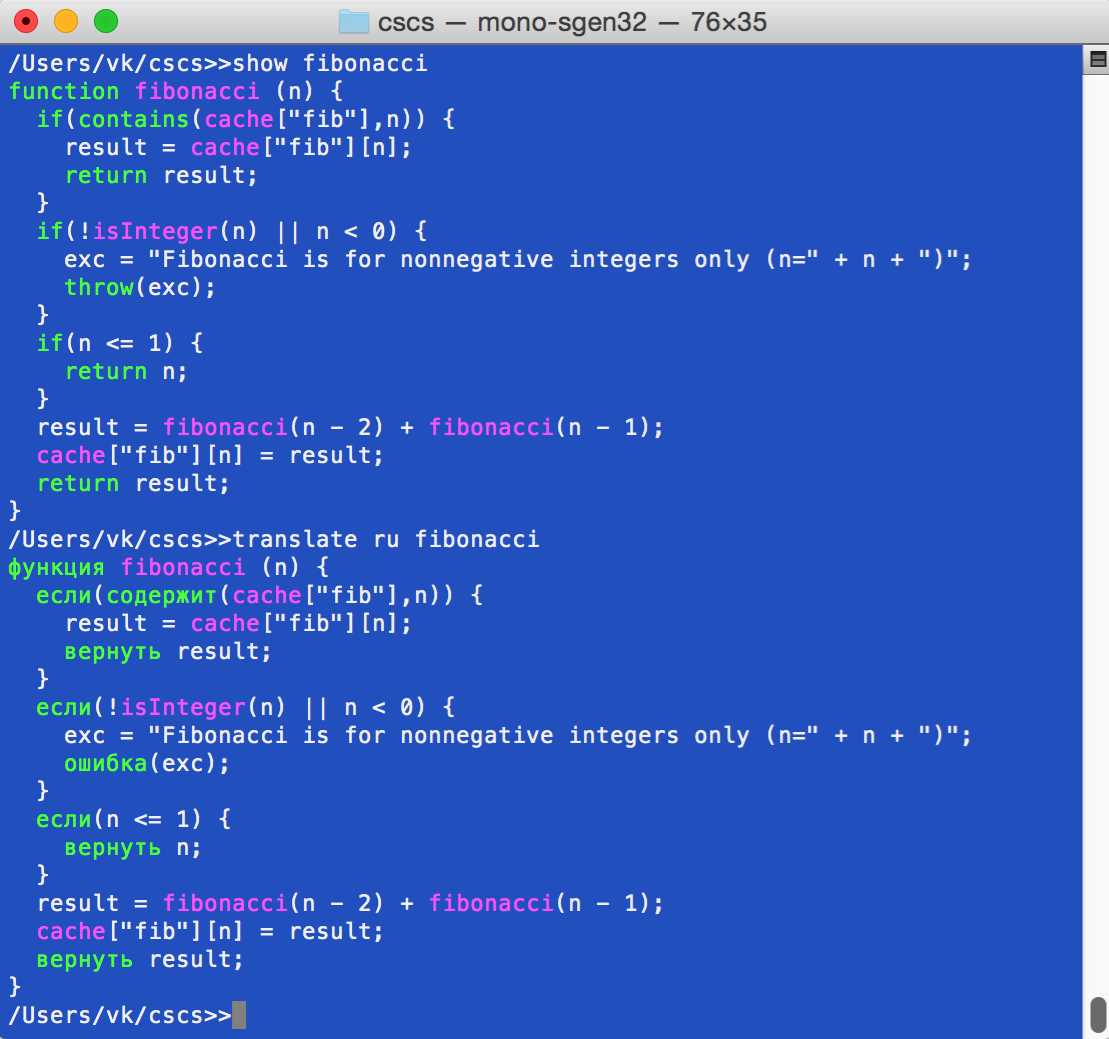
Figure 7: Show and translate functions run in CSCS
Adding translations for error messages
Now let’s see how to add translations to the parser for the error messages. We’ll also add possible errors in spelling. Here we use a simplified version, where there is an incorrect or missing first or last letter of the word. Code Listing 73 shows the loading of error messages in different languages, and a sample file in English and German.
Code Listing 73: Loading error messages in different languages
public class Translation public static void LoadErrors(string filename) Dictionary<string, string> dict = GetDictionary(Constants.ENGLISH, s_errors); } // Sample contents of the errors.txt file in English and German. en parseToken = Couldn't parse [{0}] (not registered as a function). parseTokenExtra = Did you mean [{0}]? errorLine = Line {0}: [{1}] errorFile = File: {0}. de parseToken = [{0}] konnte nicht analysiert werden (nicht als Funktion registriert). parseTokenExtra = Meinen Sie [{0}]? errorLine = Zeile {0}: [{1}] errorFile = Datei: {0}. |
Code Listing 8 uses the Utils.ThrowException function, which throws an exception in a language that is configured as user language in the properties file. The implementation of the Utils.ThrowException function is in Code Listing 74.
Code Listing 74: Implementations of Utils.ThorowException and Translation.GetErrorString
public class Utils public static void ThrowException(ParsingScript script, string excName1, { Environment.NewLine : " "; } public class Translation public static string GetErrorString(string key) } |
Consider the following script with a typo in “fibonacci” (an additional “i” at the end):
b = 10;
c = fibonaccii(b);
Here is what our parser prints when running that script with the user language configured as German (see the “language” parameter in the configuration file in Code Listing 68) and loading the errors.txt file shown in Code Listing 73:
[fibonaccii] konnte nicht analysiert werden (nicht als Funktion registriert).
Meinen Sie [fibonacci]?
Zeile 2: [c = fibonaccii(b);]
You can implement catching more advanced spelling errors—not only problems with the first and last letters—for example, by using the Levenshtein distance[15] in strings.
Getting line numbers where errors occur
How do we know which line the error occurred on? (“Zeile 2” means “Line 2” in German). Most of the information is already in the char2Line data structure that was loaded in the Utils.CovertToScript method (see Code Listing 42). But we still need to know what line we are on, only knowing at what character in the script we stopped when the error occurred. Code Listing 75 implements this, using the binary search.
I am not particularly proud of this method of finding the line numbers (even though it works), so hopefully you can come out with a better idea.
Code Listing 75: Implementation of ParsingScript.GetOriginalLineNumber function
public int GetOriginalLineNumber() int upper = lineStart.Count - 1; if (pos == guessPos) { if (pos < guessPos) { |
Conclusion
In this chapter we saw how to write the CSCS scripts in any language by using different configuration files. Also we saw how to have error messages for programming mistakes in different languages.
In the next chapter we are finally going to talk about testing and how to run CSCS from a shell prompt.


- 1800+ high-performance UI components.
- Includes popular controls such as Grid, Chart, Scheduler, and more.
- 24x5 unlimited support by developers.