
HoloLens Succinctly®

CHAPTER 6
Voice
The HoloLens is one of the best voice recognition devices on the market. Because you always have the microphone in the same position on the device, the device can very accurately decipher your mumbles and broken sentences. Voice is the third input method in the GGV paradigm for HoloLens, and it is as important as the first two.
It is expected that you can use most, if not all, of the actions and interactions with voice commands. If there is a gesture to move a hologram, there should be a voice command to do the same.
Voice commands are meant to make the interaction model simpler, make the experience more delightful, and enhance the immersion and engagement from the user. If this isn’t the case, either your interaction model could be improved, or your voice design is lacking.
This chapter will explain how to get the most out of the voice component of the GGV input model, and where some of the pitfalls are.

Figure 31: Voice Commands and the HoloLens Platform.
Built-in voice commands
First, there are voice commands provided by the platform. The HoloLens device has a number of commands that come for free and which users will get familiar with over time. As a developer or experience owner, you can use them to enhance the project.
Select
Instead of using the tap gesture, users can at any time say “select.” This will trigger a Tapped event, identical to a tap gesture performed by a user. Your app won’t know the difference, and in code, you will handle the event like any other Tapped event.
The user will hear a sound and see a tooltip with the word “select” appear as confirmation. Select is enabled by a low-power keyword detection algorithm, so it is always available to say at any time with minimal battery-life impact, even when the user has their hands at their side.
Place
Similar to the select command, users can say “place” to trigger a tap event to place a hologram. Where select is a broader command to execute a tap event, place is specifically designed for placing or putting down holograms.
Face Me
When the user is gazing at a hologram, they can say “face me,” and the hologram will turn towards the user. This requires the hologram to have a front identified to allow the turn to happen. This works really well on 2D apps that tend to always be at a funny angle relative to where the user is.
Bigger/smaller
If a hologram can be resized, use the “bigger” or “smaller” commands to resize it. This can often also be achieved with gestures or a combination of voice commands and gestures.
Hey Cortana
Cortana is Microsoft’s digital assistant, which works across devices running Windows 10. The HoloLens is no different. Cortana is always listening for the words “Hey Cortana,” which will trigger the blue lady.
Note: Cortana is named after the fictional intelligence character from the Halo video game series.
There are a lot of built-in commands you can use with Cortana to make her do your bidding, once you have her attention:
- What can I say?
- Go home or Go to Start (instead of bloom to get to Start Menu)
- Launch <app>
- Move <app> here
- Take a picture
- Start recording
- Stop recording
- Increase the brightness
- Decrease the brightness
- Increase the volume
- Decrease the volume
- Mute and Unmute
- Shut down the device
- Restart the device
- Go to sleep
- What time is it?
- How much battery do I have left?
- Call <contact> (requires HoloSkype)
The full set of Cortana features and commands from Windows 10 on desktop aren’t available on HoloLens, and, currently, the only supported language is English.
See it, say it
When buttons in a HoloLens experience have labels on them, users can use the “see it, say it” approach to trigger a button press. For example, when looking at a 2D app, a user can say the “remove” command, which they will then see in the app bar to close the app.
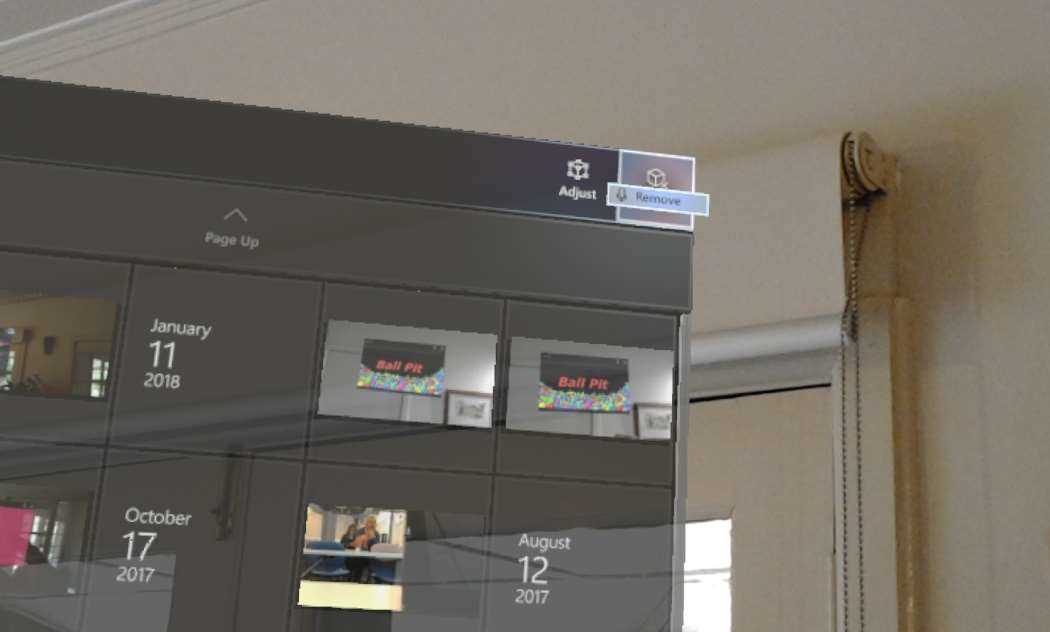
Figure 32: Say “Remove” to Trigger the Remove Button
It is highly recommended that you follow this rule, as users can easily understand what to say to control the system. To reinforce this, while gazing at a button, you will see a “microphone” tooltip that comes up after a second if the button is voice-enabled, which displays the command to speak to “press” it.
Custom voice commands
All the built-in commands are great, but the real power of the HoloLens platform comes in creating your own voice commands. While it is relatively trivial to create basic voice commands for your HoloLens experience, there are quite a few nuances to be aware of when building your system.
First, let’s look at the code for implementing a basic voice command. The most commonly used feature is the KeywordRecognizer object. It listens for any speech input and matches any spoken phrases to a known list of keywords. These keywords are registered when the experience is started.
Code Listing 6: KeywordRecognizer Implementation
KeywordRecognizer recognizer = null; Dictionary<string, System.Action> keywords = new Dictionary<string, System.Action>(); keywords.Add("Open e-Book", () => { // Call the OpenBook method on every descendant object. this.BroadcastMessage("OpenBook"); }); // Tell the KeywordRecognizer about our keywords. recognizer = new KeywordRecognizer(keywords.Keys.ToArray()); // Register a callback for the KeywordRecognizer. recognizer.OnPhraseRecognized += KeywordRecognizer_OnPhraseRecognized; recognizer.Start(); } |
In Code Listing 6, we create a Dictionary to hold the Action associated with the keyword. The keyword is the phrase to be recognized by the framework. We create an event handler for when a phrase is recognized, and then start the KeywordRecognizer. (Don’t forget to start it!)
The next step would be to handle the OpenBook event being sent from the Action. There are other ways to create voice commands and actions, but they all revolve around the KeywordRecognizer.
Tip: Use the Mixed Reality Toolkit features to implement voice commands for more robustness and abstraction.
Voice command design
While the voice commands are technically straightforward to implement, creating effective and well-designed voice commands is much more difficult. There is a lot of theory and psychology to how users perceive, remember, and use voice commands for a given experience.
Table 2: Do’s and Don'ts of Voice Commands
Do | Don’t |
|---|---|
Be concise and don’t use unnecessary words in the commands. Concise is easier to remember. | Use single-syllable commands. These are more easily missed by the system and can be misinterpreted based on dialect and accent. |
Use common words that are easy to learn and remember. | Use system commands. For example, the “select” command is already assigned to a system-wide function. |
Be consistent. Use the same command for the same action in different places. | Use commands that sound similar. They are harder to remember correctly, and harder for the system to get right accurately. |
It is important to create natural commands that are both easy to remember and that fit the context of the experience. For example, using the command “open hatch” is not as easy to remember as “open door.”
Tip: The voice recognition APIs and tools provided by the HoloLens platform are all hardware accelerated. This uses a lot less power than if the CPU had to process the voice input, and you should avoid building your own voice recognition feature, unless necessary.
User education
A big part of the challenge when using voice commands on a platform that is mostly visual is knowing when to use a voice command, or even what they are! Educating your users on how and when to use voice commands in your experience is critical. Some of the ways to educate users include:
- Create visual clues such as a microphone icon with the command written next to it, when the command is available.
- Use a wizard process to guide users through any voice command learning.
- Have a short tutorial before the experience or level of the experience, to show any commands or gestures needed.
The education of users is critical to make your experience a success. If users don’t “get” how to use the tools available, they will give up quickly and move on.
User feedback
Part of creating an effective experience, and effective voice commands is to have a two-way flow of communication. If you keep shouting at users, they will get annoyed and leave. Instead, make sure they know when the experience is listening for their command, give an audio or visual clue when you have processed the command, and keep them engaged.
Dictation recognizer
Another way to take advantage of the voice recognition part of the GGV input paradigm is the DictationRecognizer. This provides a great user experience if you have parts of your app that require significant user input. The HoloLens onscreen keyboard is cumbersome to use, mainly because you have to gaze at each letter and then tap.
Using the DictationRecognizer is very similar to the KeywordRecignizer. In fact, they are so linked that you can only register one or the other at any one time in your app.
Code Listing 7: Creating a DictationRecognizer and Setting It Up
By using the events in Code Listing 7, you can manage an elegant dictation experience for the user. Because the microphones on the HoloLens are always in the same position relative to the user’s head, the voice recognition works extremely well. Combined with the hardware accelerated microphones and processing, it makes the HoloLens a very powerful voice recognition device. Voice dictation is especially good for something like URLs, where the user can spell out the whole address.
Note: You need a Wi-Fi connection to use the dictation feature.
Grammar recognizer
Closely related to the DictationRecognizer is the GrammarRecognizer. It uses a Speech Recognition Grammar Specification[5] (SRGS) file to define the rules for the grammar to check. The SRGS file specifies the words and patterns of words to be listened for by a speech recognizer.
Speech recognition is incredibly powerful, and using an SRGS file will create both structure and guidance to the experience. A speech recognition grammar is a container of language rules that define a set of constraints a speech recognizer can use to perform recognition.
Code Listing 8: Creating a GrammarRecognizer and Setting It Up
In Code Listing 8, when the GrammarRecognizer recognizes a phrase that matches a rule in the SRGS, the GrammarRecognizer_OnPhraseRecognized event handler is triggered. We then build up a rudimentary list of what was heard. In a real project, you would of course react to the individual semantic meanings and have your experience react accordingly.
Tip: Using a SGRS file makes the experience easier to port, as that is the standard for defining voice recognition phrases.


- 1800+ high-performance UI components.
- Includes popular controls such as Grid, Chart, Scheduler, and more.
- 24x5 unlimited support by developers.