
HoloLens Succinctly®

CHAPTER 3
Spatial Mapping
What is it?
Spatial mapping is what makes the HoloLens stand out from the other augmented reality devices as a mixed reality device. The HoloLens uses four environmental cameras on the front of the device to map the physical surroundings and build up a 3D model of the real world. As you use the device, it continually creates a spatial mapping model of the space you are in and updates any existing mapping. The cool thing is that the developer portal that comes with the developer tools allows you to see this 3D spatial mapping in real time, and it works for both physical HoloLens devices and the emulator.
Spatial coordinate system
In order to create a convincing illusion of digital and physical assets interacting, such as having digital characters sitting on physical furniture, holographic apps must be aware of both digital and physical realities (hence the name “mixed reality”). This requires very precise positioning of the holograms in the world in a way that makes completely natural sense to the user. Spatial coordinate systems are used to calculate this interaction.
To understand the complexity of spatial mapping for HoloLens, consider a similar coordinate system for virtual reality. Because you as the developer control the entire environment, you also know how far objects are from each other, as you have programmatic control over the objects themselves. You have a single master-coordinate system that all objects can map to and relate to. This means that you can very accurately relate the information to the user, and thus the experience is very stable and precise. The user expects the objects to relate to each other in the same way throughout the experience.
The user expectations are the same for mixed-reality apps, but because the digital assets are dependent on the spatial mapping done by the HoloLens to relate accurately to each other, there is a synchronizing challenge. Not only do the holograms position themselves in real time as the grid is updated, but the mapping might also be off between physical objects and digital assets. The units in the coordinate systems on HoloLens are always in meters, which makes it very easy to calculate where to place holograms in relation to each other and the real world. However, what if the spatial mapping is not accurate? If the initial environmental scanning is either inaccurate or incomplete, the holograms can be at different distances from each other or from physical objects as the spatial mapping is improved. This would cause holograms to start floating and shifting positions, which makes the experience uncanny and unnatural. To begin with, two objects are two meters from each other, and as the mapping updates, they are suddenly 1.8 meters from each other. At worst, they will make your users motion-sick, and your users will quickly abandon the experience. Luckily, there is a solution for this.
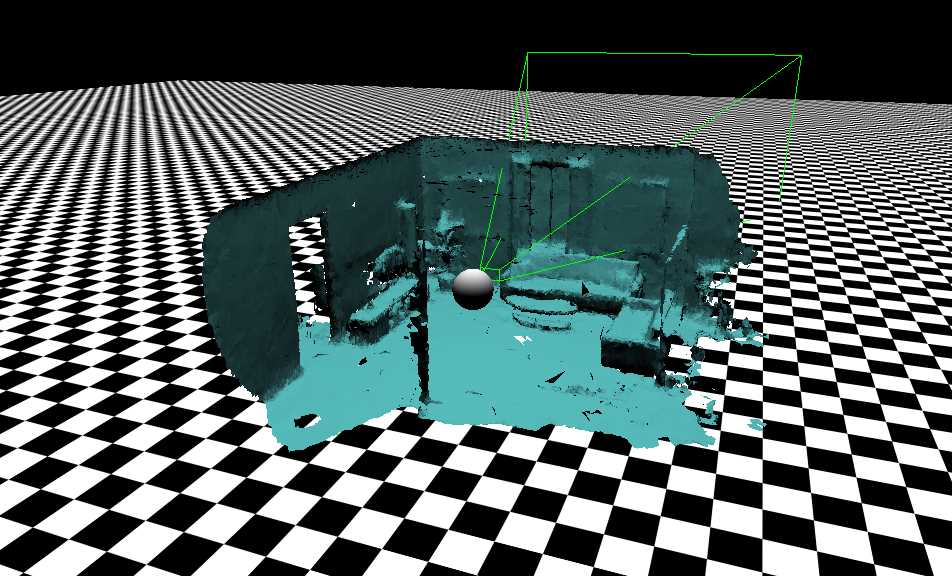
Figure 15: 3D View of Spatial Mapping.
Spatial anchors
To avoid drift and ensure that a hologram remains exactly at a specific spot in the world, even as the system discovers more about the world and updates the spatial map, you can place that hologram using a spatial anchor.
A spatial anchor represents an important point in the world that the system should keep track of over time. Each anchor has a coordinate system that adjusts as needed, relative to other spatial anchors or frames of reference, to ensure that anchored holograms stay precisely in place.
Rendering a hologram in a spatial anchor’s coordinate system gives you the most accurate positioning for that hologram at any given time. This comes at a performance cost of small adjustments over time to the hologram's position as the system continually moves it back into place relative to the real world.
Spatial anchors can be persisted between sessions and even shared between devices that share the same experience. This is done using the spatial anchor store for the specific app and providing a meaningful key to allow later identification of the anchor.
Hologram navigation
Often, you want holograms to navigate your physical space as if they were part of it. This requires accurate spatial mapping to make sure you don’t have people trying to walk through furniture and jump through walls. This also requires being able to identify surfaces, so people only walk on the floor and only sit on chairs and couches.
Occlusion
One of the simplest uses of spatial mapping, and one of the most important ones to create a natural interaction model, is to simply occlude holograms. By hiding holograms, or obscuring parts of them, you increase the perceived realism dramatically. You also create an expectation that holograms will collide with physical objects when they are solid. All together, this means simple occlusion is of great importance to effectively convey a realistic integration of physical and digital realities.
Holographic placement
To place holograms in a physical world, the HoloLens relies on spatial mapping to determine distance, space available, and usable surfaces. One of the concessions of using hand gestures to infer distance (the HoloLens interaction model is based on hand gestures) is that we normally only communicate direction with gestures. When this needs to be translated into distance as well, spatial mapping can help indicate to the user where holograms can be placed. Combining this with the shape of the hologram, placement adds another natural aspect to mixed reality.
Room visualization
At times, it may be necessary to visualize physical surfaces and structures to allow holograms to be placed on them accurately and realistically. You might also want to have holograms casting shadows on surfaces.
Implementing spatial mapping
Using spatial mapping in your HoloLens application is simpler than you might think. The first thing you do is enable the SpatialPerception capability for your Unity project. This will make 3D objects adhere to the 3D spatial-mapping model once you export the project from Unity to Visual Studio, and, in turn, to a HoloLens device.

Figure 16: Unity Capabilities
Mixed Reality Toolkit
Created by the team that produced “Fragments” and “Young Conker,” the Mixed Reality Toolkit (formerly known as the HoloToolkit) is a collection of scripts and components intended to accelerate the development of holographic applications targeting Windows Holographic.

Figure 17: Mixed Reality Toolkit Logo
The toolkit is free[4] and comes in two varieties: one for Visual Studio, and one for Unity 3D. Developing for HoloLens means spending a LOT of time in the Unity editor, and the HoloToolkit is a simple .unitypackage file you can download and import into your Unity project.
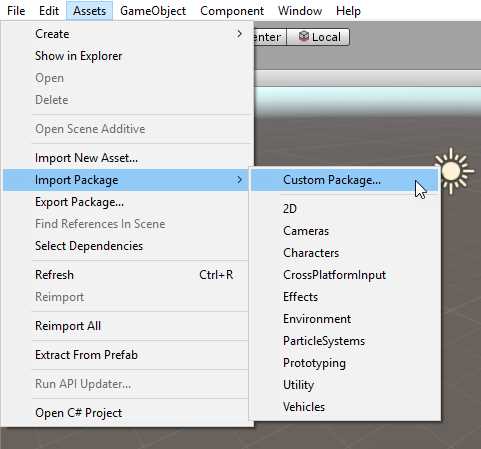
Figure 18: Mixed Reality Toolkit Install
This will show a new menu item, Mixed Reality Toolkit, in Unity.
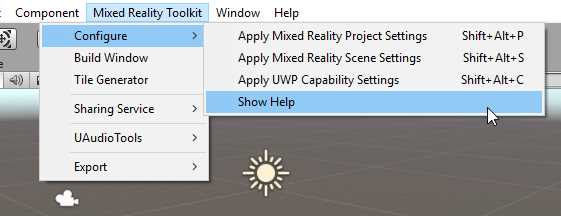
Figure 19: Mixed Reality Toolkit Menu
These menu items form part of the visual change to Unity that HoloToolkit implements. Having menu items to perform the most trivial and basic configuration tasks for a new project gets you to the fun bits a lot quicker, and helps you make sure that you haven't missed anything.
Apart from the obvious menu item changes, the HoloToolkit also brings with it many scripts, prefabs, materials, shaders, and plugins you can use in Unity3D.
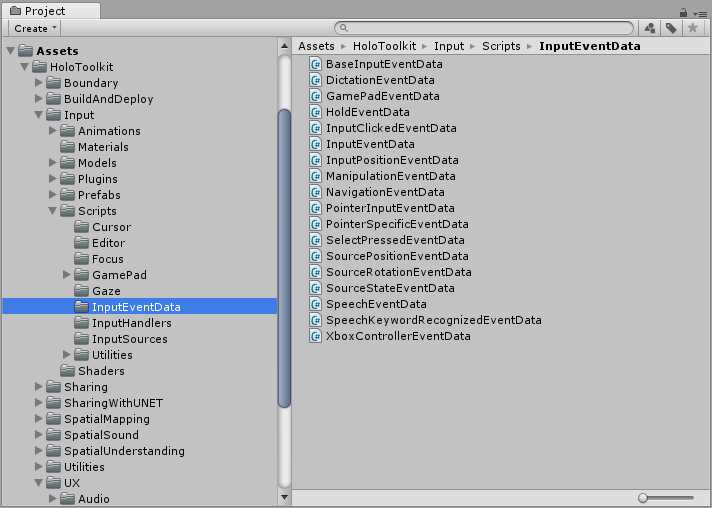
Figure 20: Mixed Reality Toolkit Contents


- 1800+ high-performance UI components.
- Includes popular controls such as Grid, Chart, Scheduler, and more.
- 24x5 unlimited support by developers.