
HoloLens Succinctly®

CHAPTER 7
Sound
When a user moves through a HoloLens experience, they can’t keep track of everything happening around them. This is partly because the human mind can only handle so many inputs at the same time, and partly because of the limited field of view on the device. Sound can provide a footing and reference for the experience that helps the user both navigate and trust it.
In a HoloLens experience, the sound simulates the environment by providing both distance and direction. The highly accurate and real-time speakers on the HoloLens delivers audio as if it was real in the experience. While the visuals are limited to where the user is looking and the physical frame of the lenses on the device, audio can come from all directions.
Spatial sound
Our human ears are already brilliant at managing sounds coming from all directions and distances. This spatial sound is part of our natural universe, and to create a HoloLens experience that is both natural and convincing, it is paramount that audio functions in a similar way. This is done through spatial sound, which means sound emanates from a particular location, and as the user moves around the space, the sound stays in the same location. This is an integral part of the HoloLens experience, and while not part of the GGV paradigm, is just as important as gaze, gesture, and voice.
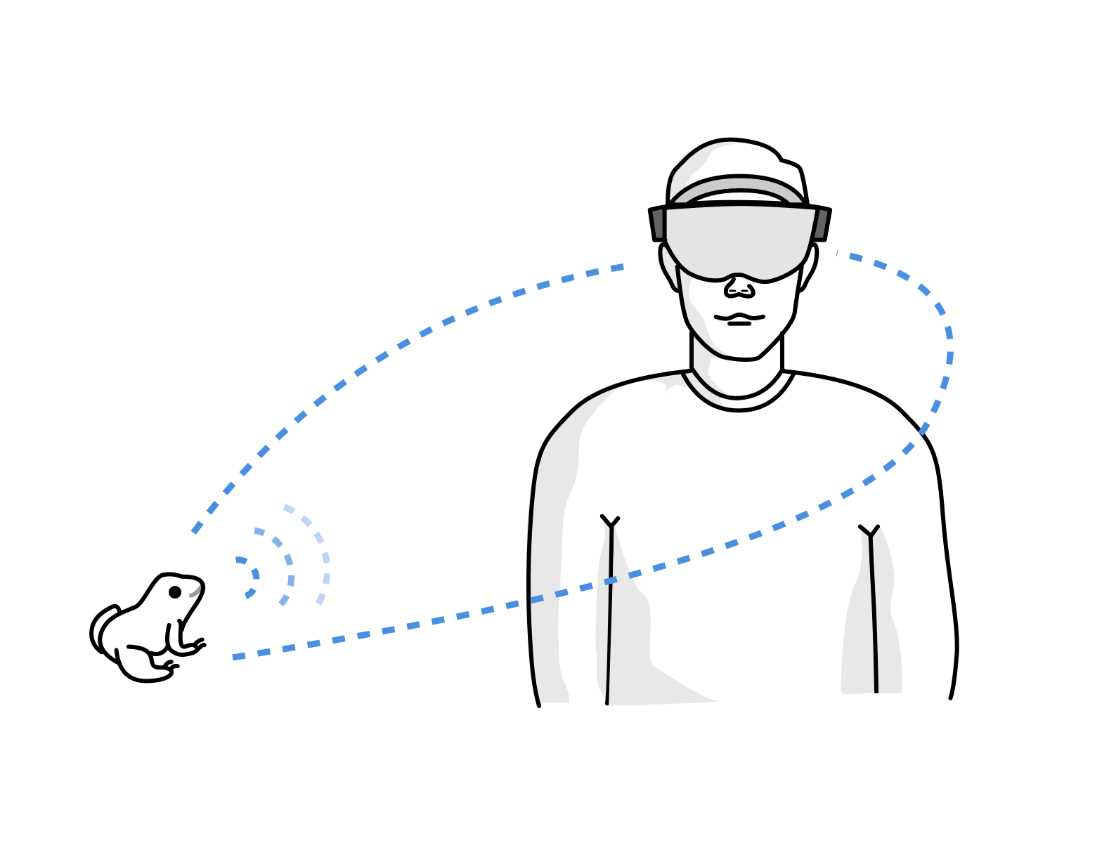
Figure 33: Spatial Sound
Head-related transfer function
To simulate and copy how human ears function, HoloLens implements a head-related transfer function (HRTF). This algorithm models the spectral response of how an ear receives sound from any point in space. The position of each sound, usually attached to a hologram, is calculated and simulated using the four speakers of the HoloLens.
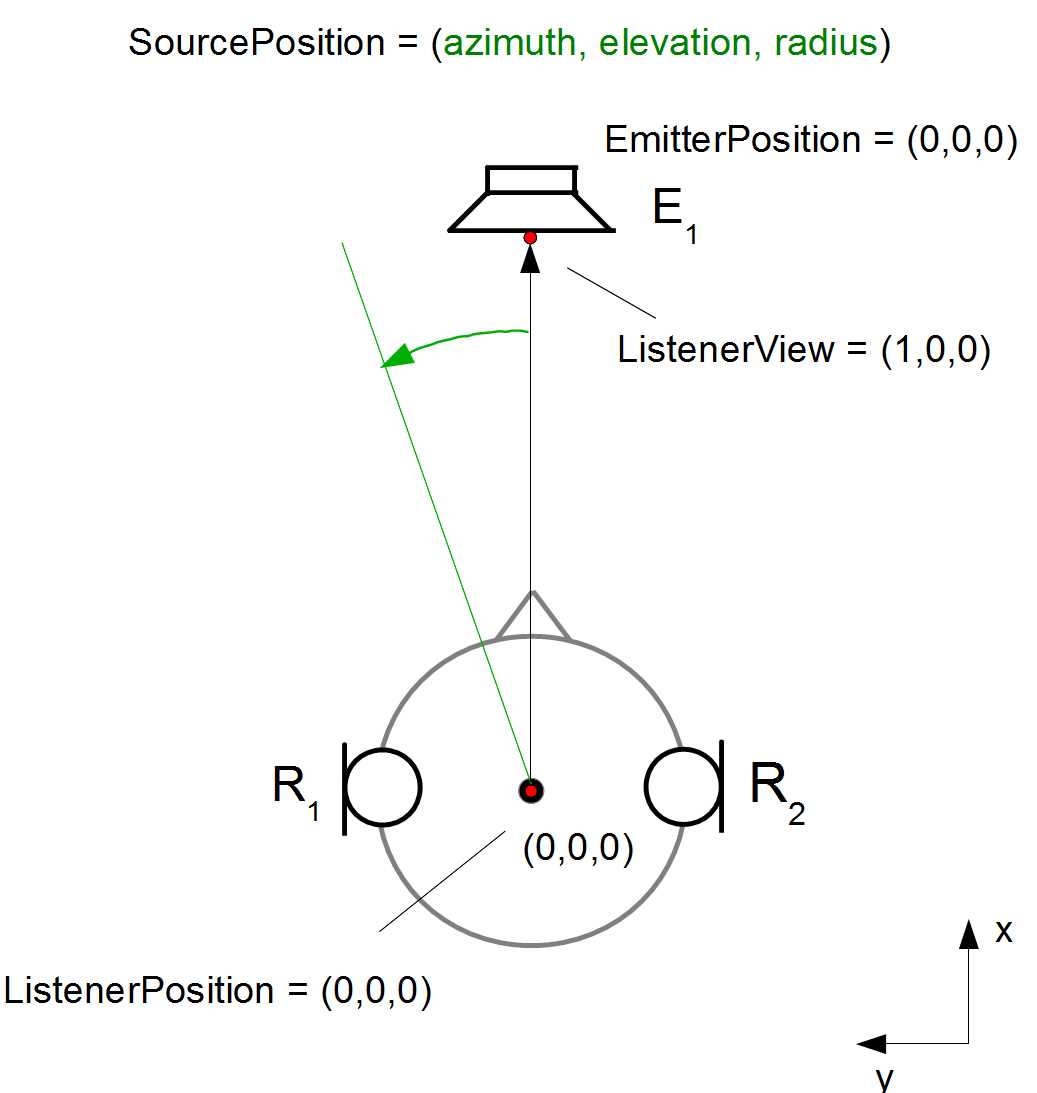
Figure 34: Head-related Transfer Function (User:Pitbub, CC BY 3.0)
The timing for a sound hitting each ear is different, and that is how we, as humans, perceive direction and distance of sound. The HRTF simulates this timing incredibly well, and the HoloLens hardware implements it. Humans have just two ears, but we can locate sounds in three dimensions: in range (distance); in direction above, below, in front of, and to the rear; and to either side. This entire range of binaural features is supported by the HoloLens.
While the HRTF is incredibly complex and varies from human to human, the HoloLens implementation is very accurate. The best part is that as a developer, you don’t have to worry about it at all—implementing sound effects for your holograms is simple and fast.
Creating spatial sound
Using spatial sound in your HoloLens app is simpler than you might think. The easiest way to implement a sound design for a hologram is to use Unity to drag and drop a sound file onto a 3D object, and then configure it in the inspector panel.
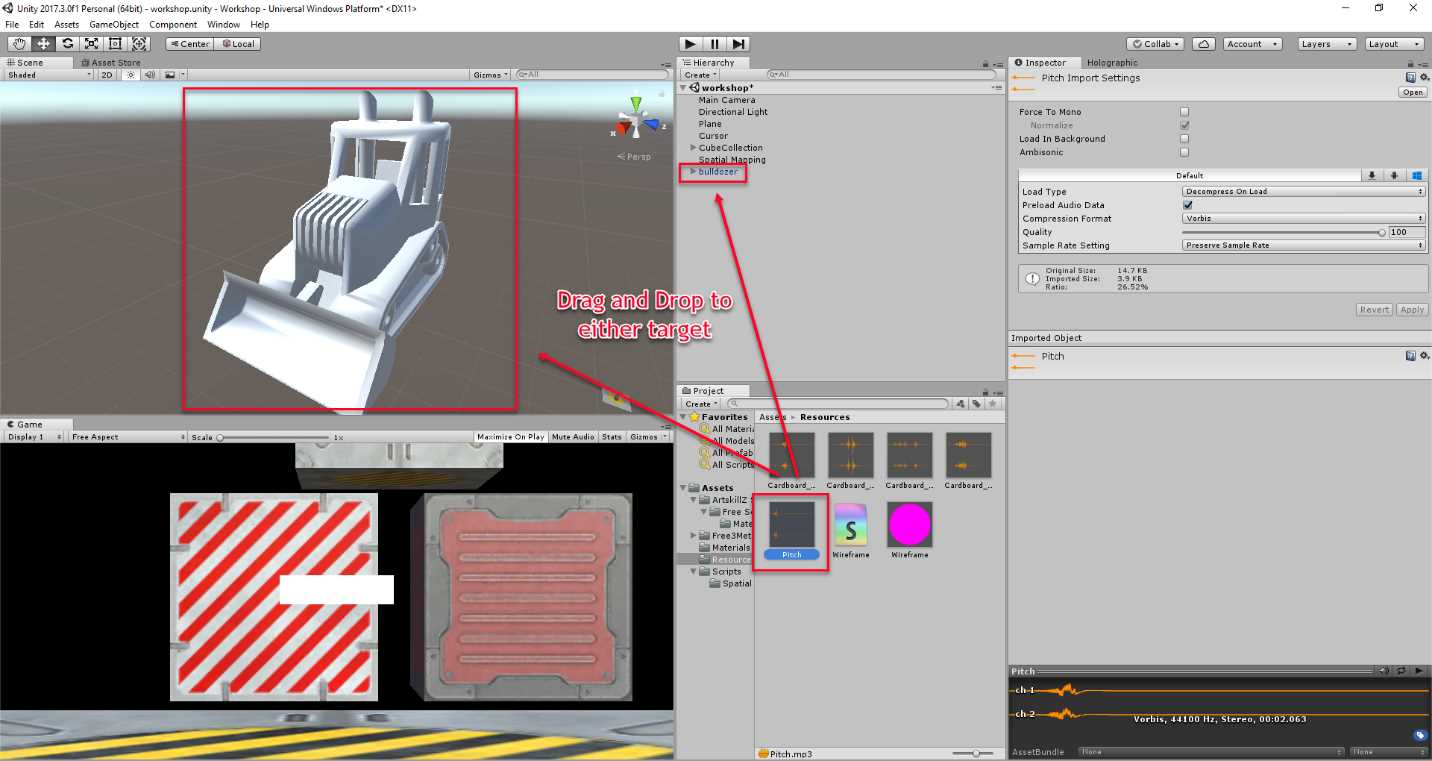
Figure 35: Spatial Sound Implementation in Unity 3D
That is all you need to do in order to create a basic spatial sound for a hologram. The framework will take care of calculating the HRTF and continuously making sure the sound is projected from the hologram using the HoloLens.
Having audio statically linked to a hologram doesn’t cover all scenarios, of course. Often, you’d want to trigger sounds in code and manage it through interactions and actions. This is done through scripts, as with other parts of the platform, and makes use of the same properties that you used in the inspector panel by manipulating an AudioSource object.
Code Listing 9: Creating an Audio Source in Code and Triggering It
AudioSource audioSource = gameObject.AddComponent<AudioSource>(); audioSource.clip = Resources.Load<AudioClip>("<some clip>"); // Occurs when this object starts colliding with another object. void OnCollisionEnter(Collision collision) { |
Note: Unity 3D uses type float instead of double.
In Code Listing 9, a new AudioSource object is created, some of its properties are configured, and then in one of the built-in events, OnCollisionEnter, the audio is played.
The actual implementation of spatial sound in a HoloLens experience is not complex or difficult to program. As with most of the basic HoloLens development sections mentioned previously, you just need a knowledge of C# and some basic tooling.
Sound design
The difficult parts are designing the soundscape for your particular experience and understanding how various decisions will impact it. There are a ton of variables to consider when designing sound for your experience, but with a bit of careful planning and attention, it can make all the difference between an average and an excellent experience.
The list in Table 3 shows some of the common issues you must manage for a full and complete sound experience.
Area | Action |
|---|---|
Normalizing | Create a standard normalized baseline volume for your sound files. This will keep them maintainable for future updates. |
Movement | Be aware that users will move about in the space they occupy. Your sounds must match that experience. |
Accuracy | Users can move about freely, which means they will get up close to holograms. The sound needs to be emitting from an accurate location on the hologram. For example, a dinosaur’s roar shouldn’t come from its foot. |
Natural | The whole idea of HoloLens experiences is to convince the user that the holograms are part of the real world. Creating natural sounds is a great help in achieving this. An eagle should sound like an eagle, and tapping on wood should sound like that, too. |
Expectations | Every user will have expectations about the sounds they will hear. Based on familiarity, users will have “coded” responses to certain types of sounds. If they hear a bird, they will look up. If they hear their name, they will look at eye height for the source of the sound. |
Hidden sounds | If sounds are unfamiliar, or they are sounds that would be recognized as coming from a visible source, don’t hide the emitter of the sound. It can be a very negative experience for the user if they can’t locate what is making the sound. Familiar sounds like wind that aren’t expected to be visible are exceptions. |
Tip: Consider how you would expect real world scenarios to sound when designing sound for your HoloLens experience.
Mixing sound
One of the traps of being able to just drag and drop sound bites on 3D assets in Unity, or attach a new AudioSource in code, is that you can very quickly end up with a ton of sounds—all playing at the same time! Suddenly there are so many sounds that the user can’t hear any of them. It becomes unnatural, overwhelming, and frustrating.
Microsoft recommends that you aim for a volume mix of 70 percent on the HoloLens. This will allow real world sounds to still be heard, and you will create an appropriate mixed reality soundscape.
A common technique used for the HoloLens (and VR in general) is to dial down the volume on holograms that aren’t in the view of the user, or their gaze. Using the gaze APIs, you can turn the volume up and down for holograms, as they come in and out of the user’s vision. This will make it easier to focus attention on the visuals in front of them. This technique can also be used to dial up the volume on unseen holograms that you want to draw the user’s attention to.
Interaction
Part of a successful and convincing experience on HoloLens is the realism it brings over both AR and VR apps. As mentioned before, you want users to invest and immerse themselves to the point of not consciously distinguishing between real and digital.
When it comes to sound, you should use it to enhance the realism of your app. If you have a wooden chair hologram, then perhaps have some “wooden” sound effects for placing the chair or moving it. Let your users buy into the experience.
To further encourage interaction, combine gaze with sound. If there are important objects the user should be aware of in a given context or at a specific time, you can use a sound clip to guide and direct the user’s gaze. It can be a sound that increases in volume as the user gets closer, it can be more of a beacon signal, or whatever suits the experience.
The same applies for gestures. Because a gesture is a non-haptic action, using sound to indicate an outcome of a gesture is very powerful. If a user correctly taps an object, let them know by using an audible cue. If the user tries to tap an object at an incorrect moment, let them know that, too.
Spatial mapping and sound
As mentioned previously, there is no HoloLens experience without spatial mapping. It is the glue that binds digital with real life, and it is the underpinning of all pure HoloLens experiences. Sound is no different. You want relevant sound effects to be part of the experience, regardless of whether the user is interacting with a part of the 3D model created by the spatial mapping, or a digital asset.
The main design decision when it comes to sound and spatial mapping is how to handle occlusion. When holograms are behind physical objects mapped in 3D, the sound design should handle this naturally.
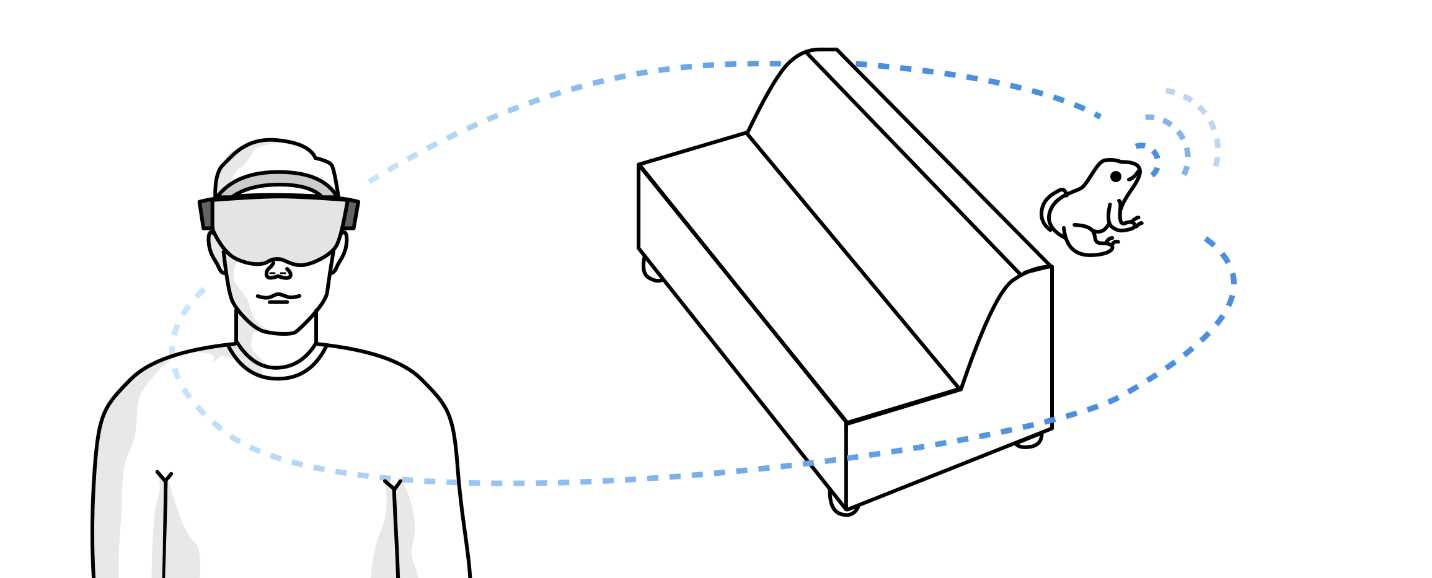
Figure 36: Occlusion of Spatial Sound
Programmatically, sound occlusion is done by identifying if there are objects between the hologram and the user, and if so, applying the appropriate effect to the hologram. The most common effect is to lower the volume and pitch. Imagine hearing sound behind a closed door— it’s more muffled, and the volume is lower, than if the user were to open the door.


- 1800+ high-performance UI components.
- Includes popular controls such as Grid, Chart, Scheduler, and more.
- 24x5 unlimited support by developers.