
HoloLens Succinctly®

CHAPTER 10
Sharing Holograms
One of the most exciting features of the HoloLens is the collaboration aspect. It is exciting and groundbreaking to first create and manipulate holograms. Having interaction between digital and physical objects in a convincing way is inspiring and it opens up a lot of possibilities. However, when you introduce multiple users to the same HoloLens experience, the impact is exponentially increased. Having two or more users viewing the exact same experience is both powerful and persuasive.
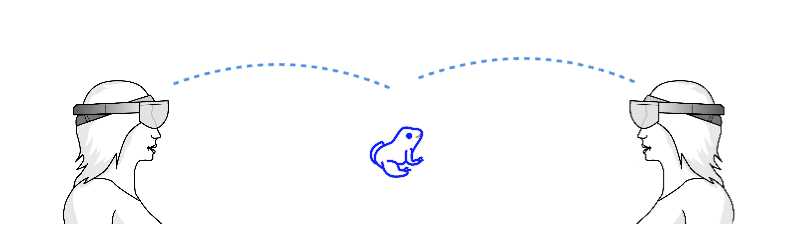
Figure 48: Sharing the Same Hologram between Devices
Designing shared experiences
This e-book has touched on a lot of design decisions that need to be made for HoloLens experiences. The same thoughts and concerns apply when creating shared experiences, as well as a whole new dimension to consider.
Sharing style
Content can be shared in a few ways. You can be presenting an experience to onlookers, where you are in control of the content. This could be very useful for teaching students about the human body, for example. The teacher would go through the material, and all students would see it in real time. The teacher can share notes in real time that students can interact with and copy.
You can, of course, collaborate on the same experience between users. In the previous scenario, students could be invited to interact with the holograms and manipulate parts of it to engage in the learning.
Finally, you can have one user guide one or more users through an experience. For example, a teacher could assist with assignments that students are solving by guiding them through the experience.
User location
Understanding where users will be located in a sharing experience is important. You can have co-located users that share the same physical space, users that are remote and each in their own physical space, or a combination of the two. Knowing where users will be when sharing an experience can help you design the communication model and consider how users are represented to each other, which parts of the experience is shared, whether you need to consider certain physical features that may not be present, and more.
Ideally, users are in the same location, as that gives by far the best shared experience on HoloLens. However, this isn’t always the case, and you might be able to solve a business case by collaborating over a distance.
Timing
Typically, you would expect users to be collaborating at the same time in a shared experience. Two or more users will share an experience and engage each other at the same time. This means state is managed in real time, and there is usually a defined conclusion to the collaboration.
However, at times users will work asynchronously on a shared experience. This creates some hurdles to solve, as there is a need for managing state to ensure the collaboration is successful, the room might change between sessions, so the mapping will need updating and more.
Interaction
The interaction model is the same as for a single user experience, although you now need to manage multiple users potentially interacting with the same object at the same time. This requires a common reference point that is updated in real time to a common data repository. This is commonly done using spatial anchors communicated throughout a centralized server instance.
From a development point of view, you need to manage the changes that each user makes and then update the central collection of coordinates.
Sharing service
Luckily, you don’t have to create your own service to share spatial anchor coordinates. Using the Mixed Reality Toolkit, you get a helping hand in creating and configuring a sharing service. Go to the Mixed Reality Toolkit menu and select Configure > Apply Mixed Reality Project Settings (Figure 49) to enable it.
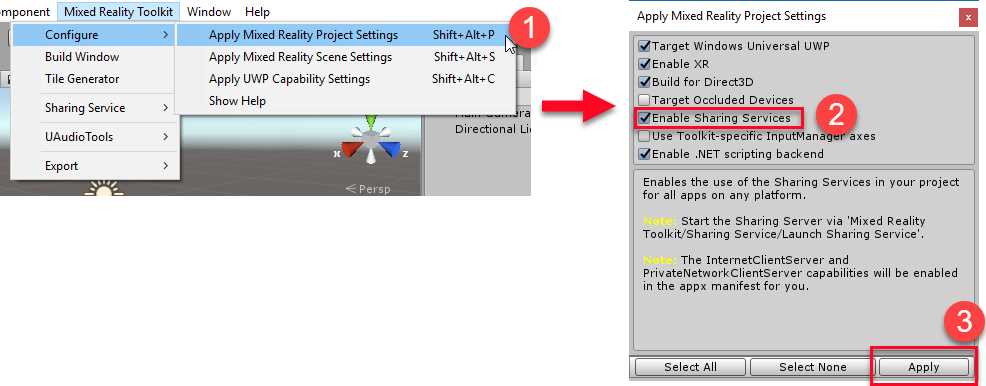
Figure 49: Enabling Sharing Service Using the Mixed Reality Toolkit
This will install the necessary components into your project, and when you want to start a sharing experience, you can again use the Mixed Reality Toolkit menu to launch the sharing service (Figure 50). You only have to do this once for one PC, per sharing experience.
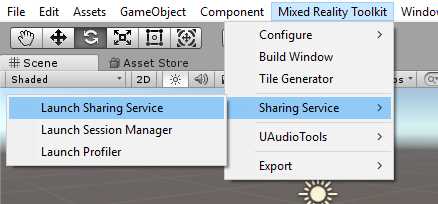
Figure 50: Launching Sharing Service Using Mixed Reality Toolkit
This will start the sharing service on the PC you launched it on, and this is the instance other HoloLens devices will connect to.
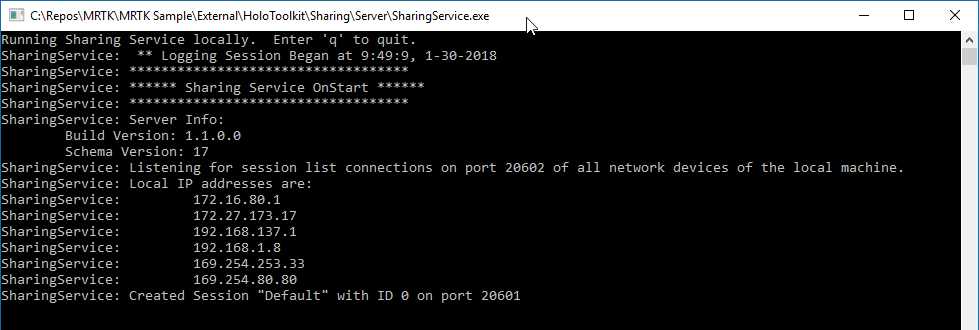
Figure 51: Sharing Service Running on Local Network
Placement
In a sharing experience, the mixed-reality illusion of placing digital assets in your real world must be maintained. As a developer, you must communicate any change to the placement of a hologram, so that all the other connected devices can update their experience accordingly. At the same time, you must also receive the updated placements from other users—and it all must happen in real time.
Code Listing 11: Receiving Updated Hologram Position
// Use the CustomMessages singleton to transmit messages between devices. CustomMessages.Instance.MessageHandlers[CustomMessages.TestMessageID.StageTransform] = this.OnStageTransfrom; void OnStageTransfrom(NetworkInMessage msg) { transform.localPosition = CustomMessages.Instance.ReadVector3(msg); transform.localRotation = CustomMessages.Instance.ReadQuaternion(msg); } |
Spatial anchors will persist when users exit your app using the bloom gesture or even if they turn the HoloLens off. Spatial anchors do not persist if the app is uninstalled, and you can’t share them between different apps, either.


- 1800+ high-performance UI components.
- Includes popular controls such as Grid, Chart, Scheduler, and more.
- 24x5 unlimited support by developers.