
HoloLens Succinctly®

CHAPTER 8
Hologram Quality
So far you have gone through how to implement and design your HoloLens experience. The focus has been on creating realistic and “world enhancing” experiences that provide value to the user. As much as you can optimize your code and experience, such as providing gaze guidance, audible clues, and intuitive and memorable voice commands, your holograms must be of great quality, too.
As you will learn, quality means a few things when it comes to holograms.
Frame rate
The absolute pillar of creating quality holographic experiences in mixed reality is the frame rate. Your app should run at 60hz, which means the frame is updated 60 times every second. For comparison, a standard movie you watch at the theater has 24 frames per second (fps). In other words, you must provide a new image from your app to the operating system approximately every 16 milliseconds.
Part of the illusion of having holograms interact with the real world is that they are rendered from the user’s position and perspective. The HoloLens is not fast enough to render the holograms in real time and uses predictive algorithms to estimate where a user’s head might be at any time. In addition, the HoloLens hardware will adjust any discrepancies between the predicted and the actual position of the user’s head.
By ensuring a constant experience at 60 frames per second, you are, as developer, doing your best to allow the hardware to perform optimally. By minimizing latency, you are also increasing hologram stability and decreasing prediction error margins. The issue of latency and frame rate is even higher on virtual reality devices that generally run at 90 fps.
Tip: Providing a frame rate lower than 60 fps will lose users fast.
Providing a lower frame rate from your app also strains the hardware, as well as the user’s acceptance of the experience. Imagine your app is running at 30 fps. The HoloLens is still rendering the display at 60 fps, so each image is rendered twice. The second image requires significant more error placement calculations before being rendered to the display.
Overall, providing a consistent frame rate of 60 fps will help alleviate judder (see the following section).
Tip: Remember that it is better to provide a consistently lower frame rate than an inconsistent one.
Here are some tools that can help you debug frame rate issues:
- Visual Studio’s Graphics Debugger
- GPUView
- Profiler windows in Unity 3D Identifying issues
The lack of quality for holograms can have a number of causes. It is important to be able to identify the various kinds of issues that can happen in a HoloLens experience. Some of the symptoms you can manage through better app development, and some the user will need to resolve on their device.
Accuracy
Holograms must stay in the exact same spot at all times. Even when the user makes a small head movement or their location changes, the view of the hologram has to be completely stable relative to the surrounding environment, as mapped by the spatial mapping. If the hologram shifts position, there is an issue of accuracy, which can cause the experience to fail or cause discomfort to the user.
Accuracy problems are often caused when two locations look similar. This is one of the pitfalls of creating a HoloLens experience, especially if users are in square rooms with no or little furniture. The spatial mapping becomes so similar that locations are mixed up and the accuracy suffers.
Color separation
The HoloLens device itself displays each of the colors red, green, and blue sequentially on the display the user sees. Each color is overlaid on the others to create a full color spectrum. This happens at 60hz per color, and as fast as that is, some separation of the colors can occur, either if the user moves their head rapidly, or if a hologram moves very fast in the experience. White colors can especially suffer from color separation, as they comprise all layers of color.
If you do want to move a hologram, keep the movement under 5 degrees per second if it requires either gaze or head movement from the user. Another really simple way of countering color separation is to make the object either red, green, or blue. You could also switch to a blurred version of the asset as it moves across the scene. This will make the user more accepting of color imperfections in the hologram.
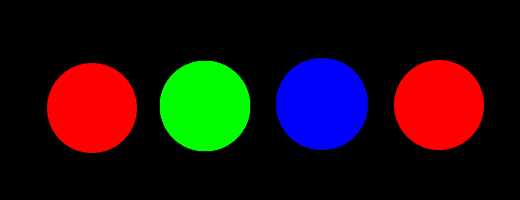
Figure 37: Color Perception of a White Circle as User Moves Gaze from Left to Right
Drift
When users experience holograms drifting away from their original placement, this is called drifting. Because holograms are anchored in relation to the real world using spatial anchors, it is not a perfect placement. The real world might change, or the initial estimate of location, placement, and distances might be off. Spatial anchors are needed to make sure holograms stay where you place them, and if the holograms are too far from the spatial anchor, they can drift from the anchor.
Note: How you manage drift is very often based on your experience. You don’t want too many spatial anchors, as that affects accuracy, but you don’t want holograms too far from them, either.
Jitter
If the tracking of the room starts degrading, or there are inconsistencies in the 3D model created by the HoloLens, the holograms might start to shake at a relatively high frequency. This is referred to as jitter.
To resolve jitter, it is most likely the user that needs to tune the sensors[6] on the device. As a developer, you don’t have much control over the spatial mapping and its performance.
Judder
One of the symptoms of a low frame rate is juddering of images. When the frame rate jumps up and down, the device has a hard time presenting a consistent image to the user. This can result in ghosting of images, or sudden jumps in location. As mentioned in the “Frame ” section of this chapter, it is paramount that you are delivering 60 fps, and if that isn’t possible, at least be at a stable fps.
Jumpiness
Holograms may suddenly jump from one location to another. This effect is closely related to judder. However, where judder is related to poor frame rate performance, jumpiness generally happens as the device is updating the understanding of the surrounding environment. The new and updated understanding of the environment can cause remapping of where to project holograms, which makes them jump.
Swim
If a hologram is moving in sync with the motion of the user’s head, it creates a weird detached sensation for the user. This is referred to as swimming. This can occur when holograms aren’t correctly on the stabilization plane (see the next section). Developers must address this, as well as users, by running the calibration app on the device.
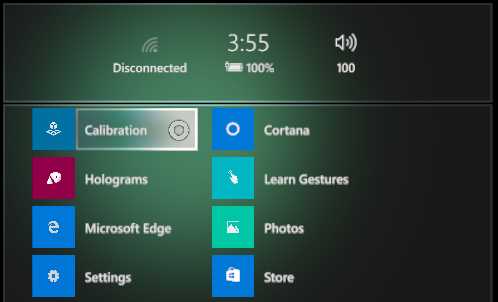
Figure 38: Calibration App on HoloLens
Stabilization plane
While you don’t have to address or be concerned about the stabilization of holograms in general, there is a single responsibility for the developer. Each hologram is stabilized through the hardware, but it needs a single reference point to maximize this function. The stabilization plane is a single “slice” or window that is chosen in conjunction between the device and the application, or programmer. Holograms in the stabilization plane, which is generally the focus of the app, receive more accurate stabilization than other holograms.
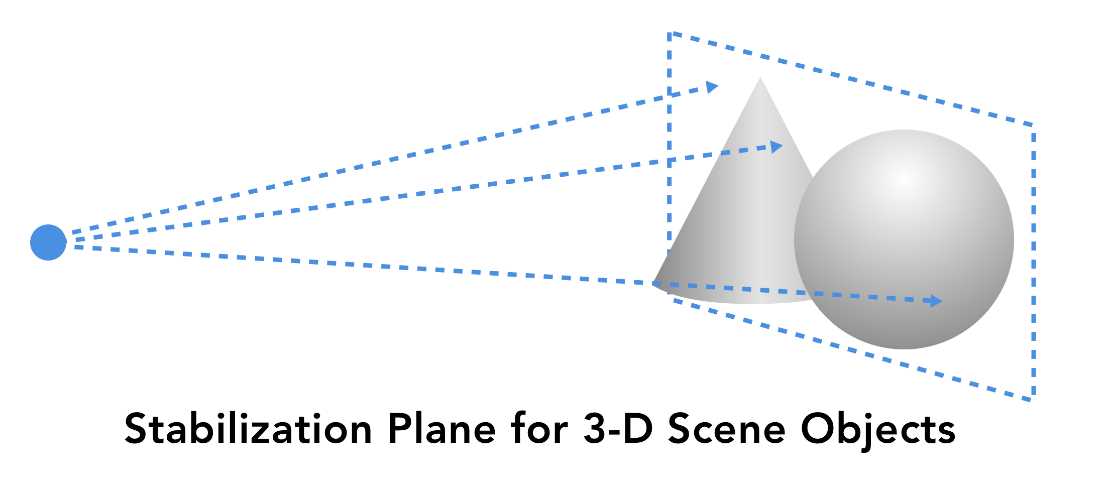
Figure 39: Stabilization Plane in a 3D Scene
The application can help the hardware identify the stabilization plane by setting the best current focus of the experience using the SetFocusPoint(). This is a purely subjective decision made by the app developer as to what they want the user of the app to observe and focus on.
Because all holograms on the stabilization plane are perfectly stabilized, you should place as much as possible on them. This might take some trial and error, but it is worth doing in order to avoid swimming holograms and to keep your users from having a visit from their lunch.
A few things to consider:
- If you are going to adjust the stabilization plane, don’t just do it once. Users move around constantly, and the holograms will come and go.
- Avoid many changes of the focus point over a short period of time, especially between points relatively far apart.
- Never set the stabilization plane on top of or very close to the user. This is confusing and can cause discomfort to the user.


- 1800+ high-performance UI components.
- Includes popular controls such as Grid, Chart, Scheduler, and more.
- 24x5 unlimited support by developers.