
HoloLens Succinctly®

CHAPTER 5
Gestures
Introduction
If you have seen anyone use a HoloLens, you have probably noticed how users move arms and hands in the air. These gestures are the second type of input for HoloLens, and are the most recognized part of the Gaze-Gesture-Voice (GGV) input model used for mixed-reality experiences on HoloLens. As you’ll see, the implementation of gestures is not difficult from a programming perspective, but you will have to be very particular about your design of the experience and at which points you allow certain gestures.
Gesture frame
When users perform gestures, they do so within a gesture frame. This frame defines the boundaries of where the HoloLens picks up gestures made by the user. It is roughly a couple of feet on either side of the user, as the following figure illustrates.
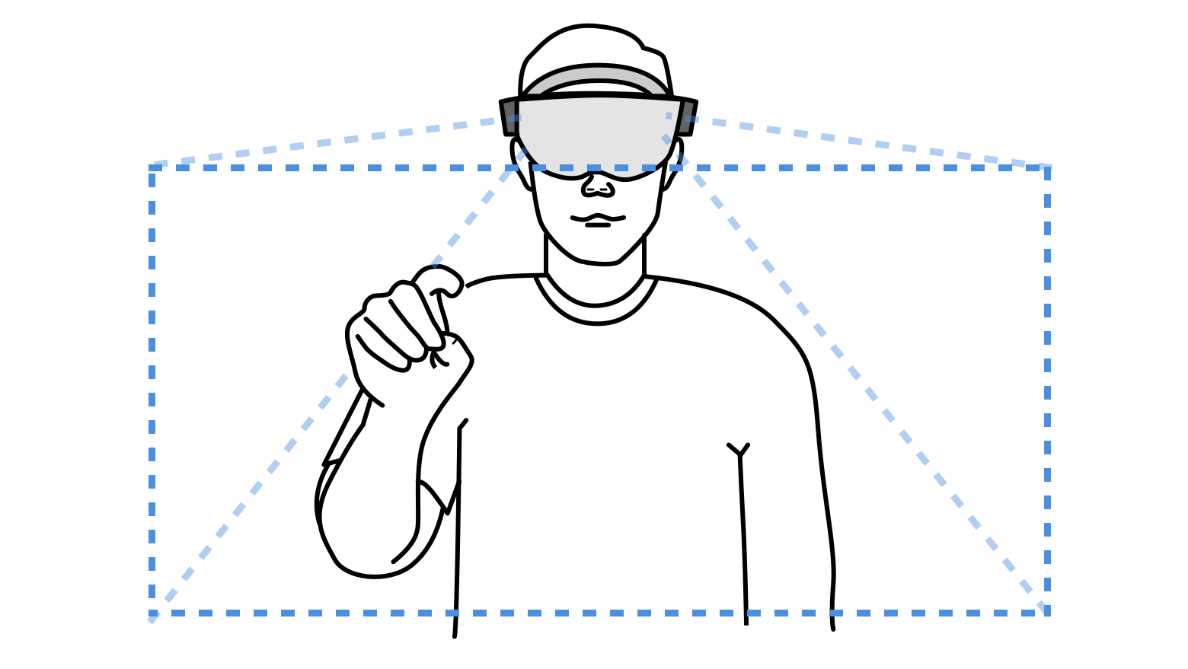
Figure 24: Gesture Frame
If the user performs gestures outside the boundaries of the frame, the gestures will stop working. If a gesture such as navigation takes place wholly or partly outside the gesture frame, the HoloLens will lose the input as soon as the gesture can’t be seen. This can cause confusion, and the correct response in the experience should be managed.
To assist the user in knowing when they are performing a gesture inside or outside the frame, the HoloLens cursor will change shape (Figure 25). If no gesture is seen, it is merely a dot. If the ready state (refer to the following section) is seen, it is a circle or ring.
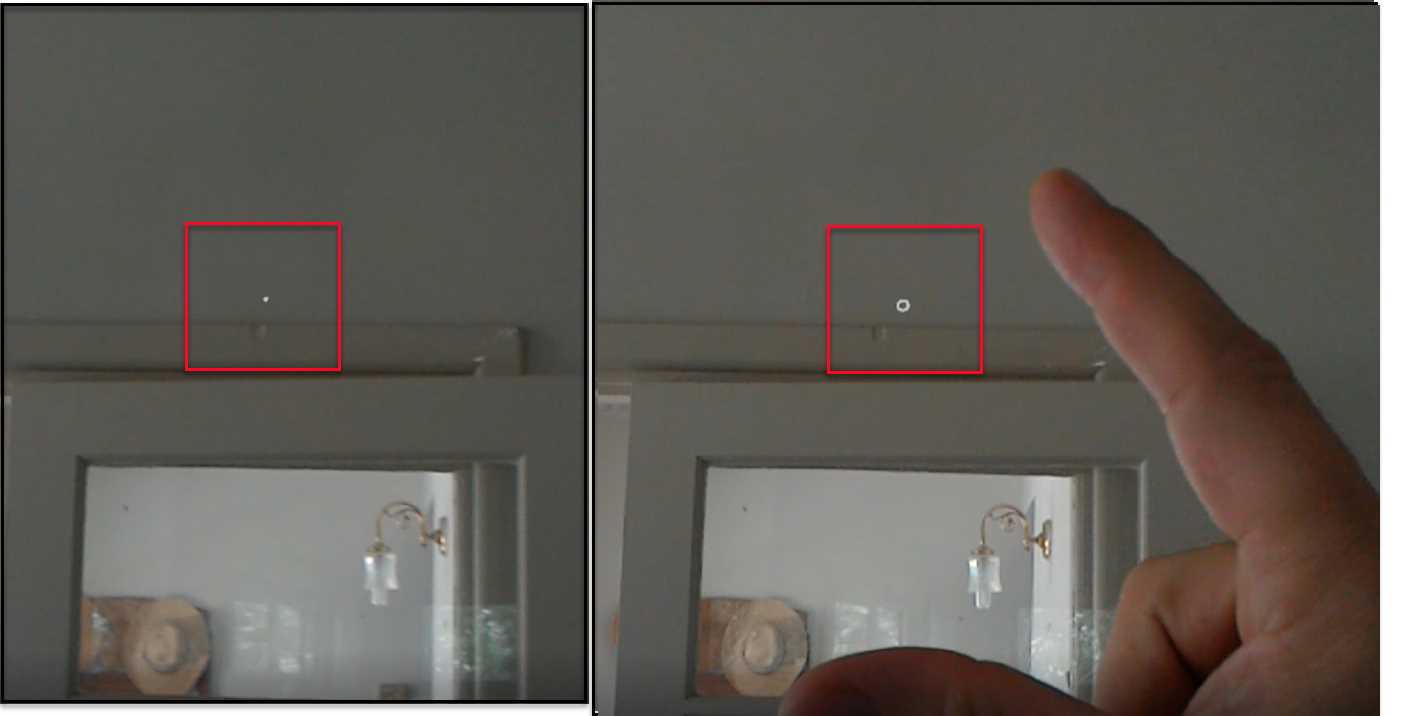
Figure 25: Hand Outside and Inside Gesture Frame
The gesture frame is completely managed by the framework, and no coding is required to take advantage of it. The interaction with gestures, however, needs to be considered, such as what happens to the experience if the gesture input is lost. Consequences of breaking the gesture frame boundaries should be minimized. In general, this means that the outcome of a gesture should be stopped at the boundary, but not reversed. Take the user on a journey and educate them on how you handle various exceptions.
Tap
The most fundamental gesture of the HoloLens experience is the tap. This commonly used gesture is made up of two of the three basic gestures that HoloLens can recognize: ready and tap.
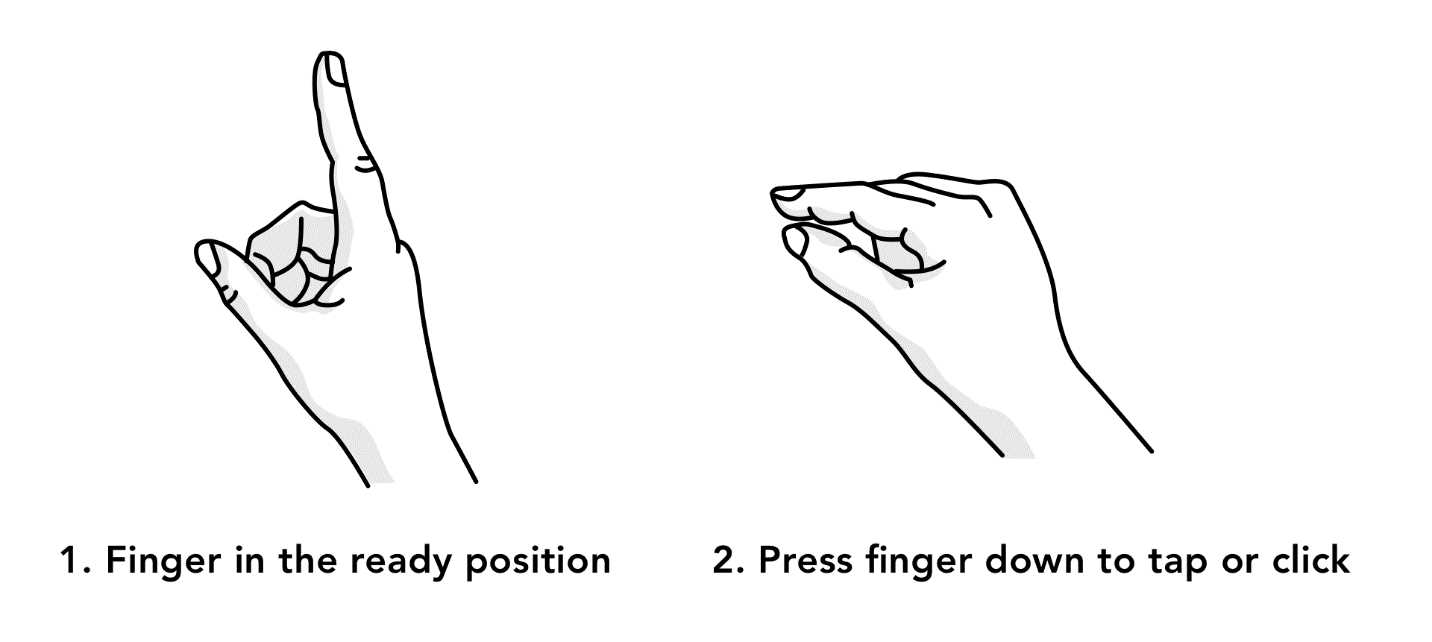
Figure 26: Ready and Tap Position
The tap is comprised of quickly moving the finger from the ready position to the pressed position and back again. Most of the time, the tap event is preceded by the user gazing at a hologram to select it. The tap is captured by the framework, and you can handle the event in code.
The key object to use is GestureRecognizer, which handles all the platform gesture events. To listen and handle the Tap event, use the following code.
Code Listing 2: Handling a Simple Tap Gesture.
var recognizer = new GestureRecognizer(); recognizer.Tapped += (args) => { // Do something when tap event occurs.
}; recognizer.SetRecognizableGestures(GestureSettings.Tap | GestureSettings.Hold); recognizer.StartCapturingGestures(); |
Of course, the code in Code Listing 2 is in a script, which is attached to the object that the user taps on. An important performance benefit is to use the SetRecognizableGestures to inform the GestureRecognizer about which gestures to raise events for.
Note: Args in Unity uses delegates for implementation, whereas EventArgs uses events.
Tip: Avoid using the .NET import of the System namespace, as it collides several places with the UnityEngine namespace.
Bloom
The third gesture that the HoloLens framework can recognize, apart from ready and pressed, is bloom. This gesture is the “home button” and equivalent to pressing the Windows key on a standard keyboard, and it t6rftconsists of holding out your palm and putting your fingertips together, then opening your hand (Figure 27).
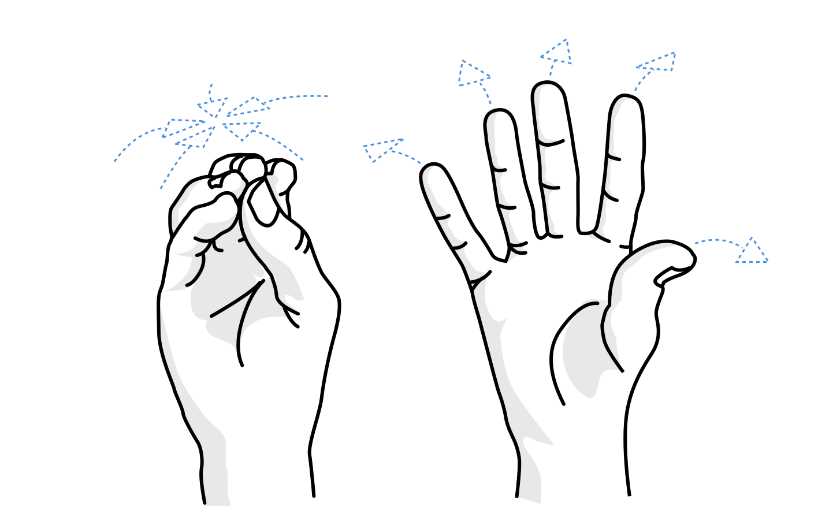
The bloom gesture cannot be overridden or manipulated through code. When the user performs the gesture, one of two scenarios will happen: the start menu is opened or closed, or the user exits the currently running experience. These are fail-safe, and there isn’t any way to stop the user from using bloom.
Advanced gestures
Although the HoloLens currently supports only two basic gestures, you can use the ready and pressed states along with 3D space to perform more advanced gestures. These are also supported by the framework and come with their own set of events that you can handle in code.
These advanced gestures can be used at any time, and the setup for the HoloLens educates the user about them. They are a part of the framework, and as such, should be used in your experience where appropriate.
Hold
The first gesture is hold, which is the user going from ready position to pressed, and then holding the finger pressed. This is useful for alternate tap actions, activating a relocation of a hologram, pausing a hologram, and so much more.
As with other built-in gestures, you don’t have to identify when the gesture occurs, but only listen for the specific event. To handle the hold gesture, listen for these three events:
- HoldStarted: This fires when the system recognizes the user has started a hold gesture.
- HoldCompleted: This fires when the system recognizes the user has completed a hold gesture. This is generally when the user changes from the pressed to the ready state without moving the hand.
- HoldCanceled: This fires when the system recognizes the user has canceled a hold event. Generally, this happens when the user’s hand moves outside the gesture frame of the HoloLens.
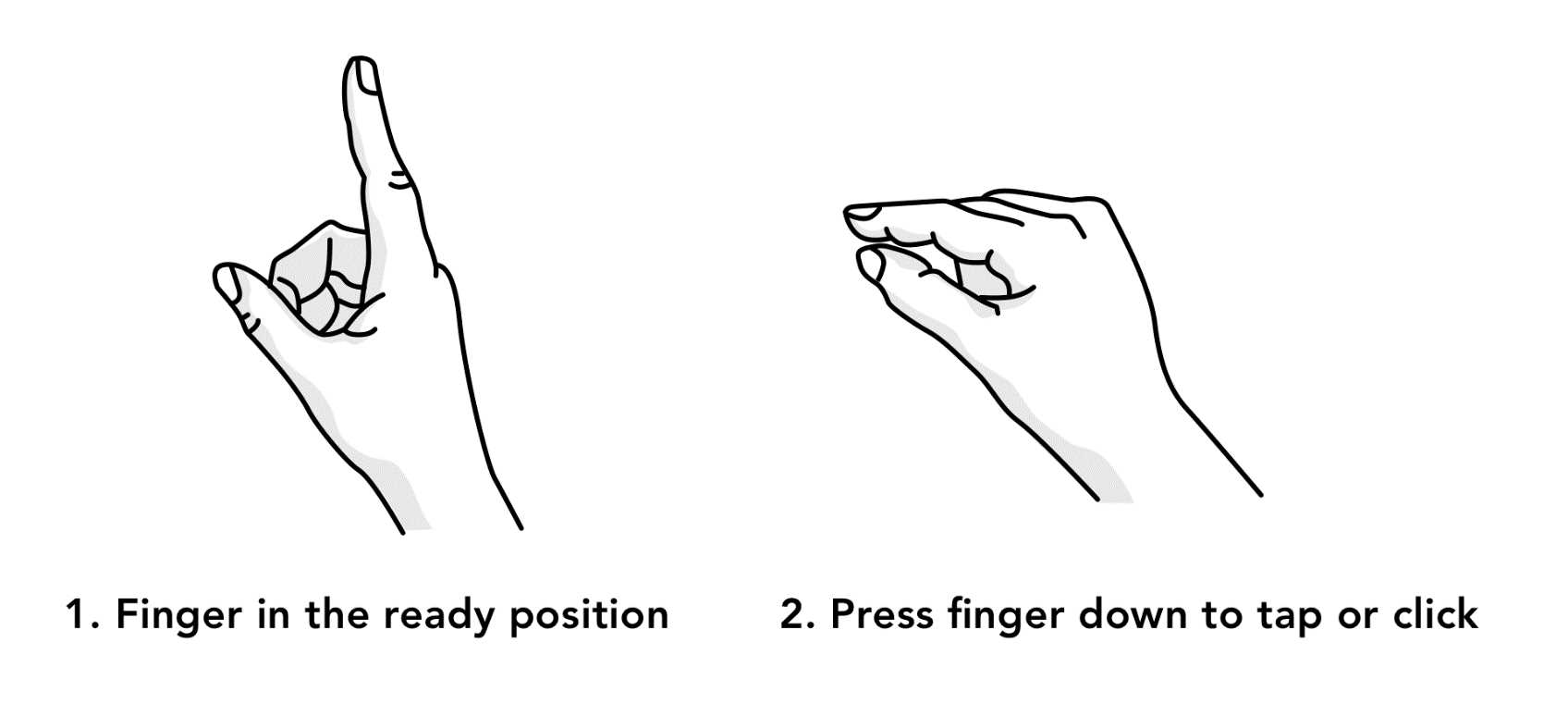
Figure 28: Hold Gesture
An example of how to handle the Hold event is shown in Code Listing 3.
Code Listing 3: HoldStarted Event Handling
var recognizer = new GestureRecognizer(); recognizer.HoldStarted += (args) => { // Do something when hold started event occurs.
}; recognizer.StartCapturingGestures(); |
Manipulation
Once they have performed a hold gesture, a natural action for users is to try and move the hologram they have targeted. Moving the hand either horizontally or vertically will trigger the manipulation gesture events. A manipulation gesture can be used to move, resize, or rotate a hologram when you want the hologram to react 1:1 to the user's hand movements.
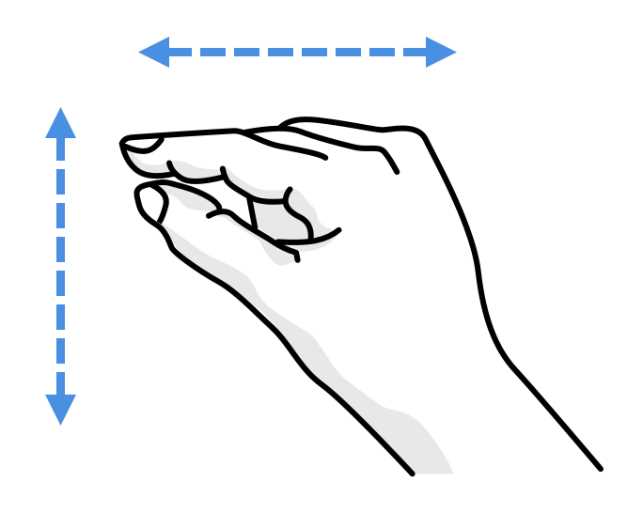
Figure 29: Manipulation Event
To use manipulation, listen and handle these events in your code:
- ManipulationStarted: This fires when the system recognizes the user has started a manipulation gesture.
- ManipulationUpdated: When the user moves their hand while performing the manipulation event, new coordinates for the destination of the gestures are generated and passed in the ManipulationUpdatedEventArgs object.
- ManipulationCompleted: This fires when the system recognizes the user has completed a manipulation gesture. This is generally when the user changes from the pressed to the ready state after moving the hand horizontally and/or vertically.
- ManipulationCanceled: This fires when the system recognizes the user has canceled a manipulation event. Generally, this happens when the user’s hand moves outside the gesture frame of the HoloLens.
Code Listing 4: ManipulationStarted Event Handling
var recognizer = new GestureRecognizer(); recognizer.ManipulationStarted += (args) => { // Do something when the ManipulationStarted event occurs.
}; recognizer.StartCapturingGestures(); |
The manipulation gesture is often used for scrolling pages using a hold gesture, and then moving the hand up and down, or for moving holograms in a 2D plane.
Navigation
The third (and most complex) gesture is navigation. It operates like a virtual joystick within a normalized 3D cube. The user can move their hand along the X, Y, or Z axis from a value of -1 to 1, with 0 being the starting point.
The navigation gesture is often used to move holograms from one location to another, resize objects, and to perform more complex tasks like velocity-based actions based on how much you move your hand. It is a very natural gesture as you are moving your hand in 3D space, and the actual experience is also 3D.
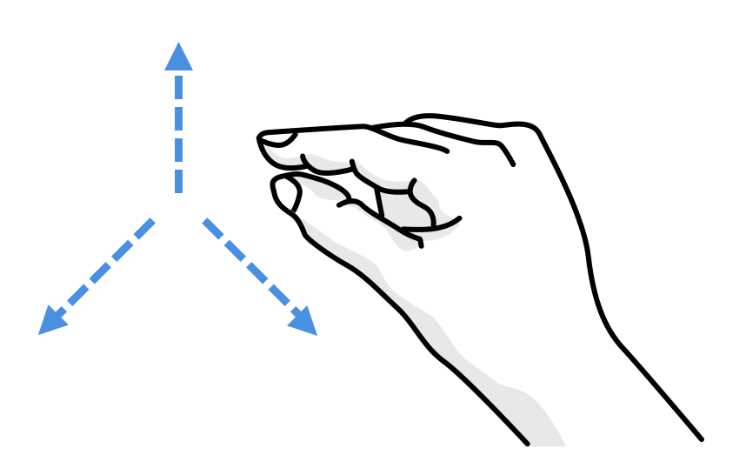
Figure 30: Navigation Event
To use navigation in your experience, you can handle four different events:
- NavigationStarted: This fires when the system recognizes the user has started a navigation gesture.
- NavigationUpdated: When the user moves their hand while performing the navigation event, new coordinates for the destination of the gestures are generated and passed to the NavigationUpdatedEventArgs object.
- NavigationCompleted: This fires when the system recognizes the user has completed a navigation gesture. This is generally when the user changes from the pressed to the ready state after moving the hand within the bounded 3D cube.
- NavigationCanceled: This fires when the system recognizes the user has canceled a navigation event. Generally, this happens when the user’s hand moves outside the gesture frame of the HoloLens.
Code Listing 5: Handling a NavigationUpdated Event
var recognizer = new GestureRecognizer(); recognizer.NavigationUpdated += (args) => { // Set a position for something to the updated position when the // NavigationUpdated event occurs. NavigationPosition = args.normalizedOffset; }; recognizer.StartCapturingGestures(); |
Note: Users often accidentally go from manipulation to navigation. You can control and assist users in code by managing which events to listen for.


- 1800+ high-performance UI components.
- Includes popular controls such as Grid, Chart, Scheduler, and more.
- 24x5 unlimited support by developers.