
HoloLens Succinctly®

CHAPTER 4
Gaze
The first of the main input methods for HoloLens apps is gaze. Gaze tells the app where the user is looking in the world, and similarly to the real world, users look at objects they intend to interact with. The HoloLens does not detect eye movement and eye activity; it is the position of the user’s head that determines the direction, or vector, of the gaze. If you think in terms of traditional computing, you use your head as the mouse pointer to gaze at objects, a bit like if you had a laser pointer coming directly out of your head.
This “laser pointer” can intersect with the spatial mapping mesh described in the previous chapter, as well as any holograms you have already placed within your app. Interactions in any experience are based on the user’s ability to target the element they want to interact with, and for HoloLens, this is most often done through gaze.
Gaze uses
Considering that gaze is one of the main inputs to a mixed-reality experience, it isn’t surprising that there are several uses of gaze, some of which aren’t immediately obvious.
- Selection: Users can select objects with gaze by intersecting the RayCast function.
- Target: Once a selection has been made, gaze assists in targeting the right gesture for the interaction.
- Intersect: You can intersect the user’s gaze with the holograms in your scene to determine user attention. Holograms can react to the gaze when appropriate such as changing color on an object to identify it.
- Combine: Users can combine gaze with gestures (see Chapter 5) and allow more complex interactions.
- Guide: You can guide the user’s gaze with visual clues to objects or areas they are not looking at, but should for the experience to be effective.
Gaze is the first of the standard input mechanisms for using the HoloLens, and the first way you are likely to interact with your users.
As the HoloLens user paradigm is very different from traditional computing, you are likely to have to hold the proverbial hand of your users for the first bit of your experience. Using your head as the mouse cursor is a shift from the way most people are used to interacting with computers and showing various tips to guide them along works wonders.
Implementing gaze
The code to implement gaze and gaze-handling is relatively simple. In fact, a lot of the code in this e-book is very basic, because if you have any experience with C# and Visual Studio, you are already halfway there. If you have no prior experience, the hardest part is getting the design right and mastering Unity 3D. With that in mind, Code Listing 1 shows the basic code to capture a gaze event. All the code in this book is meant to be part of a Unity 3D script that is referenced by or attached to a Unity object.
Code Listing 1: Simple RayCast Test (from Microsoft)
Because the camera is the position of the user’s eyes in Unity, you can use it to calculate the direction the user is pointing their head in. You then use the RayCast object to calculate if the gaze is intersecting any object, either in the spatial mapping 3D model, or another digital asset. If the RayCast returns true, then there is a hit, and you can get the 3D coordinates for the hit. In other words, you can get the location of the object the user is looking at.
RayCast is a construct often used in games in Unity to determine what a bullet might hit, where objects might land, if enemies are nearby, and more. It is a proven method to calculate relationships between assets, and for HoloLens this means you can determine with great accuracy where the user is turning their head to, and what they are looking at.
Note: HoloLens does not track a user’s eyes—it only tracks head movement.
Cursor object
You aren’t required to have a cursor object in your experience, but it is highly recommended. The cursor can be any 3D object in Unity, and you must manage it programmatically. You will typically position the cursor at the intersection between a real-world surface or hologram and the RayCast test. Not only is this a visual clue for users to let them know which element they are about to interact with, it also gives the user some confidence in the experience. By using the cursor, you are indicating to the user that you are reacting to their input.
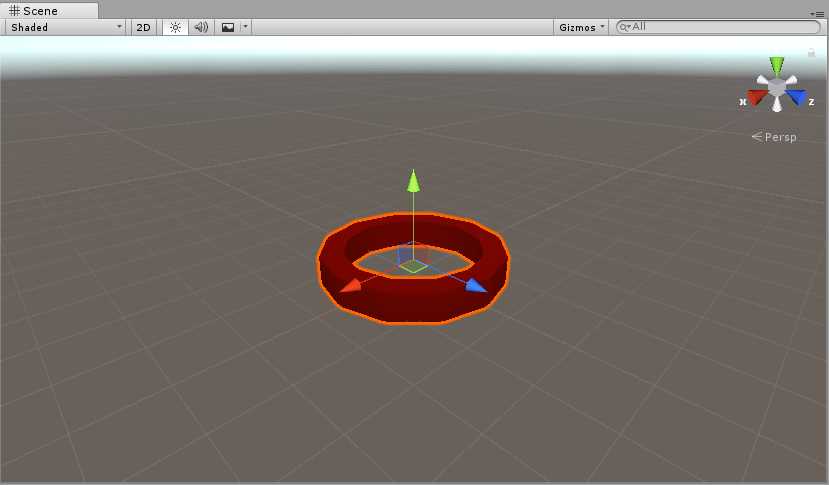
Figure 21: Cursor Object in Unity 3D
Although the cursor can be any 3D object, keep it simple to not detract from the parts of the experience that should be in focus. Once the user has targeted a hologram or real-world object with their gaze, you can visually indicate which actions are available for them.
Tip: If the cursor isn’t needed at certain times in the experience, hide it. Less is more.
Visual design and behavior
The cursor can perform a lot more tasks than you might think. You can add feedback to the cursor and the holograms to let users know with more certainty which objects they are targeting with gaze. Changing the size of the cursor to indicate a specific target, or changing the color of an object when being targeted, are both great ways of guiding the user. When you code the experience, you can send events to the objects being gazed at by using the RayCast object information that is returned.
If you have an experience with a lot of smaller objects, it can often be difficult to accurately identify and target each of these objects individually. Using visual aids and helping the user select the appropriate object with gaze makes even small objects usable.
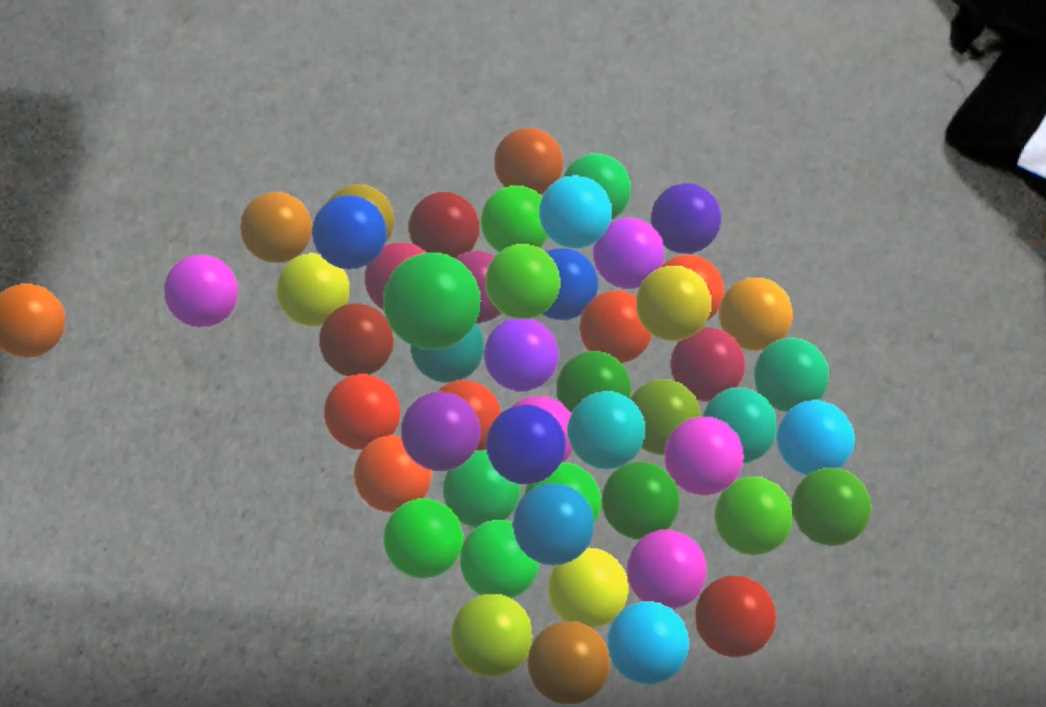
Figure 22: Targeting a Specific Ball with No Assistance
The main ways for users to interact with the object they are gazing at are by using either gestures or voice, which we will look at in the next two chapters.
You can also add audio hints when an important interaction occurs with the gaze. Audio in your HoloLens experience is covered in more detail in Chapter 7, “Sound.”
Gaze targeting
The aim of using gaze is to target objects that the user intends to interact with. When the targeting is accurate, meaning the expected outcome matches the real outcome, users will quickly and confidently get used to the gaze experience. This is where gaze targeting comes in.
Identifying what the user is gazing at does come with some limitations, but there are ways to ensure gazing is as accurate as possible. One of the issues is that users never hold their head still, and they never will (it is physically impossible for humans to do so). Another issue is that the further the distance to objects, the smaller they appear, and they harder they are to target.
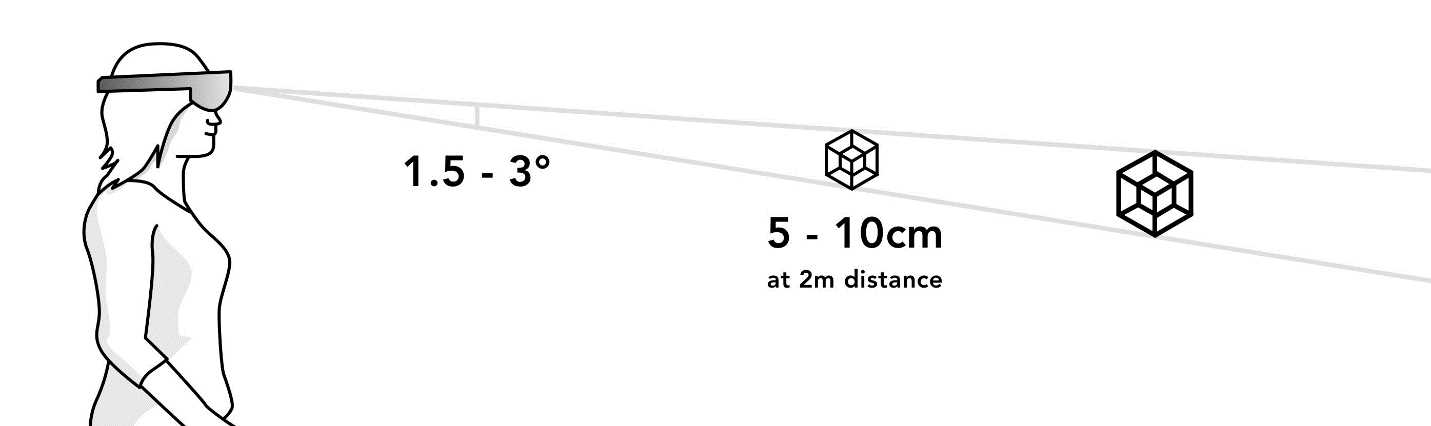
Figure 23: Gaze Target Optimal Distance and Size
You want targets to be within the 1.5–3 degree range of the gaze “cone” in front of the user. This obviously translates to larger objects regarding the further away they are, as illustrated in Figure 23. As mentioned previously, adding a cue in the form of audio or visual to help gaze targeting is extremely helpful.
There are many ways in which you can improve gaze targeting and help give users a great experience with your app.
- Place elements knowing this can have a big impact on the usability and, hence, gaze targeting of them. In general, elements placed very high or very low are harder to discover, as they are outside of the user’s normal field of vision. Place important holograms in front of the user.
- Use gaze stabilization to negate the natural head and neck jerks and jitters a user may have. This technique implements “magnetism” to guide a user’s gaze towards an object nearby. This is very effective and helps create a more reliable experience, too.
- Group related holograms together to form a natural way to progress through the experience.
- Assume intent based on what the user is doing. You can determine the closest hologram within a certain error margin, and, if appropriate, perform the necessary actions.
- Increase the size of the “hit boxes” that surround holograms. In Unity, the collider on an object determines when it is hit. If this area is slightly larger than the hologram, it makes for a smoother experience.
In general, gaze targeting is one of the most important aspects to get right in order to facilitate trust with the user.


- 1800+ high-performance UI components.
- Includes popular controls such as Grid, Chart, Scheduler, and more.
- 24x5 unlimited support by developers.