
Hive Succinctly®

CHAPTER 2
Running Hive
Hive runtime options
Because Hive sits naturally alongside other parts of Hadoop, it typically runs alongside an existing cluster. For nonproduction environments, Hadoop can run in local or pseudo-distributed mode, and Hive can submit jobs to Hadoop, which means it will use whatever runtime is configured.
Hive typically executes queries by sending jobs to Hadoop, either using the original map/reduce engine or, more commonly now, with Yet Another Resource Negotiator (YARN), the job management framework from Hadoop 2. Hive can run smaller queries locally using its own Java virtual machine (JVM) rather than submitting a job to the cluster. That’s useful when developing a query because we can quickly run it over a subset of data and then submit the full job to Hadoop.
Setting up a production Hadoop cluster isn’t a trivial matter, but in the cloud we can easily configure Hadoop clusters from the major providers to include Hive. By default, all the HDInsight cluster types in Microsoft Azure have Hive installed, which means it can run as part of a Hadoop, HBase, or Storm cluster with no extra configuration. When using Amazon's Elastic MapReduce, you will need to specify Hive as an option when creating a cluster.
Hive is a Java system, and it’s not complex to install, but Hadoop must already be set up on your machine. The easiest way to run Hive for development and testing is with Docker, and in this chapter we’ll look at using an image I’ve published on the Docker Hub that will help you get started with Hive.
Installing Hive
Hive is a relatively easy part of the Hadoop stack to install. It’s a Java component with only a few options, and it is installed onto the existing Hadoop nodes.
For a single node dev or test environment, you should install HDFS first, before Hive. In both cases, you simply download the latest tarball and extract it. Hive's runtime behavior can be changed from a variety of settings specified in the hive-site.xml config file, but these changes are mostly optional.
Because Hive stores its own data in HDFS, you will need to set up the folders it expects to use and the necessary permissions using hdfs dfs, as shown in Code Listing 6.
Code Listing 6: Creating Hive Folders in HDFS
hdfs dfs -mkdir -p /tmp hdfs dfs -mkdir -p /user/hive/warehouse hdfs dfs -chmod g+w /tmp hdfs dfs -chmod g+w /user/hive/warehouse |
|---|
Note: Full installation steps are provided in the Apache Hive Wiki here: https://cwiki.apache.org/confluence/display/Hive/AdminManual+Installation. Or you can see the steps captured in the Dockerfile for the hive-succinctly image on GitHub: https://github.com/sixeyed/hive-succinctly/tree/master/docker.
Running Hive in a Docker container
Docker containers are great for experimenting while you learn a new technology. You can spin up and kill instances with very little overhead, and you don’t need to worry about any software or service conflicts with your development machine.
Docker is a cross-platform tool, which means you can run it on Windows, OS/X, or Linux, and installation is relatively simple. You can follow the instructions at http://docker.com. In addition to the runtime, Docker has a public registry of images, the Docker Hub, where you can publish and share your own images or pull images other people have shared.
The image hive-succinctly on the Docker Hub is one I’ve put together expressly for use with this book. It comes with Hive already installed and configured, and the image is also preloaded with sample data you can use for trying queries. To run that image, install Docker and execute the command in Code Listing 7.
Code Listing 7: Running Hive in Docker
docker run -d --name hive -h hive \ –p 8080:8080 –p 8088:8088 –p 8042:8042 –p 19888:19888 \ sixeyed/hive-succinctly |
Some of the settings in the docker run command are optional, but if you want to code along with the sample in this book, you'll need to run the full command. If you're not familiar with Docker, here is a brief listing of the command’s functions:
- Pulls the image called hive-succinctly from the sixeyed repository in the public Docker Hub.
- Runs the image in a local container with all the key ports exposed for the Hive Web UI.
- Names the image hive, allowing you to control it with other Docker commands without knowing the container ID that Docker will assign.
- Gives the image the hostname hive, allowing you to access it using that name.
Pulling the image from the registry to your local machine takes a little while the first time this command runs, but with future runs the container will start in a few seconds and you’ll have Hive running in a container with all the server ports exposed.
Note: The hive-succinctly image uses Hive 1.2.1 and Hadoop 2.7.2. It will remain at those versions, which means you can run the code samples from this book using the exact versions. The image runs Hadoop in pseudo-distributed mode—although it starts quickly it may take a couple of minutes for the servers to come online and make Hive available.
Getting started with Hive
There are two command-line interfaces with Hive—the original Hive CLI and the newer replacement, Beeline. Hive CLI is a Hive-specific tool that doesn’t support remote connections, which means it must be run from the Hive master node. That limitation, along with issues concerning long-running queries, means the original CLI has been deprecated in favor of Beeline. Although there are some benefits to using the Hive CLI, we’ll focus on Beeline in this book.
Beeline is an extension of the open source SQLLine JDBC command-line client, which means you can run it remotely and connect to Hive just as you would connect to any other JDBC-compliant server.
If you’re running the hive-succinctly Docker container, the command from Code Listing 8 will connect you to the Hive container and start the Beeline client.
Code Listing 8: Starting Beeline in Docker
docker exec -it hive beeline |
With Beeline, standard HiveQL queries are sent to the server, but for internal commands (such as connecting to the server) you will use a different syntax that is prefixed with the exclamation mark. Code Listing 9 shows how to connect to the Hive server running on the local machine at port 10000 as the user root.
Code Listing 9: Connecting to Hive from Beeline
!connect jdbc:hive2://127.0.0.1:10000 -n root |
When you’re connected, you can send HiveQL statements and see the results from the server. In Code Listing 10, I select the first row from the server_logs table, which is already created and populated in the Docker image.
Code Listing 10: Running a Query in Beeline
> select * from server_logs limit 1; +-----------------------+-----------------------+-----------------------+-- | server_logs.serverid | server_logs.loggedat | server_logs.loglevel | server_logs.message | +-----------------------+-----------------------+-----------------------+-- | SCSVR1 | 1439546226 | W | 9c1224a9-294b-40a3-afbb-d7ef99c9b1f49c1224a9-294b-40a3-afbb-d7ef99c9b1f4 | +-----------------------+-----------------------+-----------------------+-- 1 row selected (1.458 seconds) |
The datasets in the image are small, just tens of megabytes, but if they are of Big Data magnitude, you might wait minutes or hours to get the results of your query. But, however large your data, and however complex your query, you should eventually get a result because Hive executes jobs using the core Hadoop framework.
When you have long-running jobs in Hive, you can monitor them with the standard UI interfaces from Hadoop—the YARN monitoring UI is available from port 8080, which is exposed in the Docker container, so that you can browse to it from your host machine. Figure 3 shows the UI for a running job at http://localhost:8080. From here you can drill down to the individual map/reduce tasks.
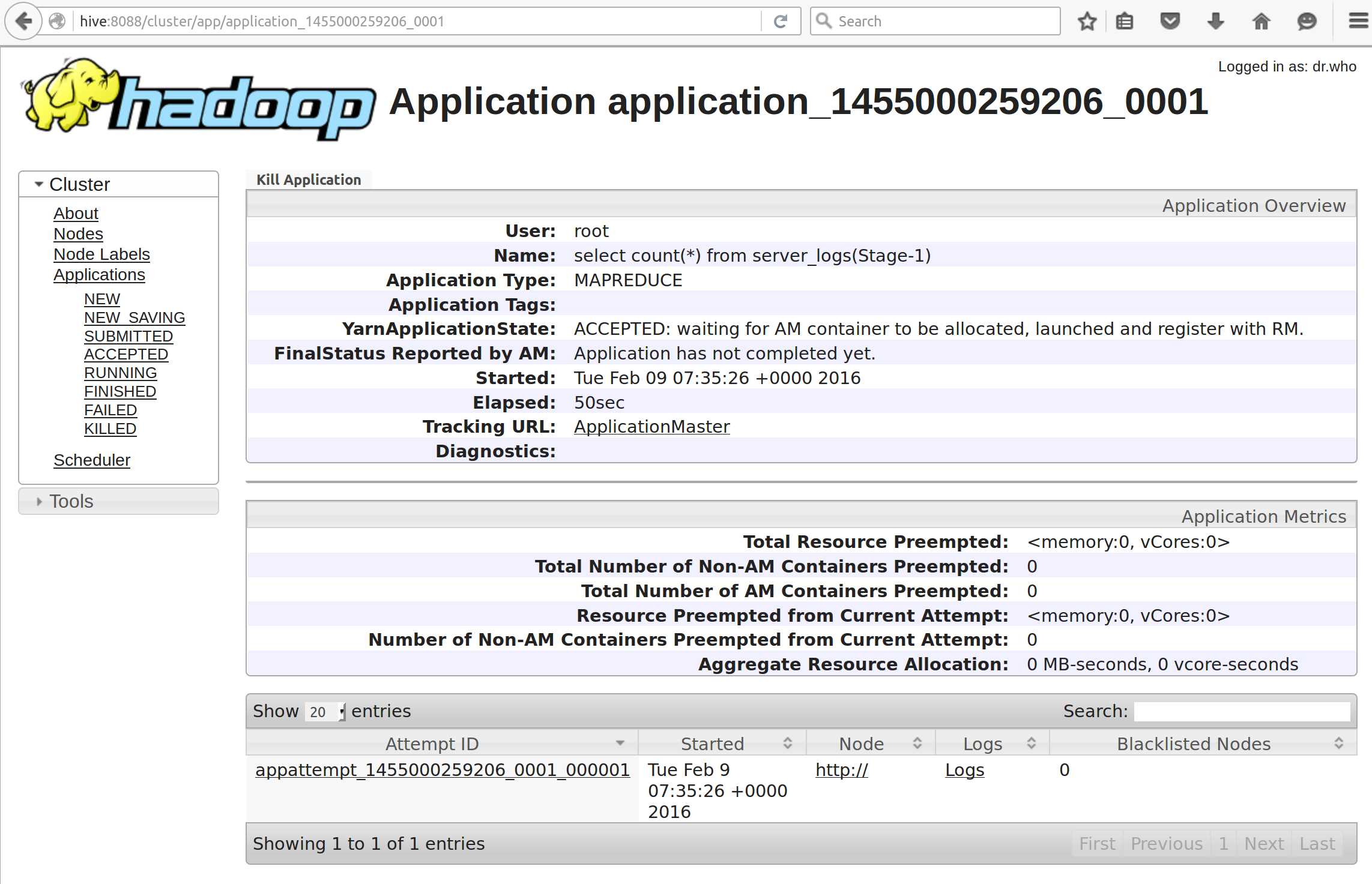
Figure 3: Monitoring Hive Jobs in the YARN UI
How the Hive runtime works
The key element of Hive is the compiler, which takes the storage-agnostic HiveQL query and translates it into a job to be executed on the storage layer. For Hive tables mapped over files in HDFS, the compiler will generate a Java map/reduce query; for tables mapped over HBase, it will generate queries using the HBase Java API.
Hive sends the compiled job to the execution engine, which typically means creating multiple jobs in YARN—a master job for coordination that spawns multiple maps and reduces jobs. Figure 4 shows the steps from HiveQL query to YARN jobs.

Figure 4: The Hive-Hadoop Architecture
Because the Hive compiler has a pluggable transform architecture, the new query functionality was provided by the HBase Storage Handler when HBase support was added to Hive. As Hive expands to add other storage technologies, it will only need new handlers plugged in to provide the query layer.
Summary
Hive is essentially a façade with a set of built-in adapters. When a HiveQL query runs, the compiler translates it into a map/reduce job using the relevant storage handler, and the execution engine sends the job to Hadoop for processing.
Typically, Hive jobs will be run on a cluster and managed by YARN, but for smaller queries and in nonproduction environments, Hive can run queries locally using its own JVM process.


- 1800+ high-performance UI components.
- Includes popular controls such as Grid, Chart, Scheduler, and more.
- 24x5 unlimited support by developers.