
Hive Succinctly®

CHAPTER 4
External Tables Over HDFS
Why use Hive with HDFS?
Hive allows us to write queries as though we’re accessing a consistent, structured data store by applying a fixed schema over a variety of formats in HDFS. HiveQL presents a familiar, simple entry point that lets users run complex queries without having to understand Java or the map/reduce API.
With Hive, we can apply a rich model to data that will simplify querying as users work with higher-level constructs such as tables and views, again without needing to understand the properties in the underlying data files.
Hive has native support for all the major file formats in Big Data problems—CSV, TSV, and JSON (together with more exotic formats such as ORC and Parquet). As with other tools in the Hadoop ecosystem, Hive also uses native support for compression, so that if raw data is compressed with GZip, BZip2, or Snappy, Hive can access it without customization.
And because the Hive table and view descriptions are essentially in standard SQL, Hive metadata acts as living documentation over Hadoop files, with the mappings clearly defining the expected content of the data.
Defining external tables over HDFS files
When you use HDFS as the backing store for a Hive table, you actually map the table to a folder in HDFS. So if you are appending event-driven data to files using a time-base structure, as in Figure 5, you define the Hive table at the root folder in the structure.
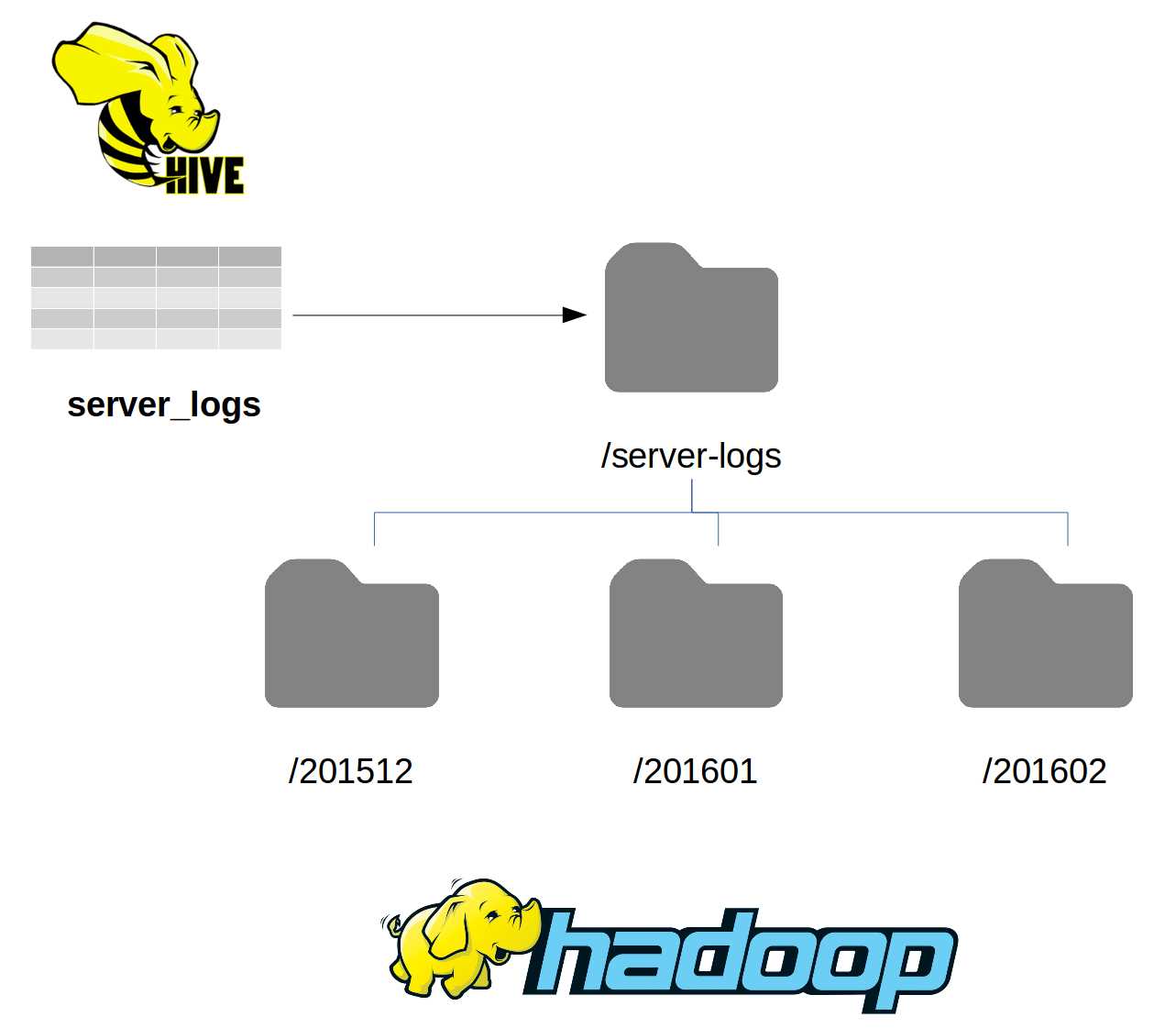
Figure 5: Mapping HDFS Folders in Hive
In this case, the server_logs table can be defined using the /server/logs folder as the root location, with all the files under all the nested folders readily available when we query the table. The Hive table definition specifies only the root folder location, and Hive will not list out the files and construct map jobs to read them until you submit a query.
The server-logs table is already configured in the hive-succinctly Docker image. The files are in the data directory in the HDFS file system root, and they are stored in CSV format. Code Listing 23 shows some sample rows from one file using the hdfs dfs -cat command.
Code Listing 23: Sample Lines from HDFS Files
root@hive:/# hdfs dfs -cat /server-logs/server-logs_SCSVR1.csv | head -n SCSVR1,1439546226,W,9c1224a9-294b-40a3-afbb-d7ef99c9b1f49c1224a9-294b-40a3-afbb-d7ef99c9b1f4 SCSVR1,1427072670,E,99eb03d9-110a-4923-b58e-971656c2046299eb03d9-110a-4923-b58e-971656c20462 SCSVR1,1448727463,D,44610125-4bdb-4046-b363-aa7a0cd28bde44610125-4bdb-4046-b363-aa7a0cd28bde |
The server log files have one line for each log entry, and entries have the same fields in the following order:
- Timestamp—UNIX timestamp of the log entry.
- Hostname—name of the server writing the log.
- Level—log level, using the standard Apache log4* levels (e.g., D=debug, W=warn, E=error).
- Message—log message.
To map that data in Hive, we need to use the create external table statement, which specifies the field mappings, data format, and location of the files. Code Listing 24 shows one valid statement for creating the table.
Code Listing 24: Mapping HDFS Files as an External Table
create external table server_logs (serverid string, loggedat bigint, loglevel string, message string) row format delimited fields terminated by ',' stored as textfile location '/server-logs'; |
Columns are defined using positional mapping, so that the first column in the table will be mapped to the first field in each row, and the last column will be mapped to the last field. We’re using some of the simple data types we’ve already seen—BIGINT and STRING—and we’ll work with more complex data types later in this chapter.
File formats
The same file formats available for internal tables can also be used for external tables. The file structure for columnar formats such as ORC and Avro is well known—you shouldn't need to customize the table in Hive unless you are specifying stored as ORC or Avro.
However, text files might have any structure, and the Hive default of delimiting rows with the newline character and fields with \001 is not always suitable. The create external table statement supports clauses that tell Hive how to deserialize the data it gets from HDFS into rows and columns.
Code Listing 25 shows how to map a file with an unusual format. This is for use with data in text files in which the rows are delimited by the new-line character, fields are delimited with vertical tab (ASCII character 011), and special characters are escaped with the tilde.
Code Listing 25: Specifying Delimiters for External Tables
create external table server_metrics (serverId string, recordedAt timestamp, cpuPc decimal(3,1), memoryPc decimal(3,1), storagePc decimal(3,1)) row format delimited fields terminated by '\011' escaped by '~' lines terminated by '\n' stored as textfile location '/server-metrics'; |
Hive will take this unusual format and map it into usable rows and columns. Code Listing 26 shows the first line of the raw data in HDFS, followed by the same data mapped as a row in Hive.
Code Listing 26: Mapping Unusual File Formats
root@hive:/hive-setup# hdfs dfs -cat /server-metrics/server_metrics.txt | head -n 1 SCSVR1~ LON 2016-01-28 18:05:01 32.6 64.1 12.2 > select * from server_metrics limit 1; +--------------------------+----------------------------+--------------------| server_metrics.serverid | server_metrics.recordedat | server_metrics.cpupc | server_metrics.memorypc | server_metrics.storagepc | +--------------------------+----------------------------+------------------- | SCSVR1 LON | 2016-01-28 18:05:01.0 | 32.6 | 64.1 | 12.2 | +--------------------------+----------------------------+-------------------- |
Here are the clauses used to define the structure of an external HDFS source:
- ROW FORMAT—either 'DELIMITED' for flat files or 'SERDE' for complex formats with a custom serializer/deserializer (as with JSON, which we’ll see later in this chapter).
- LINES TERMINATED BY—the delimiter between lines of data, mapped to rows in the Hive table. Currently only the new-line ('\n') character is allowed.
- FIELDS TERMINATED BY—the delimiter between fields of data, mapped to columns in Hive rows.
- ESCAPED BY—the character used to escape the field delimiter, e.g., if your file is a CSV you can escape commas inside fields with a backslash so that '\,' means a comma in a string field, not the start of a new field.
All clauses except ROW FORMAT take a single character, and you can use backslash notation with ASCII values for nonprintable characters, e.g., '\011' for vertical tab. The same clauses are available for internal files stored as text files, which can be useful if you want Hive to own the data, but you will need a custom format that you can use with other tools.
Mapping bad data
When you run a create external table statement, no data validation occurs when the statement runs. Hive will create the HDFS folder if it doesn't exist, but if the folder does exist Hive won’t check for any files there or to see if the file content has the expected number of fields. The mappings are performed at runtime when you query the table.
Within each row, Hive attempts to map HDFS data at the field level. If a row is missing a field, the column mapped from that field will be returned as null for that row. If a row has a field containing data that Hive can’t convert to the specified column type, that column will be returned as null for the row.
In the hive-succinctly Docker image, the table server-logs is already created, and there are several files in the location folder. Most of the data files have valid data, matching the external table definition, so that Hive can load all columns in all rows for those files.
One file in the location is not in the correct format—the message field is missing. Also note that the timestamp and server name fields are in the wrong order. Hive will still attempt to read data from that file, but, as Code Listing 27 shows, some of the mappings will fail.
Code Listing 27: Mapping Bad Data
> select * from server_logs; +-----------------------+-----------------------+-----------------------+--- | server_logs.serverid | server_logs.loggedat | server_logs.loglevel | server_logs.message | +-----------------------+-----------------------+-----------------------+--- | 1453562878000 | NULL | W | NULL | | 1453562879000 | NULL | F | NULL | |
Because Hive can convert a numeric value into a string, the serverId column is returned, but the loggedAt timestamp is NULL—Hive can't convert the string data into long values. And because Hive continues processing the row even when it finds an error, the logLevel fields are mapped, but the message column (which is missing in the CSV file) is NULL.
If the source is incorrectly formated, for example if a location is mapped as ORC in Hive but the data is actually in text files, Hive cannot read the data and returns an error, as shown in Code Listing 28.
Code Listing 28: Mapping the Wrong File Type
> select * from server_logs_orc; Error: java.io.IOException: java.io.IOException: Malformed ORC file file:/server-logs/server_logs_bad.csv. Invalid postscript. (state=,code=0) |
Tip: This can happen if you try to change the file format of a table that exists in Hive—the expected format gets changed in the metastore, but the existing files aren’t converted. You can recover the data by reverting back to the original format.
Complex data types
In addition to primitive data types (such as INT, STRING, and DATE, as seen in Chapter 3 Internal Hive Tables), Hive supports three complex data types that can be used to represent collections of data:
- ARRAY—an ordered collection in which all elements have the same data type.
- MAP—an unordered collection of key-value pairs. Keys must all have the same data type—a primitive type—and values must have the same data type = which can be any type.
- STRUCT—a collection of elements with a fixed structure applied.
When collection types are mapped from HDFS files, the mappings in the create external table statement must specify the delimiters for the elements of the collection. Code Listing 29 shows the contents of a CSV file containing server details.
Code Listing 29: Server Details CSV
root@hive:/# hdfs dfs -cat /servers/servers.csv SCSVR1,192.168.2.1:192.168.2.2,8:32:1500,country=gbr:dc=london SCSVR2,192.168.20.1:192.168.20.2,4:16:500,country=gbr:dc=london SCSVR3,192.168.100.3:192.168.100.4,16:32:500,country=roi:dc=dublin |
In this file, fields are separated by commas, but after the first field each contains collections. Field 2 contains the server’s IP addresses separated by colons. Field 3 contains hardware details, again separated by colons. Field 4 contains the server’s location as key-value pairs.
We can map these to the relevant collection types in Hive using an array for the IP addresses, a struct for the hardware, and a map for the location. Code Listing 30 shows how to specify those mappings when we create the table.
Code Listing 30: Mapping Collection Columns
create external table servers (name string, ipAddresses array<string>, hardware struct<cores:int, ram:int, disk:int>, site map<string, string>) row format delimited fields terminated by ',' collection items terminated by ':' map keys terminated by '=' lines terminated by '\n' stored as textfile location '/servers'; |
We specify three clauses for Hive in order to identify the delimiters in collections:
- FIELDS TERMINATED BY—the field separator, comma in this case.
- COLLECTION ITEMS TERMINATED BY—separator for collection elements, colon in this case.
- MAP KEYS TERMINATED BY—the separator for key-value pairs, equal sign in this case.
Code Listing 31 shows how Hive represents collection columns when we fetch rows.
Code Listing 31: Reading Rows with Collection Columns
> select * from servers limit 2; +---------------+----------------------------------+------------------------- | servers.name | servers.ipaddresses | servers.hardware | servers.site | +---------------+----------------------------------+------------------------- | SCSVR1 | ["192.168.2.1","192.168.2.2"] | {"cores":8,"ram":32,"disk":1500} | {"country":"gbr","dc":"london"} | | SCSVR2 | ["192.168.20.1","192.168.20.2"] | {"cores":4,"ram":16,"disk":500} | {"country":"gbr","dc":"london"} | +---------------+----------------------------------+------------------------- |
Note: The terminated by clauses are specified once and apply to the entire table, which means your delimiter fields must be consistent in the source file. If your source has multiple complex types, they all must use the same delimiters—you can’t have arrays delimited by semicolons and structs delimited by underscores in the same table.
Mapping JSON files
Hive uses a pluggable serializer/deserializer framework (called “SerDe”) to read and write text files. For all the native data types, the SerDe that Hive should use will be implicitly specified with the stored as clause. With custom data types, you can provide your own SerDe and configure it in the create table statement.
Several open source SerDe components can provide JSON file support in Hive, and one of the best, which allows reading and writing JSON, comes from Roberto Congiu on GitHub. You can download the latest Java Archive (JAR) file from Roberto’s website.
You will need to register the JAR file with Hive in order to use the custom SerDe, and you must map from the JSON format, typically representing JSON objects as nested structs. Code Listing 32 shows the steps.
Code Listing 32: Creating a Table Using JSON SerDe
> add jar /tmp/json-serde-1.3.7-jar-with-dependencies.jar; INFO : Added [/tmp/json-serde-1.3.7-jar-with-dependencies.jar] to class path INFO : Added resources: [/tmp/json-serde-1.3.7-jar-with-dependencies.jar] > create external table devices > (device struct<deviceClass:string, codeName:string, > firmwareVersions: array<string>, cpu:struct<speed:int, cores:int>>) > row format serde 'org.openx.data.jsonserde.JsonSerDe' > location '/devices'; |
The row format clause specifies the class name of the SerDe implementation (org.openx.data.jsonserde.JsonSerDe), and, as usual, the location clause specifies the root folder.
You can map the source JSON data in different ways with the complex data types available in Hive, which allows you to choose the most appropriate format for accessing the data. A sample JSON object for my devices table is shown in Code Listing 33.
Code Listing 33: Sample JSON Source Data
{ "device": { "deviceClass": "tablet", "codeName": "jericho", "firmwareVersions": ["1.0.0", "1.0.1"], "cpu": { "speed": 900, "cores": 2 } } } |
Properties from the root-level JSON object can be deserialized directly into primitive columns, and simple collections deserialized into arrays. You can also choose to deserialize objects into maps, so that each property is presented as a key-value pair or as a struct in which each value is a named part of a known structure.
How you map the columns depends on how the data will be used. In this example, I use nested structs for the device and cpu objects, and I use an array for the firmwareVersions property. We can fetch entire JSON objects from Hive, or we can query on properties—as in Code Listing 34.
Code Listing 34: Querying the JSON
> select * from devices; +--------------------------------------------------------------------------| {"deviceclass":"tablet","codename":"jericho","firmwareversions":["1.0.0","1.0.1"],"cpu":{"speed":900,"cores":2}} | | {"deviceclass":"phone","codename":"discus","firmwareversions":["1.4.1","1.5.2"],"cpu":{"speed":1300,"cores":4}} | +-------------------------------------------------------------------------- > select * from devices where device.cpu.speed > 1000; +-------------------------------------------------------------------------- | {"deviceclass":"phone","codename":"discus","firmwareversions":["1.4.1","1.5.2"],"cpu":{"speed":1300,"cores":4}} | +-------------------------------------------------------------------------- |
Note: For files with a custom SerDe, the stored as and terminated by clauses are not needed, because the SerDe will expect a known format. In this case, the JSON SerDe expects text files with one JSON object per line, which is a common Hadoop format.
Summary
Presenting an SQL-like interface over unstructured data in HDFS is one of the key features of Hive. In this chapter we’ve seen how we can define an external table in Hive, where the underlying data exists in a folder in HDFS. That folder can contain terabytes of data split across thousands of files, and the batch nature of Hive will allow you to query them all.
Hive supports a variety of file formats, including standard text files and more efficient columnar file types such as Parquet and ORC. When we define an external table, we specify how the rows and columns are mapped, and at runtime Hive uses the relevant deserializer to read the data. Custom serialization is supported with a plug-in SerDe framework.
Tables defined in Hive have a fixed schema with known columns of fixed data types. The usual primitive data types we might find in a relational database are supported, but Hive also provides collection data types. Columns in Hive can contain arrays, structs, or maps, which allows us to surface complex data in Hive and query it using typical SQL syntax.
The separation between table structure and the underlying storage handler that reads and writes data means that Hive queries look the same whether they run over internal Hive tables or external HDFS files. In the next chapter we’ll cover another option for external tables with Hive’s support for HBase.


- 1800+ high-performance UI components.
- Includes popular controls such as Grid, Chart, Scheduler, and more.
- 24x5 unlimited support by developers.