
Hadoop Succinctly®

CHAPTER 2
Getting Started with Hadoop
Running Hadoop in a Docker container
Hadoop is a Java platform, which means installing it on a single node is a straightforward process of setting up the prerequisites, downloading the latest version, unpacking it, and running the commands that start the servers. Like other tools in the Hadoop ecosystem, it can run in three modes: local, pseudo-distributed, and distributed.
For development and exploration, the pseudo-distributed option is best—it runs the different Hadoop servers in separate Java processes, which means you get the same runtime architecture as with a full cluster while running on a single machine.
The Apache documentation covers setting up a single-node cluster and the more complex full-cluster setup.
If you've read my other Syncfusion e-books (HBase Succinctly and Hive Succinctly), you know I like to use Docker for my demo environments, and there’s a Docker image for this e-book, which means you can follow along using exactly the same environment that I use without having to set up Hadoop on your machine.
You'll need to install Docker, which runs on Windows, Mac, and Linux. Then you can start a pseudo-distributed instance of Hadoop by running the command in Code Listing 1.
Code Listing 1: Running Hadoop in Docker
docker run -it --rm \ -p 50070:50070 -p 50010:50010 -p 8088:8088 -p 8042:8042 -p 19888:19888 \ -h hadoop --name hadoop sixeyed/hadoop-succinctly:2.7.2 |
Tip: Setting the container's host name with the -h flag makes using the Hadoop web UIs much easier. You can add an entry to your hosts file, associating the Docker machine IP address with the host name for the container, which means you can browse to http://hadoop:8088 to check on job status. Doing this, the links generated by Hadoop will all work correctly.
The first time that code runs, it will download the Hadoop Succinctly Docker image from the public repository. That will take a while, but then Docker caches the image locally, which means the next time you run the command, the container will start in only a few seconds.
This command launches your container interactively using the -it flag, so that you can start working with Hadoop on the command line and it will remove the container as soon as you’re finished using the --rm flag. Any changes you make will be discarded, and the next container you run will return to the base-image state.
The output from starting the container will look like Figure 4, with some log entries telling you the Hadoop services are starting and a command prompt ready for you to use Hadoop.
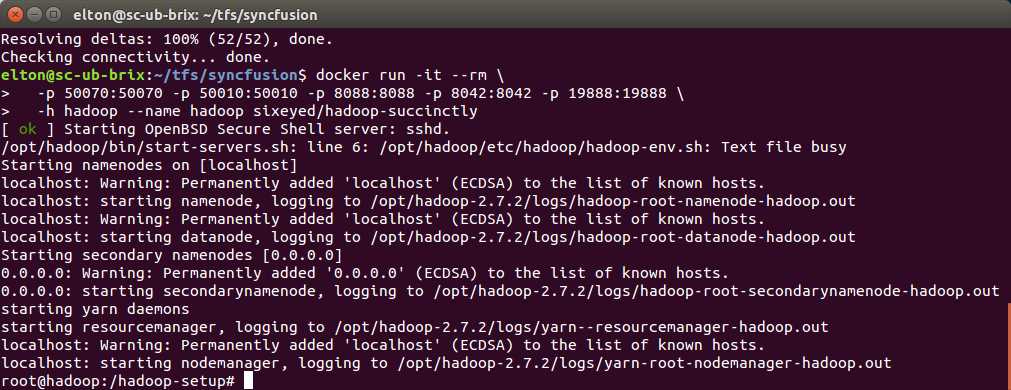
Figure 4: The Running Docker Container
Verifying your installation
The Hadoop package comes with sample MapReduce jobs you can use to check that your installation is working correctly. We'll look at the hadoop command line in more detail later, but in order to verify your environment, you can run the commands in Code Listing 2.
Code Listing 2: Verifying Your Hadoop Installation
hadoop fs -mkdir -p /user/root/input hadoop fs -put $HADOOP_HOME/etc/hadoop input hadoop jar $HADOOP_HOME/share/hadoop/mapreduce/hadoop-mapreduce-examples-2.7.2.jar grep input output 'dfs[a-z.]+' |
The first command creates a directory called input in the home directory for the root user in the Hadoop file system, and the second command copies all the files in the etc/hadoop directory to the input directory.
The third command submits a job to Hadoop in order to run over the data we’ve just stored. The job is packaged in a Java JAR file, which is a sample supplied with Hadoop, and we send it to Hadoop with the arguments grep input output 'dfs[a-z.]+'. That will run a job that searches all the files in the input directory and looks for words starting with “dfs,” then it counts all the matches.
As the job runs, it will produce a lot of output that tells you the current progress. When it completes, you can view the final result with the command in Code Listing 3.
Code Listing 3: Output of the Sample Job
# hadoop fs -cat output/* 6 dfs.audit.logger 4 dfs.class 3 dfs.server.namenode. 2 dfs.period 2 dfs.audit.log.maxfilesize 2 dfs.audit.log.maxbackupindex 1 dfsmetrics.log 1 dfsadmin 1 dfs.servers 1 dfs.replication 1 dfs.file |
You should see a similar list of words beginning with “dfs” and the count of occurrences for each of them. If your program doesn't run as expected, you'll need to check your installation steps or simply use the Docker container.
In the rest of this chapter, we'll build our own version of the word count program as a simple introduction to MapReduce programming.
The structure of a MapReduce program
There are three parts to a MapReduce program:
- The driver, which configures how the program will run in Hadoop.
- The mapper, which is fed input data from Hadoop and produces intermediate output.
- The reducer, which is fed the intermediate output from the mappers and produces the final output.
The mapper runs in parallel—each input file (or, for large input files, each file block) has a dedicated mapper task that will run on one of the data nodes. Each mapper is given only a small subset of the total input data, and its job is to read through the input and transform it into intermediate output.
Each mapper produces only a part of the total output, and the reducer’s job is to build the final results, aggregating the many intermediate outputs from the mappers into a single result. Simple jobs have only one reducer task. Figure 5 shows the flow of data in a MapReduce job.
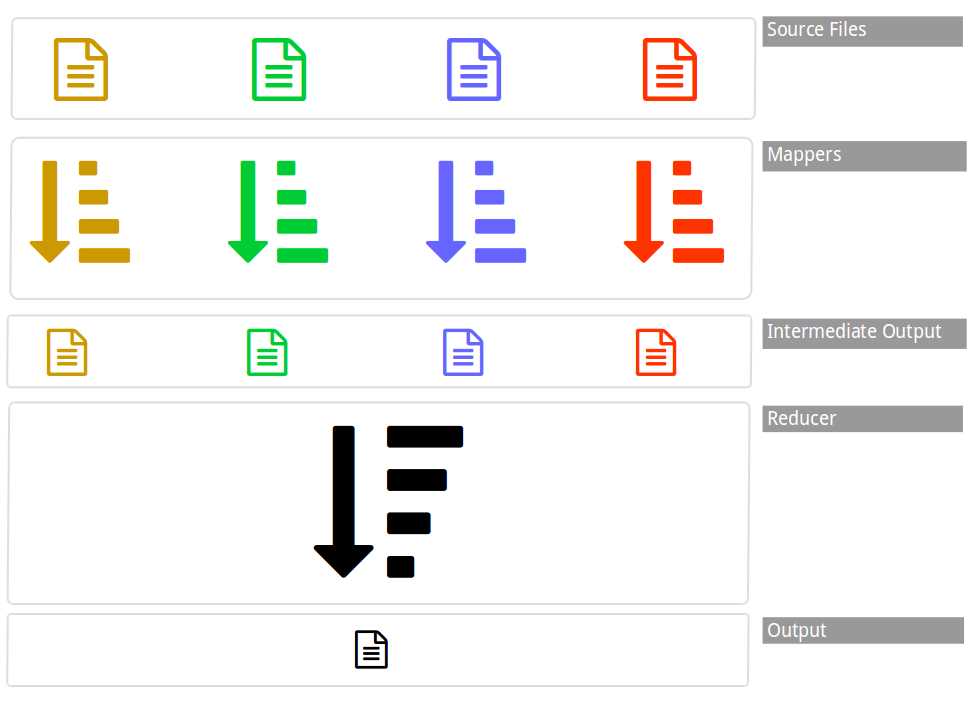
Figure 5: Data Flow in MapReduce
In our word count example, the mapper will be given the contents of a file, one line at a time. The MapReduce framework takes care of choosing the file by reading through it and sending lines to the mapper, which means we need to write the code to transform the data we receive. In this case, we'll split the incoming line into words and look for any that start with “dfs.” When we find a match, we'll write the word to the output.
Hadoop collects the output from all the mappers as they complete, it sorts and merges the intermediate output, then it sends that output to the reducer. The reducer will receive the intermediate output from all the Hadoop mappers as a Java Iterable collection. We'll need to write code to sum the counts for each word, then write the final counts as the output.
This explains why having a single reducer is common practice. The reducer's job is to collate the intermediate results, so we usually give all the results to one instance. If the reducer needs to aggregate the output from the mappers, it will have all the available data needed to do so. We can run a job with multiple reducers, which improves performance, but that means each reducer only aggregates part of the intermediate output and our final result will be split across multiple reducer outputs.
When data moves between the mappers and reducer, it might cross the network, so all the values must be serializable. In order to store data, the MapReduce framework provides its own set of classes that are built for efficient serialization (you will use the Text class, for instance, instead of a normal Java String). Additionally, in order to validate that the job is properly configured before it starts, Hadoop must be explicitly told the data types of your classes.
The driver executes this configuration, specifying which mapper and reducer to use and the type of inputs and outputs. Inputs and outputs are always a key-value pair, which means you specify the type of the key and the type of the value in the driver.
There are a few moving parts in a MapReduce program that need to be wired up correctly, but the code is quite straightforward.
The word count mapper
We need to write three classes to implement a MapReduce program: a mapper, a reducer, and a driver. The full code is up on the GitHub repository that accompanies this e-book: sixeyed/hadoop-succinctly/java. I've used the new Visual Studio Code tool as the IDE, but the Java project is built with Maven. Information for building the JAR is in the README for the project.
Our mapper and reducer classes will inherit from base classes in the Hadoop client library, which means the project needs to reference the Apache package. The Maven configuration for the dependency is in Code Listing 4 and targets version 2.7.2 of the library, which is the current version of Hadoop at the time of writing and matches the Hadoop installation in the hadoop-succinctly container.
Code Listing 4: Maven Dependency for MapReduce
<dependency> <artifactId>hadoop-client</artifactId> <version>2.7.2</version> </dependency> |
Starting with the mapper, we extend the base class org.apache.hadoop.mapreduce.Mapper and specify the types for the input and output key-value pairs. In Code Listing 5, the first two type arguments are the expected input key and value types, and the next two types are the key and value types the mapper will emit.
Code Listing 5: Extending the Base Mapper
public static class Map extends Mapper<LongWritable, Text, Text, IntWritable> |
For each line in the file, Hadoop will call the map() method, passing it a key-value pair. In our driver configuration, we'll set up the input format, so that the map will be called with a key that is a LongWritable object containing the position of the line in the file and a value that is a Text object containing the actual line of text.
Code Listing 6 shows the definition of the map method in which the input key and value types match the type declaration for the mapper class. The map method is also passed a Context object, which it can use to write out values.
Code Listing 6: Signature of the Map Method
public void map(LongWritable key, Text value, Context context) |
Mappers aren't required to do anything when map() is called, but they can emit zero or more key-value pairs by writing them to the Context object. Any values written are collected by Hadoop and will be sorted, merged, and sent on to the reducer.
The code for the map() method is simple—we tokenize the string into individual words, and if the word contains "dfs," we emit it to the context. The key-value pair we emit uses a Text object for the key, which is the full word where we found a match, and the value is an IntWritable object. We'll use the integer value later to sum up the counts, but we don’t do any counting in the mapper—we always emit a value of 1. Code Listing 7 shows the full map() implementation.
Code Listing 7: The Map Method
public void map(LongWritable key, Text value, Context context) throws IOException, InterruptedException { String line = value.toString(); StringTokenizer tokenizer = new StringTokenizer(line); while (tokenizer.hasMoreTokens()) { String next = tokenizer.nextToken(); if (next.contains("dfs")){ word.set(next); context.write(word, one); // 'one' is IntWritable(1) } } } |
We always emit 1 as the count when we find a matching word because it's not the mapper's job to do any aggregation work (such as counting up values). You might think it would be more efficient for the mapper to keep counts in local state, with a dictionary of words, incrementing the counts as it reads the lines and emitting the counts as a batch, but this approach is problematic.
The mapper should be able to work for any file size. A mapper might run a task for a 1 MB file, but the same mapper must also work correctly if it's given a 1 GB file. Hadoop streams through the input file in order to minimize the amount of memory needed, but if your mapper holds state in a dictionary, its memory footprint is unknowable, and for large files that could cause an out-of-memory exception.
Mappers should be lightweight components that are called with a single piece of input and respond with zero or more pieces of output. You might get performance gains by microbatching inside the mapper, but doing so limits that mapper to only working with small inputs. However, if your mapper behaves correctly, your overall job can scale to any size, which is a better performance option.
Aggregation work belongs in the reducer, although you can perform some postmapper aggregation using a combiner, which works like a mini-reducer, running over the output from each mapper.
The word count reducer
As with the mapper, the reducer extends from the Hadoop base class and specifies the input and output key and value types. For the reducer, the input types need to match the output types from the mapper, but the reducer can emit different output types if need be.
In our case, the reducer receives Text keys containing matching words, and IntWritable values that are the word counts initialized to 1. The reducer emits the same types—the class definition with type arguments is shown in Code Listing 8.
Code Listing 8: Extending the Base Reducer
public static class Reduce extends Reducer<Text, IntWritable, Text, IntWritable> |
After the map phase, the reduce() method on the reducer will be called with a key and a collection of values. Hadoop sorts and merges the keys from the mappers, and you can rely on that in your reducer. You know you will only see each key once (with the value being the collection of all the mapper values for that key), and you know the next key will have a higher value (lexicographically) than the current key.
The reduce() method defines the key and value collection types, together with a Context object that is used to write output in the same way as for the mapper. Code Listing 9 shows the reduce() method in full.
Code Listing 9: The Reduce Method
public void reduce(Text key, Iterable<IntWritable> values, Context context) throws IOException, InterruptedException { int sum = 0; for (IntWritable val : values) { sum += val.get(); } context.write(key, new IntWritable(sum)); } |
For the word count, reduce() will be called with a text value containing a string that matches “dfs” and a collection of IntWritable objects. When Hadoop merges the output from the mappers, it sorts all the keys and groups all the values for one key into a collection. The reducer is then invoked for each key, receiving the collection of values for that key in the reduce() method.
The value collection will have at least one element because the mapper will always emit a value for each key. The collection might hold any number of elements in the collection, and Hadoop will present them to the reducer as they were emitted by the mapper. In the reducer, we aggregate the intermediate output from the mappers into the final output—in this case, we just add all the values to give us a total count for each key.
When we write the output from the reducer, we do it in the same way as in the mapper, by calling write() on the Context class, passing it a key-value pair. The key is the word that contains the match, and we simply write the same key that we receive in the method call.
The value is the sum of all the 1 values from the mappers, and we write that out as an IntWritable. Within the method body, we use an integer to sum the values, but we need to use one of Hadoop's serializable types in order to write to the context, so we create an IntWritable from the integer.
The word count driver
The driver is the entry point for the MapReduce program, and it needs only to configure the rest of the components. Drivers don't have to extend from a base class or implement an interface, but they do need to be configured as the entry point for the JAR—in the sample code, that's done in the Maven setup by specifying the mainClass element, as seen in Code Listing 10.
Code Listing 10: Specifying the Main Class
<archive> <manifest> <addClasspath>true</addClasspath> <mainClass>com.sixeyed.hadoopsuccinctly.WordCount</mainClass> </manifest> </archive> |
The WordCount class has a standard main() method with a String array to receive command-line arguments. It's common to set up your driver so that any values that will change per environment, or for different runs of the program, are read from the arguments. For the word count, we'll use the arguments to specify the source for input files and the target for output files.
Configuring a Job object, i.e. defining what the job will do, is the primary work of the driver. The Job object has a dependency on a Configuration object, but for our simple example we can use default configuration values. Code Listing 11 shows the creation of the Job object.
Code Listing 11: Setting Up the Job Configuration
Configuration conf = new Configuration(); Job job = new Job(conf, "wordcount"); |
Here we specify a name for the job, “wordcount,” which will be shown in the Hadoop status UIs.
In order to execute the job, Hadoop requires that all the types involved be explicitly specified. First, we specify the JAR that contains our own types, the output key and value types, and the mapper and reducer types. There are various set methods on the Job class for declaring these types. In Code Listing 12, we configure the JAR as the archive that contains the WordCount class, Text class as the output key, IntWritable as the output value, and Map and Reduce classes.
Code Listing 12: Specifying Types for the Job
job.setJarByClass(WordCount.class); job.setOutputKeyClass(Text.class); job.setOutputValueClass(IntWritable.class); job.setMapperClass(Map.class); job.setReducerClass(Reduce.class); |
Note that we don't specify the input key and value types, although Hadoop needs that information, too. However, MapReduce programs work at a low level where the mapper code is tightly coupled to the expected data format.
Hadoop supports a variety of file formats commonly found in Big Data solutions—plain text files, GZipped text files, and more efficient formats such as Avro and Parquet. In the job, we configure the file format we expect and that will implicitly set up the input key and value types.
In Code Listing 13, specifying the TextInputFormat class gives us the LongWritable key and Text value input types that the mapper expects.
Code Listing 13: Specifying Input and Output Formats
job.setInputFormatClass(TextInputFormat.class); job.setOutputFormatClass(TextOutputFormat.class); |
The final responsibilities of the driver are to tell Hadoop where to find the source files and where the output will be written. That's done with the FileInputFormat and FileOutputFormat classes, passing them the Job object we've set up, and the directory path from the main method arguments. We can also tell Hadoop that the client should wait for this job to complete rather than returning as soon as it is submitted.
Code Listing 14: Final Job Configuration
FileInputFormat.addInputPath(job, new Path(args[0])); FileOutputFormat.setOutputPath(job, new Path(args[1])); job.waitForCompletion(true); |
Running the MapReduce program
In order to run a MapReduce program, we can submit it to Hadoop using the command line. The hadoop command lets us work with both the Hadoop file system and the job scheduler, and the jar operation submits a new job. The full command is in Code Listing 15.
Code Listing 15: Submitting the Job
hadoop jar /packages/wordcount-1.0-SNAPSHOT.jar input output2 |
We pass the jar command the path to the JAR file that contains our driver, mapper, and reducer, along with any arguments the driver is expecting. In this case, I've copied the JAR file to the packages folder on the system root, and I'm passing input as the source directory the mappers will read from and output2 as the target directory to which the reducer will write.
When the job completes, the output from the reducer will be written to a file in the output directory. Each reducer has its own output file, and we can see the combined output from all reducers (whether there are one or many) by using the hadoop fs cat command. Code Listing 16 shows abbreviated output from the MapReduce word count.
Code Listing 16: Viewing the Job Output
# hadoop fs -cat output2/* "dfs" 3 *.sink.ganglia.tagsForPrefix.dfs= 1 dfs.class=org.apache.hadoop.metrics.file.FileContext 1 dfs.fileName=/tmp/dfsmetrics.log 1 dfs.period=10 1 |
Notice that the output is different from when we ran the sample MapReduce program as we verified the Hadoop installation because the new program uses different mapper and reducer logic.
Summary
In this chapter, we got started with Hadoop and had a quick introduction to MapReduce, which is the programming approach used in Hadoop for writing jobs that can run at massive levels of parallelism.
Hadoop is straightforward to install on a single node for development and testing, but you can avoid installing it locally by using the Docker image that accompanies this e-book. However you run it, the Hadoop distribution comes with some sample programs you can use to verify that the installation works correctly.
We used one of those samples as the basis for creating our own MapReduce program for counting words—word count is the “Hello World” of Big Data programming. We saw that the custom logic in the mapper is called for each line in the input source files, and its role is to produce intermediate output. Many mappers can run concurrently, each processing a small part of the total input while generating intermediate output that Hadoop stores.
When all the mappers are complete, the reducer runs over the sorted, merged, intermediate output and produces the final output.
In order to configure the parts of the job, you need a driver that specifies the mapper and reducer to use and the types they expect for the input and output key-value pairs. The MapReduce program, containing driver, mapper, and reducer, gets built into a JAR file, and you use the Hadoop command to submit a job, supplying the path to the JAR file and any arguments the driver is expecting.
Now that we've had a hands-on introduction, we'll look more closely at the Hadoop platform, beginning with the Hadoop file system.


- 1800+ high-performance UI components.
- Includes popular controls such as Grid, Chart, Scheduler, and more.
- 24x5 unlimited support by developers.