
Gulp Succinctly®

CHAPTER 3
Watching Updates
The former chapter was completely about the bread and butter of Gulp: tasks. This chapter will be about reacting when files or folders change, and then acting accordingly. This gives quite some power to Gulp and makes certain scenarios easier for the developer so she can focus more on the job without being distracted by repetitive steps.
Watching a file
While developing your website or web application, you know you’ll have to do some manual actions before you can see your changes ending up in the browser. Even though Gulp already makes life easier with tasks, it still requires some manual intervention, like opening some shell and typing a command like gulp generateCssFromLessFiles.
Wouldn’t it be great if we could just skip that part and let Gulp figure things out by itself? Welcome to the Gulp watch API.
We’re going to start easy and base the next code on Code Listing 5, which we saw in Chapter 2. It’s going to be changed to meet our goal: less repetitive work and automating a Gulp task. In a folder named Chapter 3, I placed it at the same level as the Chapter 2 folder, created a new gulpfile.js file, and put the code from Code Listing 11 in it. Also create a subfolder named Assets in which you place a .less file, as shown in the following code:
Code Listing 13: Watching a file: /gulpfile.js
"use strict"; var gulp = require('gulp'); var less = require('gulp-less'); gulp.task('watchLessFiles', function () { gulp.watch('./Assets/styles.less', function (event) { console.log('Watching file ' + event.path + ' being ' + event.type + ' by gulp.'); }) }); gulp.task('default', ['watchLessFiles']); |
Code Listing 14: A simple .less file: /Assets/Styles.less
@color:#b6ff00; @backcolor:#808080; body { background-color: @backcolor; } a { color: @color; &:hover { color: @color + @backcolor; } } |
Don’t forget to install the needed Gulp plugins:
- npm install gulp --save-dev
- npm install gulp-less --save-dev
Now run the default Gulp task to start the watch task. The result of that is shown in the following figure.
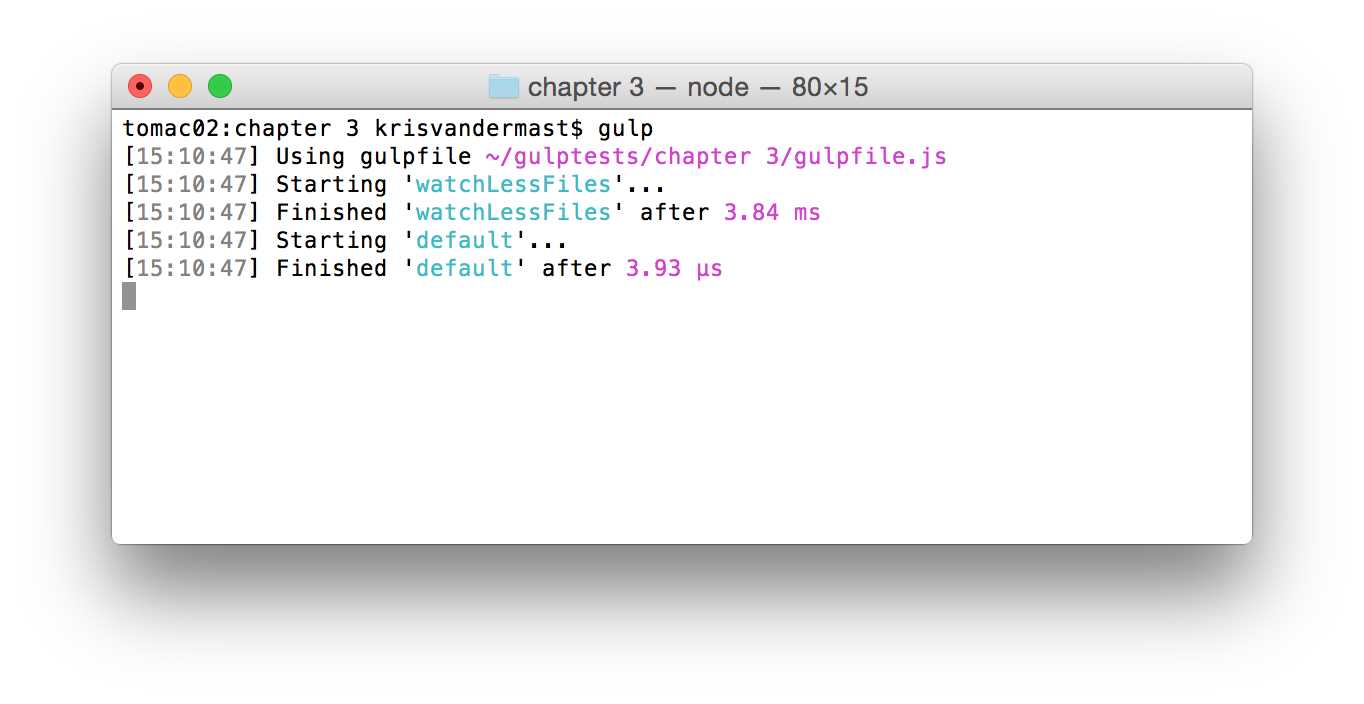
Figure 12
Now the file in the Assets folder is being watched. To test this out, open the styles.less file in a text editor and type a space extra in it. Now save it and take a look at the output again in Figure 13.
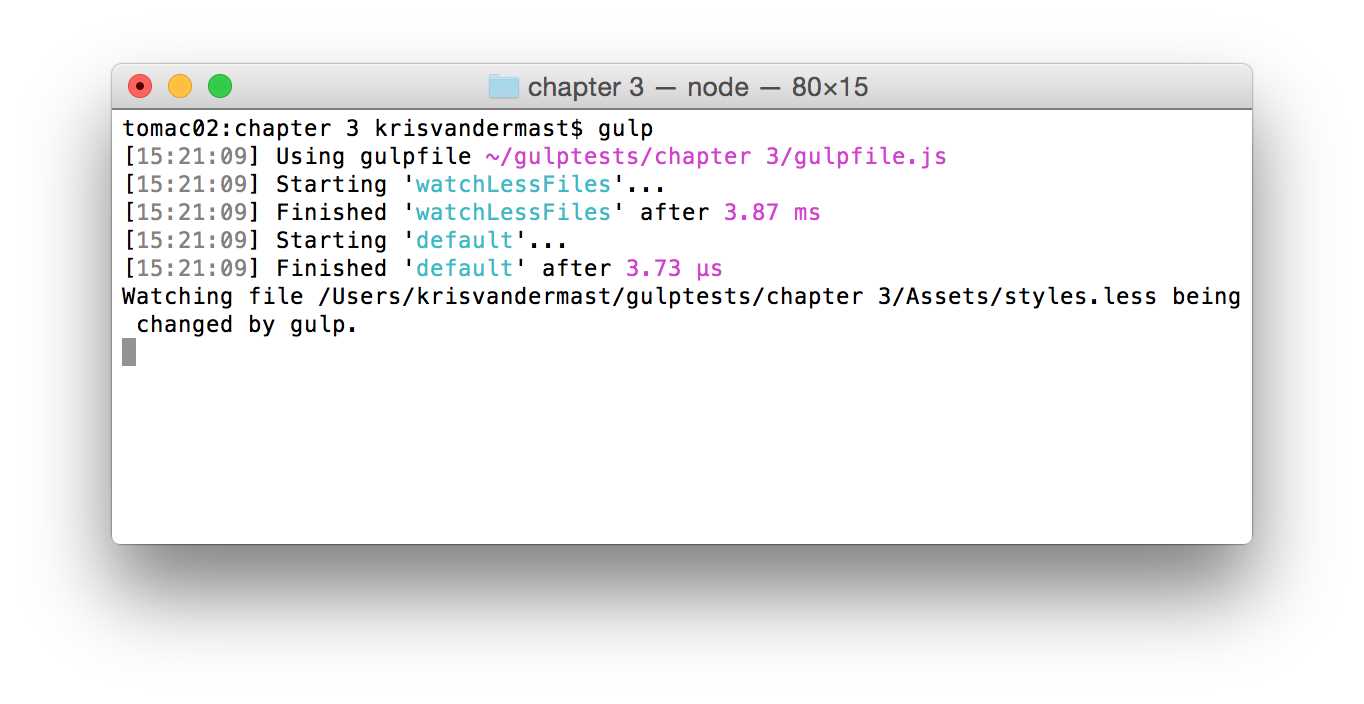
Figure 13: Output after the file that is being watched has been changed and saved
The event.path shows the path of the file we’re watching, while the event.type showed us correctly the output changed. Other possible types are either added or deleted.
It’s great to see that some file has changed on saving it, but we talked about automating things. In this case, it’s the processed .less file into a .css file that we are interested in. To do so, simply change the gulpfile.js file a bit:
Code Listing 15: Processing the .less file into a .css file /gulpfile.js
"use strict"; var gulp = require('gulp'); var less = require('gulp-less'); gulp.task('lessToCss', function () { gulp.src('Assets/Styles.less') .pipe(less()) .pipe(gulp.dest('wwwroot/css')); }); gulp.task('watchLessFiles', function () { gulp.watch('./Assets/styles.less', ['lessToCss']); }); gulp.task('default', ['watchLessFiles']); |
Run Gulp again, change the styles.less file, and save it. Doing so a couple of times runs the task each time the .less file is being saved, as we can see in the output:
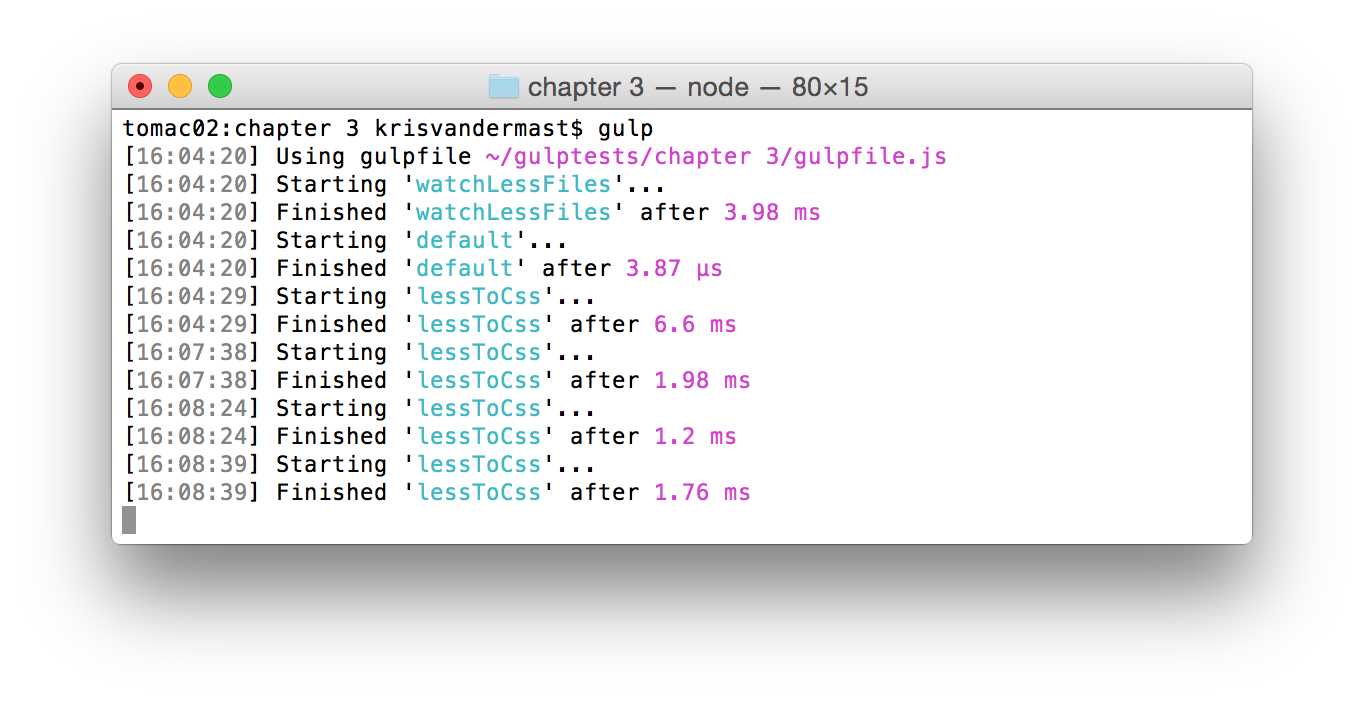
Figure 14: Repeated saving of the .less file results each time in running task lessToCss
That for sure saves valuable time. To do so, we needed to change the file, save it, run the task lessToCss ourselves, and in that process, leave our text editor.
To stop the process, you can simply use the keyboard combination Ctrl + C. To start watching again, simply run the default Gulp task again.
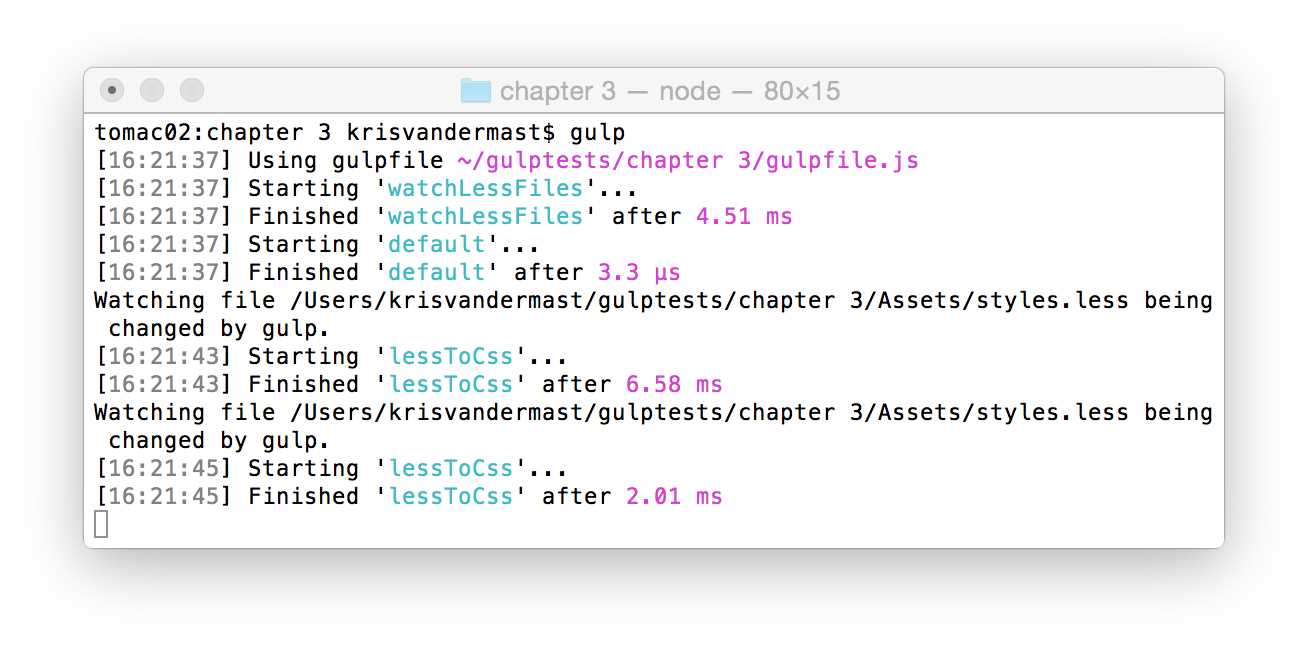
Figure 15: Repeated changes to the .less file were made
Watching a folder
In the previous section, we saw how to watch a file and act when it was being saved. That’s nice, but it really becomes interesting when we can do that for an entire folder. We can alter the code a bit to include a variable. This will hold the path so we do not have to type it in every time and potentially make errors by mistyping them.
The altered code looks like this now:
Code Listing 16: Processing the .less files into .css files /gulpfile.js
"use strict"; var gulp = require('gulp'); var less = require('gulp-less'); var lessPath = './Assets/**/*.less'; gulp.task('lessToCss', function () { gulp.src(lessPath) .pipe(less()) .pipe(gulp.dest('wwwroot/css')); }); gulp.task('watchLessFiles', function () { gulp.watch(lessPath, ['lessToCss']); }); gulp.task('default', ['watchLessFiles']); |
The variable lessPath makes use of a glob notation Assets/**/*.less. This is a powerful way of writing it, as it means “take all .less files directly under the Assets folder, and also those in subfolders of the Assets folder.” So instead of having to write a path for every subfolder and going through that, you have the opportunity to write it in one single, compact way.
If we run the code and change some of the .less files (either directly under the Assets folder or any subfolder) and we save that .less file, the task lessToCss is run and the output is written to the wwwroot/css folder and takes the subfolders under the Assets folder into account.
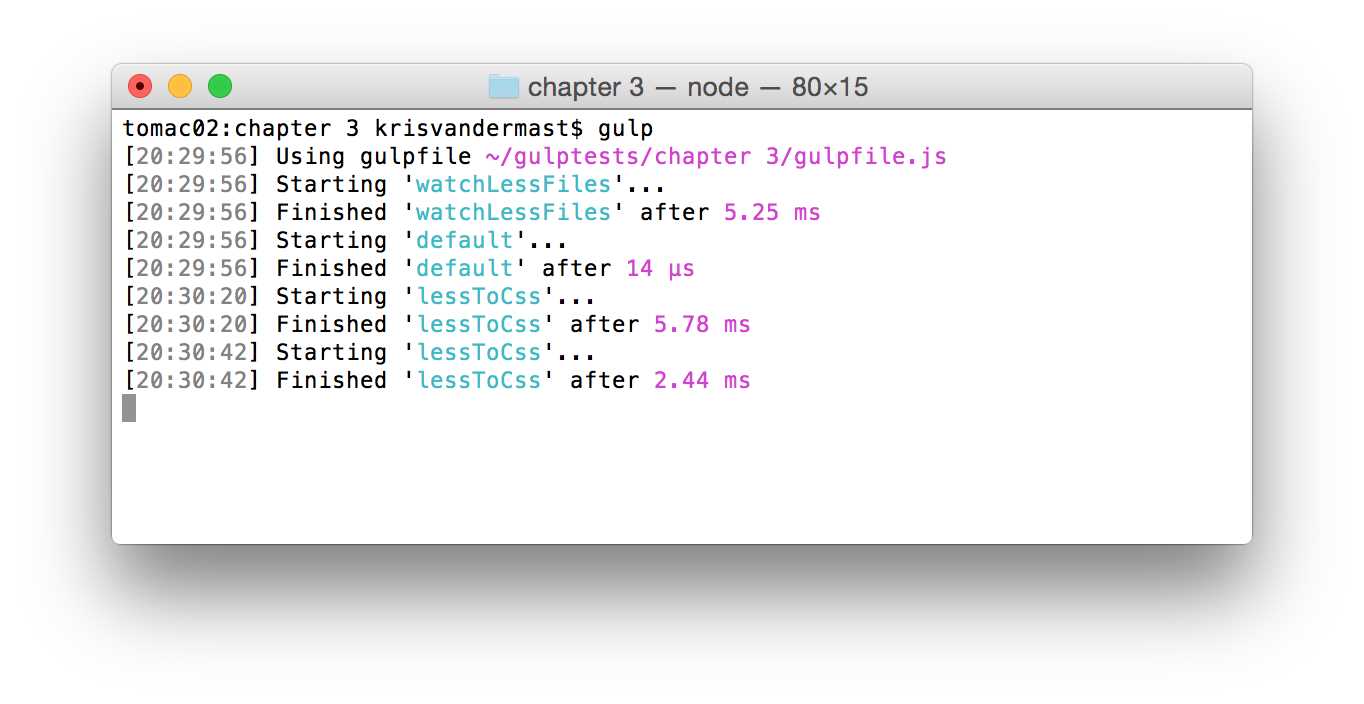
Figure 16: Watching multiple files and folders
Now if you try adding a new .less file and saving it… nothing happens. However, if you would change a .less file which already existed before adding the watch on it, the new .less file would also get transformed into a .css file. The latter is obvious, but we would expect that it would also work with new files.
New files in the folder, what now?
In the previous section we noticed that new files added after the watch has already been set on it do not get run. Gulp’s watch is powerful, but not omnipotent. It will do its best, but if we plan on adding new files, we need something stronger.
That something stronger comes in the form of a plugin: gulp-watch. To obtain it, simply run the familiar command npm install --save-dev gulp-watch.
Because it’s a plugin, we will need to rewrite our code somewhat, as it needs to be plugged in into to the stream in order for it to work. The code becomes something like the following:
Code Listing 17: Making use of the gulp-watch plugin /gulpfile.js
"use strict"; var gulp = require('gulp'); var less = require('gulp-less'); var gulpWatch = require('gulp-watch'); var lessPath = './Assets/**/*.less'; gulp.task('lessToCss', function () { gulp.src(lessPath) .pipe(gulpWatch(lessPath)) .pipe(less()) .pipe(gulp.dest('wwwroot/css')); }); gulp.task('default', ['lessToCss']); |
Now run the Gulp default task and try adding a new .less file in the /Assets folder. You will notice that in the wwwroot/css folder there will be a new .css file.
Live reload your browser
The following process is familiar to web developers: you make some changes in a file, you save it, perhaps you do some build step with Gulp, and then you reload the browser to see the outcome of the former steps. Most web developers or designers do not even think about it anymore, and simply press the Ctrl + F5, or Command + R on the Mac.
It would be great if we could relieve ourselves of some of those steps. Well, with a handy plugin like gulp-connect, you can go a long way. There are alternatives, like gulp-livereload, but that one relies on a plugin that needs to be installed in your browser.
At this point, make sure you have all the needed modules installed (gulp, gulp-less, gulp-jade, and gulp-connect).
For this example, we are going to make use of Jade to generate HTML pages, Less to generate CSS style sheets, Gulp tasks and watchers, and of course, the gulp-connect plugin. Before adding the reload functionality, let us just create the bare minimum for this small project. The layout is as follows:
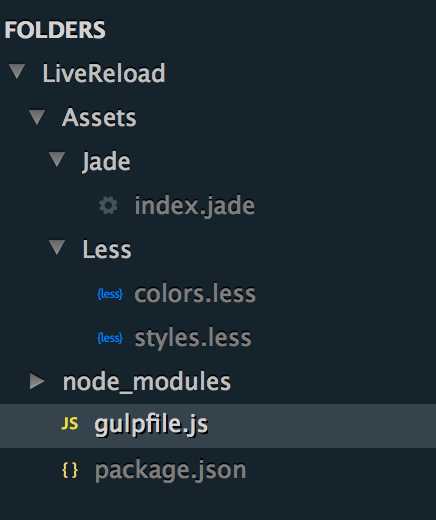
Figure 17: Project folder and file structure
Note: gulpfile.js and package.json are directly under the LiveReload folder, not under the node_modules subfolder. The Cobalt2 theme used in Sublime Text might give that impression. Gulpfile.js and package.json always go directly under the root folder of the project.
The index.jade file looks like the following:
Code Listing 18: /Assets/Jade/index.jade
doctype html html head title Hello world link(rel="stylesheet", href="css/styles.css") body h1 gulp is great p it seems like it's working script(src="js/main.js") |
The Less files look like the following:
Code Listing 19: /Assets/Less/colors.less
@color1: #c9c9c9; @color2: #e3e3e3; @color3: #9ad3de; @color4: #89bdd3; |
Code Listing 20: /Assets/Less/styles.less
@import "colors.less"; body { color: @color1; background-color: @color4; } h1 { color: @color2; background-color: @color3; } |
And the gulpfile.js:
Code Listing 21: /gulpfile.js
"use strict"; var gulp = require('gulp'), less = require('gulp-less'), jade = require('gulp-jade'), connect = require('gulp-connect'); var jadeDir = './Assets/Jade/**/*.jade'; var lessDir = './Assets/Less/**/*.less'; var outputDirHtml = './'; var outputDirCss = './css/'; gulp.task('jade', function () { gulp.src(jadeDir) .pipe(jade()) .pipe(gulp.dest(outputDirHtml)) }); gulp.task('less', function () { gulp.src(lessDir) .pipe(less()) .pipe(gulp.dest(outputDirCss)); }); gulp.task('watch', function () { gulp.watch([jadeDir], ['jade']); gulp.watch([lessDir], ['less']); }) gulp.task('default', ['jade', 'less', 'watch']); |
Running the gulp command from the terminal ensures that the index.html and css files get generated while the watch task adds the familiar watch over the input files. Try changing the Jade or Less files to see it getting updated.
Now open a browser and open it on the index.html page. Change something in the index.jade file, save it, and refresh your browser to see the changes.
Time to let the magic in. Change the gulpfile.js to the following:
Code Listing 22: gulpfile.js with livereload capabilities - /gulpfile.js
"use strict"; var gulp = require('gulp'), less = require('gulp-less'), jade = require('gulp-jade'), connect = require('gulp-connect'); var jadeDir = './Assets/Jade/**/*.jade'; var lessDir = './Assets/Less/**/*.less'; var outputDirHtml = './'; var outputDirCss = './css/'; gulp.task('jade', function () { gulp.src(jadeDir) .pipe(jade()) .pipe(gulp.dest(outputDirHtml)) .pipe(connect.reload()); }); gulp.task('less', function () { gulp.src(lessDir) .pipe(less()) .pipe(gulp.dest(outputDirCss)) .pipe(connect.reload()); }); gulp.task('watch', function () { gulp.watch([jadeDir], ['jade']); gulp.watch([lessDir], ['less']); }) gulp.task('connect', function () { connect.server({ root: './', livereload: true }); }); gulp.task('default', ['jade', 'less', 'watch', 'connect']); |
Another important piece of code to add, and one that’s easily overlooked, is the call for a reload whenever the Jade file or one of the Less files have been changed: .pipe(connect.reload());. In the jade and less tasks, make sure to trigger a reload. After the building has run an update, it’s triggered and the browser reloads at the same time. Run the gulp command and the following will appear:
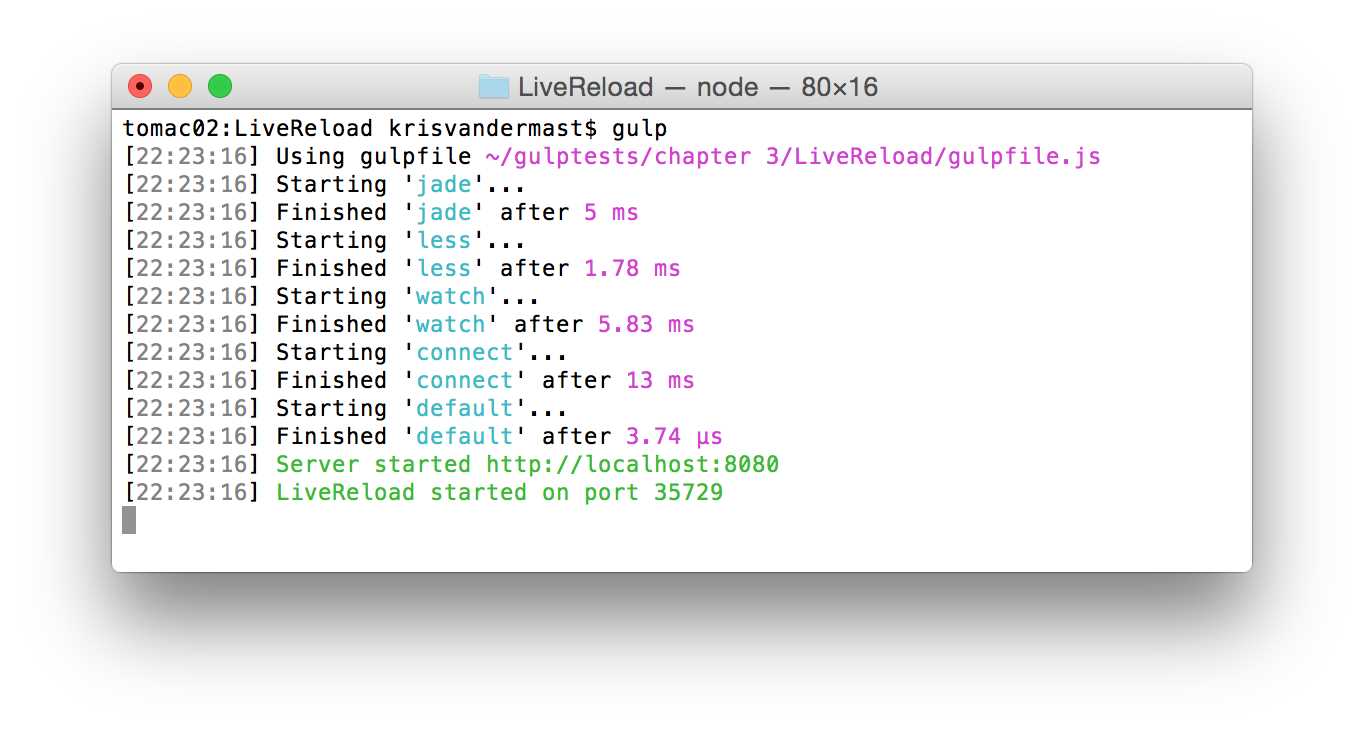
Figure 18: LiveReload
First, it will execute the tasks to parse the Jade file into HTML, the Less files into CSS, and add watches on the former two. It will also execute the connect task. In that task, the root URL is set and the live reloading option should be turned on. You need to do this explicitly; otherwise, it will not kick in.
The last two lines of the output reveal where to navigate to: http://localhost:8080. The gulp-connect plugin provides a built-in server, which we will need for this example.
Open the browser of choice and surf to http://localhost:8080/index.html. You will see a page like the following:
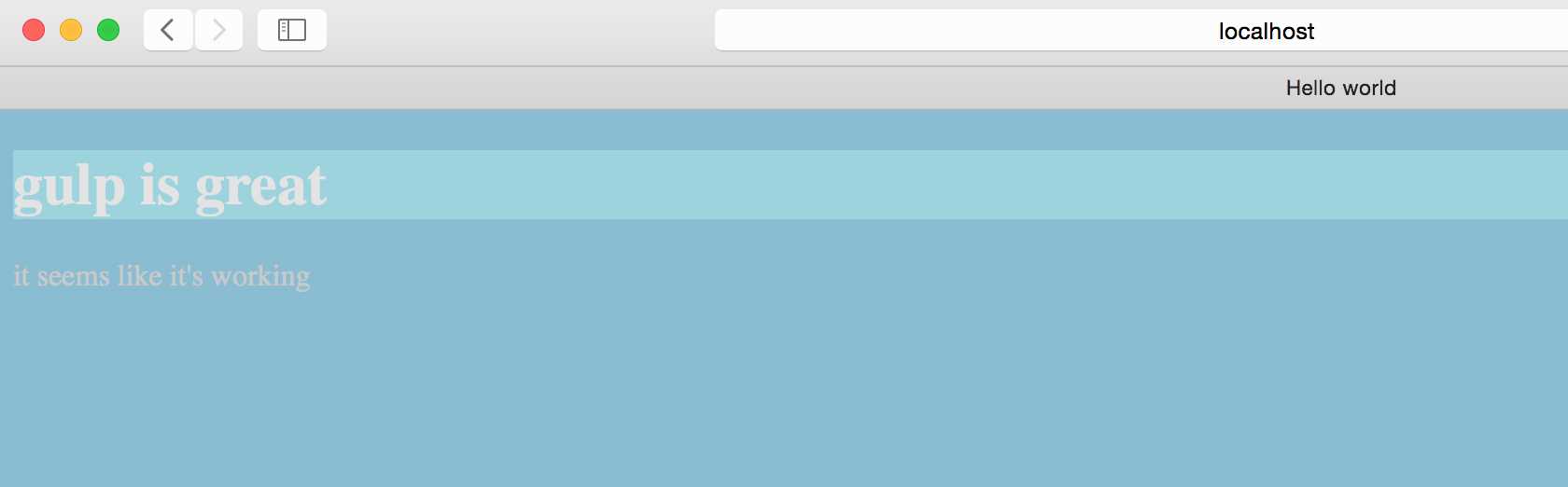
Figure 19: The initial result after the jade and less tasks have run
Due to having the jade and less tasks run, the output of these has resulted in added files to our solution:
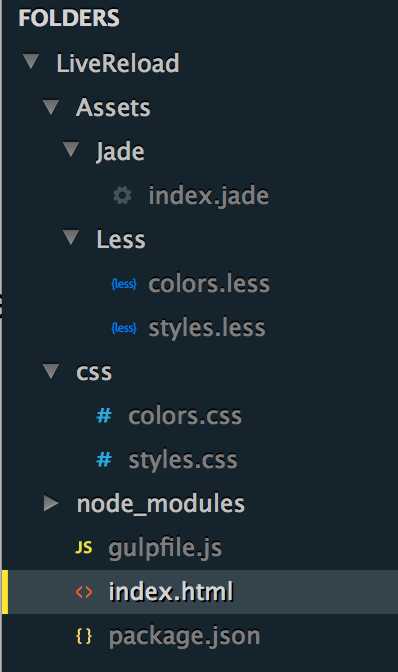
Figure 20: The solution after the jade and less tasks have run
Now for the cool part. Keep the browser in visible range of the the screen while you change something in either the Jade or the Less files. Upon saving, you will see an instant update in the browser. For this demo I opted to change the colors in the corresponding colors.less file.
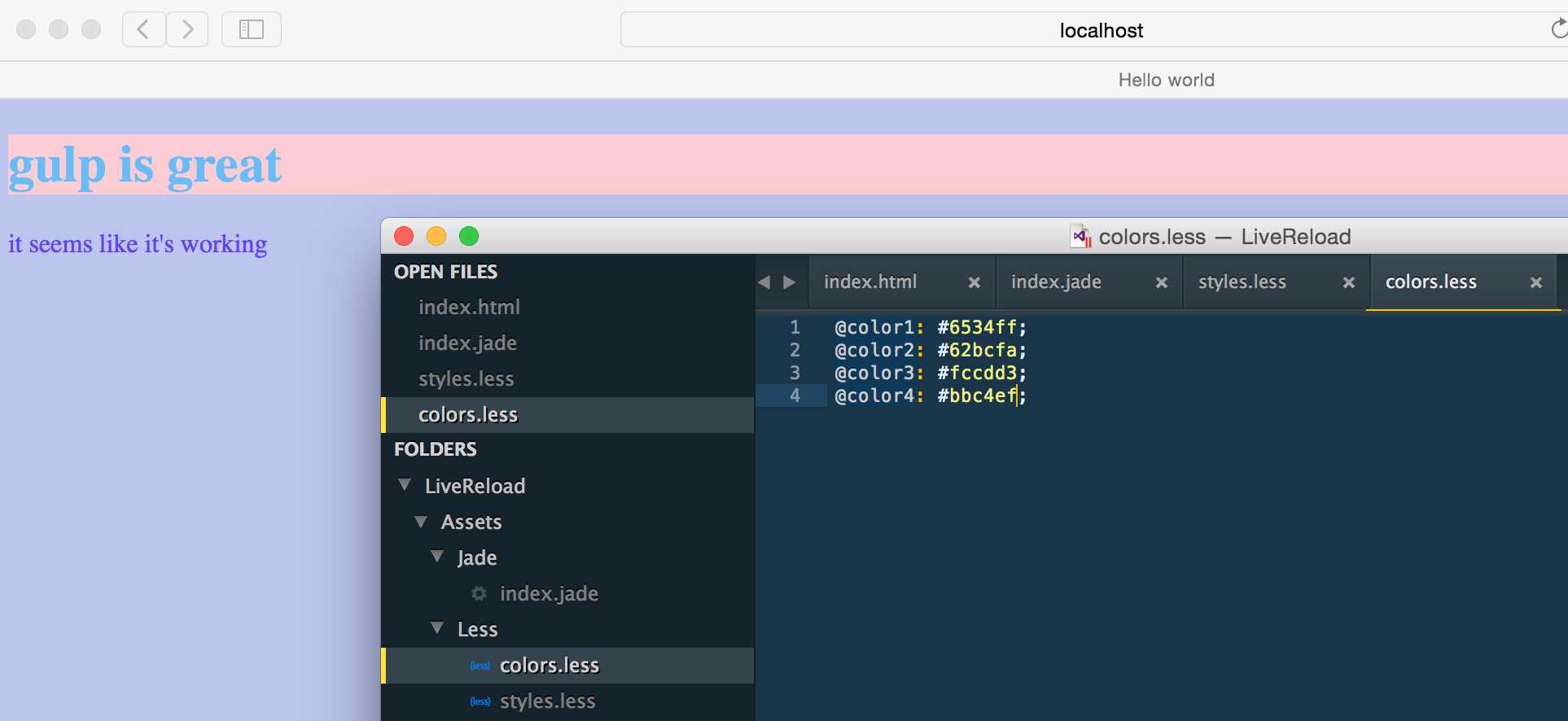
Figure 21: The colors.less file is changes and saved
The reason why this works is that gulp-connect injects an extra bit of JavaScript in the HTML. By making use of the F12 tools of the browser, we can easily see the following:

Figure 22: The injected JavaScript parts by gulp-connect
If you are familiar with Visual Studio and ASP.NET web development, you might have encountered something similar. There it is called BrowserLink, where you can change something in the CSS file in Visual Studio and it automatically updates the browser.
Summary
In this chapter you saw that gulp.js is not only great at running tasks, but also watching out for changes. Put to work in a clever way, you can take away the burden of having to constantly execute the Gulp tasks manually, or even reloading your browser yourself. This leaves you with more time to focus on the stuff that matters: writing solid code that solves your business needs.


- 1800+ high-performance UI components.
- Includes popular controls such as Grid, Chart, Scheduler, and more.
- 24x5 unlimited support by developers.