
Groovy Succinctly®

CHAPTER 1
Getting Started
Installing Groovy
In order to work through the example code in this book, you’ll need to get two items running on your system:
- The Oracle Java SE Development Kit (JDK) 8
- Apache Groovy 2.4.5
Installing these should be quite easy for both Microsoft Windows and Apple OS X users.
Java JDK 8
The downloads for Java 8 are available via the Oracle website. Make sure that you download the variation for your operating system and that you’ve selected the JDK and not the Java Runtime Environment (JRE).
Note: While Groovy is happy running on Version 7 of the JDK, the examples in the Data Streams section rely on libraries found in JDK Version 8.
The JDK 8 installation is straightforward, so I won’t take you through the process here—just follow the installer’s instructions. Additional help can be found on the Start Here page.
Check your installation by typing java –version in the command prompt (Windows) or the terminal (OS X). You should see output similar to the following:
java version "1.8.0_31"
Java(TM) SE Runtime Environment (build 1.8.0_31-b13)
Java HotSpot(TM) 64-Bit Server VM (build 25.31-b07, mixed mode)
Groovy 2.4.5
The Groovy download page provides access to the various Groovy distributions.
Windows users should start with the Windows installer, as it will guide you through the installation process.
OS X users can use the excellent SDKMAN! tool for installing not only Groovy but a number of other useful systems such as Gradle and Grails. The basic process for installing Groovy using SDKMAN! via the console is provided in Code Listing 1: Installing Groovy with SDKMAN! Refer to the Install page of the SDKMAN! website for more information.
Code Listing 1: Installing Groovy with SDKMAN!
$ curl -s get.sdkman.io | bash |
Once you’ve installed Groovy, check your installation by typing groovy –version in the command prompt (Windows) or the terminal (OS X). You should see output similar to the following:
Groovy Version: 2.4.5 JVM: 1.8.0_31 Vendor: Oracle Corporation OS: Mac OS X
Hello, world
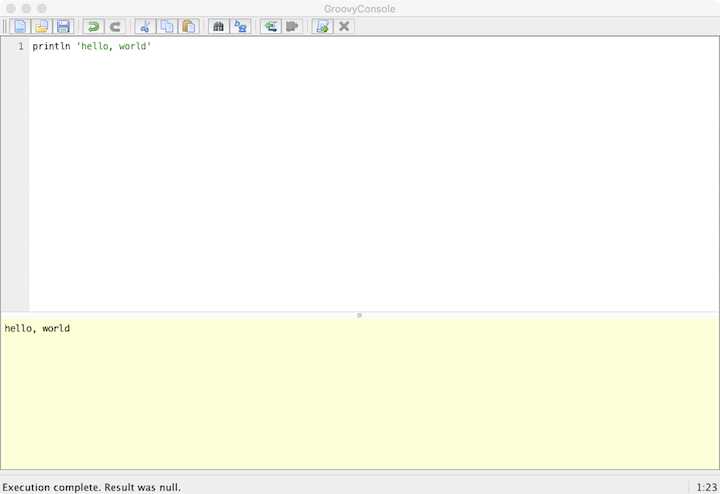
Now that you have JDK 8 and Groovy 2.4.5 installed, you’re ready to try out a small Groovy script. We’ll use the Groovy Console to write the script and run it. Windows users will find a link to the Groovy Console in their start menu. OS X users can access the Groovy Console by running groovyConsole & in the terminal. You should now see the Groovy Console on your screen (refer to the screenshot in Figure 1).
The top half of the Groovy Console window is a text editor with syntax highlighting—this is where you write your code. The lower half of the window displays the output of your Groovy code.
Let’s get coding:
- In the text editor section, type: println 'hello, world'. The "println" element is a function that displays (prints) the supplied text ('hello, world') to the screen.
- Go to the Script menu and click Run.
- The output of your script should appear in the lower half of the window.
The screenshot in Figure 1 displays the code in the text editor section and its output in the lower half.
You can save the script by selecting Save from the File menu. Save your script using the filename HelloWorld.groovy.
Open your terminal/command prompt and change the directory to denote where you just saved your script. You can now run your script with the command groovy HelloWorld.groovy.
The examples provided in the rest of this e-book, with the exception of the Chapter 6 Larger Applications chapter, will work in the Groovy Console. This is a great tool for getting started. Those who wish to use an alternative text editor can use the groovy command-line tool.


- 1800+ high-performance UI components.
- Includes popular controls such as Grid, Chart, Scheduler, and more.
- 24x5 unlimited support by developers.