
Gradle Succinctly®

CHAPTER 2
Installing Gradle
Getting started
Prerequisites
Gradle requires a Java JDK or JRE version 7 or higher to be installed first. There is no need to install Groovy because Gradle ships with its own Groovy library; any existing installation of Groovy is ignored by Gradle.
Java JDK can be downloaded Java JDK Downloadhere.
To check the Java version, open a Command window and issue the java -version command.

- Checking Java version
Getting Gradle
Any Gradle distribution can be downloaded Gradle Downloadhere. Every distribution comes packaged as a .zip file. A full distribution contains:
- The Gradle binaries
- The user guide in both HTML and PDF formats.
- The DSL reference guide.
- The API documentation, both Javadoc and Groovydoc.
- Extensive samples, along with some complete and more complex builds that can be used as a starting point for custom builds.
- The binary sources, for reference only. If the user wants to build Gradle, the source distribution needs to be downloaded (or check out the sources from the source repository). The Gradle website contains further details.
Gradle installation process
To install Gradle on Windows, follow these steps:
- Unzip the distribution downloaded from Gradle’s website to a folder location. It’s suggested to name this folder location something similar to C:\gradle-2.12.
- Right-click on the My Computer (or This PC in Windows 10) icon and select Properties.
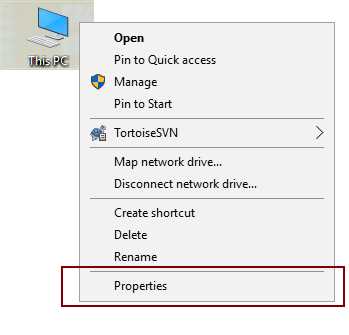
- This PC Context Menu
- Select Advanced System Settings from the links displayed at the left of the System Control Panel window.
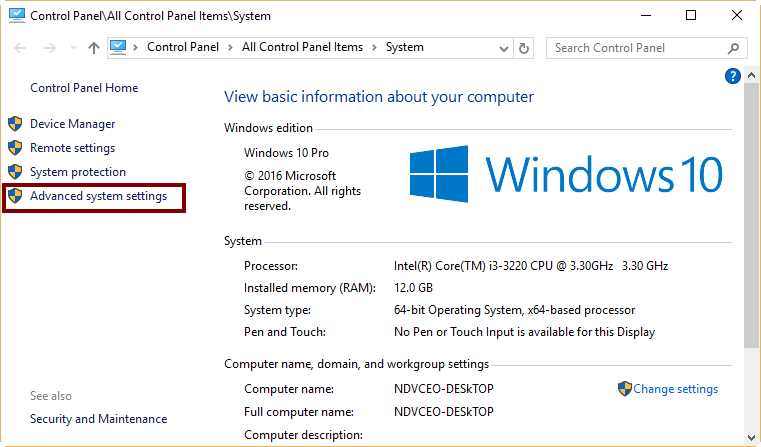
- The System Control Panel Window
- Click on the Environment Variables button, located at the bottom of the Advanced System Settings dialog box.

- Advanced System Settings Dialog Box
- In the Environment Variables dialog box, click New under System Variables. Name the environment variable GRADLE_HOME, and give it the value C:\gradle-2.12.
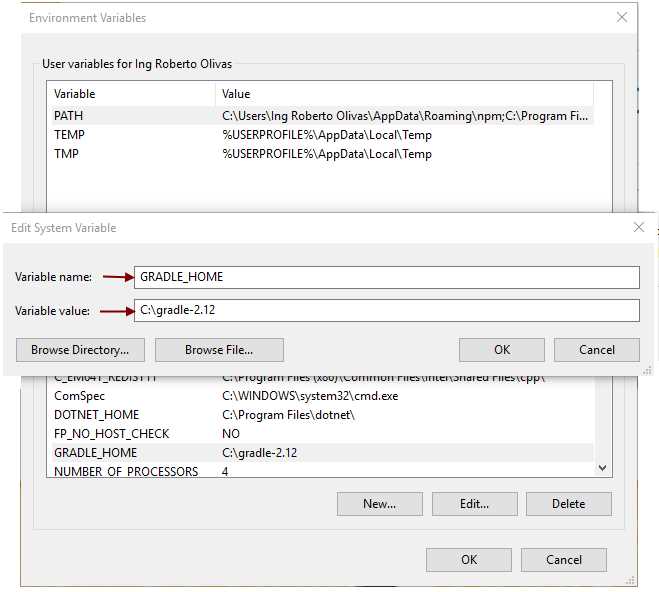
- Adding the GRADLE_HOME Environment Variable
- Select the Path variable located under System Variables, in the same dialog box. Click Edit and add the text ;%GRADLE_HOME%\bin at the end of the variable value list.

- Editing the Path Environment Variable
Note: The screenshots shown here are taken from Windows 10, so they might look different than your screen, depending on your Windows version.
Testing the installation
After the installation process, you need to check whether Gradle is properly installed. Gradle runs via the gradle command, so open a command prompt window and type the following:
Code Listing 1
gradle -v |
The output for this command shows the Gradle version and the local environment configuration (Groovy, JVM version, OS version, etc.). The displayed Gradle version should match the distribution downloaded by the user. For the purposes of this book, the Gradle version is 2.12.
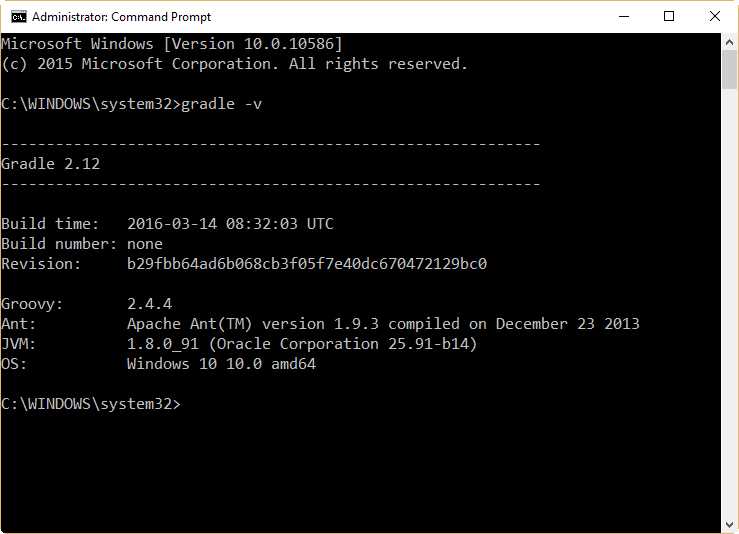
- The output for gradle -v command
Chapter summary
Java JDK or JRE version 7 or higher must be installed prior to Gradle installation. It’s not necessary to install Groovy, because Gradle ships with its own Groovy library.
Gradle can be downloaded from Download Gradle Ziphere as a .zip file. This file contains all necessary files to install Gradle in the computer, including Gradle binary files, reference documents, and samples.
To install Gradle, the user needs to decompress the distribution .zip file into a folder. It is suggested to name this folder to something similar to C:\ gradle-2.12. After that, an Environment Variable named GRADLE_HOME must be added, and its value set to the name of the installation folder (C:\ gradle-2.12). Also, the Path Environment Variable must be edited to add the name of the GRADLE_HOME variable to its value, in the format: ;%GRADLE_HOME%.
To test the installation process, the user needs to execute the command gradle -v from a command prompt window. The output for this command shows the Gradle version and the local environment configuration. The displayed Gradle version should match the distribution downloaded by the user. By the time you read this e-book, the current version of Gradle will be different, so you can use either the 2.12 version or a newer version.


- 1800+ high-performance UI components.
- Includes popular controls such as Grid, Chart, Scheduler, and more.
- 24x5 unlimited support by developers.