
Google Maps API Succinctly®

CHAPTER 7
Getting Directions
Now that you know how to let your users find places on the map, why not show them how to get there? Sure, you could give them the address of your amazing new retail outlet/furry convention/LAN party and send them off to the Google Maps main site to get directions, but how much cooler would it be to do this entirely from within your own webpage, and be able to customize the experience? You can do all this and more with the Google Maps Directions API.
Enabling the Directions API
To work with directions in your Google Maps JavaScript API applications, you must enable the Directions API in the Developer Console. The Directions API works with other Google APIs, not just the Google Maps JavaScript API. To enable the Directions API, complete the following steps:
- Visit http://console.developers.google.com.
- Sign in with your Google account user name and password.
- On the Dashboard, check that the project you created in Chapter 2 is selected. If not, select it from the drop-down list.

Figure 46
- In the list of APIs shown at the bottom of the Dashboard, check if the Directions API is enabled. If it appears in the list already (item 1 in the screenshot), then you can ignore the remaining steps. Otherwise, click Enable APIs and Services (item 2 in the screenshot).

Figure 47
- In the API Library, search for Google Maps Directions API. Click the Google Maps Directions API tile that appears, then click Enable. When the Directions API summary page appears, click the Dashboard link and verify that the Directions API is included in the list of enabled APIs at the bottom of the page.
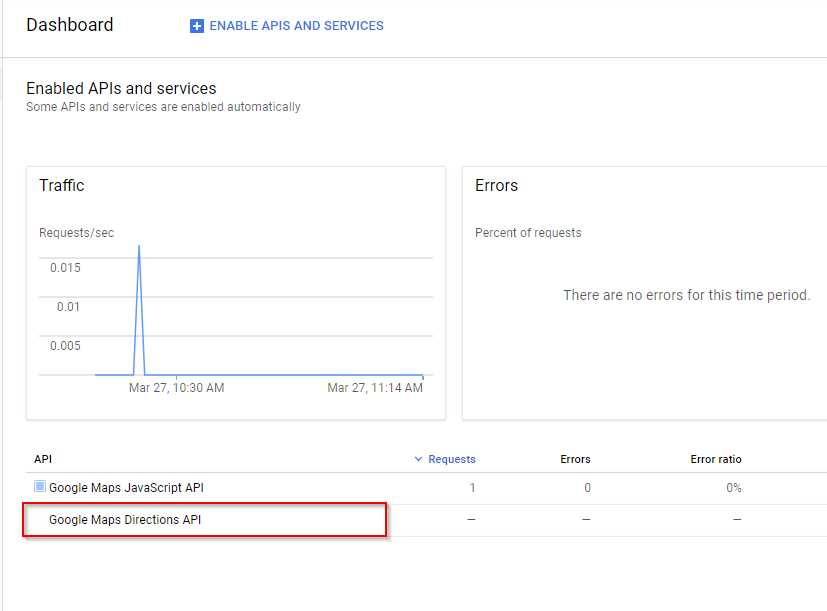
You are now ready to use the API.
Note: Like the Google Maps JavaScript API, the Directions API is only free for a limited number of requests (see usage limits here).
Creating the page
In this example, we are going to create an application that allows users to select an origin and destination, geocodes them both, and then displays the route on the map and turn-by-turn driving directions in another panel on the page. In building this application, we will bring together a number of techniques that we learned in earlier chapters.
Note: Strictly speaking, you don’t have to geocode the addresses before calculating the route if your geocoding requirements are as straightforward as they are in this example. The DirectionsService class can do this for you. However, doing the geocoding yourself does serve to teach a useful lesson about the asynchronous nature of JavaScript, which makes you a better Google Maps API developer!
We’ll start with the two-pane layout we used in Chapter 5 for the “Sync Two Maps” example. Copy the Ch5_Sync2Maps.html file to create a new file called Ch7_Directions.html.
Make the following changes to the page:
- Rename the map1 and map2 <div>s to map and directions, respectively. Change the class attribute to panel and make the necessary adjustments to the CSS.
- Remove the red background from both <div>s.
- Remove all the map initialization and other code from the first <script> block and replace it with the initMap() function from Ch2_FirstMap.html.
- Move the declaration of the map variable to the top of the <script> block, outside initMap().
- Change the callback function in the bootstrap URL from initMaps to initMap.
- Add two text boxes at the top of the page called txtOrigin and txtDestination, and a button called btnSubmit.
As a result of making these changes, the initial code resembles that shown in Code Listing 42.
Code Listing 42: Initial page layout
<!DOCTYPE html> <html> <head> <title>Ch6 Directions</title> <meta name="viewport" content="initial-scale=1.0"> <meta charset="utf-8"> <style> .panel { width: 600px; height: 600px; margin: 5px; float: left; } html, body { height: 100%; margin: 0; padding: 0; } </style> </head> <body> <div> <label for="txtOrigin">Origin: </label> <textarea id="txtOrigin" placeholder="Enter origin"></textarea> <label for="txtDestination">Destination: </label> <textarea id="txtDestination" placeholder="Enter origin"></textarea> <button id="btnSubmit">Submit</button> </div> <div id="map" class="panel"></div> <div id="directions" class="panel"></div> <script> var map; function initMap() { var mapOptions = { center: new google.maps.LatLng(51.503, -0.135), zoom: 12 }; map = new google.maps.Map(document.getElementById('map'), } </script> <!-- Reference the API --> <script src="https://maps.googleapis.com/maps/api/js?key=YOUR API KEY&callback=initMap" async defer></script> </body> </html> |
When you open the page in a browser, it should appear as shown in Figure 46.

Figure 48: Initial page layout
Geocoding the start and end points
The next thing we need to do is geocode the origin and destination addresses that the user provides. We know how to do this from our explorations in Chapter 6, but there is added complexity in this situation.
We need to ensure that both addresses are correctly geocoded before we can start to calculate the route between them, but because of the asynchronous nature of JavaScript, we can’t just do something like the following:
geocoder.geocode({address: startAddress, function(results, status) {
origin = results[0];
}
geocoder.geocode({address: startAddress, function(results, status) {
destination = results [0];
}
getDirections(origin, destination);
The problem is that JavaScript won’t wait for the first call to Geocoder.geocode() before proceeding to the second, and won’t wait for the second call to Geocoder.geocode() before calling getDirections(). In fact, it’s very likely that getDirections() will be called before the origin or destination variables are assigned values, and therefore, it will fail.
What we need is some way of ensuring that both addresses are successfully geocoded before we attempt to calculate the route. Thankfully, recent versions of JavaScript include promises, and this construct is perfect for scenarios like this.
The best (and simplest) definition of a promise that I have seen is this:
A promise is an object that may produce a single value some time in the future: either a resolved value, or a reason that it’s not resolved.
When called, the Promise object attempts some sort of operation and, if it is successful, calls resolve() to pass back the results. If it fails, it calls reject(), usually passing an error back to the caller.
Code Listing 43 shows a very simple implementation of a promise. This one checks the user’s credit rating, and if it’s good, grants the loan. If not, it returns an error telling you that the loan application failed. Code Listing 44 shows how we might consume this promise.
Code Listing 43: Example Promise implementation
var goodCreditRating = false; // Promise var applyForALoan = new Promise( function (resolve, reject) { if (goodCreditRating) { var loan = { amount: 10000, term: 60 }; resolve(loan); // fulfilled } else { var reason = new Error('Credit Rating Poor'); reject(reason); // reject } } ); |
Code Listing 44: Consuming the Promise
var begTheBank = function () { applyForALoan .then(function (fulfilled) { // loan application successful, here are the details. console.log(fulfilled); // outputs { amount: 10000, term: 60 } }) .catch(function (error) { // loan application failed, for this reason. console.log(error.message); // outputs 'Credit Rating Poor'. }); }; begTheBank(); |
Because this is a promise, we can call .then() on the function that implements the Promise object to execute some code if the Promise succeeds (resolves), and .catch() if it fails (rejects). That’s a very brief overview of JavaScript promises, and is just what we need to make our application work. However, there is a lot more to promises than this, and I suggest you visit the Mozilla Developer Network to find out more about them.
Let’s create a function called geocodeAddresses() that implements a promise. This function geocodes the supplied start and ending addresses and creates a marker for each. You can see the code for this in Code Listing 45. Note that the Promise object does not call resolve() until the second address has been successfully geocoded.
Code Listing 45: The geocodeAddresses() function
function geocodeAddresses(origin, destination) { return new Promise(function (resolve, reject) { var geocodedOrigin, geocodedDestination; geocoder.geocode({ 'address': origin }, function (results, status) { if (status == google.maps.GeocoderStatus.OK) { geocodedOrigin = results[0]; originMarker = new google.maps.Marker({ position: geocodedOrigin.geometry.location, label: "O", map: map }) } else { reject(Error("Could not geocode origin")); } }); geocoder.geocode({ 'address': destination }, function (results, status) { if (status == google.maps.GeocoderStatus.OK) { geocodedDestination = results[0]; destinationMarker = new google.maps.Marker({ position: geocodedDestination.geometry.location, label: "D", map: map }) resolve({ origin: geocodedOrigin, destination: geocodedDestination, }); } else { reject(Error("Could not geocode destination")); } }); }); } |
Now we need an event handler for our Submit button that consumes this Promise and proceeds to calculate the route only when the Promise resolves—that is, when both origin and destination addresses have been successfully geocoded. See Code Listing 46.
Code Listing 46: Calling geocodeAddresses()
|
var origin, destination; var originMarker, destinationMarker; function initMap() { var mapOptions = { center: new google.maps.LatLng(51.503, -0.135), zoom: 12 }; map = new google.maps.Map(document.getElementById('map'), mapOptions); geocoder = new google.maps.Geocoder(); origin = document.getElementById("txtOrigin").value; destination = document.getElementById("txtDestination").value google.maps.event.addDomListener( document.getElementById("btnSubmit"), "click", function () { geocodeAddresses(origin, destination).then(function (result) { findDirections(result); }, function (err) { alert(err); }); }); } function findDirections(journey) { // calculate the route. } function geocodeAddresses(origin, destination) { // ... } |
Open the page in a browser, and if everything is working properly, you should be able to enter values for the origin (try Big Ben) and destination (try 47 Fleet Street, London, EC4Y 1BJ), and see markers appear on the map, as shown in Figure 47.

Figure 49: Successful geocoding of origin and destination addresses.
Now that you know where you’re coming from and where you’re headed, you’re ready to start using the Directions API.
Calculating the route
The route calculations are performed by the google.maps.DirectionsService class. There is another class called google.maps.DirectionsRenderer that makes it really easy to display the resulting route. Create global variables for each and instantiate objects of both classes in the initMap() function, as shown in Code Listing 47. Also, remove the code that creates the markers in the geocodeAddresses() function, because the DirectionsRenderer will supply them for you, as well as providing the polyline that represents the route.
Code Listing 47: Creating the DirectionsService and DirectionsRenderer classes
var map, geocoder; var origin, destination; var originMarker, destinationMarker; var directionsService, directionsRenderer; function initMap() { var mapOptions = { center: new google.maps.LatLng(51.503, -0.135), zoom: 12 }; map = new google.maps.Map(document.getElementById('map'), mapOptions); geocoder = new google.maps.Geocoder(); directionsService = new google.maps.DirectionsService; directionsRenderer = new google.maps.DirectionsRenderer; directionsRenderer.setMap(map); origin = document.getElementById("txtOrigin").value; destination = document.getElementById("txtDestination").value google.maps.event.addDomListener( document.getElementById("btnSubmit"), "click", function () { geocodeAddresses(origin, destination).then(function (result) { findDirections(result); }, function (err) { alert(err); }); }); } |
To calculate the route, you call the route() method on the google.maps.DirectionsService, passing in a google.maps.DirectionsRequest object and a callback function.
The DirectionsRequest object supports many different properties to allow you to configure the route calculation, including driving options; the ability to avoid ferries, highways, and toll roads; and to route via waypoints. We’re going to keep things simple here, though, and just specify the origin, destination, and travelMode properties. Complete the findDirections() function as shown in Code Listing 48.
Code Listing 48: The findDirections() function
function findDirections(journey) { directionsService.route({ origin: journey.origin.geometry.location, destination: journey.destination.geometry.location, travelMode: 'DRIVING' }, function (response, status) { if (status === 'OK') { directionsRenderer.setDirections(response); } else { window.alert('Directions request failed: ' + status); } }); }; |
Open the page in a browser and enter Big Ben as the origin, and 47 Fleet Street, London, EC4Y 1BJ as the destination. Verify that the route is plotted as shown in Figure 48.

Figure 50: The calculated route.
So far, so good—but half of our page hasn’t been put to use yet. Let’s use the DirectionsRenderer to display turn-by-turn directions in the <div> with an id of directions that we created specifically for that purpose.
In the initMap() function, call setPanel() on the DirectionsRenderer object and pass in the <div> where you want the directions to display. The call to DirectionsRenderer.setDirections() in the findDirections() function will then also display driving directions. See Code Listing 49.
Code Listing 49: Specifying the <div> for the turn-by-turn directions
function initMap() { var mapOptions = { center: new google.maps.LatLng(51.503, -0.135), zoom: 12 }; map = new google.maps.Map(document.getElementById('map'), mapOptions); geocoder = new google.maps.Geocoder(); directionsService = new google.maps.DirectionsService; directionsRenderer = new google.maps.DirectionsRenderer; directionsRenderer.setMap(map); directionsRenderer.setPanel(document.getElementById("directions")); origin = document.getElementById("txtOrigin").value; destination = document.getElementById("txtDestination").value google.maps.event.addDomListener( document.getElementById("btnSubmit"), "click", function () { geocodeAddresses(origin, destination).then(function (result) { findDirections(result); }, function (err) { alert(err); }); }); } |
Run the application again with Big Ben as the origin and 47 Fleet Street, London, EC4Y 1BJ as the destination. This time, the directions should appear on the right-hand side of the page, as shown in Figure 49.

Figure 51: Route with Driving Directions.
The DirectionsRenderer object took care of all this for you. One other benefit of using DirectionsRenderer is that the route is now interactive. Click on a stage in the right-hand pane, and the corresponding part of the route is annotated on the map, as shown in Figure 50.

Figure 52: Displaying route segments.


- 1800+ high-performance UI components.
- Includes popular controls such as Grid, Chart, Scheduler, and more.
- 24x5 unlimited support by developers.